
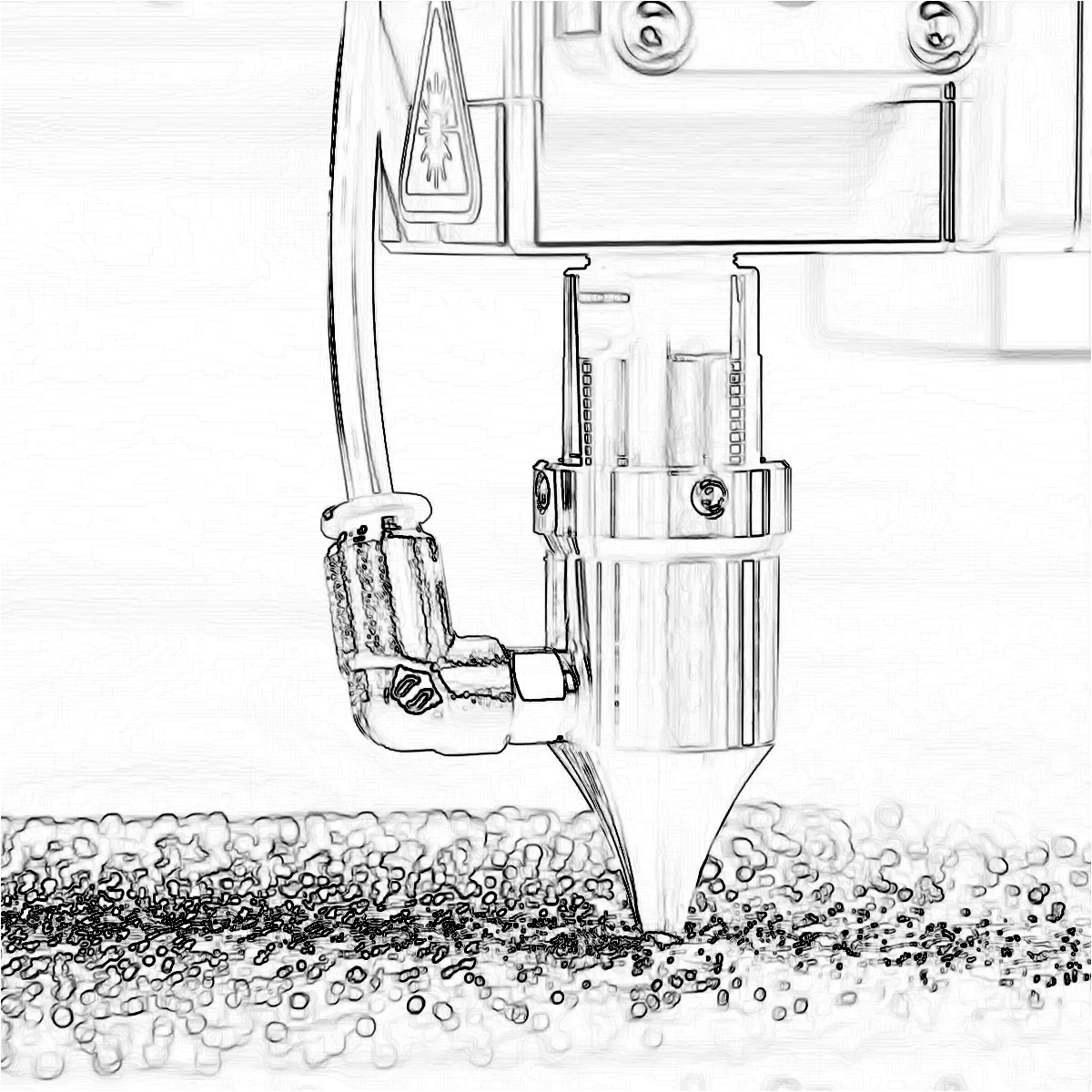
Edge effects
Trace outlines with Canny, Sobel, Laplace, Find Edges, Glowing Edges,…
Try Edge effects yourselfUnlimited AI, no credits needed.
Free online AI photo editor and design studio that runs in your browser. Remove unwanted objects, replace backgrounds, repair and expand images with generative AI. Organize designs with layers and groups, create stunning visuals and presentations using effects, tools, and templates.
AI on your device. Remove objects and backgrounds, repair images with generative AI. Organize designs with layers and groups, create stunning visuals using effects, tools, and templates.
Open stock photoDrop a photo, or paste Ctrl+V
Open a sample image and explore the editor.












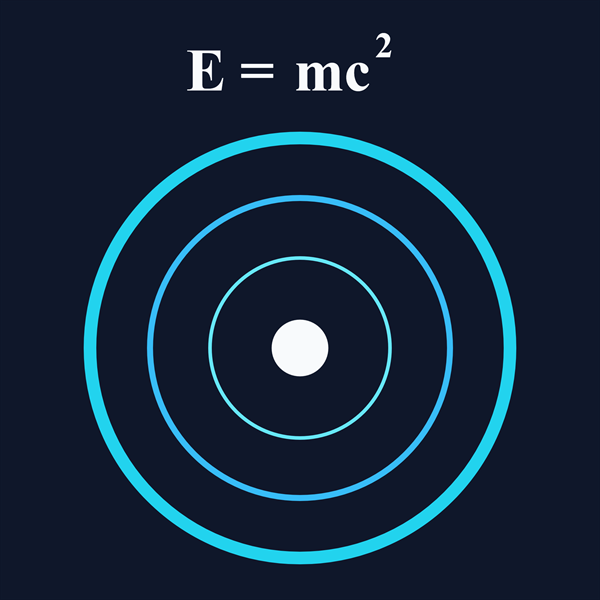
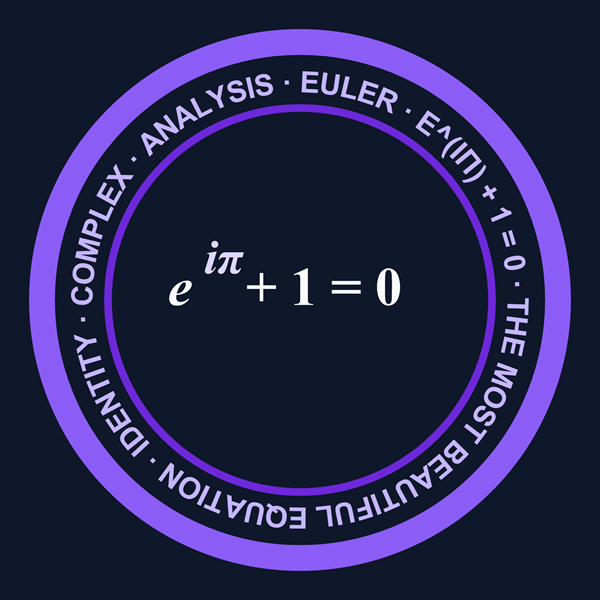















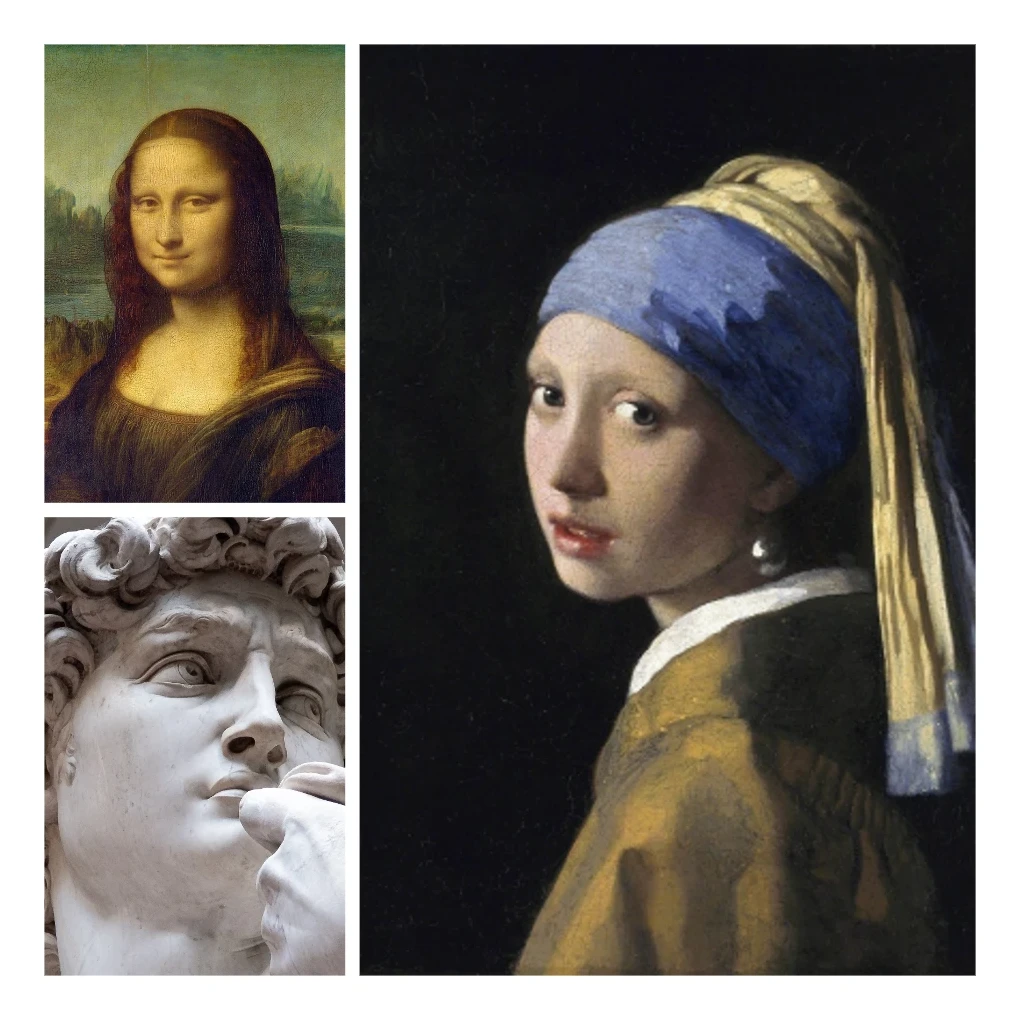
Make photo collages free online with PictorX. Combine 2 to 20 photos, pick a layout, and export.
Try Photo collage yourself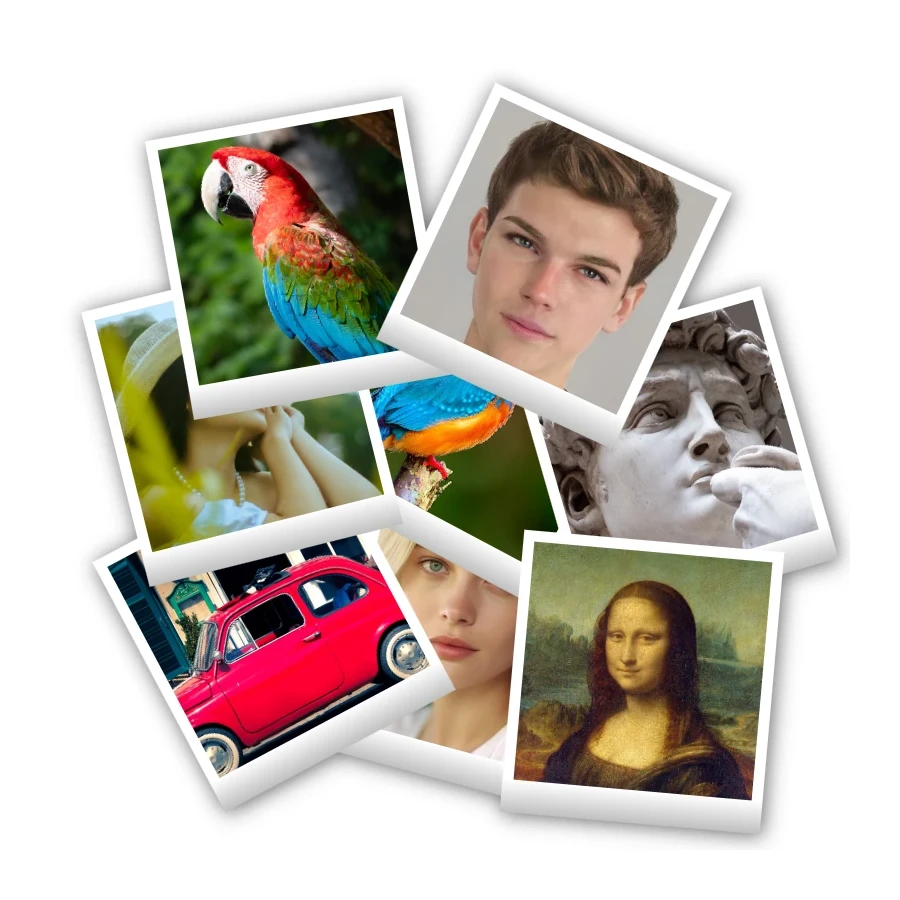
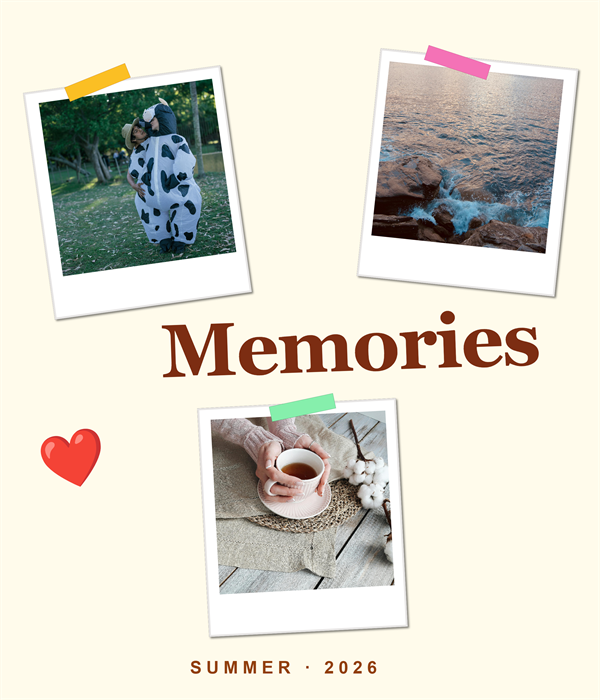
Make Polaroid collages free online with PictorX. Fill Big Picture, stack, scattered, and Droste layouts with different photos.
Try Polaroid collage yourself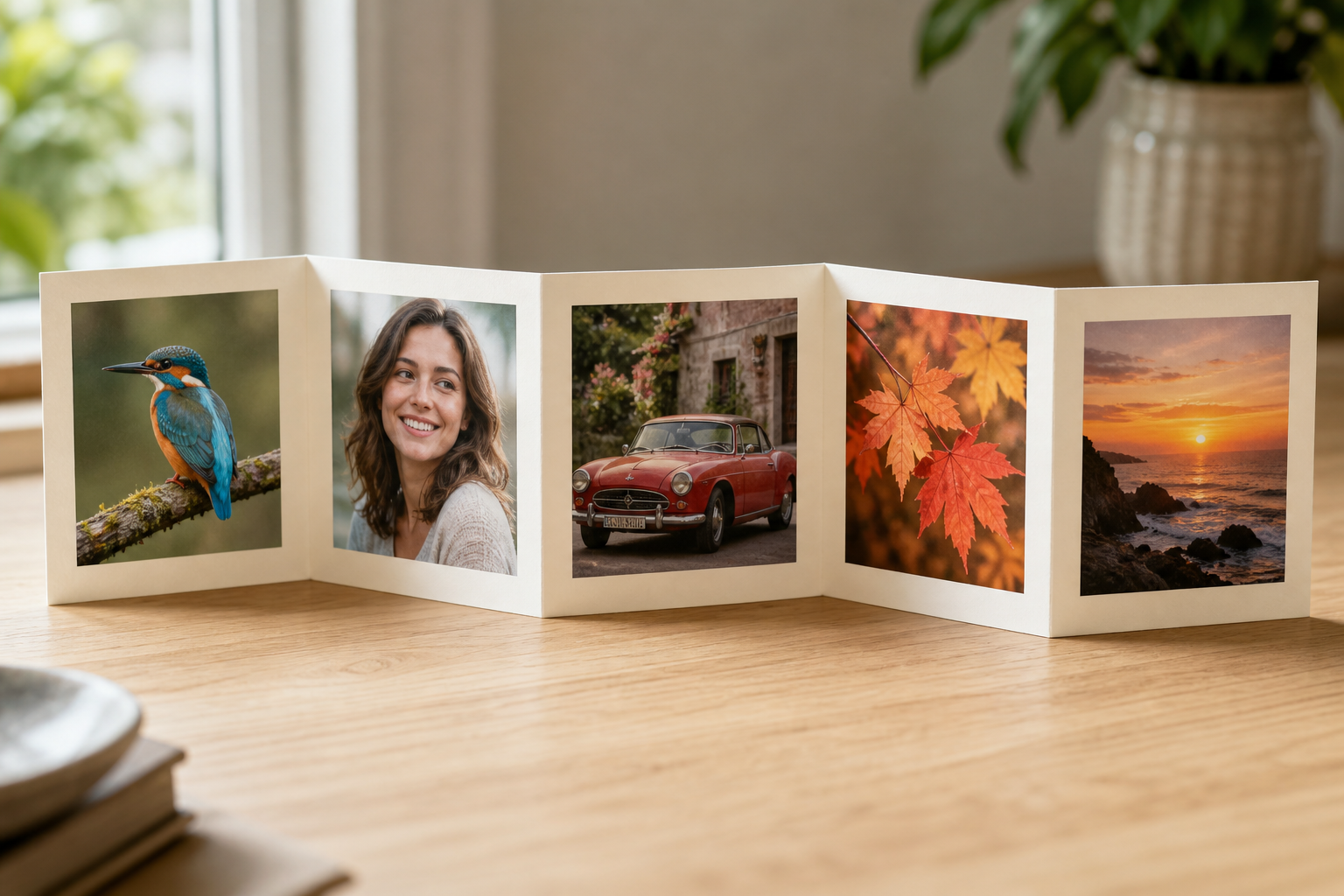
Make a photo fold collage free online with PictorX. Line up 1 to 6 photos in an accordion harmonica fold and export.
Try Photo fold collage yourself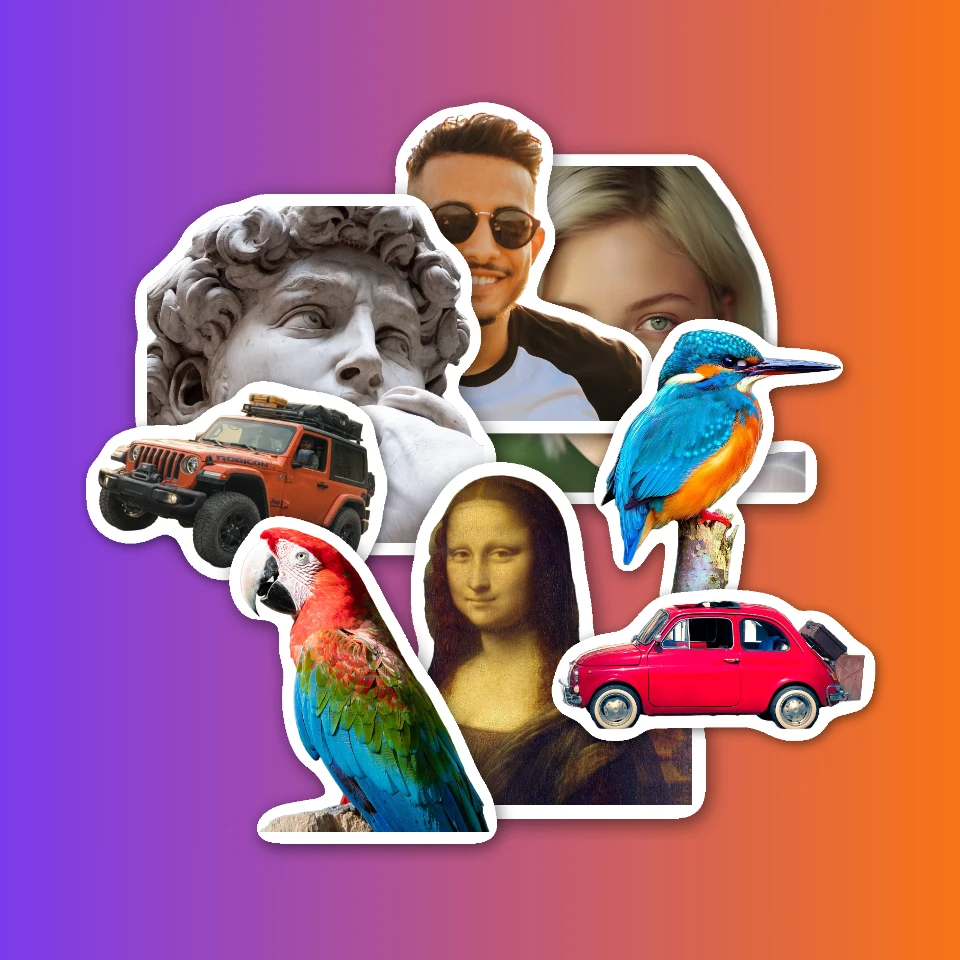
Make a sticker collage free online with PictorX. Open 1 to 8 photos, cut out each subject, wrap it as a sticker, then drag and resize on a transparent, solid, or gradient backdrop.
Try Sticker collage yourself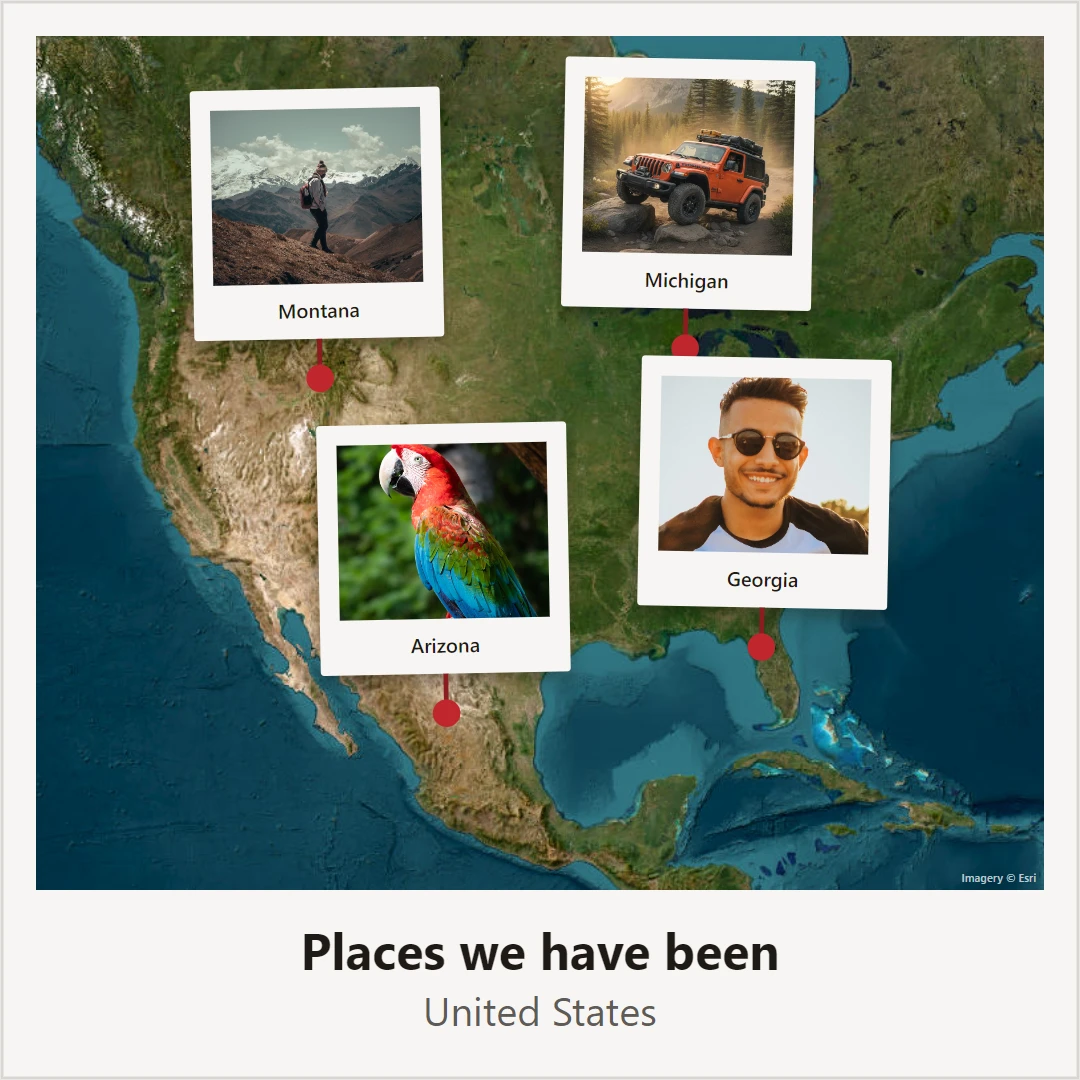
Make a photo map free online. Pin photos and text on a map of where you met, your hometown, or holiday places, then save a poster.
Try Photo map yourself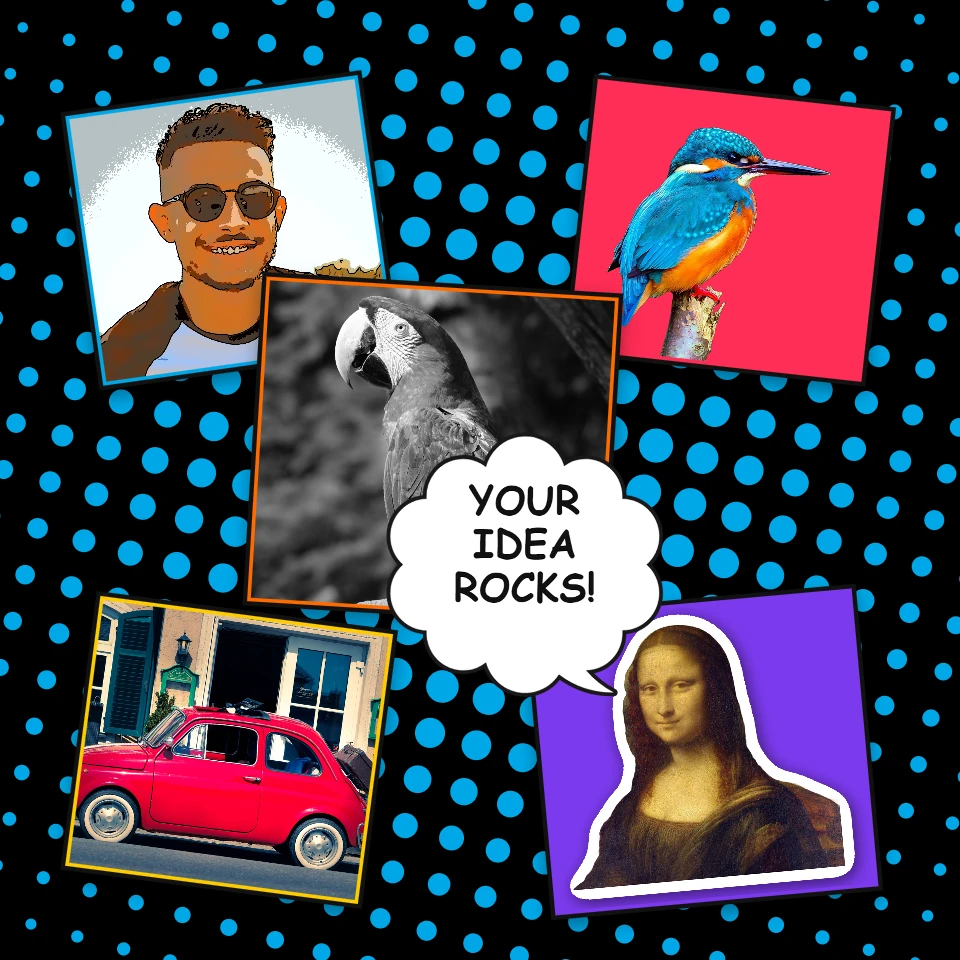
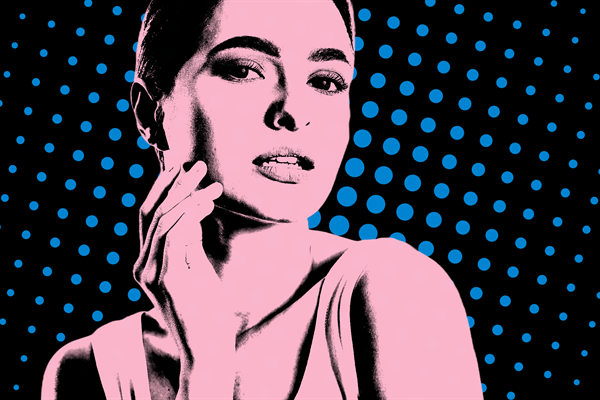
Make a Pop Art collage free online with PictorX. Scatter framed photos on a Ben-Day, ray, or stripe backdrop, add Lichtenstein-style looks and POW! bursts, then export.
Try Pop Art collage yourself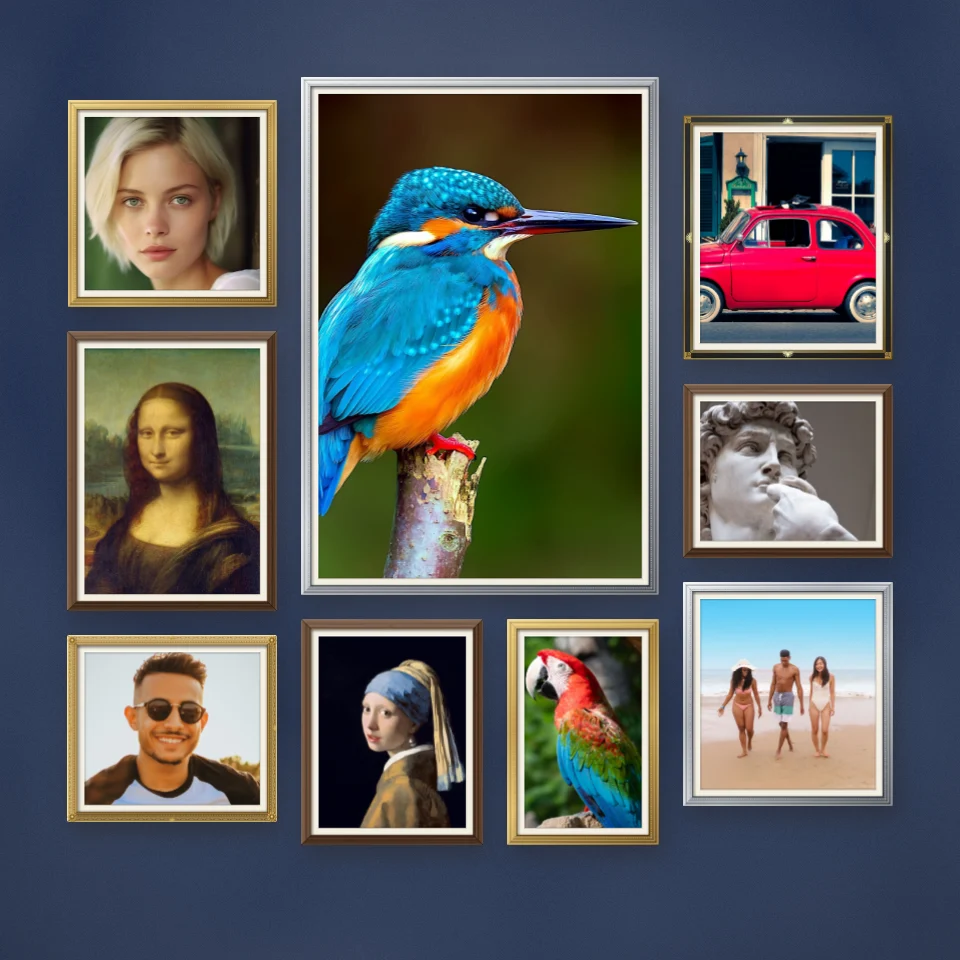
Make a photo wall collage free online with PictorX. Hang photos in Frame Maker frames on a gallery wall and export.
Try Photo wall collage yourself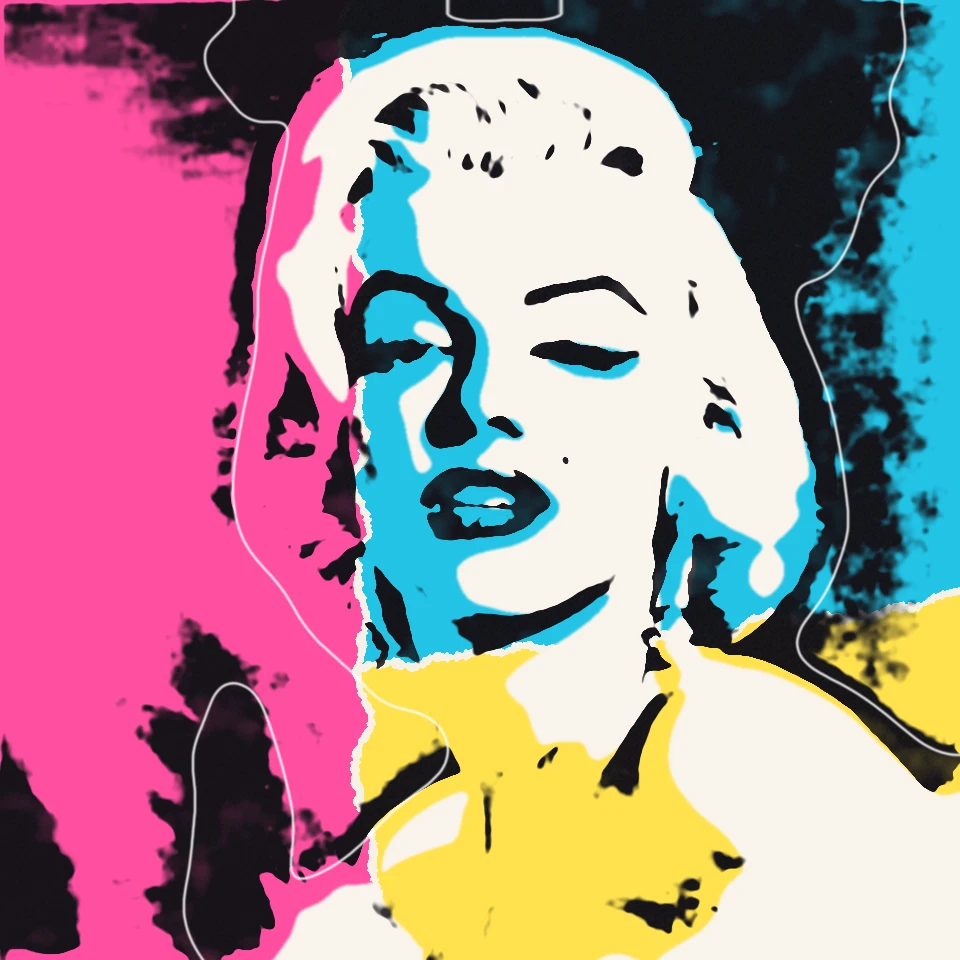
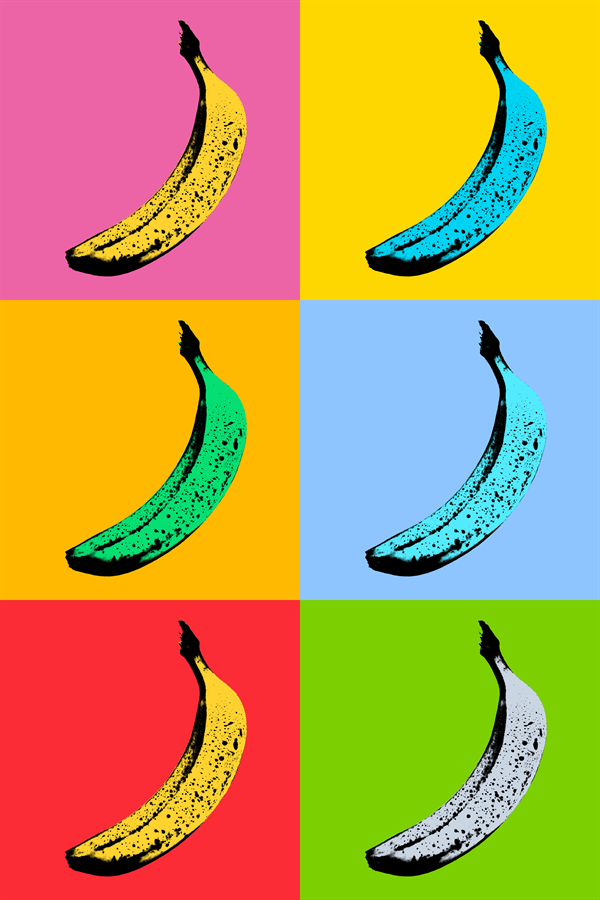
Channel Andy Warhol’s Factory energy—bold color grids, repeated icons, and pop-art portraits that feel like silkscreen posters.
Try Andy Warhol Prints yourself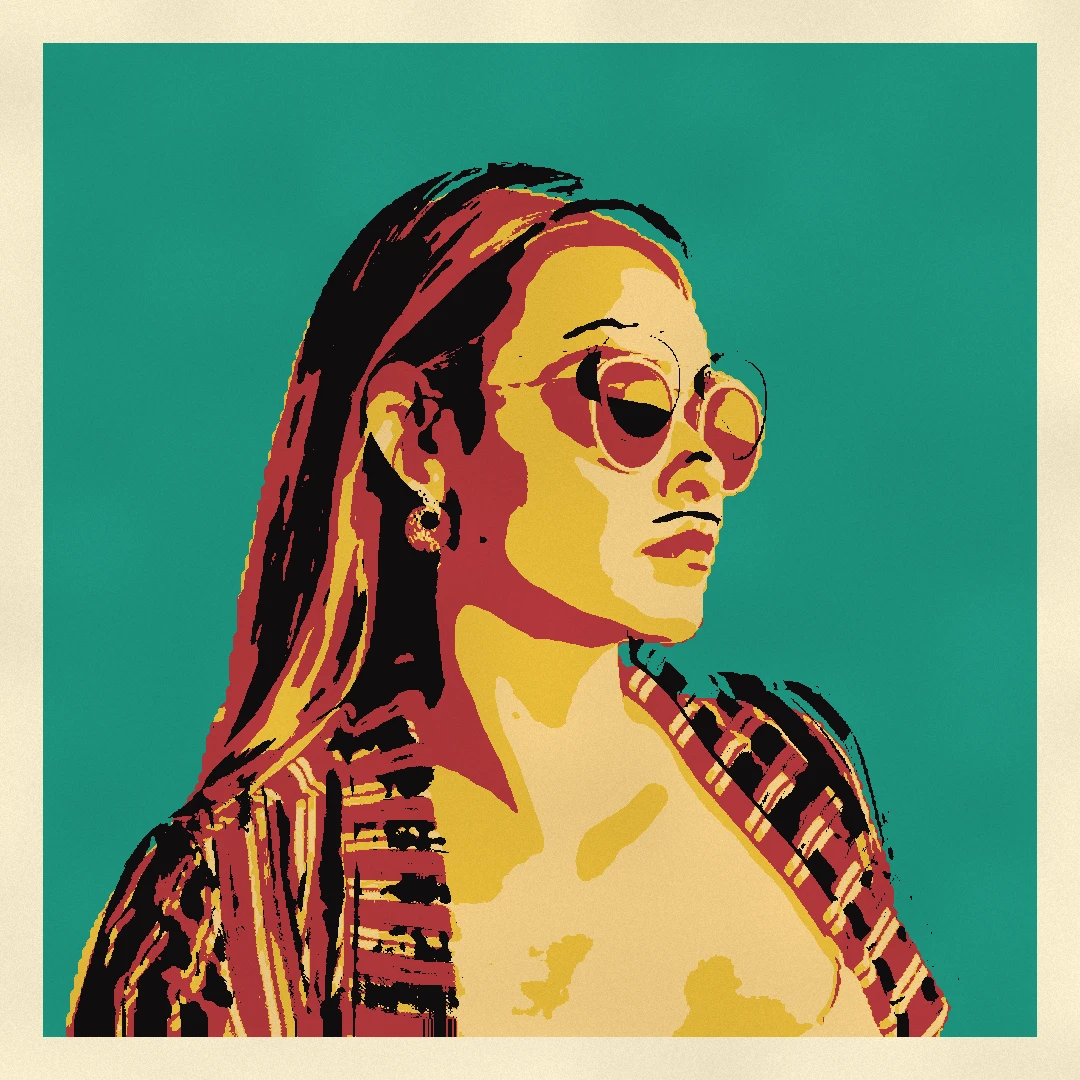
Turn a photo into pop art in your browser: a retro pop poster, a pop pattern, a WPAP portrait in rainbow facets, a street collage, an ink splash, gold leaf, a silhouette, a…
Try Pop Art photo filter yourself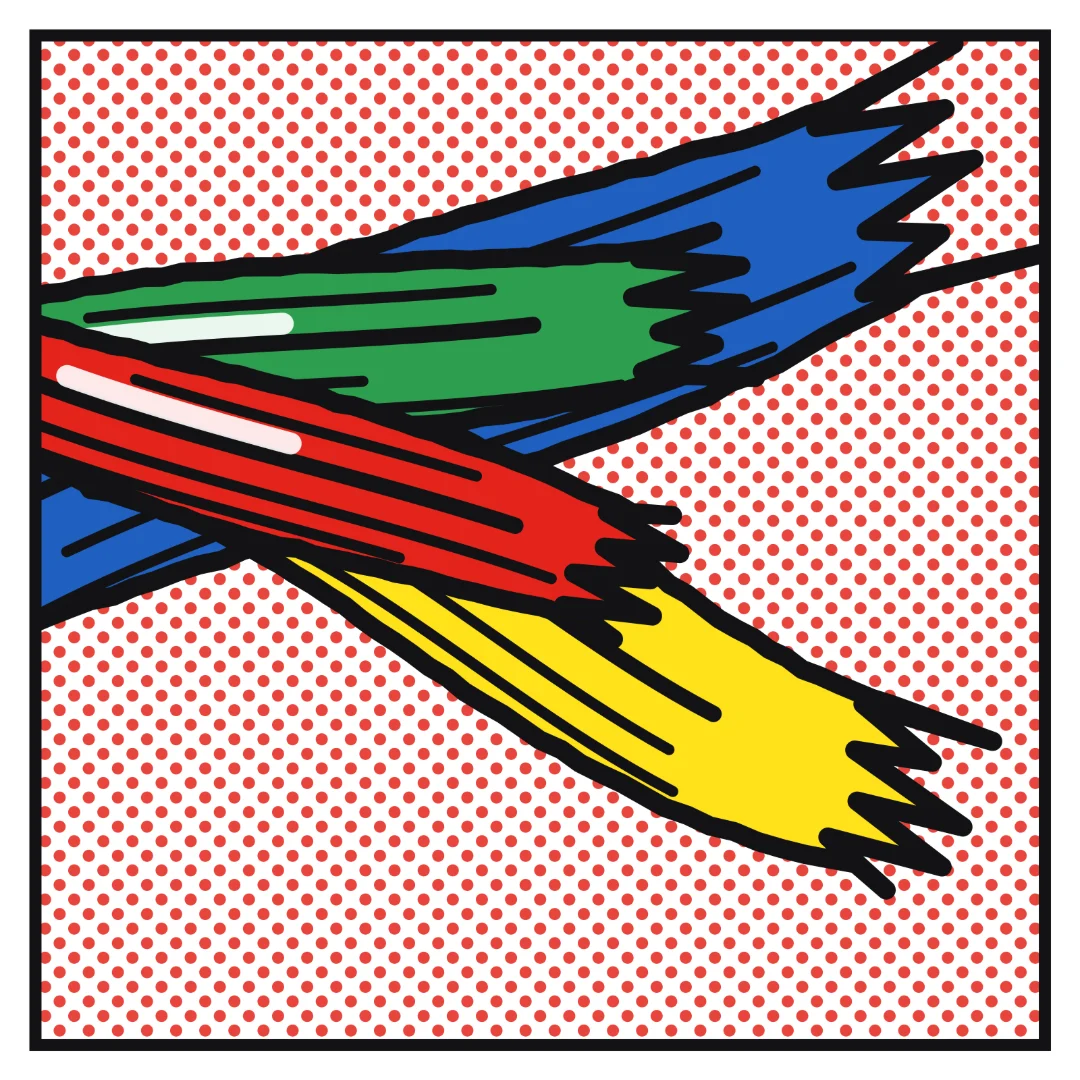
Turn a photo into a Roy Lichtenstein comic in your browser: one to four panels in Ben-Day dots and black ink, speech and thought balloons, a yellow caption and a WHAAM! sound…
Try Roy Lichtenstein comic maker yourself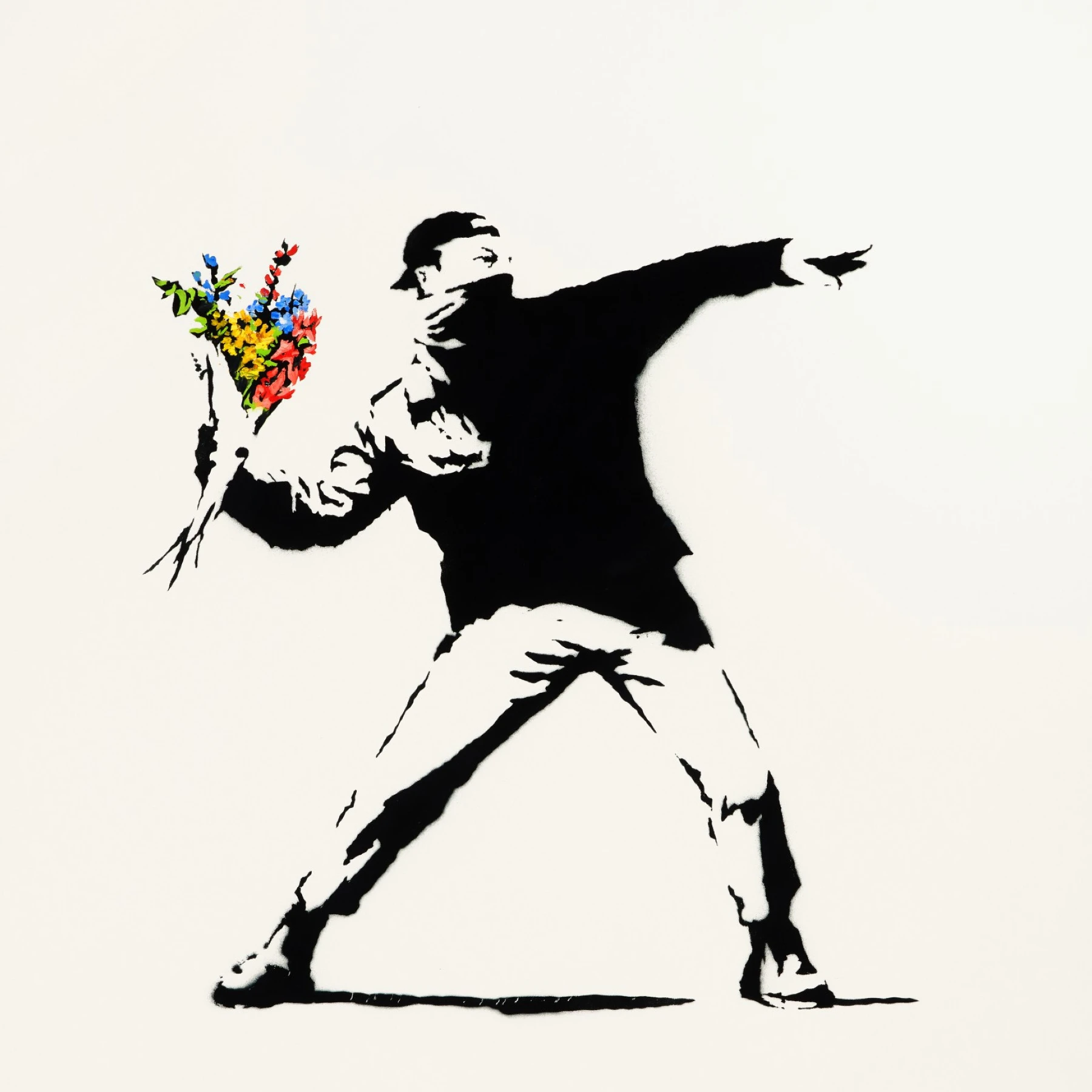
Turn a photo into Banksy-style stencil street art in your browser. Pick a wall, spray, and drip — then save a PNG.
Try Banksy Street Art yourself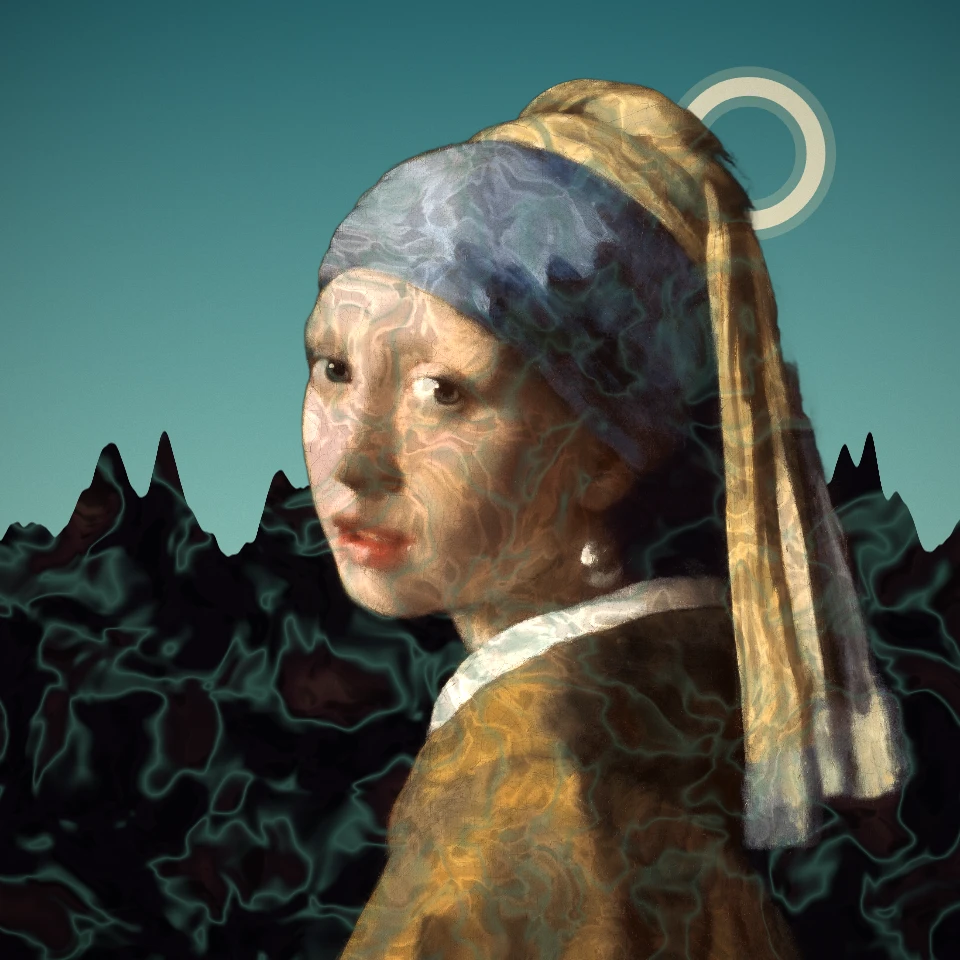
Put a photo into a Surrealist dream in your browser: pick Salvador Dalí for melting watches and long-legged elephants, René Magritte for the green apple and bowler hats, or Other…
Try Surrealism, Dalí and Magritte yourself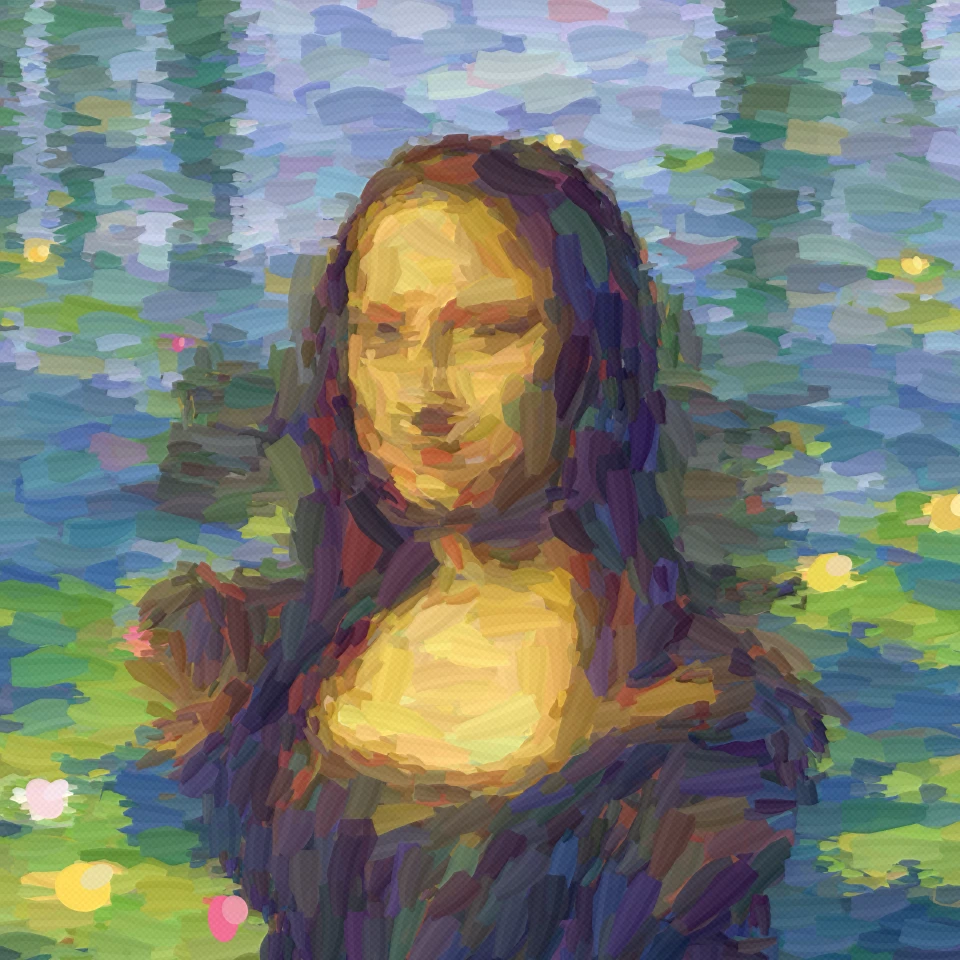
Turn a photo into an Impressionist painting in your browser: among Monet's water lilies, in the misty harbour of Impression, Sunrise or a field of poppies, in Renoir's dappled…
Try Impressionism photo filter yourself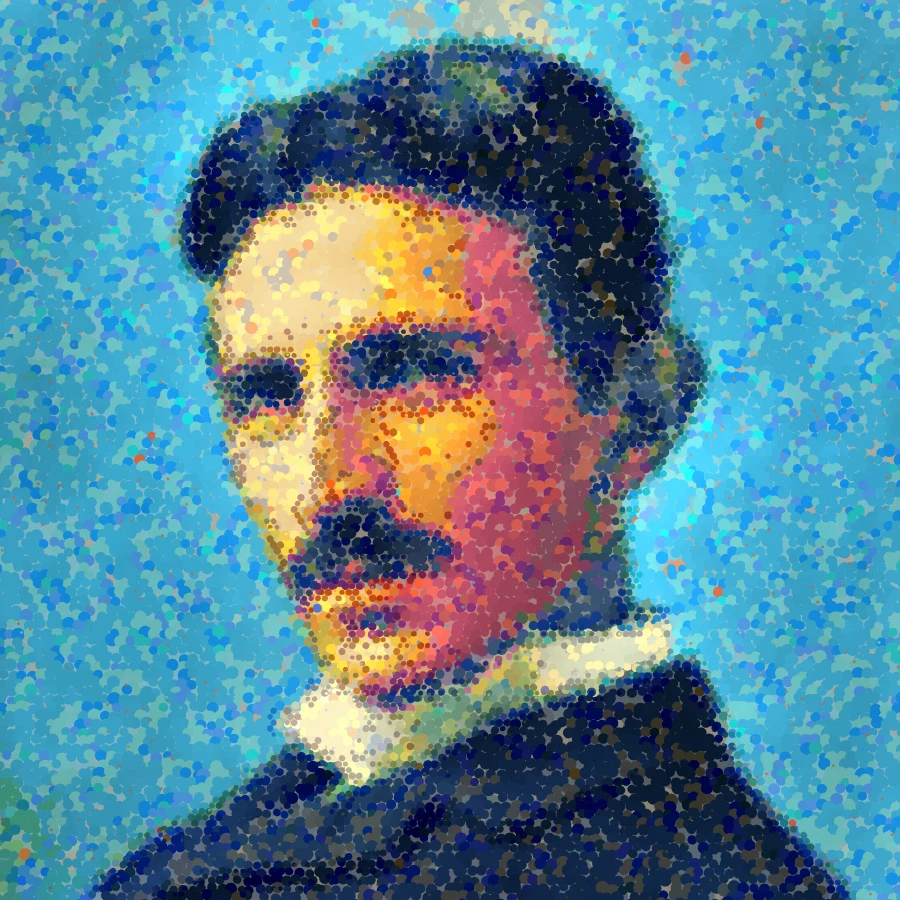
Turn a photo into Seurat-style dots or Signac-style mosaic strokes in your browser. Adjust Dot Size, Coverage, Optical Mix, Detail, Impasto, Style, Palette, and Canvas Ground.
Try Pointillism photo filter - optical colour dots yourself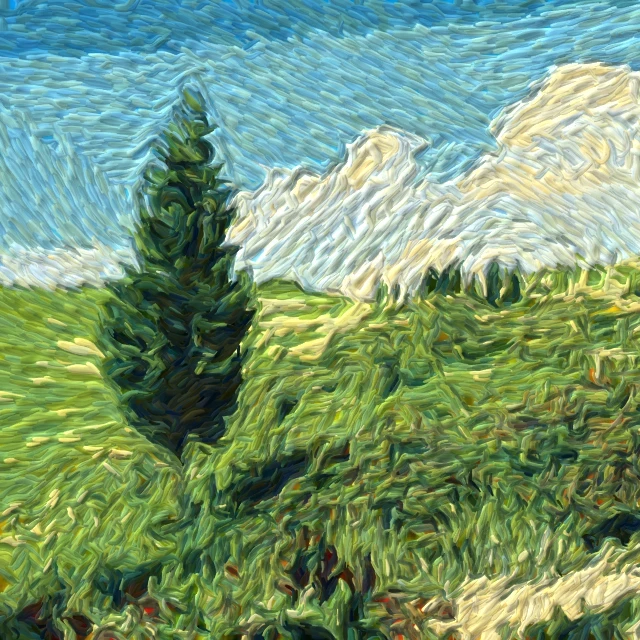
Turn a photo into swirling Starry Night-style brushstrokes in your browser. A digital homage to Van Gogh impasto—not a museum reproduction.
Try Paint a photo in Van Gogh brushstrokes yourself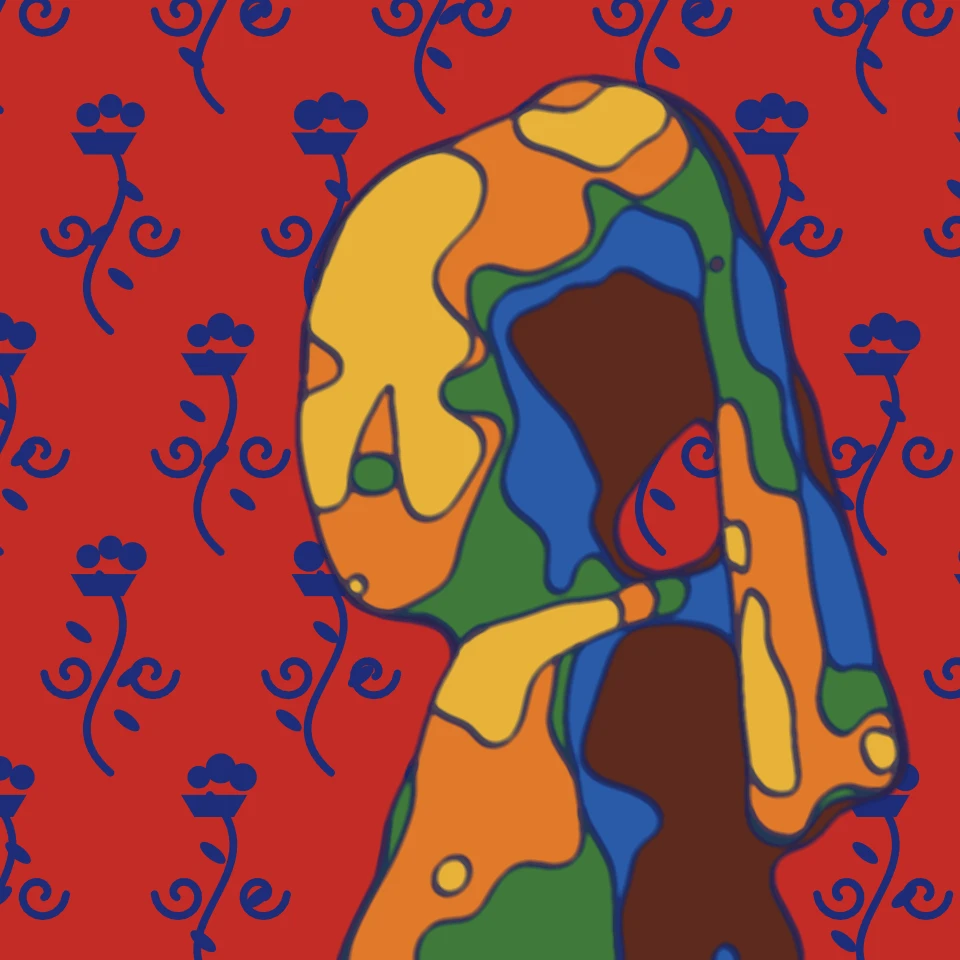
Turn a photo into Henri Matisse and Fauvism in your browser: paper cut-outs like Jazz and the Blue Nudes, Harmony in Red, a flowing line drawing, or the wild Fauve colour of…
Try Henri Matisse and Fauvism yourself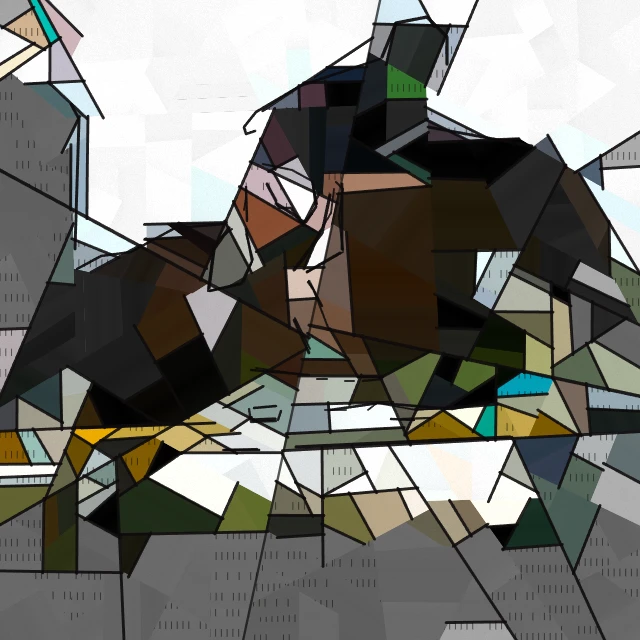
Turn a photo into Pablo Picasso and Cubism in your browser: the Blue and Rose Periods, Analytic or Synthetic Cubism, a Cubist portrait, papier collé, Crystal Cubism, the fractured…
Try Pablo Picasso and Cubism yourself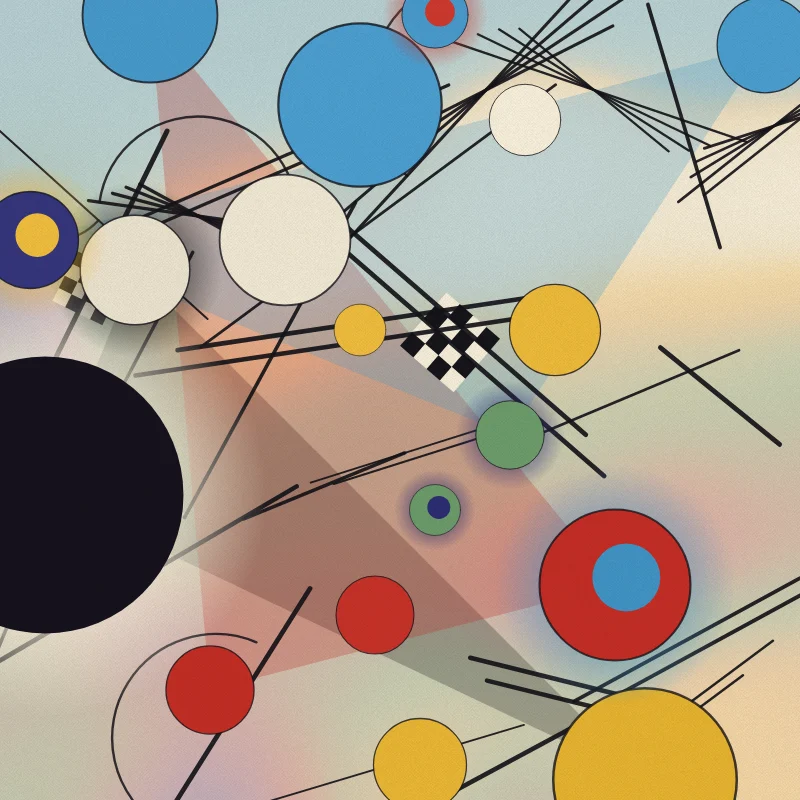
Turn a photo into a Wassily Kandinsky-style abstraction in your browser: Composition VIII circles and lines, Squares with Concentric Circles, Several Circles on black, or a free…
Try Kandinsky photo filter - circles, lines and colour yourself
Turn a photo into a Paul Klee-style painting in your browser: magic squares of colour, Castle and Sun tiles, Ad Parnassum dots, a line taken for a walk, or Tunisian watercolours.
Try Paul Klee photo filter - magic squares, castles and lines yourself
Compose classic Mondriaan-style De Stijl grids in your browser. Adjust complexity, line thickness, and color fill — click cells to recolor, then save a PNG.
Try Mondriaan yourself
Paint Jackson-Pollock-style drips and splatters in your browser. Gesture brushes, Auto-Pollock, palettes, and PNG export.
Try Pollock Painter yourself
Turn a photo into minimalist art in your browser: flat hard-edged forms, a silhouette, a single line, color fields, or blocks — all taken from your photo.
Try Minimalism yourself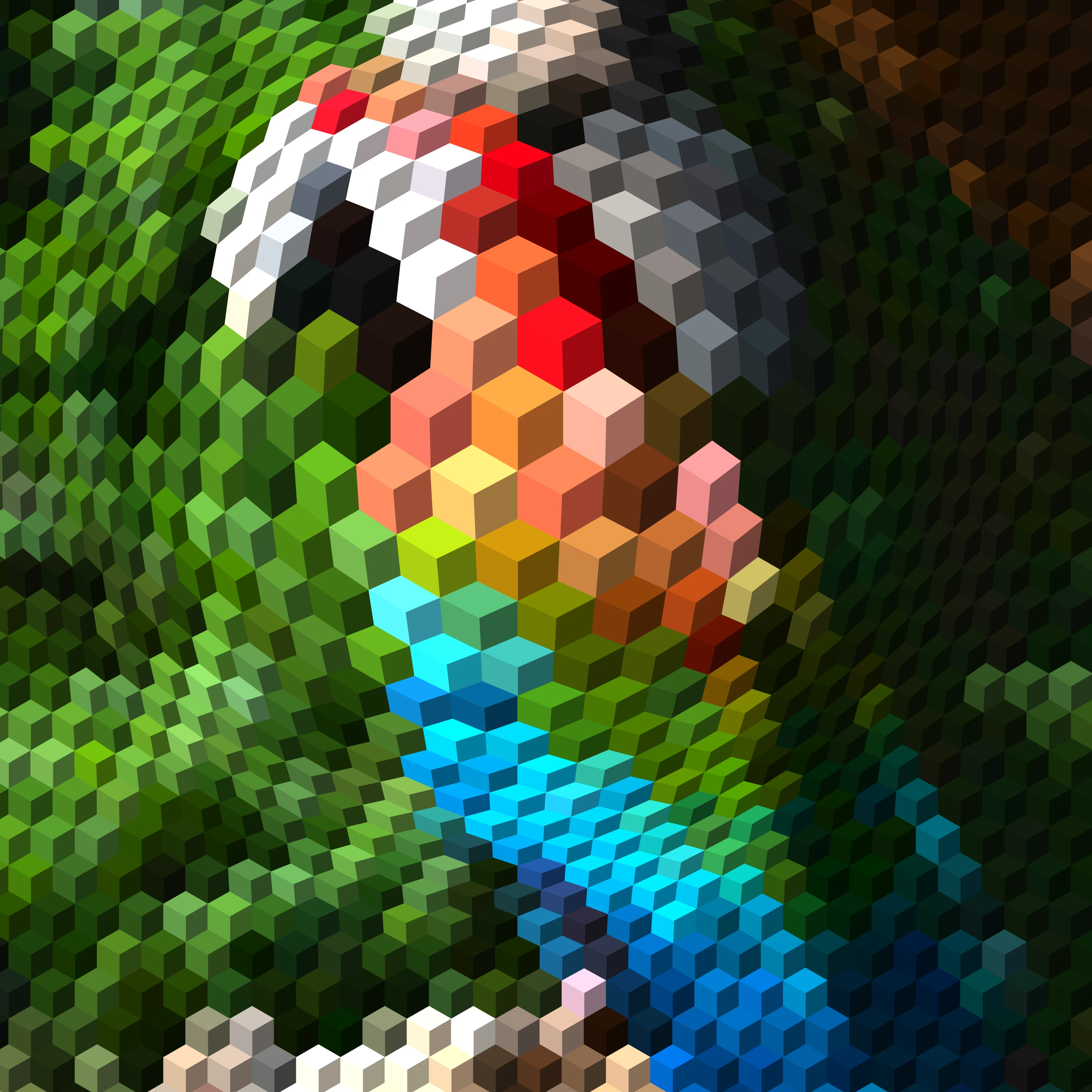
Turn a photo into op art in your browser: Dalí's Galatea of the Spheres, Vasarely's Vega, Bridget Riley waves, relief lines, moiré, spirals and warped grids — in your subject or a…
Try Op Art: your photo as an optical illusion yourself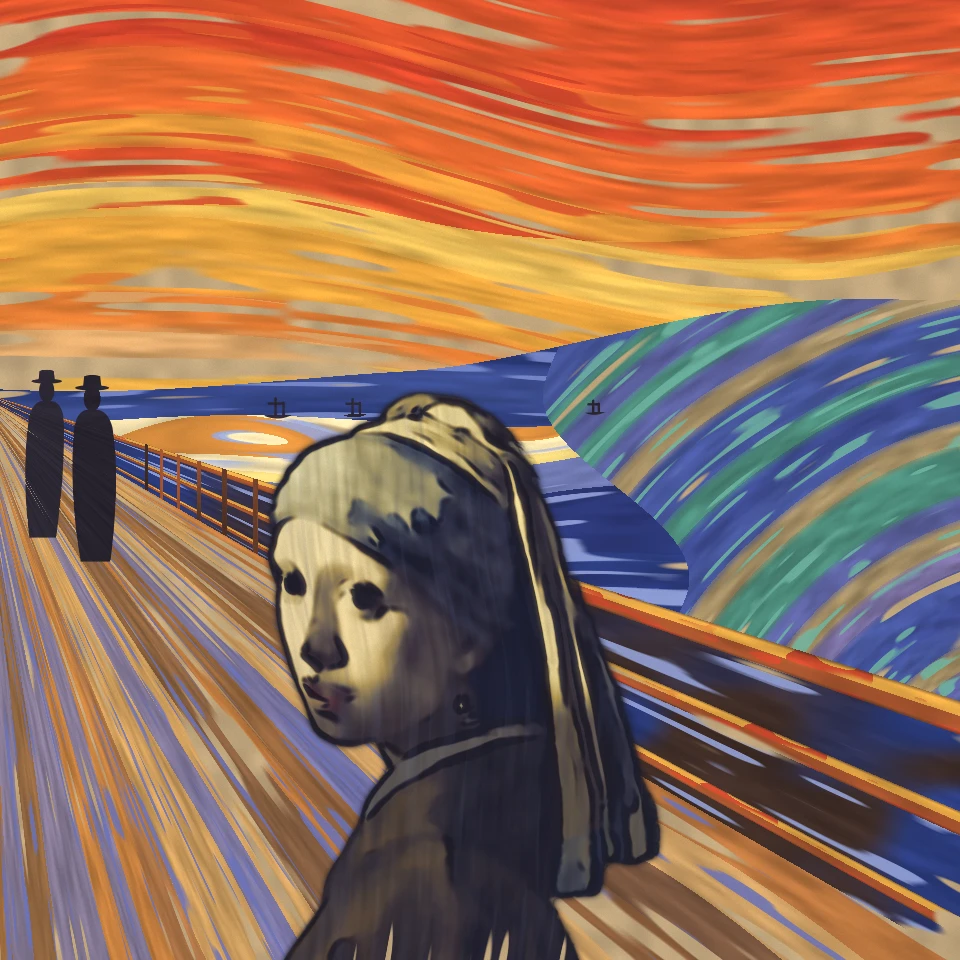
Put a photo into Edvard Munch's The Scream in your browser: your subject becomes the figure on the bridge under a blood-red sky beside the swirling fjord, as in the 1893 tempera,…
Try Edvard Munch, The Scream photo filter yourself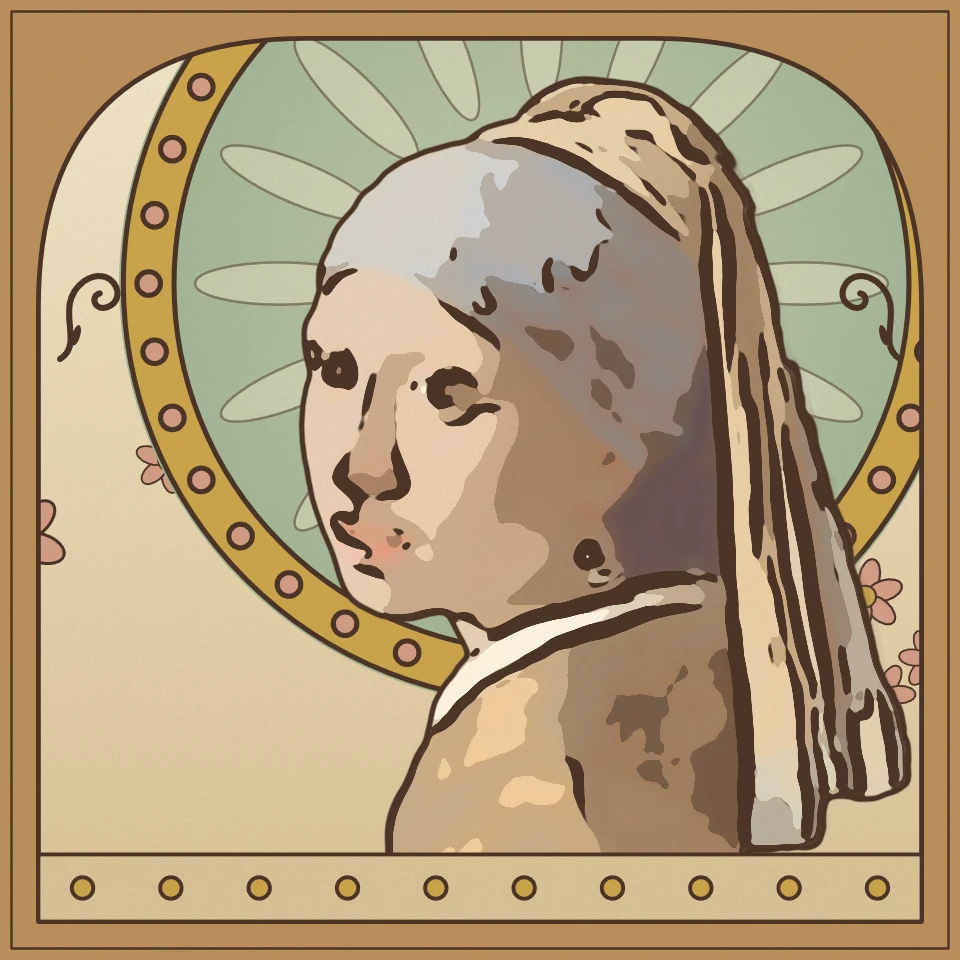
Turn a photo into Art Nouveau in your browser: a Mucha poster with a halo and arched frame, Klimt's gold-leaf mosaic, Tiffany stained glass, or Beardsley's black-and-white ink with…
Try Art Nouveau photo filter yourself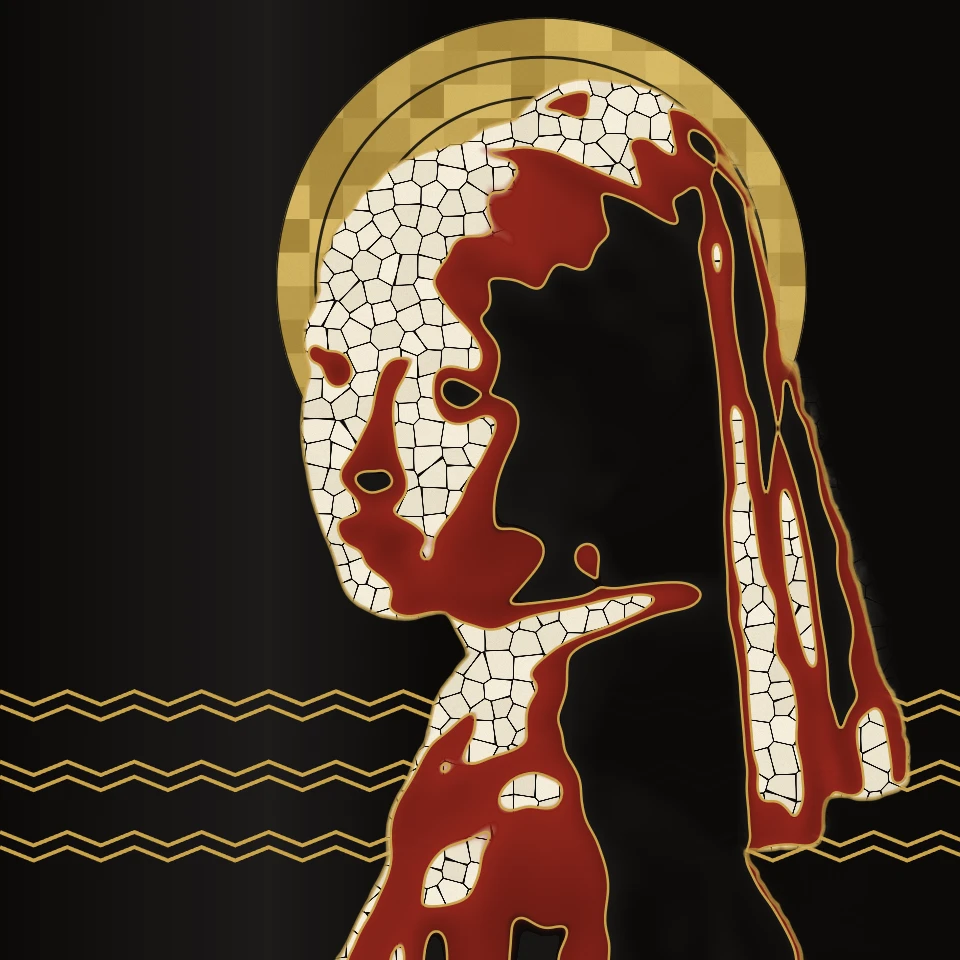
Turn a photo into Art Deco in your browser: a Cassandre-style poster with sunburst rays, a glossy Lempicka portrait before skyscrapers, Gatsby gold engraving on black, or…
Try Art Deco photo filter yourself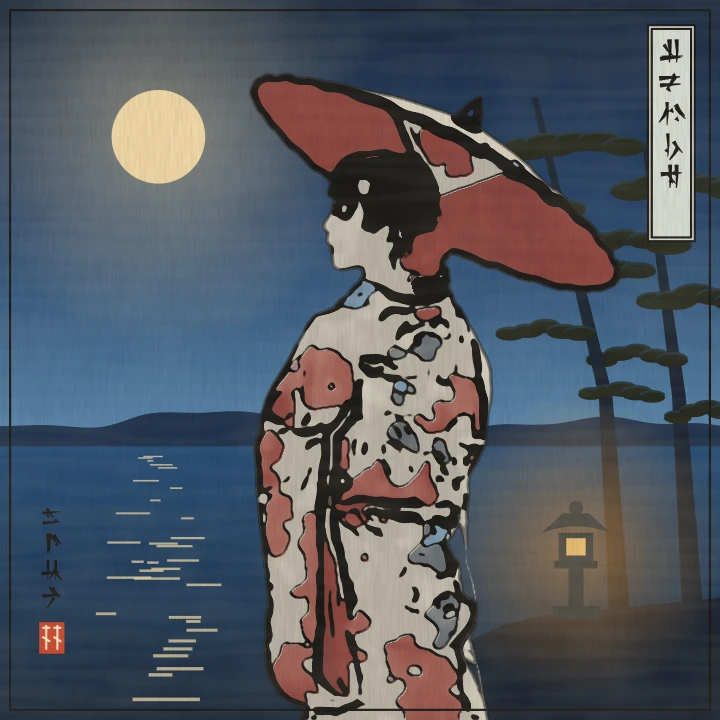
Turn a photo into a Japanese ukiyo-e woodblock print in your browser: before Hokusai's Great Wave, in Hiroshige's rain, as an Utamaro beauty, a Sharaku kabuki actor or a Kuniyoshi…
Try Ukiyo-e photo filter yourself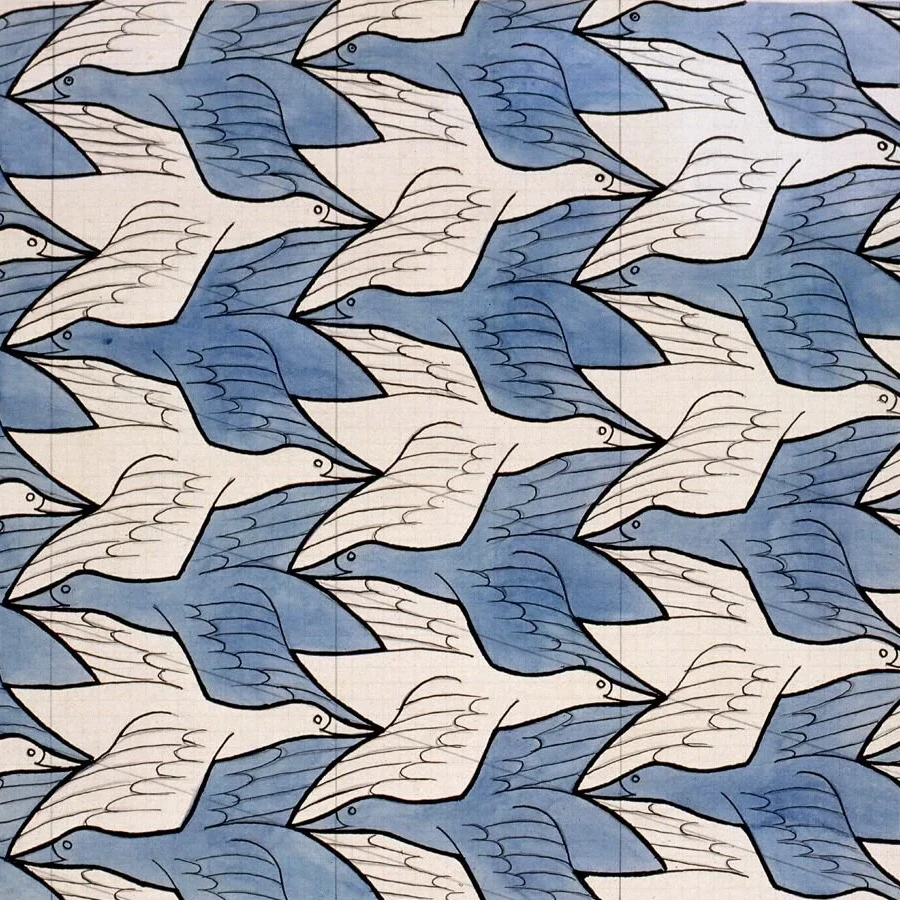
Create Escher-style tessellations in your browser. Lizards, birds, fish, horsemen and more—tune scale, colours, and eyes, then save a PNG.
Try M.C. Escher yourself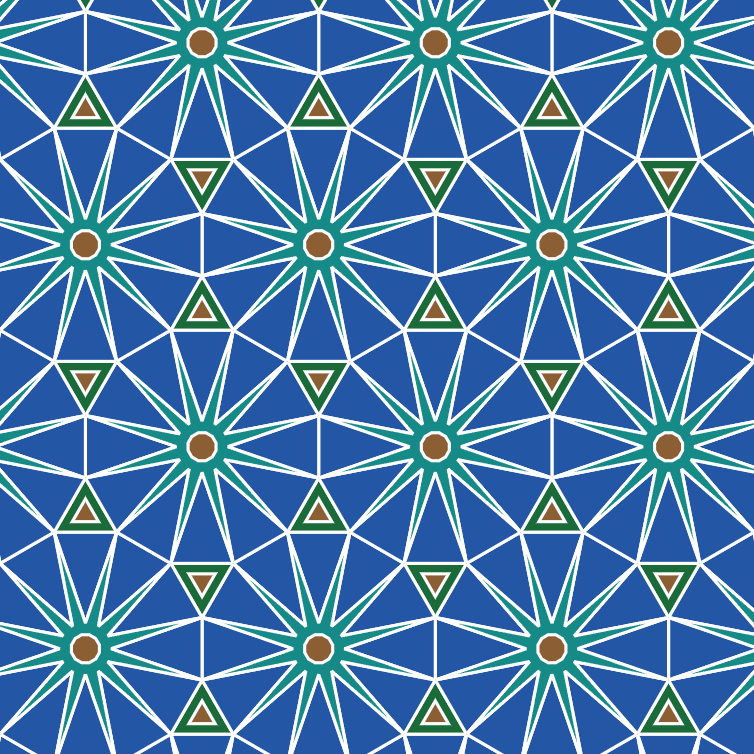
Cover the plane with regular and Archimedean tessellations. Tune scale, colours, and warp square edges Escher-style — then save a PNG.
Try Tessellation yourself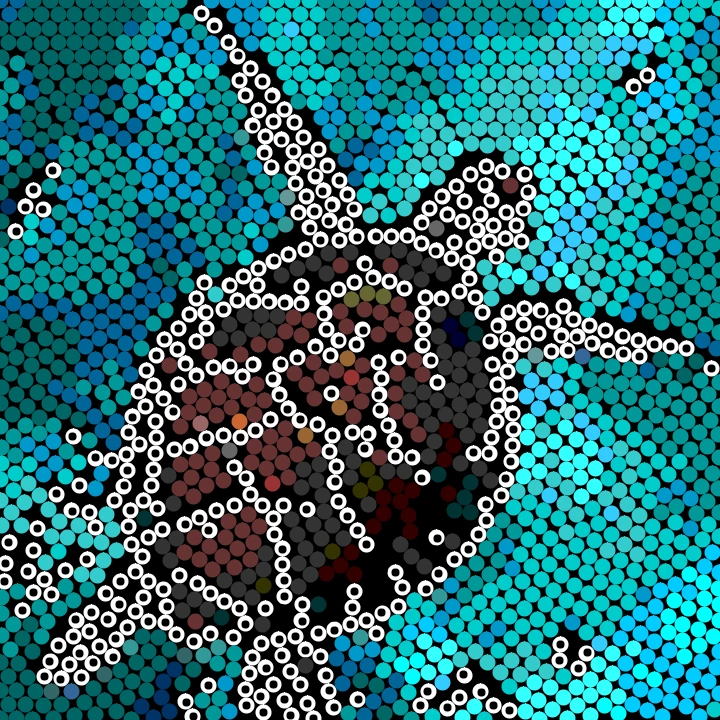
Turn a photo into Aboriginal-style dot painting in your browser. Edge dots follow the subject; the rest fills with color-field dots.
Try Aboriginal dot painting yourself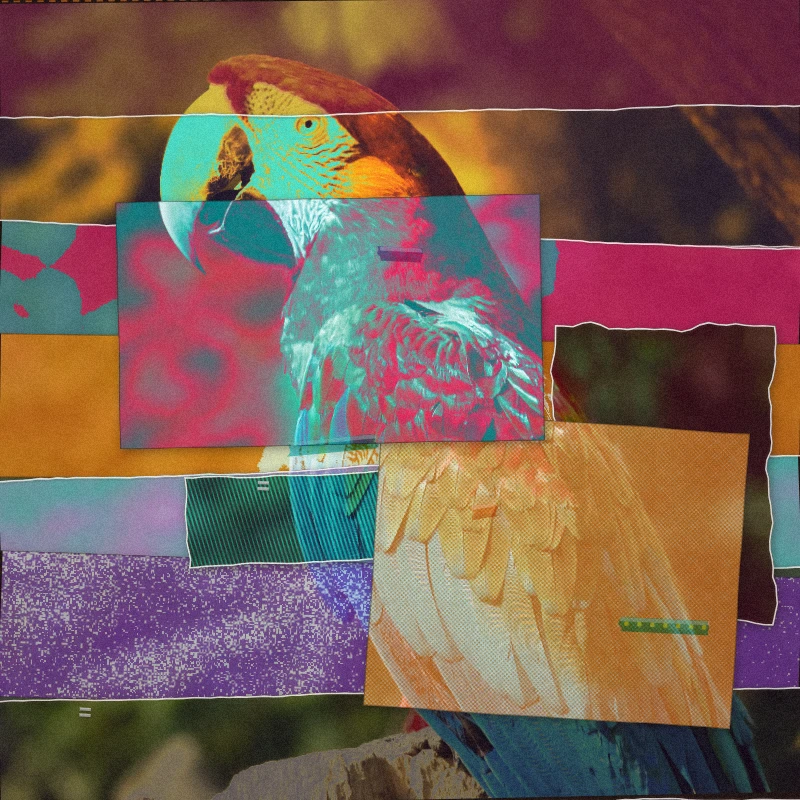
Rebuild a photo as a mixed-media collage in your browser—torn scraps, print textures, tape, and xerox.
Try Turn a photo into a mixed-media collage yourself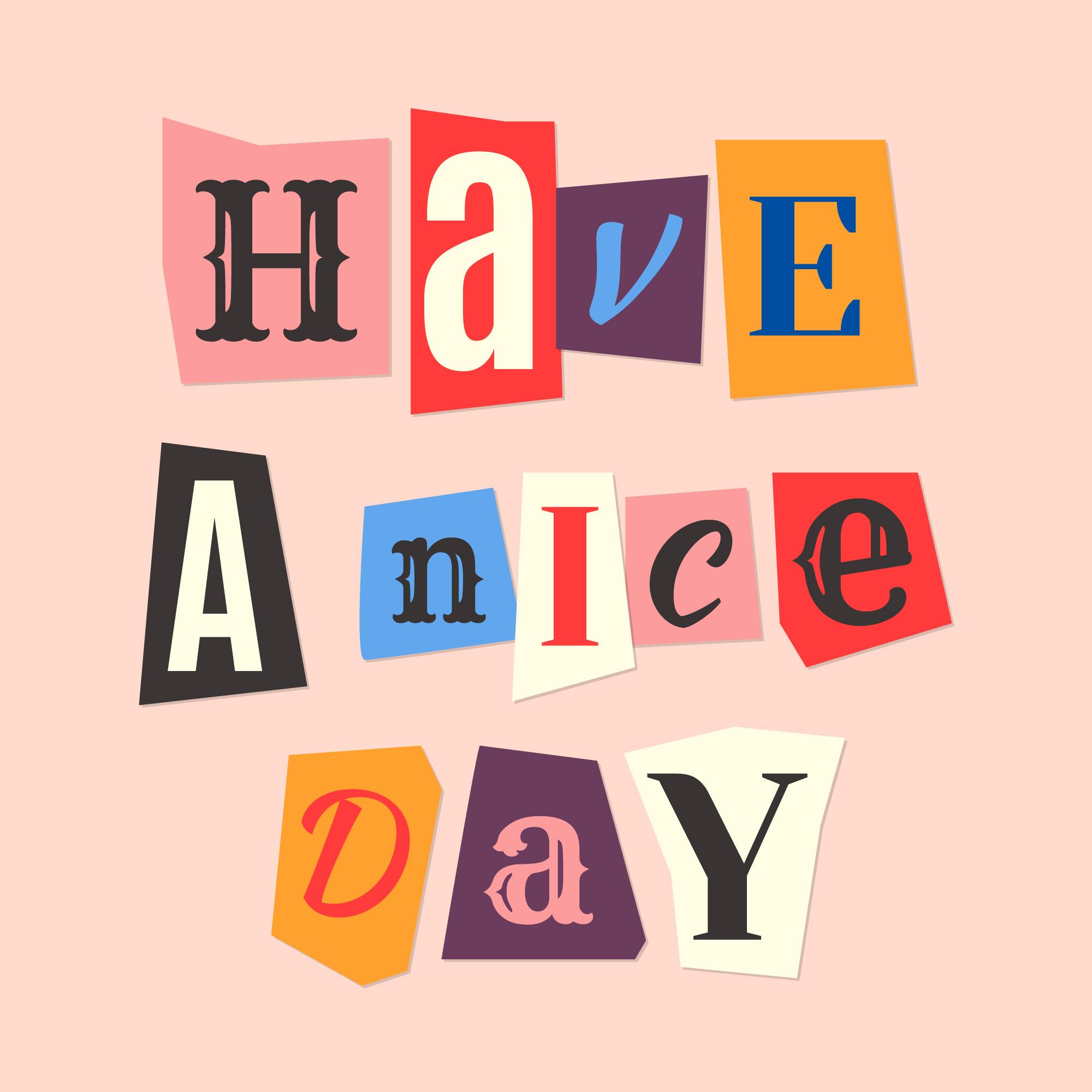
Turn typed words into magazine-style cutout letters. Mix fonts or lock one, randomize colors and sizes, and download a PNG.
Try Magazine Cutout Letters Generator yourself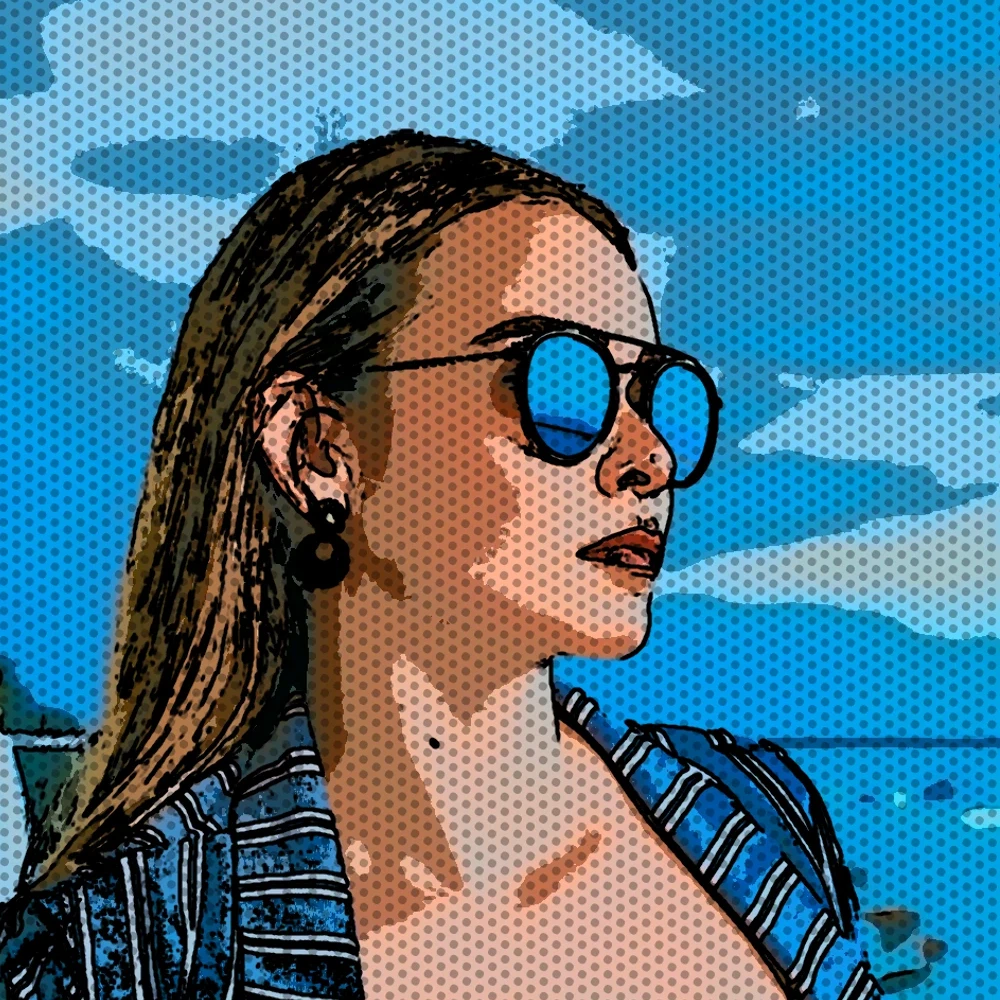
Turn a photo into a comic page in your browser. Zoom different details into 1, 2, 4, or 6 ink panels, then add optional Ben-Day dots and captions.
Try Turn a photo into comic panels yourself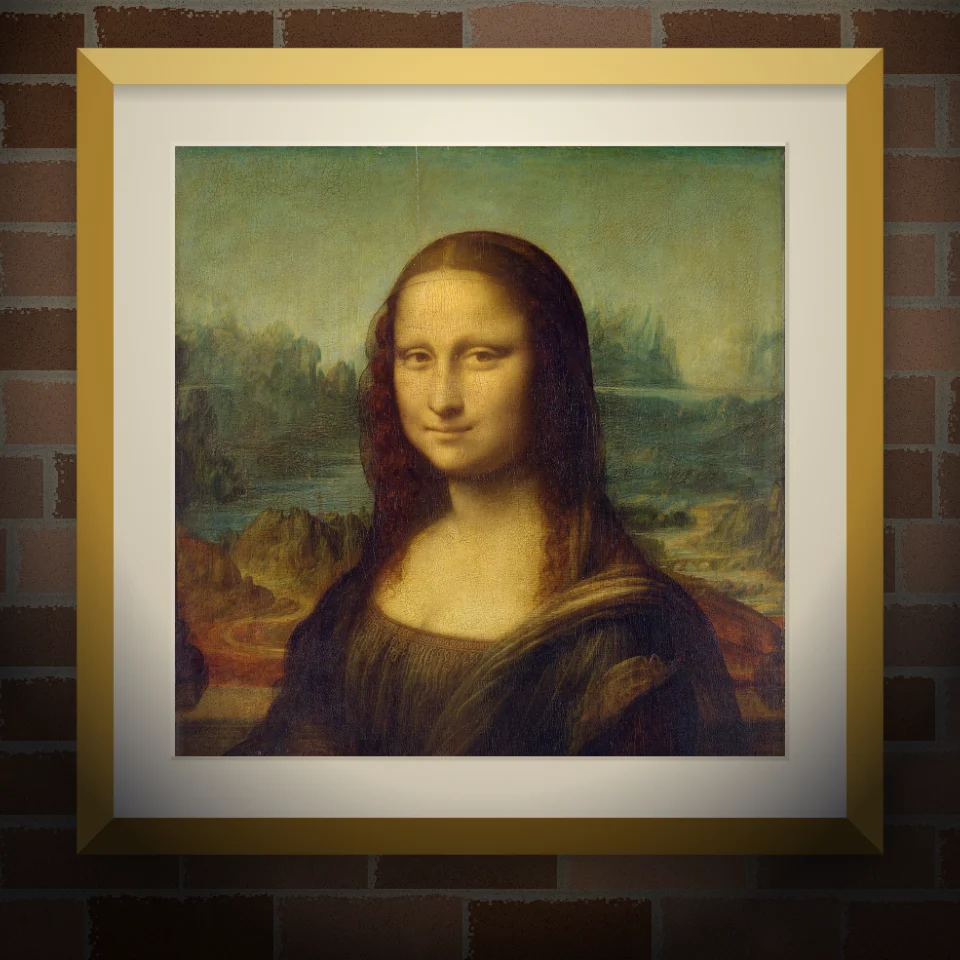
Put your photo or artwork on a real-looking wall as a painted mural, pasted poster, or framed print. Pick wall and lighting, then save a PNG.
Try Mural & Poster Mockup yourself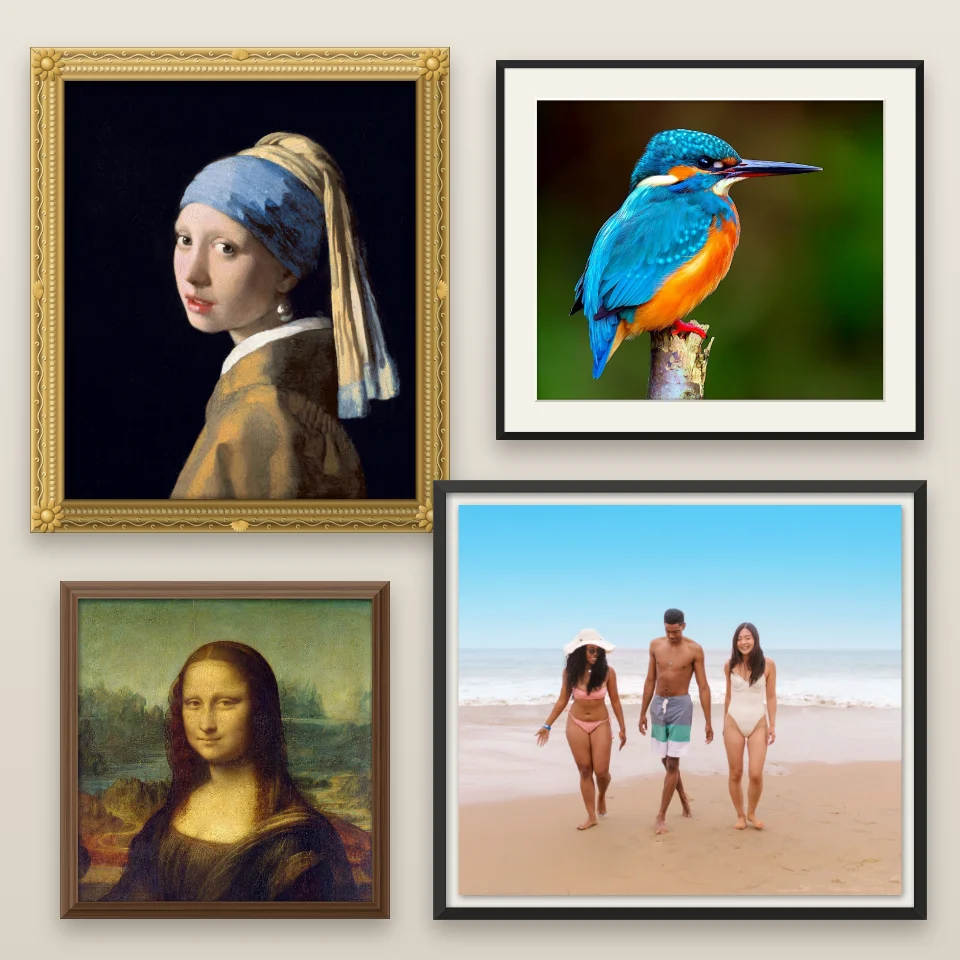
Put a photo in a gilded, baroque, wood, gallery, floating, metal, polaroid, film strip or stamp frame, add a mat, and save a PNG.
Try Frame Maker yourself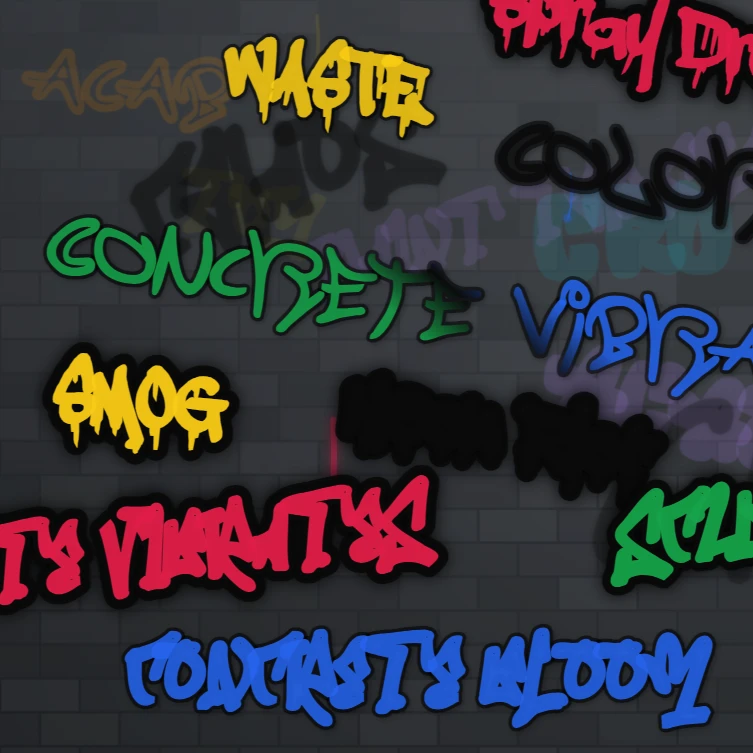
Spray paint, stamp tags, and drip on a brick graffiti wall in your browser. Randomize, undo, and save as PNG — free on PictorX.
Try Graffiti Wall yourself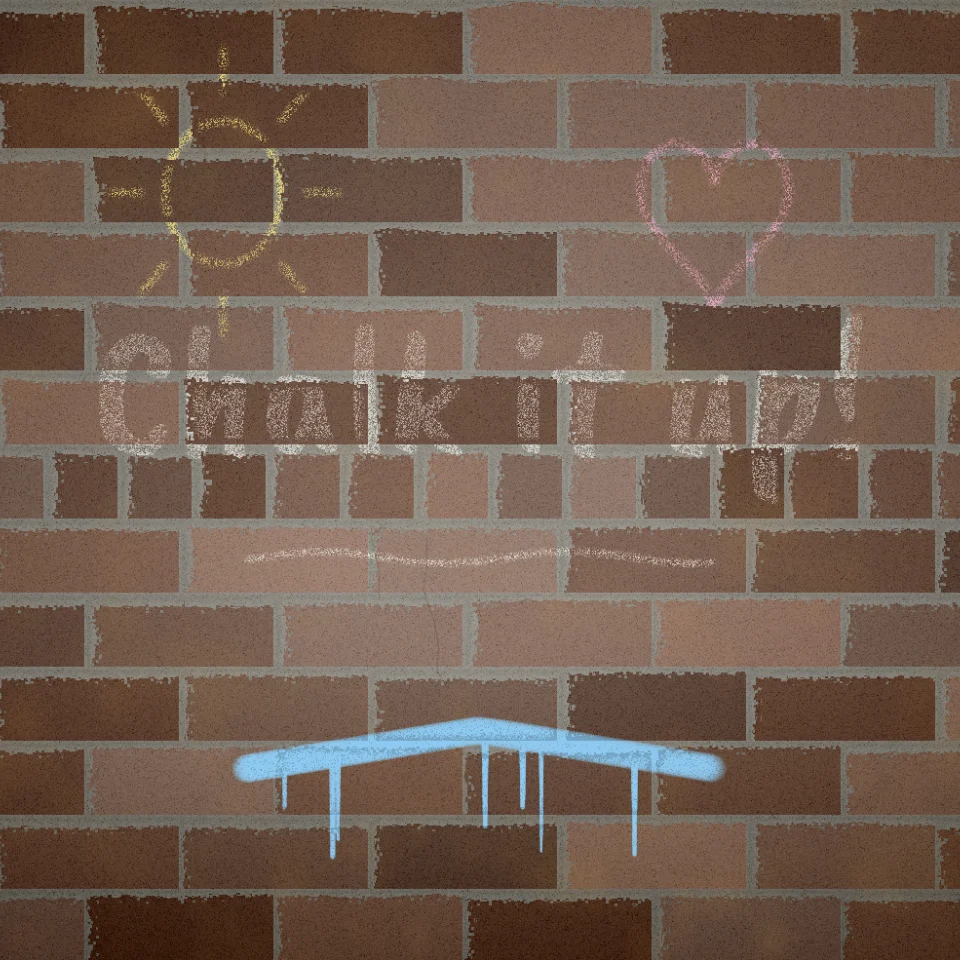
Draw and write on brick, concrete, wood, or tiles with chalk or a paint brush. Chalk skips the joints, paint drips. Save a PNG.
Try Chalk & Paint Wall yourself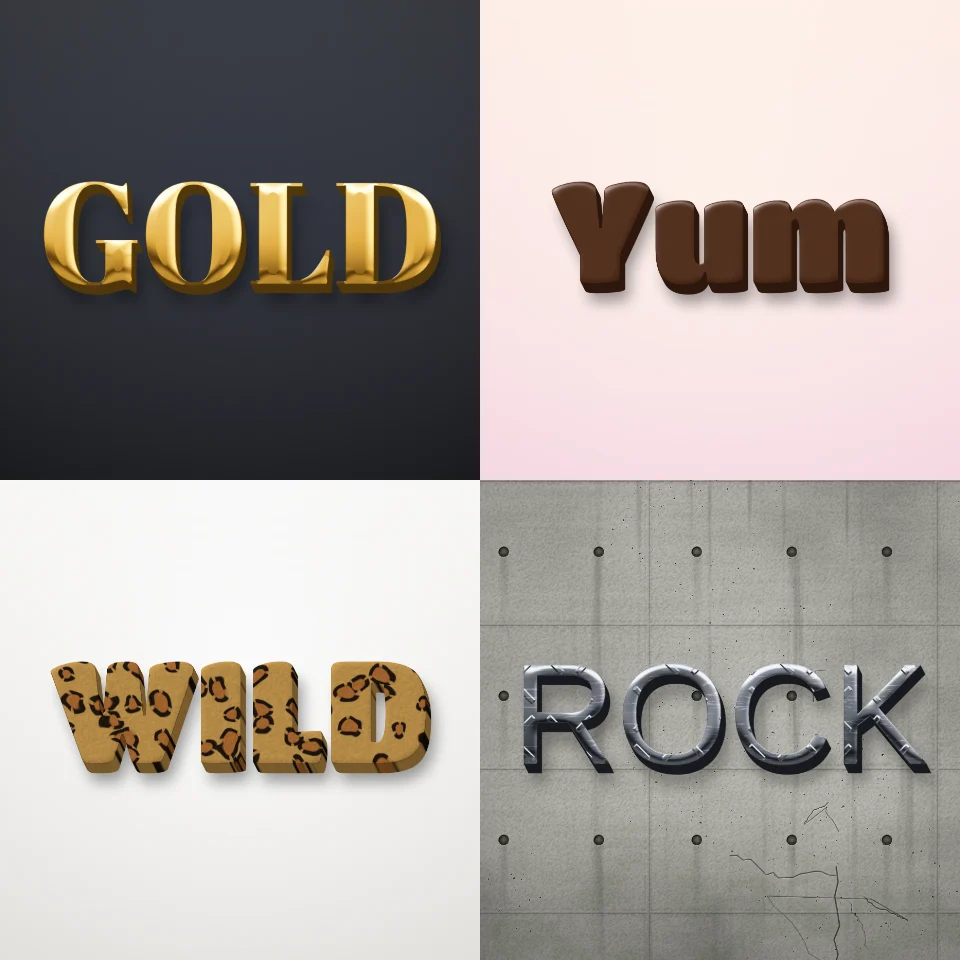
Turn any word into 3D letters of gold, chrome, heavy metal, wood, chocolate, candy, soap bubbles, or leopard, tiger, and zebra print. Save a PNG, even transparent.
Try 3D Text Effects Generator yourself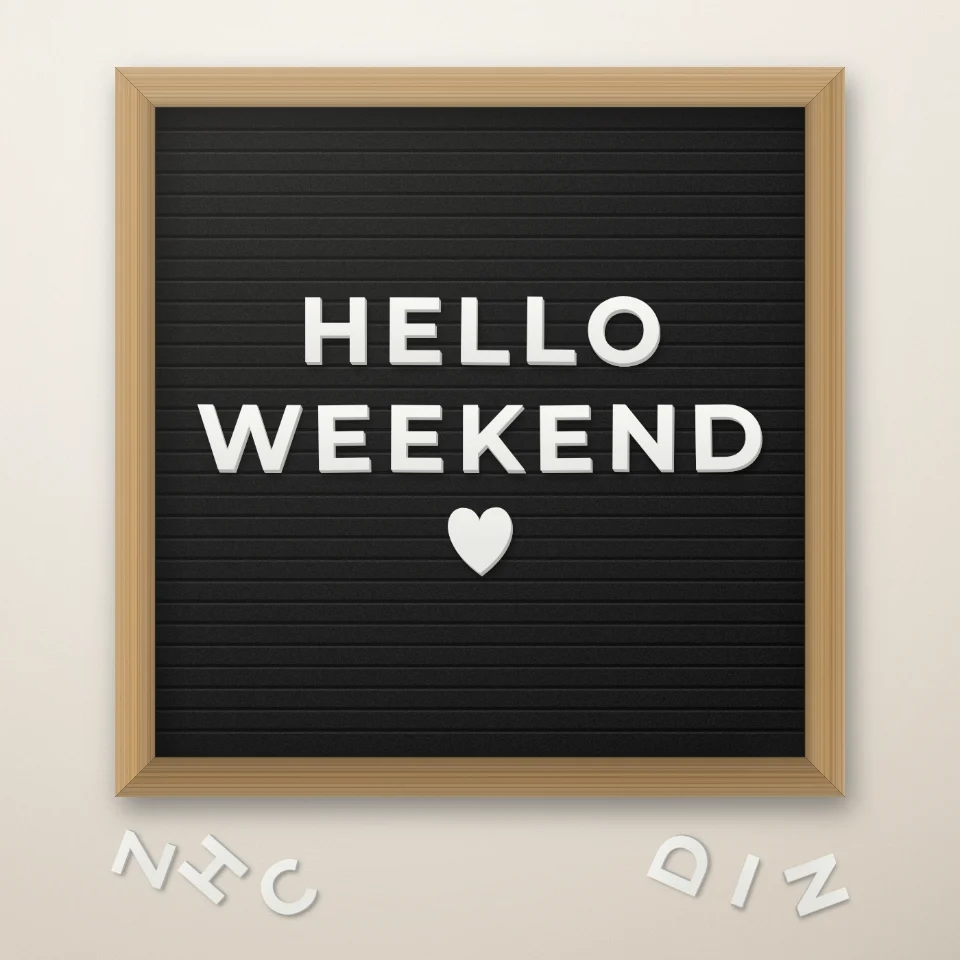
Type a quote on a felt letter board with white or gold plastic letters, a wooden frame, and hearts or stars. Save a PNG for Instagram.
Try Letter Board Quote Maker yourself
Turn any name or word into shiny foil balloon letters in gold, silver, rose gold, or holographic, with ribbons and confetti. Save a PNG, even transparent.
Try Balloon Letters Generator yourself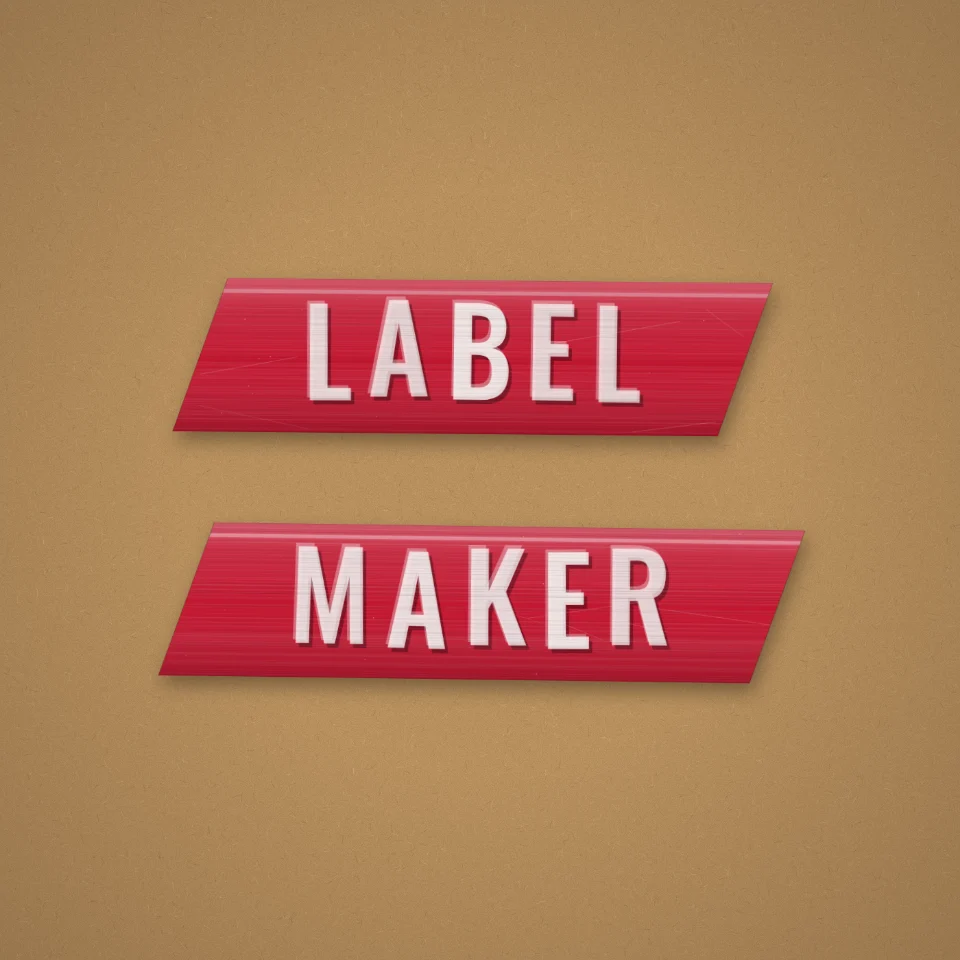
Make retro embossed label-maker tape online: raised white letters on red, black, blue, clear, or rainbow tape, stuck on kraft, wood, or metal. Save a PNG.
Try Label Maker yourself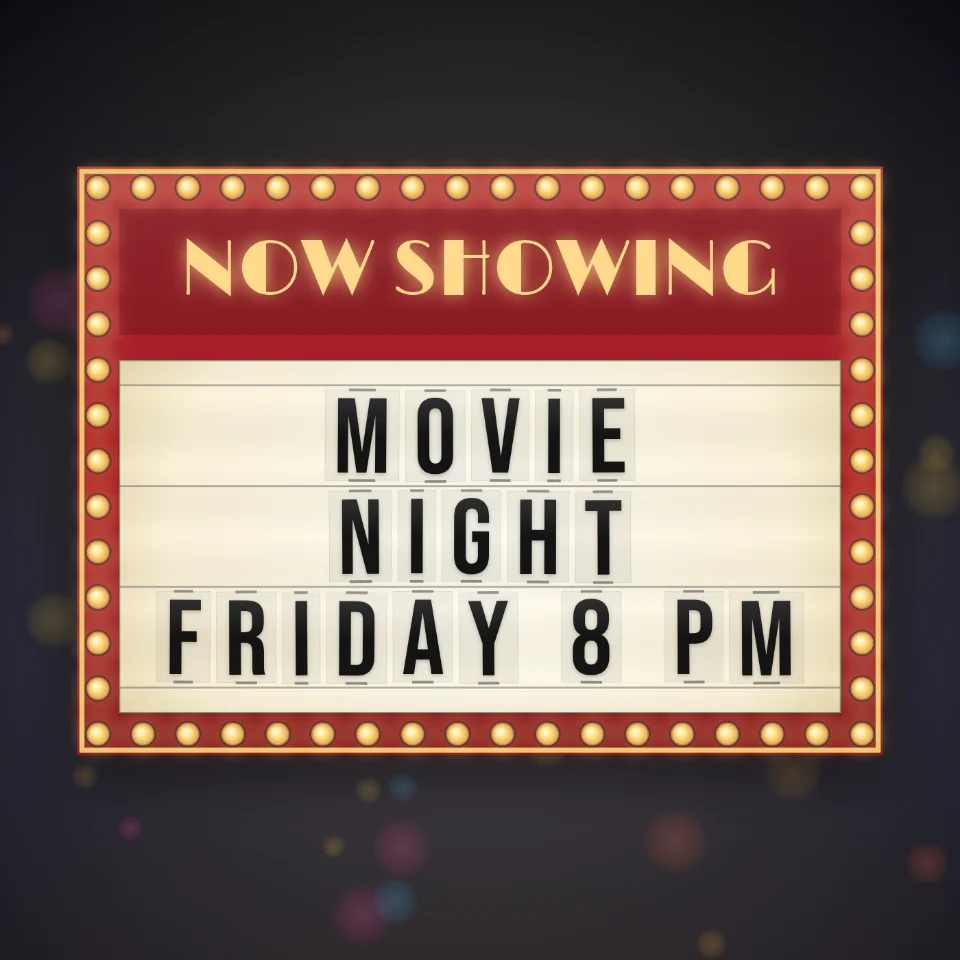
Put your words on a glowing movie theater marquee with black plastic letters, a painted header, and chasing light bulbs. Save a PNG.
Try Cinema Marquee Sign yourself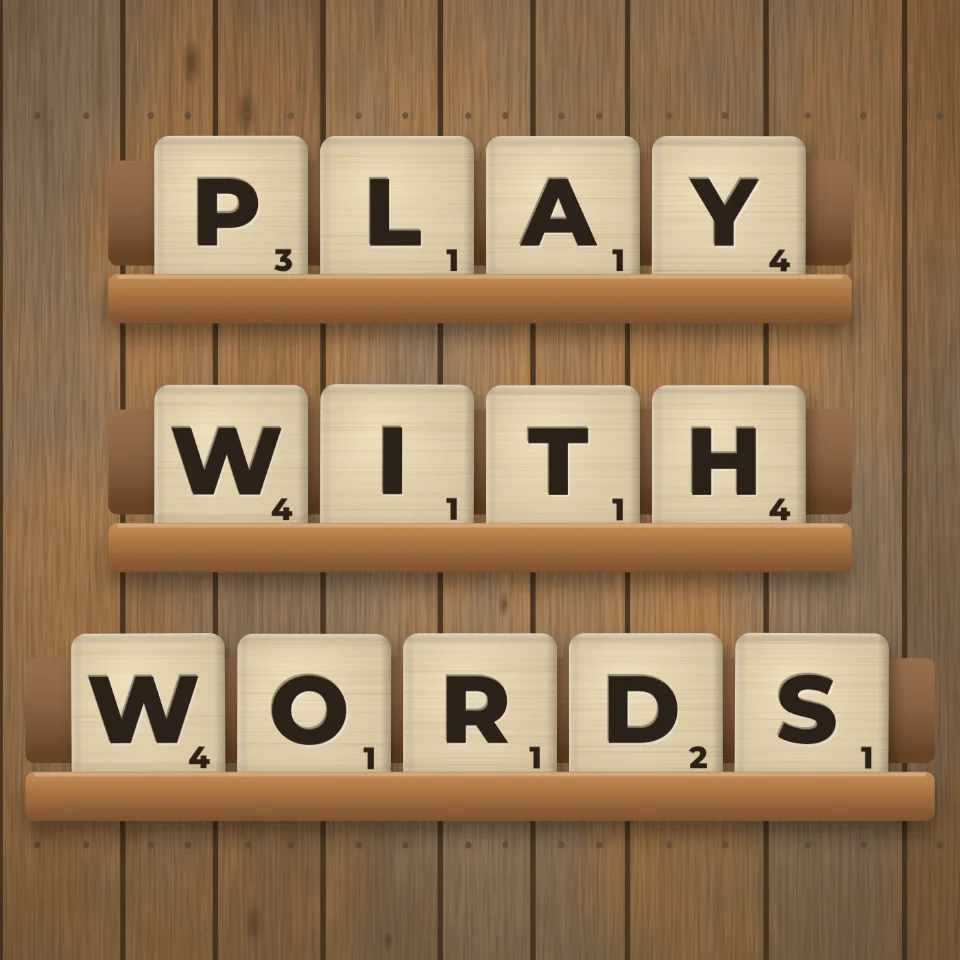
Spell words with wooden word-game letter tiles on a rack, or colorful plastic alphabet magnets on a fridge. Pick colors and surfaces, then save a PNG.
Try Letter Tiles & Fridge Magnets yourself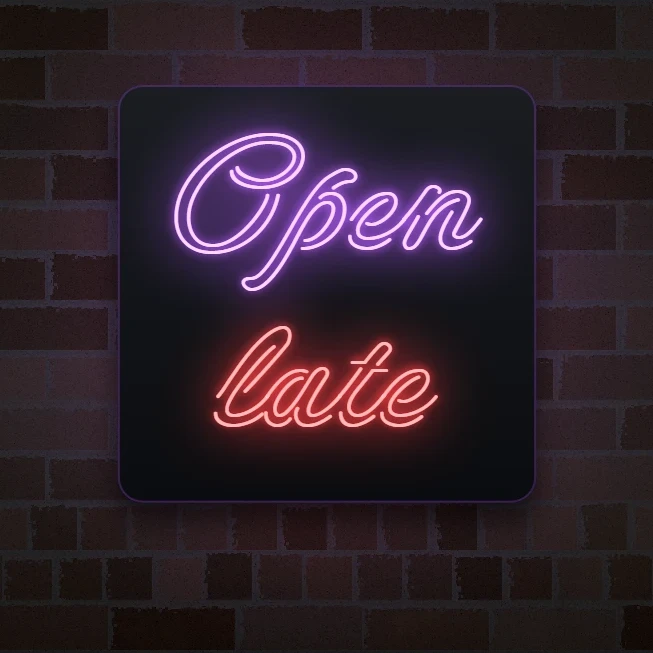
Type a word and turn it into a glowing neon sign on brick, tiles, wood, or concrete. Pick tube color, font, glow, and backplate, then save a PNG.
Try Neon Sign Maker yourself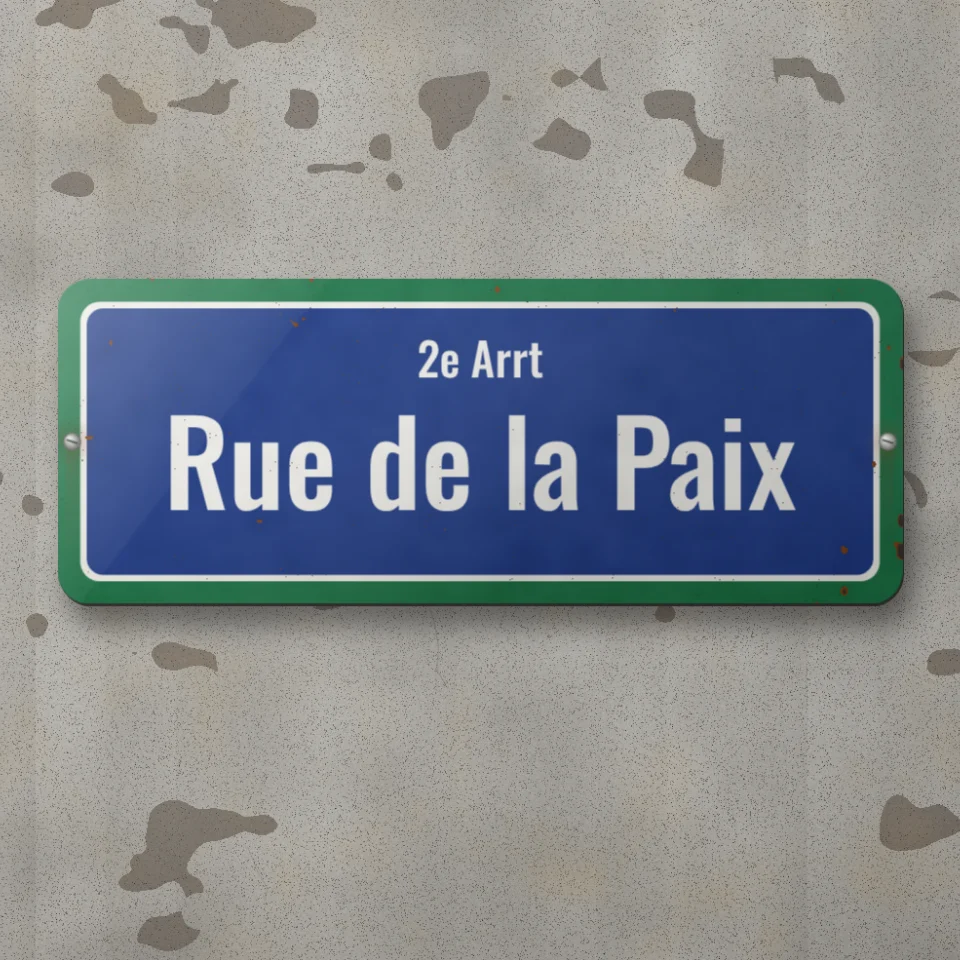
Make a custom street sign, blue plaque, brass nameplate, or house number tile on a real-looking wall. Add rust and wear, then save a PNG.
Try Street Sign & Plaque Maker yourself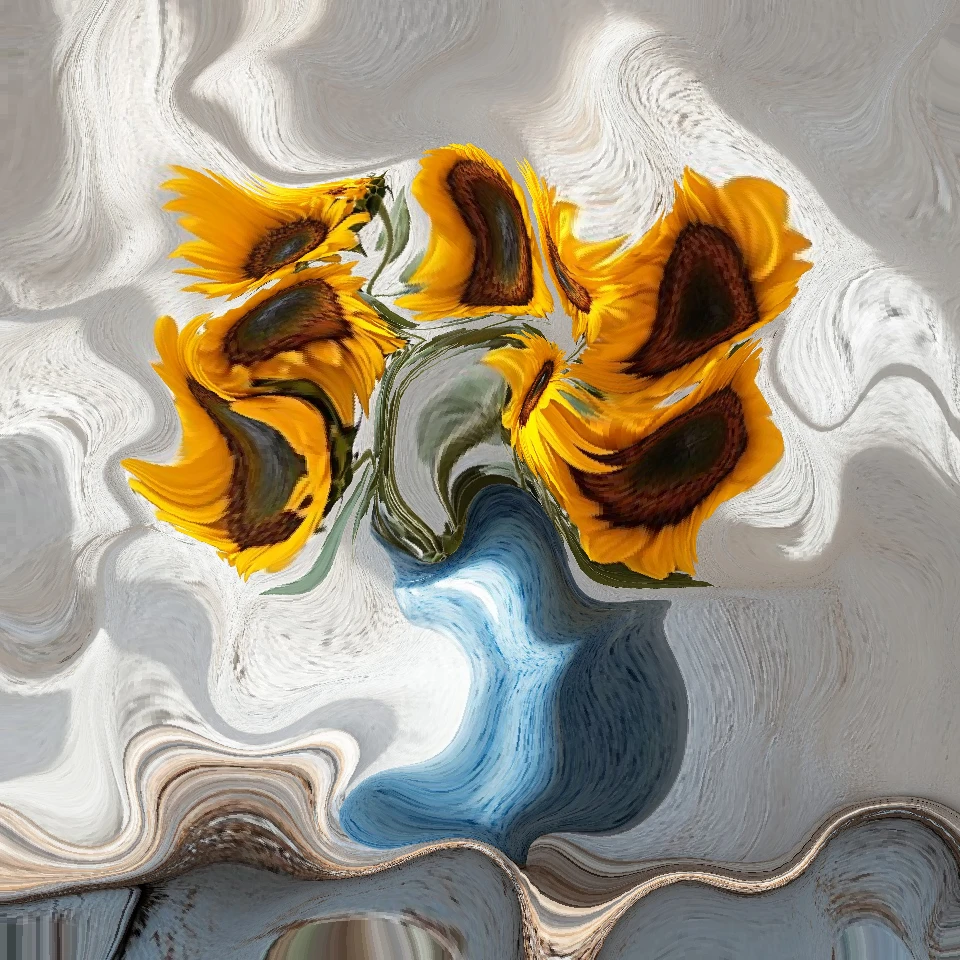
Import a photo and run physics on it in your browser: particles, liquid, gravity, wind, crystals, lightning, and flow fields. Save a PNG.
Try Photo Physics yourself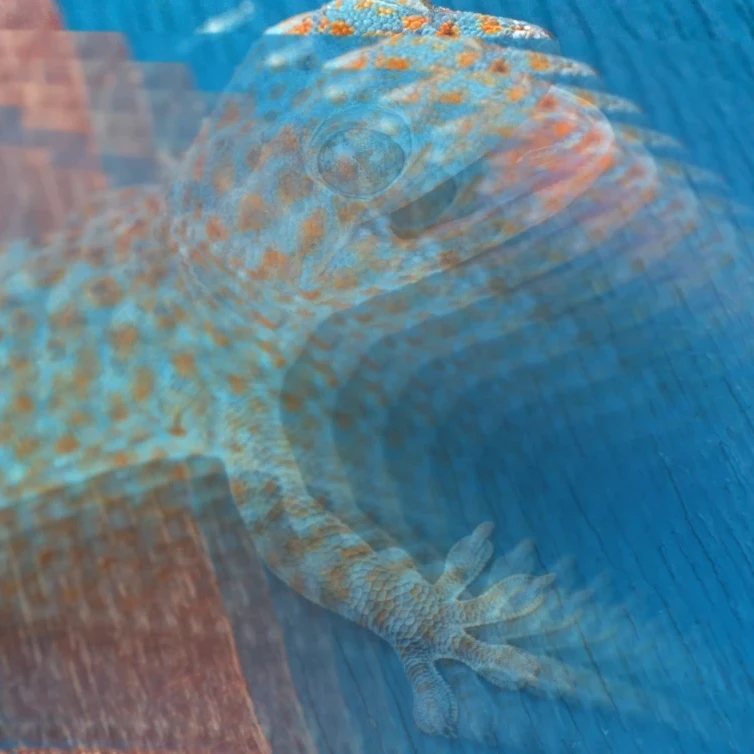
Create recursive infinite-zoom feedback loops from any photo in your browser. Tune zoom, rotate, mirror, blend, blur, and hue, animate the tunnel, and save a PNG.
Try Image Feedback yourself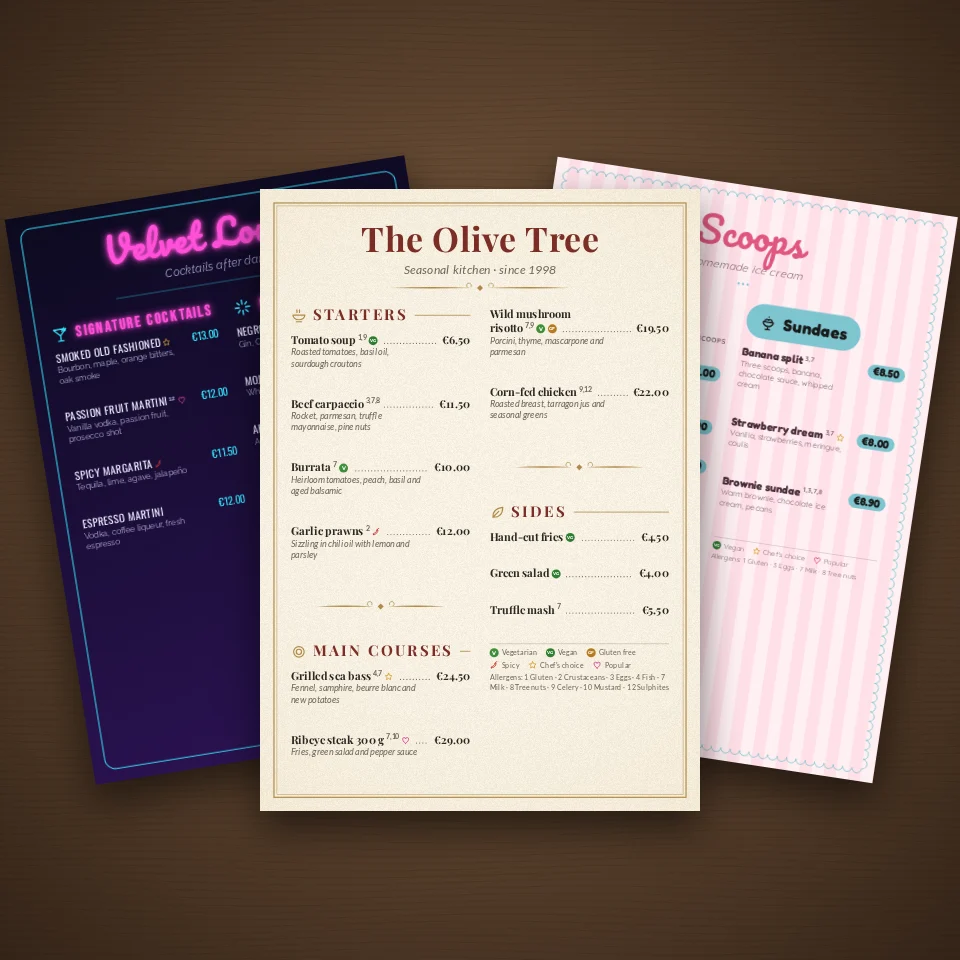
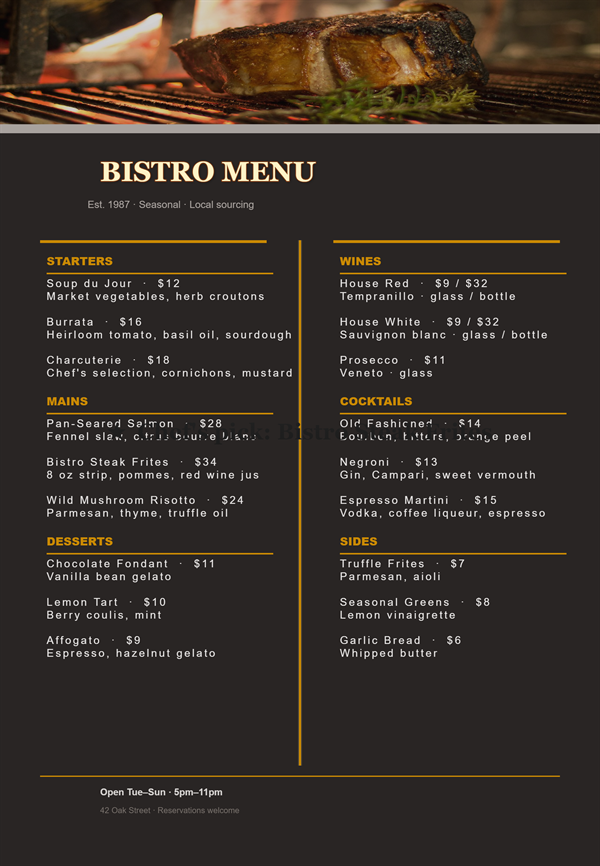
Design restaurant, café, bar, wine, cocktail, ice cream and bakery menus online. Templates, dotted price leaders, allergens, photos and QR codes. Export a print-ready PDF, PNG or…
Try Free menu maker yourself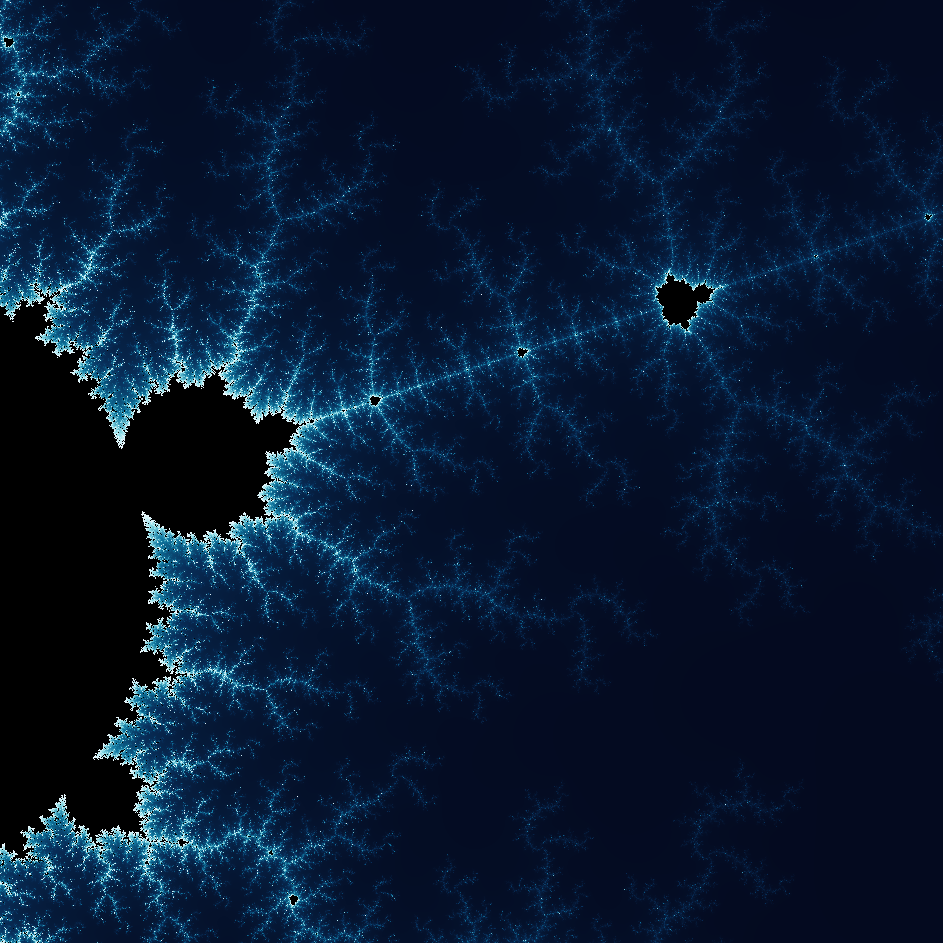
Explore the wonderful world of Fractals. Fractals are complex, detailed geometric patterns found throughout the natural world.
Try Explore the wonderful world of Fractals yourself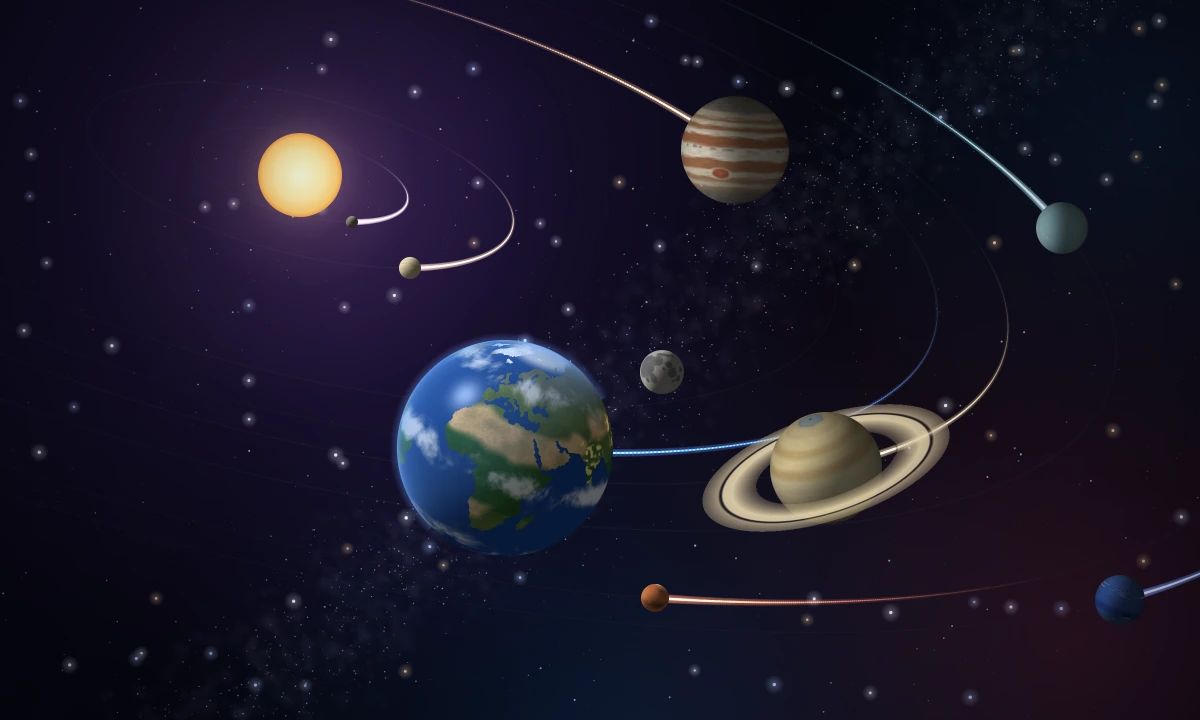
Fly through the solar system in 3D in your browser. The sun, eight planets, their largest moons, the dwarf planets, and the Kuiper belt move on their real, tilted orbits under…
Try Solar System yourself
Watch Newton's gravity move stars, planets, and moons in 3D in your browser. Turn the view, and see stable orbits, resonances, slingshots, Trojans, and a chaotic cluster.
Try N-Body System yourself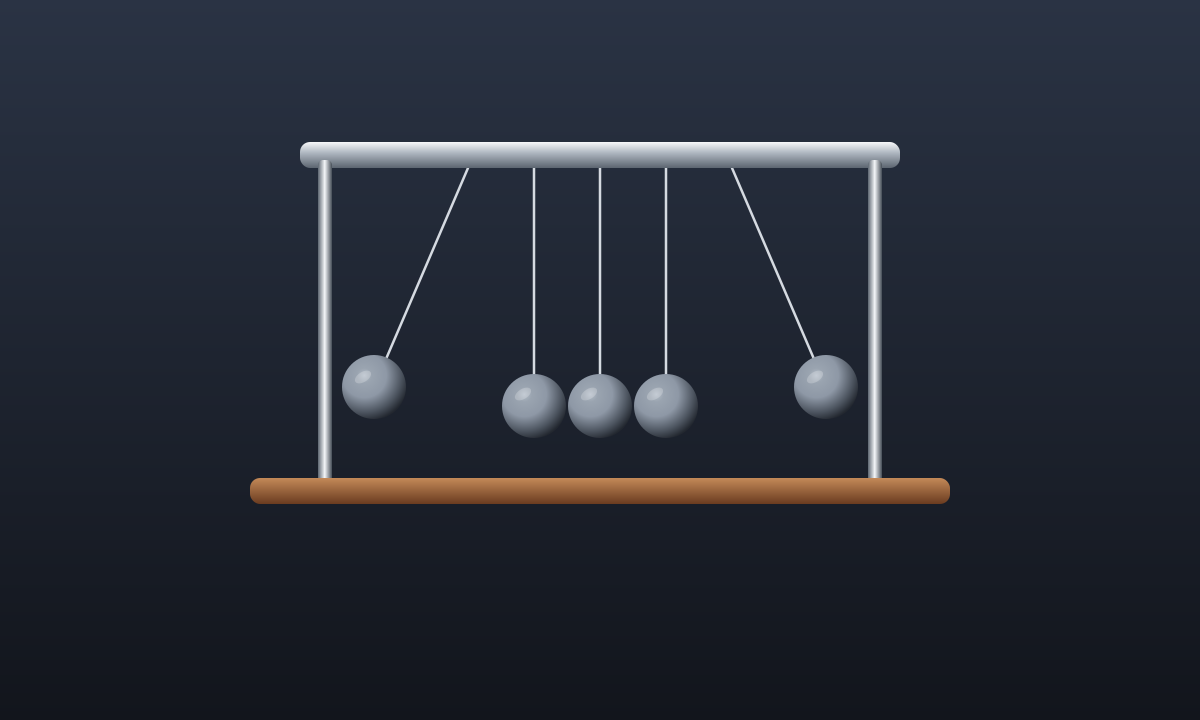
Lift a steel ball and let it fall. The click sends that motion out the other side. Watch height turn into motion as the cradle swings.
Try Newton's cradle yourself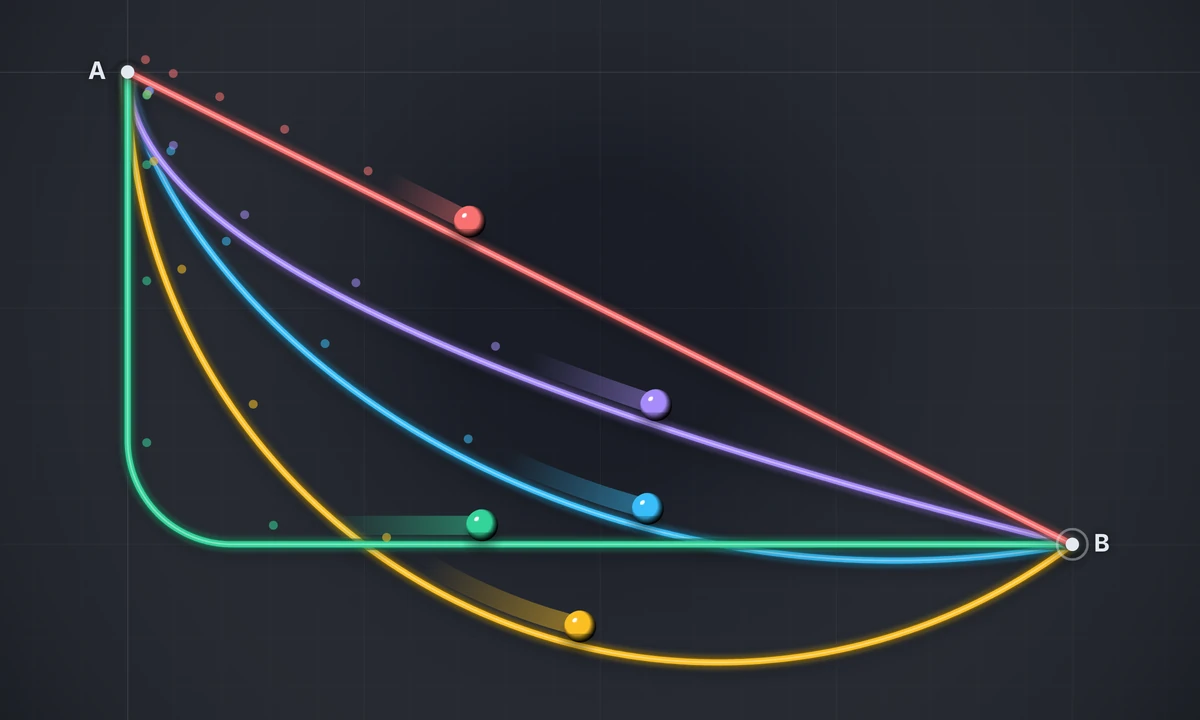
Race balls from A to B on a straight ramp, a circle, a parabola, and a cycloid. The cycloid always wins, even when it dips below the finish. Draw your own track.
Try Brachistochrone race yourself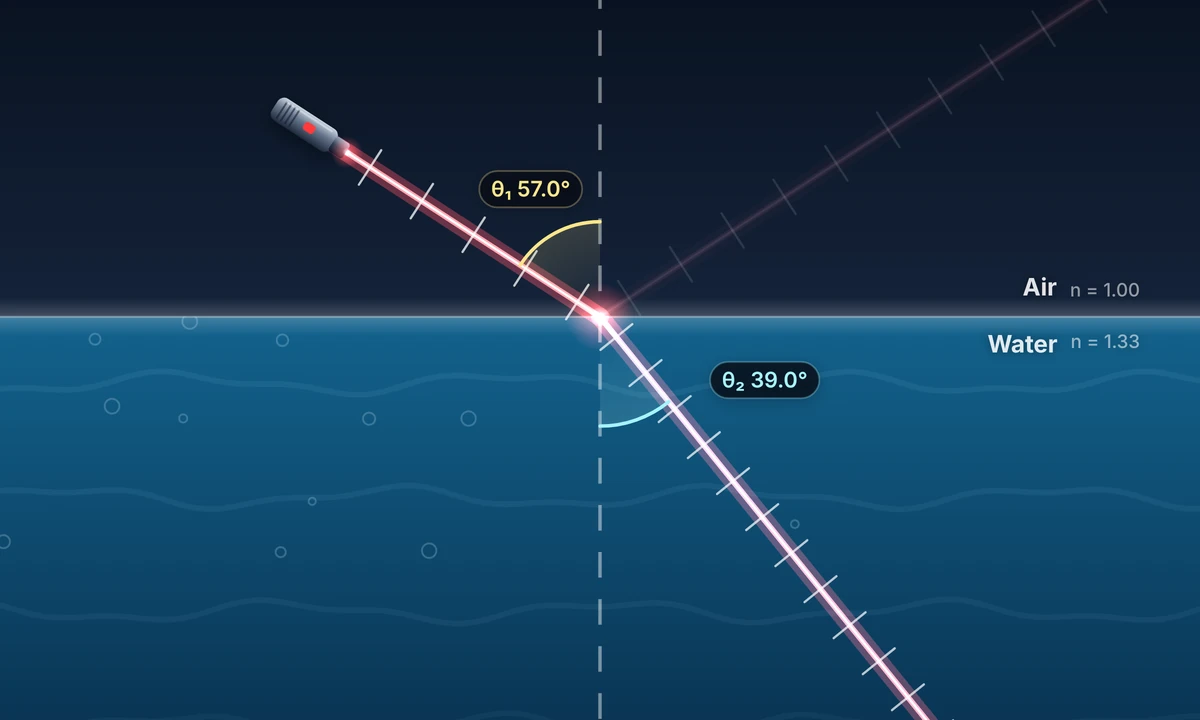
See why light bends. Race a lifeguard across sand and sea, shine a laser from air into water, glass, or diamond, and watch light through thin layers trace the brachistochrone.
Try Snell's Law & Light Refraction yourself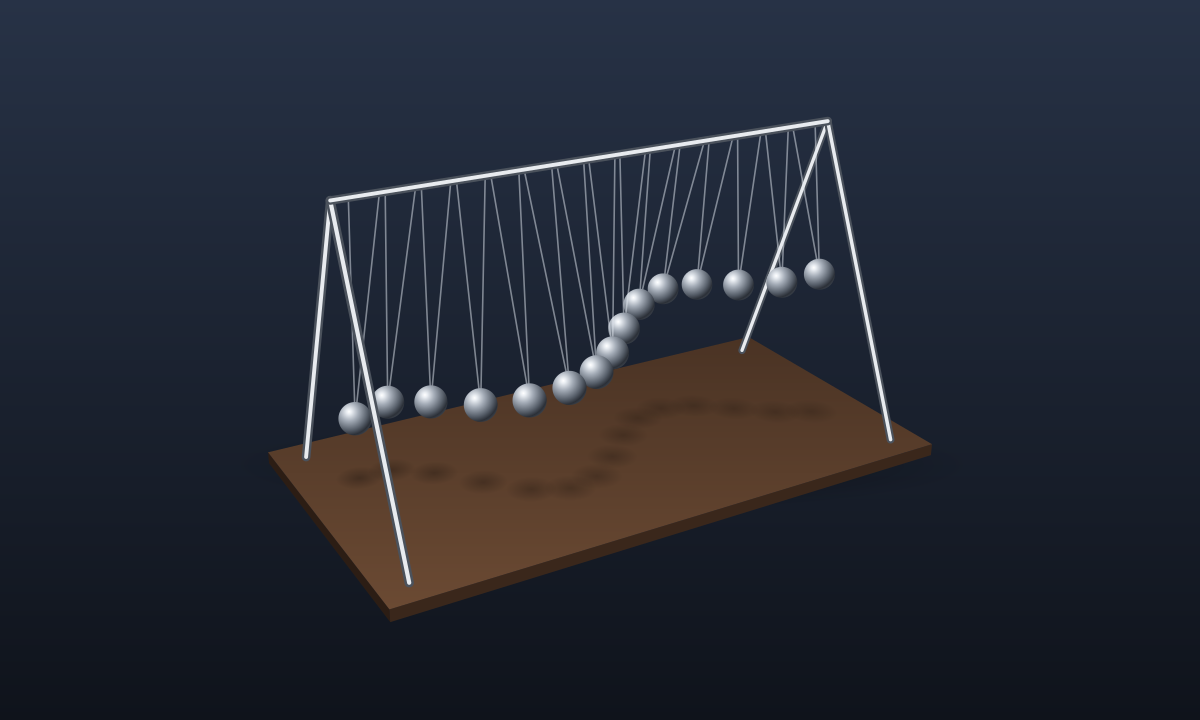
Fifteen pendulums, each a little shorter than the last. Let them go together and watch them drift into waves, split into rows, and swing in step again.
Try Pendulum wave yourself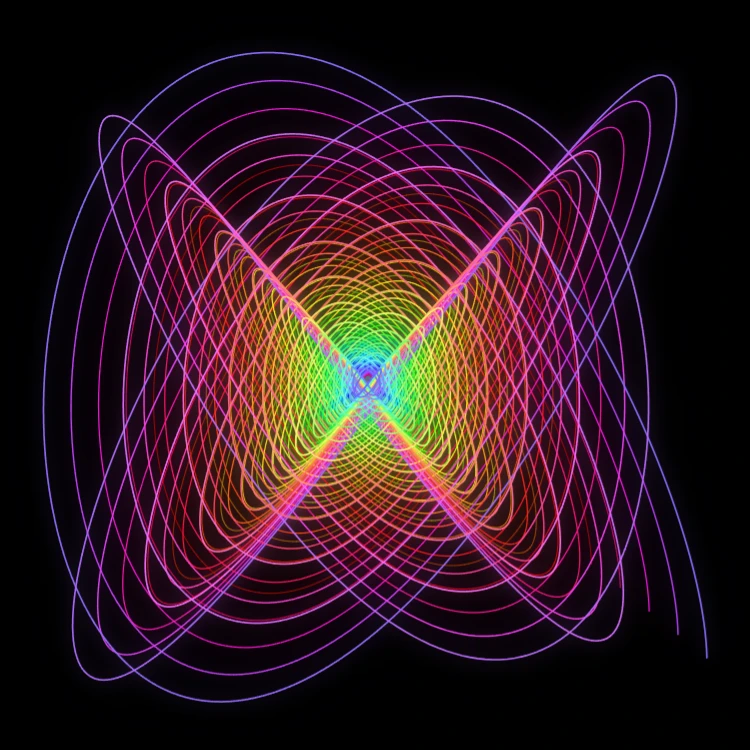
Paint damped Lissajous curves in your browser—the classic Blackburn painting pendulum. Tune frequency ratios, phases, and damping, animate the trail, and save a PNG.
Try Painting Pendulum yourself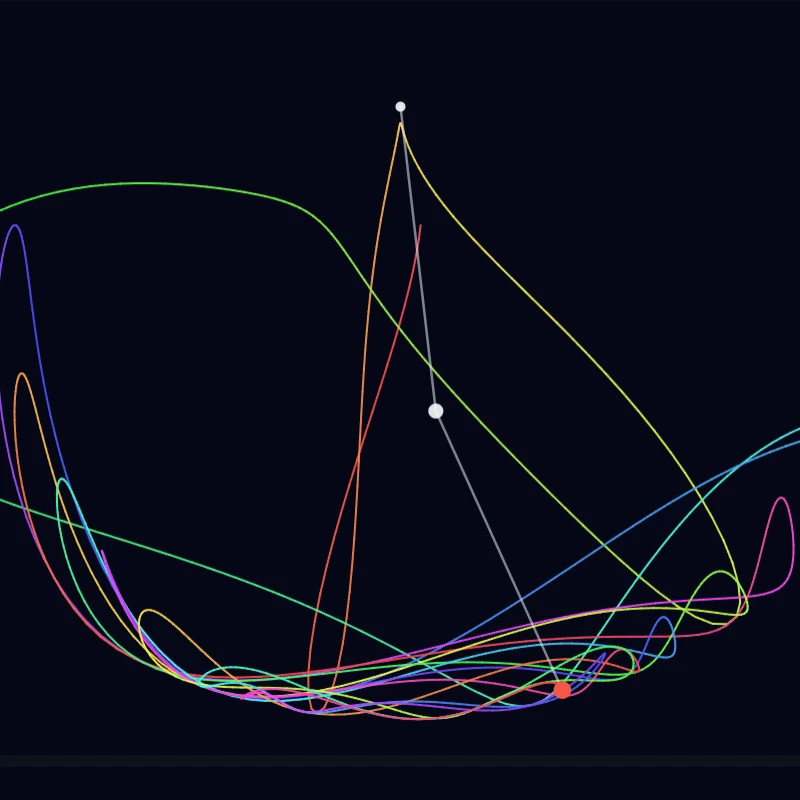
Simulate a classical double pendulum in your browser. Paint chaotic tip trails, long-exposure paths, or distort a soft field—then save a PNG.
Try Double Pendulum yourself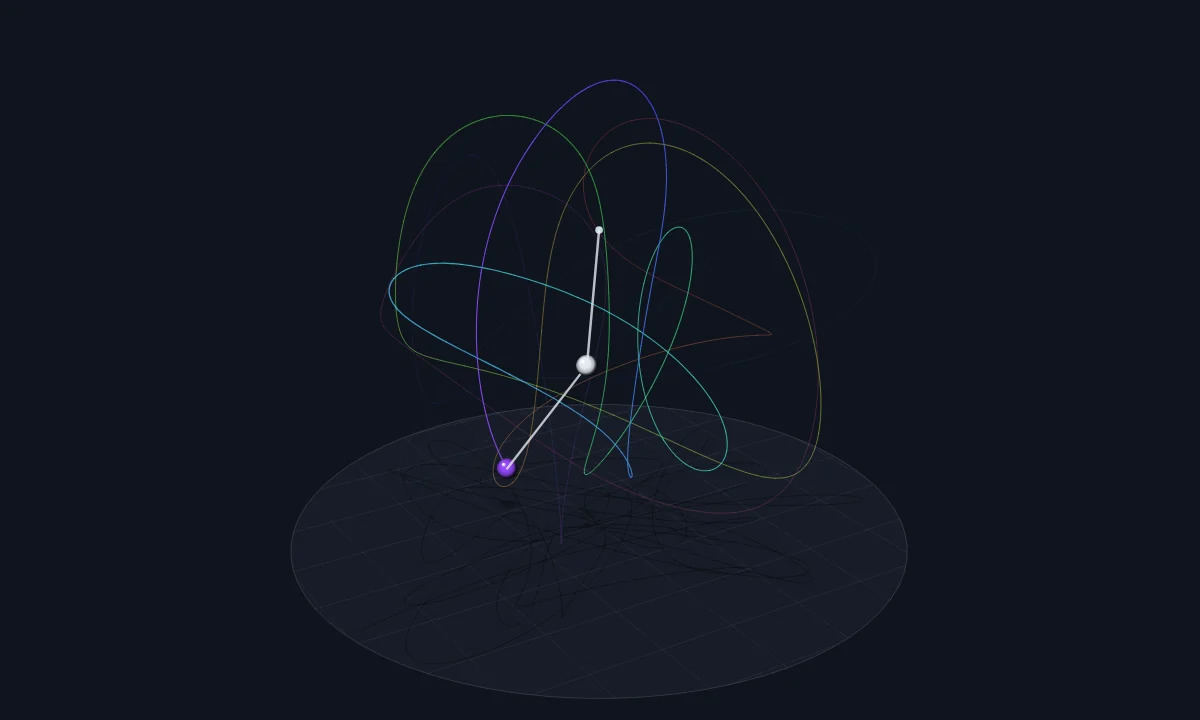
Swing a double pendulum in any direction and turn the view in 3D. Start a twin a millimeter away and watch chaos pull the two apart. Save the trail as a PNG.
Try 3D double pendulum yourself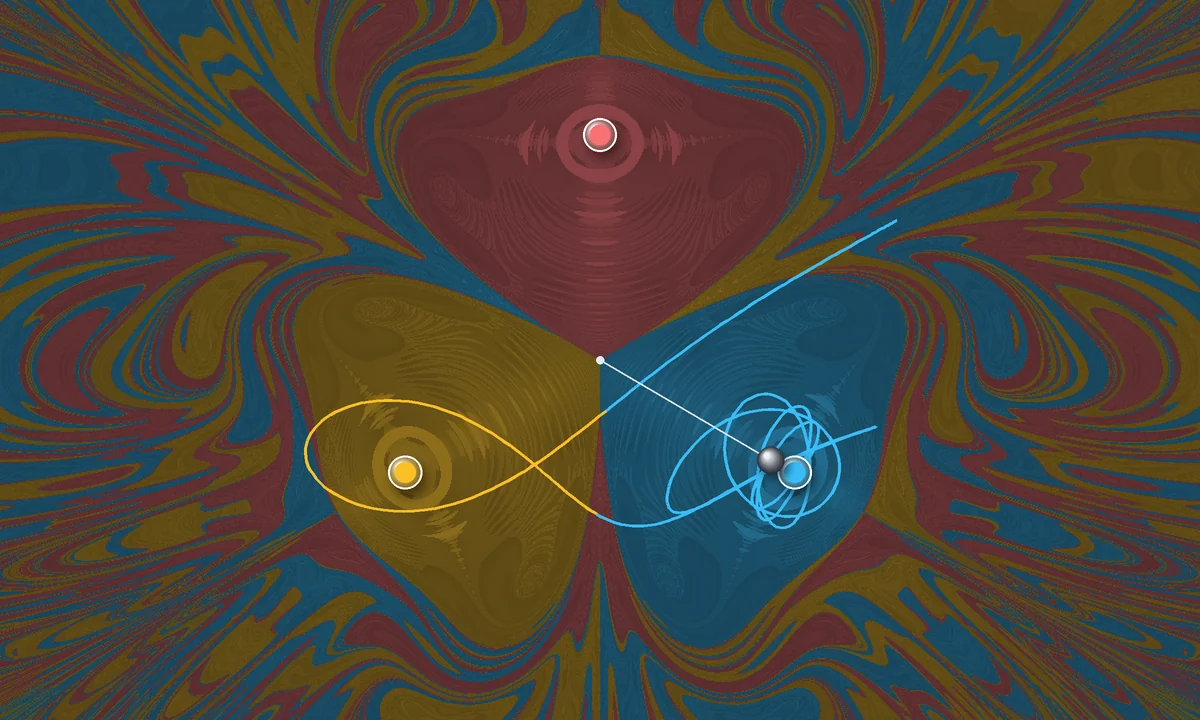
Let an iron bob swing over three magnets and see where it comes to rest. Color every starting point by its magnet and a fractal appears. Drag the magnets and save a PNG.
Try Magnetic pendulum yourself
Simulate the Malkus/Lorenz chaotic waterwheel in your browser. Tune flow, leak, and friction, watch reversals, or switch to Lorenz ODEs—then save a PNG.
Try Lorenz Wheel yourself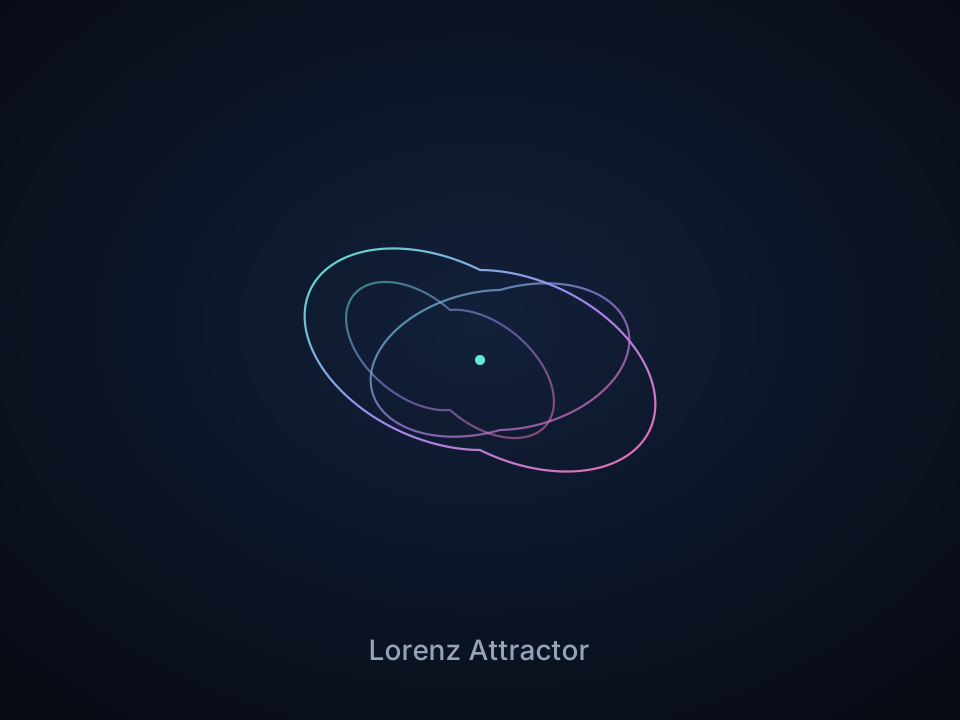
Interactive Lorenz attractor: tune a, b, f, rotate in 3D, try neon/ink/smoke looks, and save a PNG.
Try Lorenz Attractor yourself
Steer thousands of particles with curl noise, wind, gravity, and clickable attractors, repellers, and vortices. Animate and save a PNG.
Try Flow Field yourself
Paint chemical seeds and watch Gray–Scott reaction–diffusion grow spots, stripes, mazes, and coral. Tune feed, kill, diffusion, and speed — then save a PNG.
Try Reaction–Diffusion Lab yourself
Grow trees, ferns, coral, and ice crystals from L-system DNA. Pause, randomize, and save a PNG in your browser.
Try Nature Generator yourself
Grow the Barnsley Fern in your browser. Watch the chaos game, zoom into any leaflet, and compare the black spleenwort with mutant varieties.
Try Barnsley Fern yourself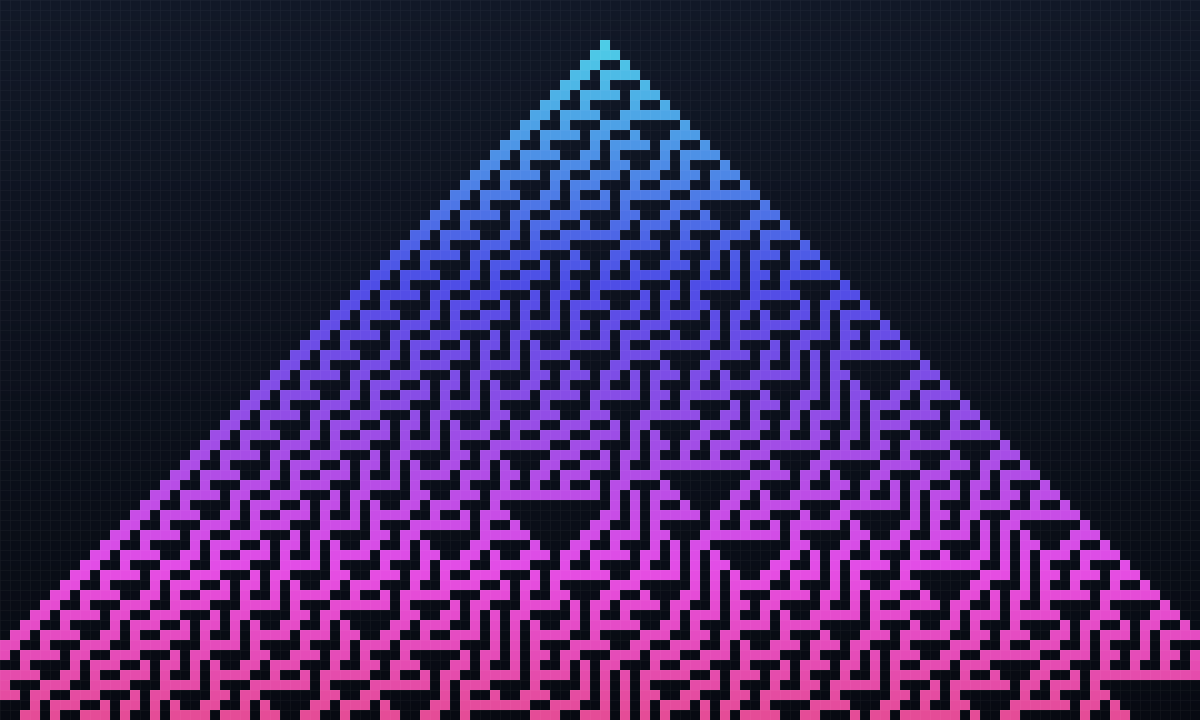
Run Conway's Game of Life, Rule 30, Rule 110, Brian's Brain, and Wireworld in your browser. Draw cells, change the rule, and watch simple rules grow complex patterns.
Try Cellular Automata yourself
Run Langton's Ant in your browser. Watch symmetry, chaos and the 104-step highway, then try multi-colour rules, several ants, a hex grid and turmites.
Try Langton's Ant yourself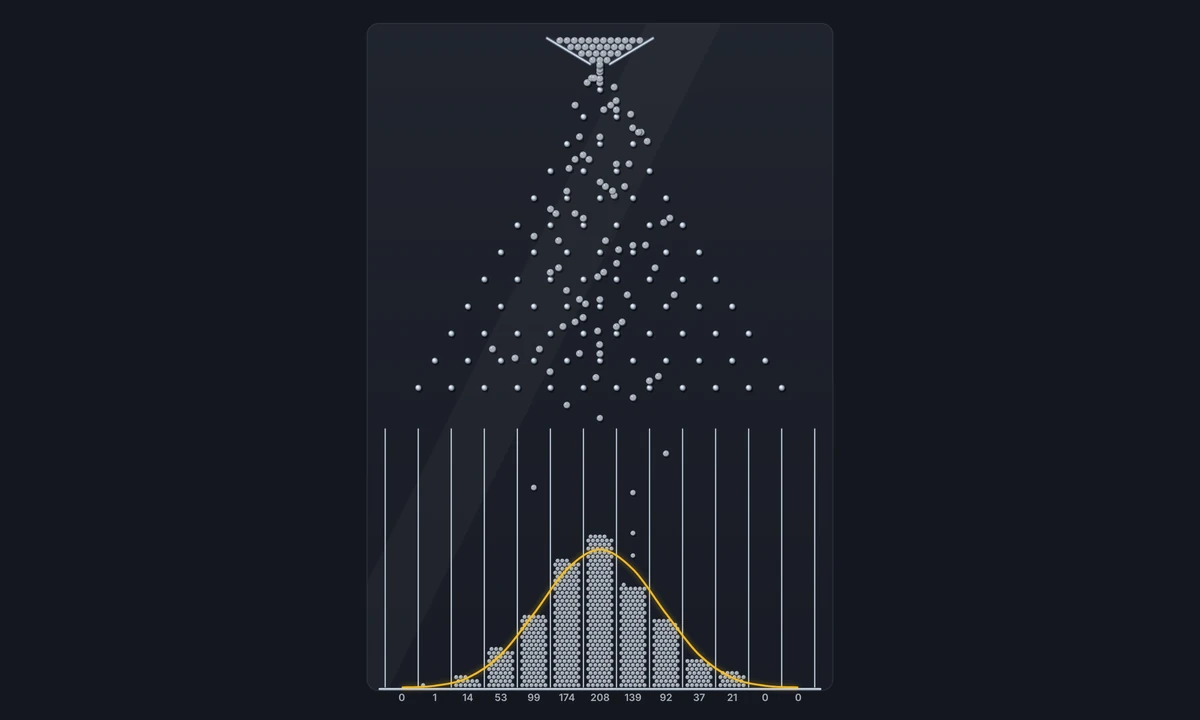
Drop balls through rows of pegs and watch a bell curve fill the bins. Change the rows, the bias, and the number of balls, and compare mean and spread with theory.
Try Galton board yourself
Drop needles on a lined floor in your browser. Count the crossings and watch Buffon's 1777 experiment estimate π.
Try Buffon's Needle yourself
Each Fibonacci number is the sum of the two before it. Watch the squares spiral, the ratios settle on the golden ratio, and Binet's formula rebuild the same numbers.
Try The Fibonacci sequence yourself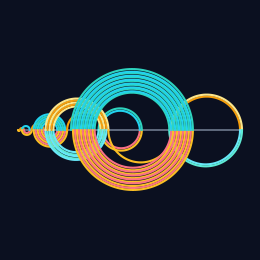
Start at 0. Each step hops backward by n when that spot is positive and new, and jumps forward otherwise. Watch the semicircles, the missing numbers, and a melody from the same…
Try Recamán's sequence yourself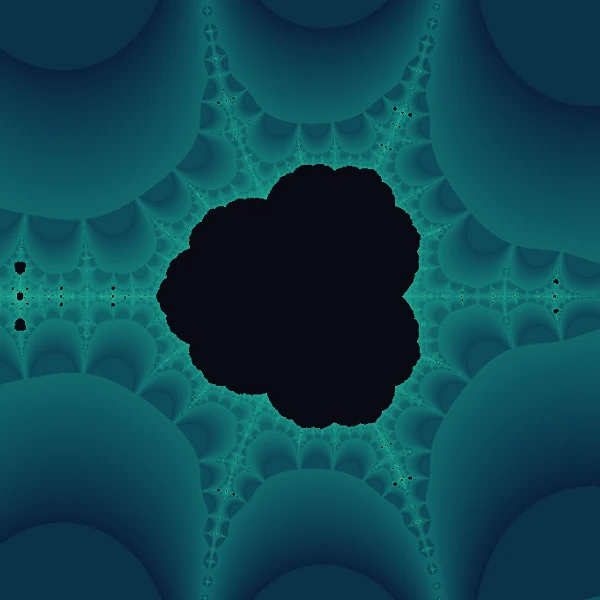
Explore the Collatz 3n+1 problem in your browser. Walk hailstone sequences, grow a geometric Collatz tree, and zoom the continuous Collatz fractal.
Try The Collatz Conjecture yourself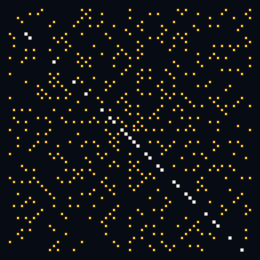
Draw the Ulam spiral in your browser. Mark the primes, read the quadratic on each diagonal, and open Euler's unbroken run of 40 primes.
Try Ulam spiral yourself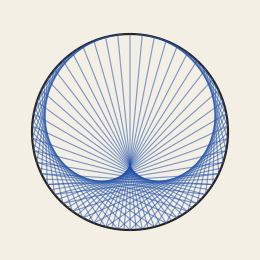
Join each number on a circle to its multiple. Draw a times table, a cardioid, or a string figure on paper, chalk, or wood.
Try Multiplication Circles yourself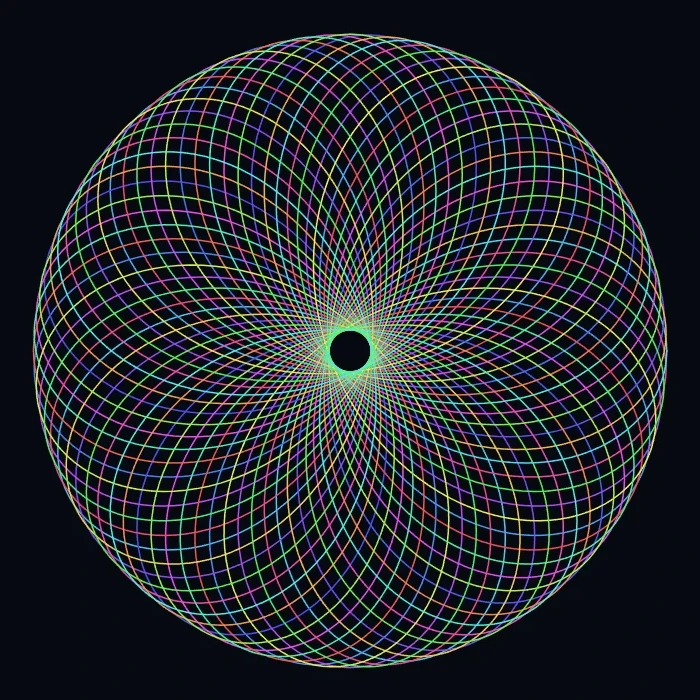
Draw hypotrochoids and epitrochoids in your browser. Tune R, r, and pen offset, animate the curve, randomize styles, and save a PNG.
Try Spirograph yourself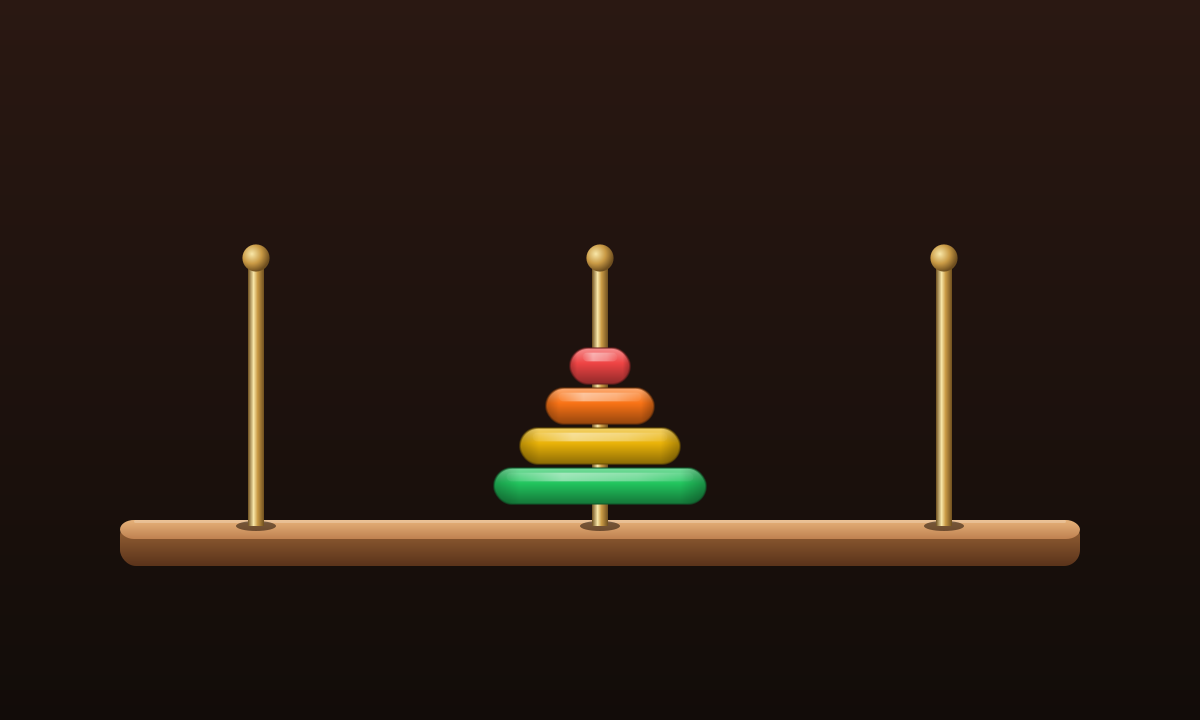
Move a tower of disks across three pegs in your browser. One disk at a time, never a larger disk on a smaller one. The shortest solution is 2ⁿ − 1 moves.
Try Tower of Hanoi yourself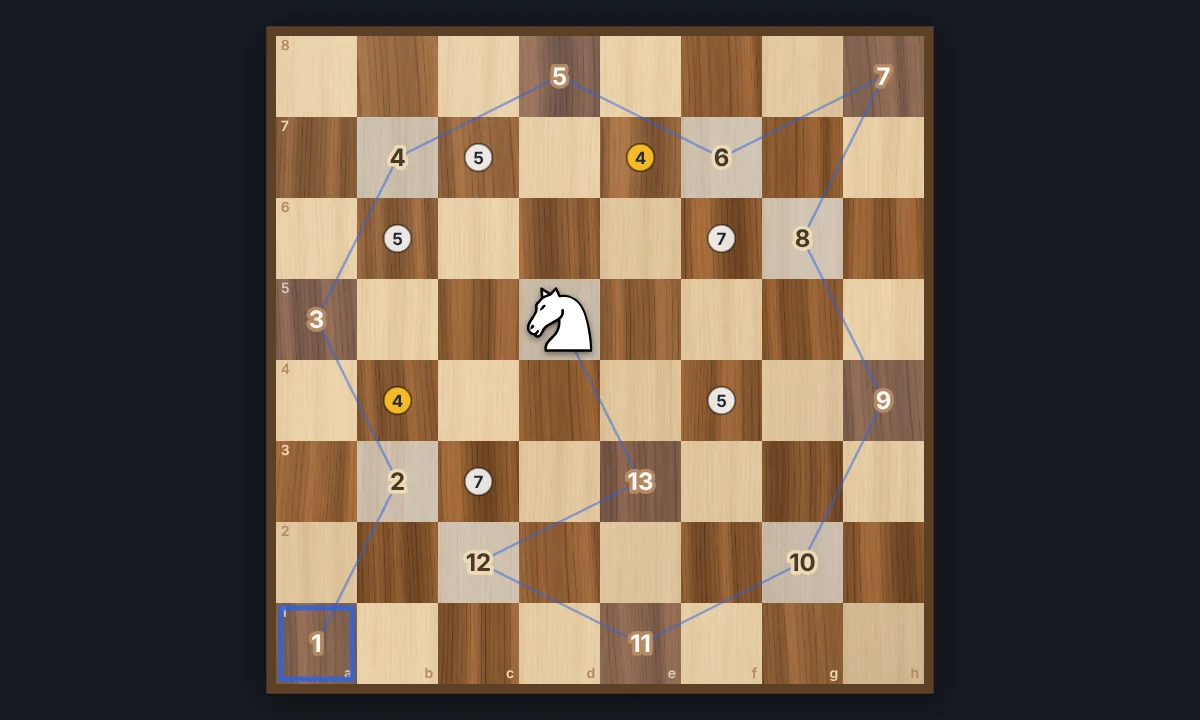
Jump a chess knight to every square of the board exactly once. Play it yourself with Warnsdorff hints, or watch Solve finish an open or closed tour. Save the path as a PNG.
Try Knight's Tour yourself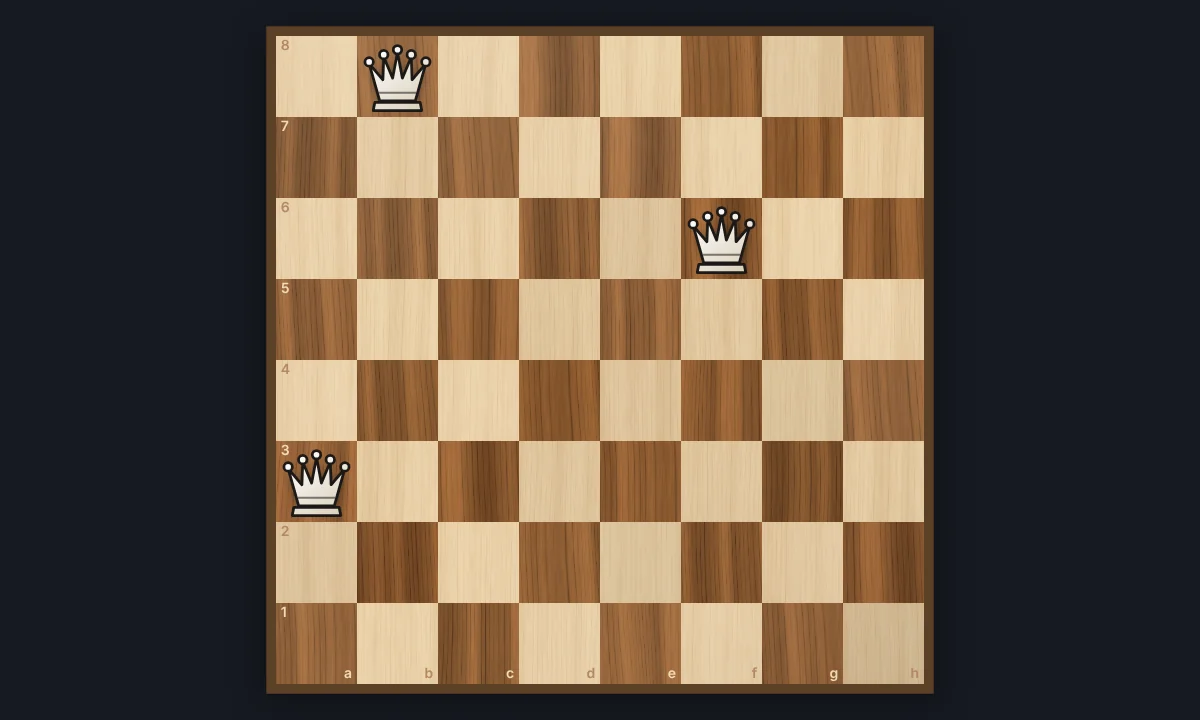
Place eight queens on a chessboard so that none attacks another. Try it yourself, watch the backtracking search find a solution step by step, and go through all 92 solutions.
Try Eight Queens yourself
Play the classic 15 sliding puzzle in your browser on 3×3, 4×4, or 5×5 wooden tiles. Shuffle, slide whole rows at once, try Sam Loyd's impossible 14-15, or watch Solve finish it.
Try 15 Puzzle yourself
Play with 13 classic optical illusions in your browser, most made from your own photo: colour from grey, an afterimage, a spinning spiral, a hidden picture, the café wall, the…
Try Optical illusions yourself
Channel Andy Warhol’s Factory energy—bold color grids, repeated icons,…
Read more about Andy Warhol Prints
Turn a photo into pop art in your browser: a retro pop poster, a pop…
Try Pop Art photo filter yourself
Make a pop-art grid from a photo in your browser: framed squares among…
Try Pop Grid yourself
Transform photos with oil painting, watercolor, pencil, comic ink,…
Try Artistic effects yourself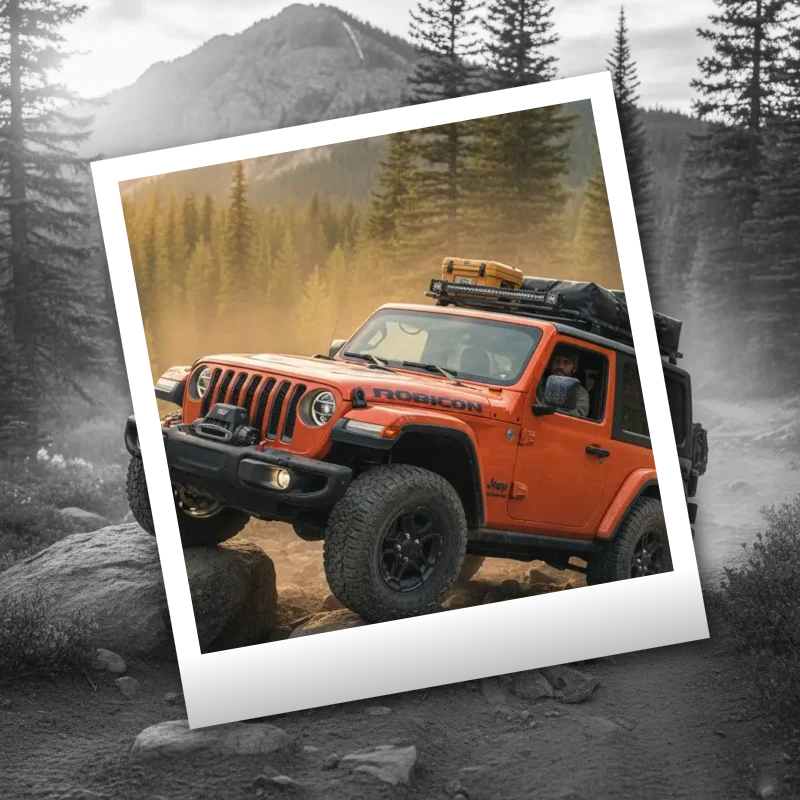
Give photos an instant-film look with frames, vintage styling, and…
Try Polaroid effects yourself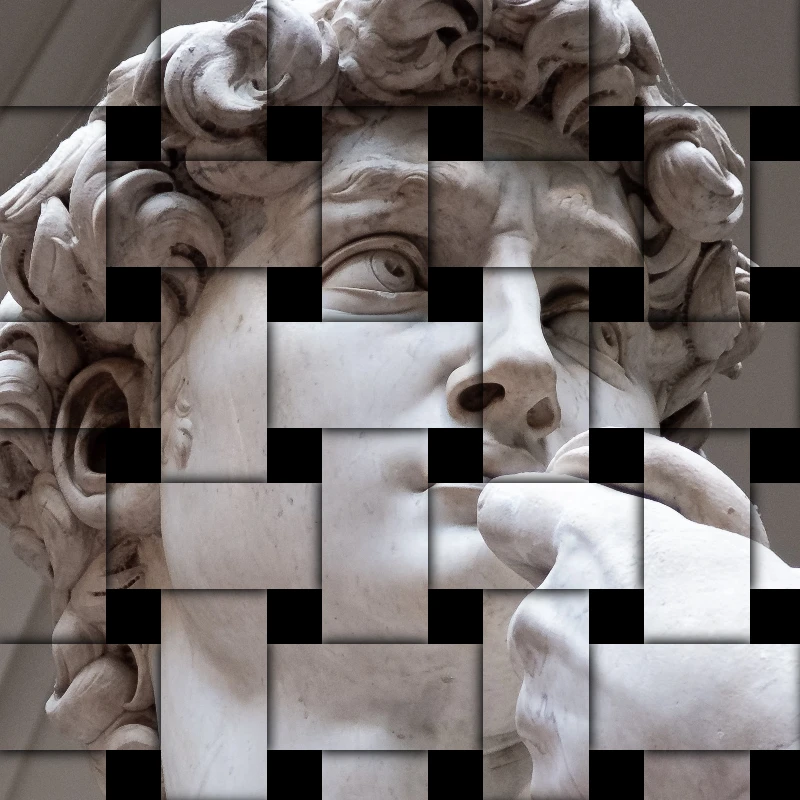
Add shatter, glitch, fire, emboss, vignette, and other studio stylize…
Try Stylize effects yourself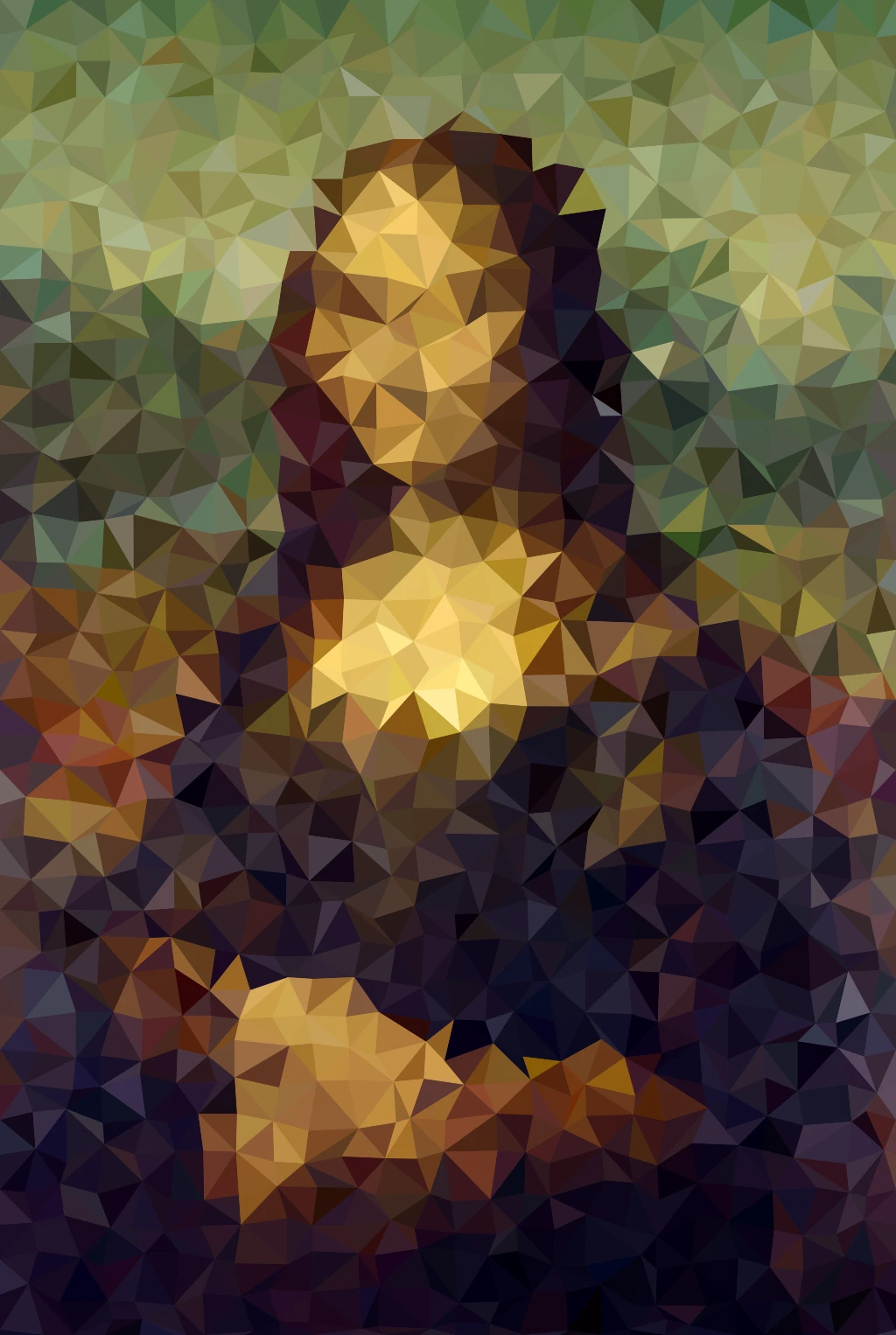
Turn photos into mosaic tiles, hexagons, crystals, low-poly art,…
Try Pixelate effects yourself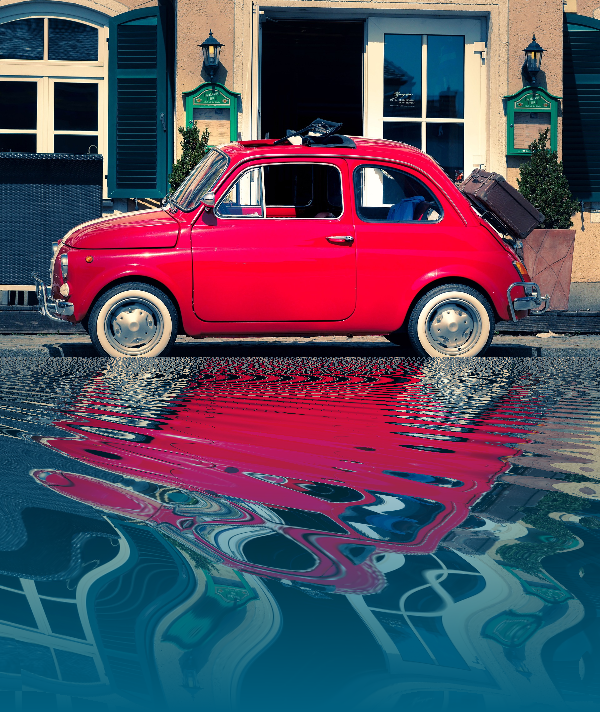
Mirror, tile, water, wet-floor, and kaleidoscope looks that flip a photo…
Try Reflection effects yourself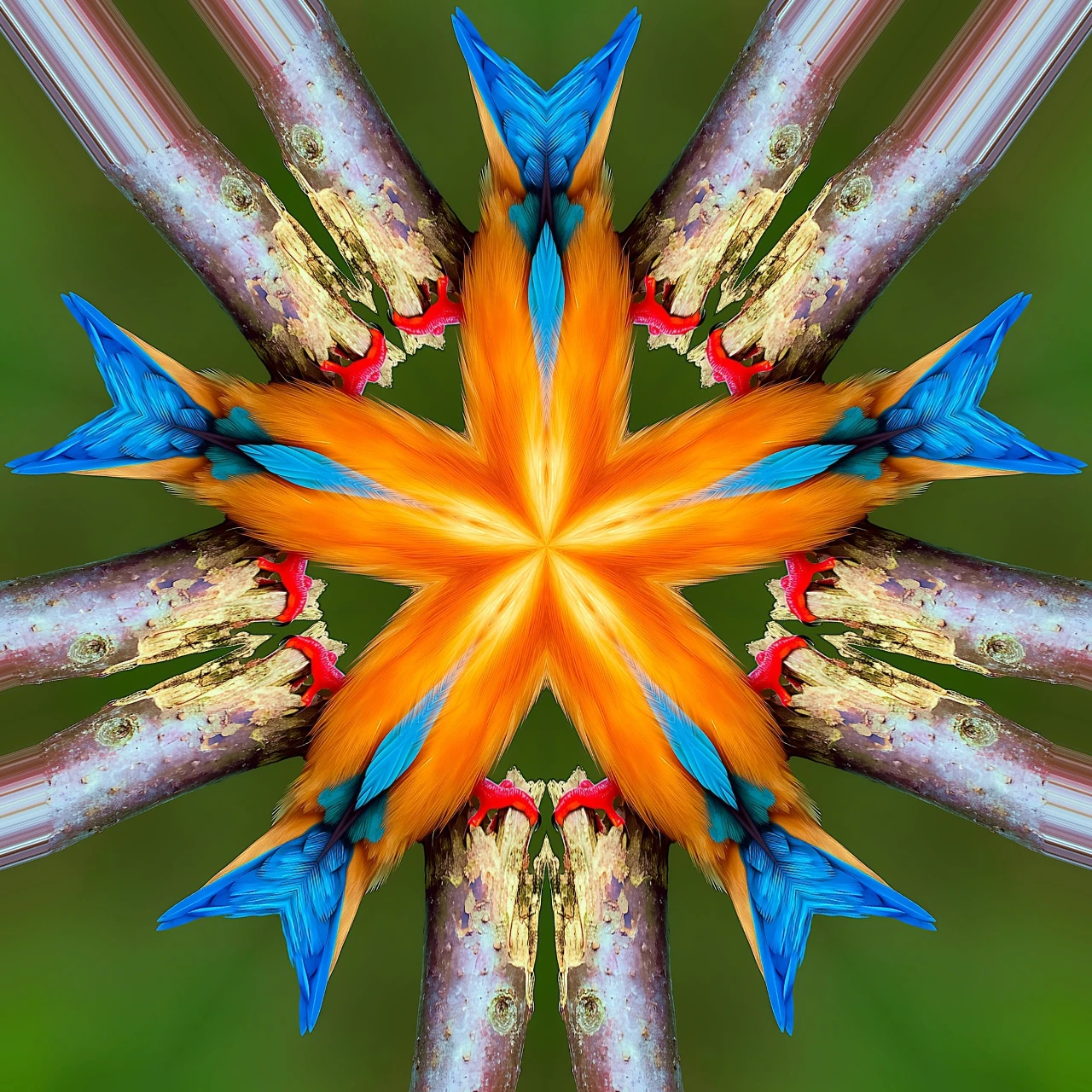
Turn a photo into a radial kaleidoscope pattern in your browser. Set…
Try Fold a photo into a kaleidoscope yourself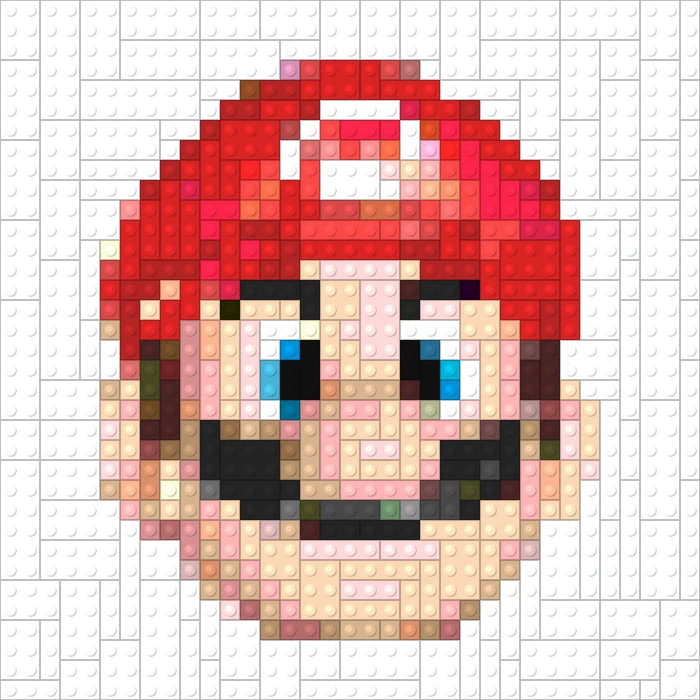
Turn photos into playable looks with Effects → Games—jigsaw puzzle, Lego…
Try Games yourself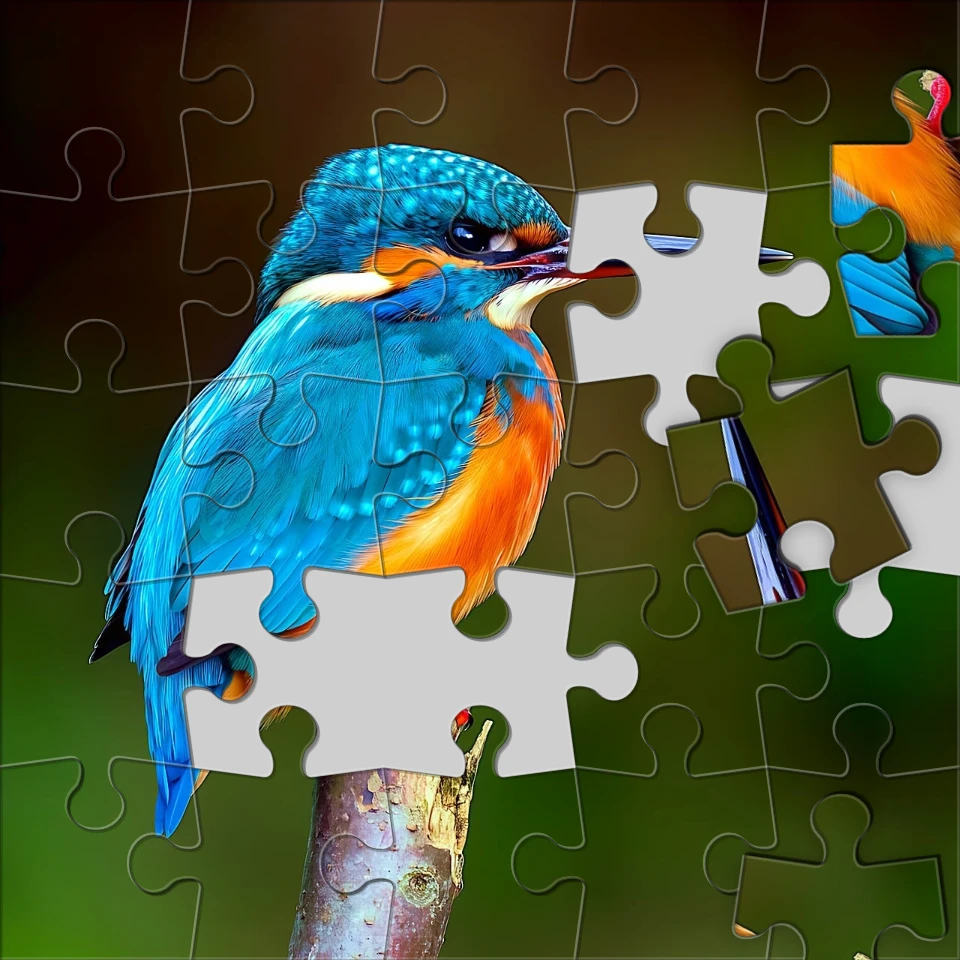
Turn a photo into a jigsaw puzzle in your browser. Set piece count,…
Try Turn a photo into a jigsaw puzzle yourself
Trace outlines with Canny, Sobel, Laplace, Find Edges, Glowing Edges,…
Try Edge effects yourself
Warp photos with polar coordinates, ripple, glass, spherize, timewarp,…
Try Liquid lens playground yourself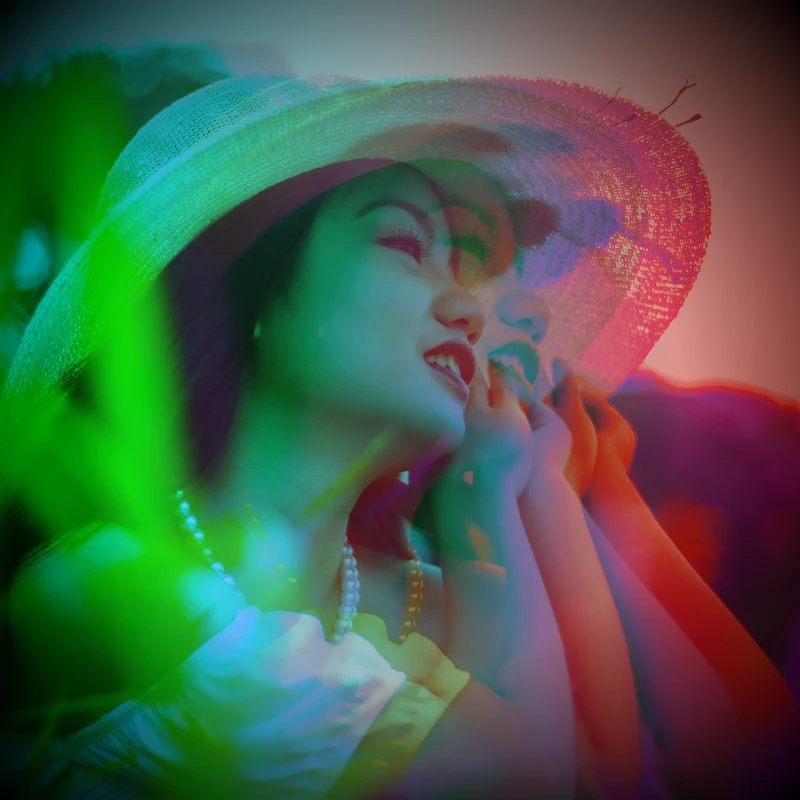
Recolor a photo from Effects → Color with neon edges, heat maps, and…
Try Color effects yourself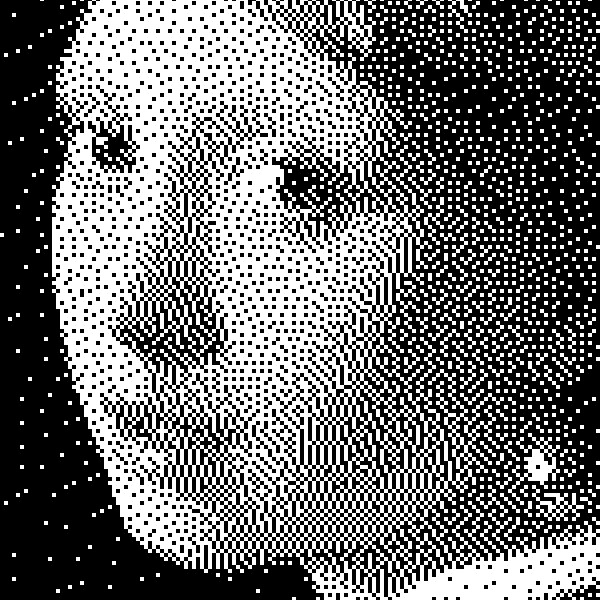
Apply grayscale, threshold, dots, squares, ordered dithering, error…
Try Black and White effects yourself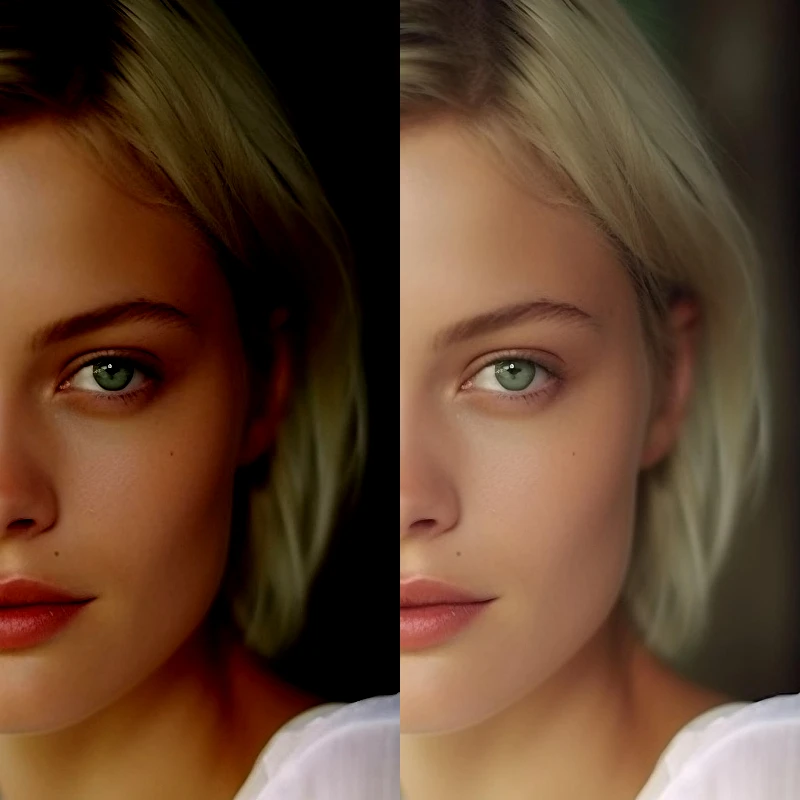
Correct exposure and color from Image → Adjust.
Try Adjust yourself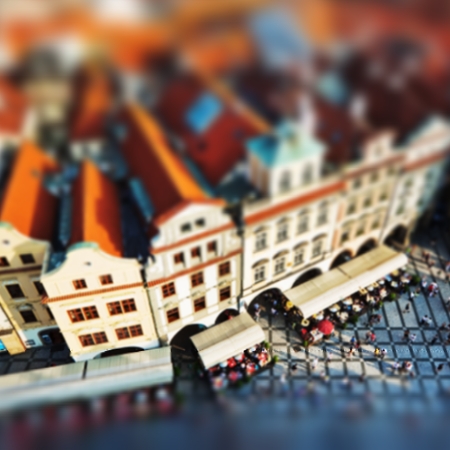
Add a miniature-style tilt-shift effect to direct attention in a scene.
Try Tilt Shift yourself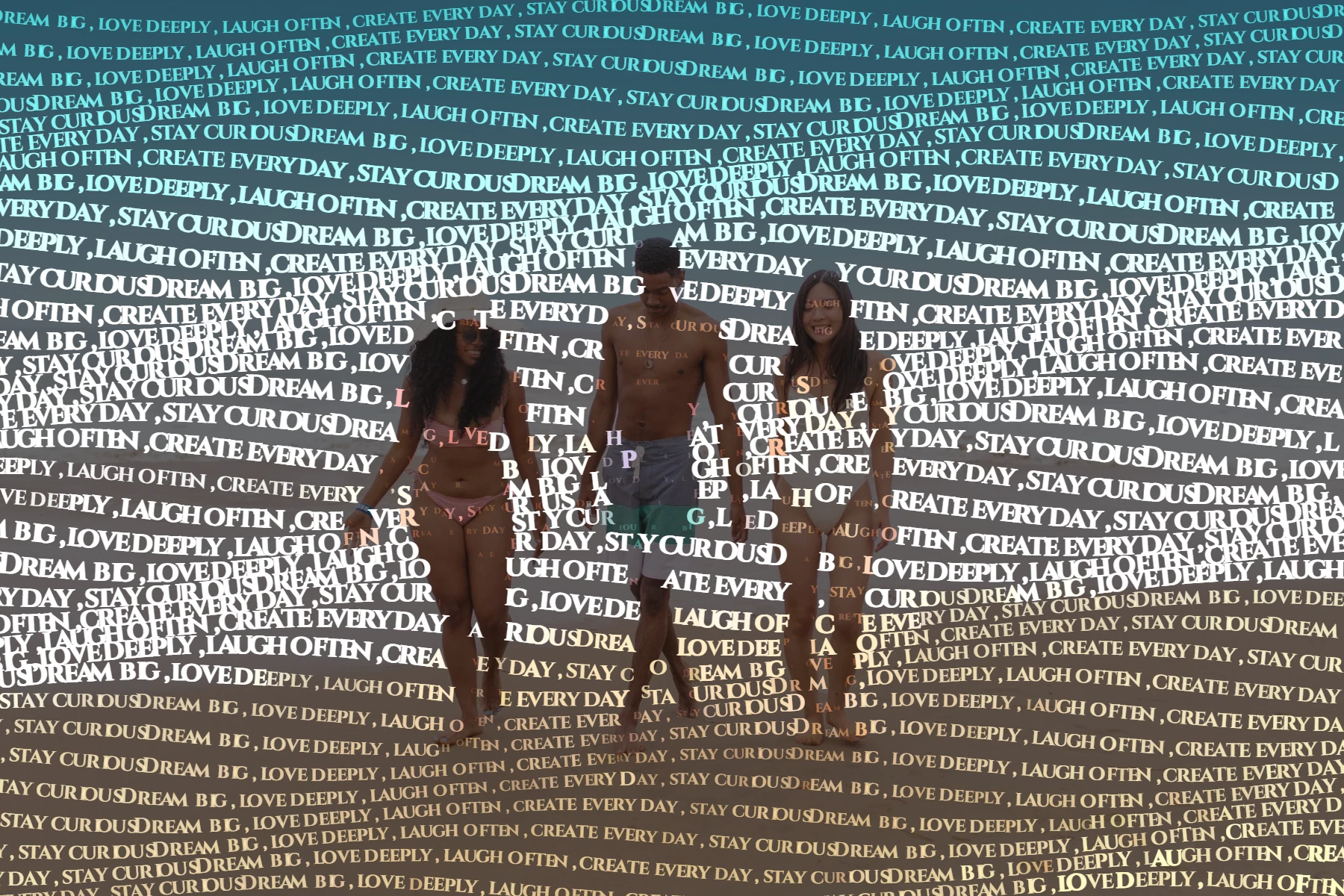
Turn photos into letter-built art from Effects → Text.
Try Typographic effects yourself
Apply RGB split, scanlines, pixel sort, VHS tracking, datamosh, slice…
Try Glitch effects yourself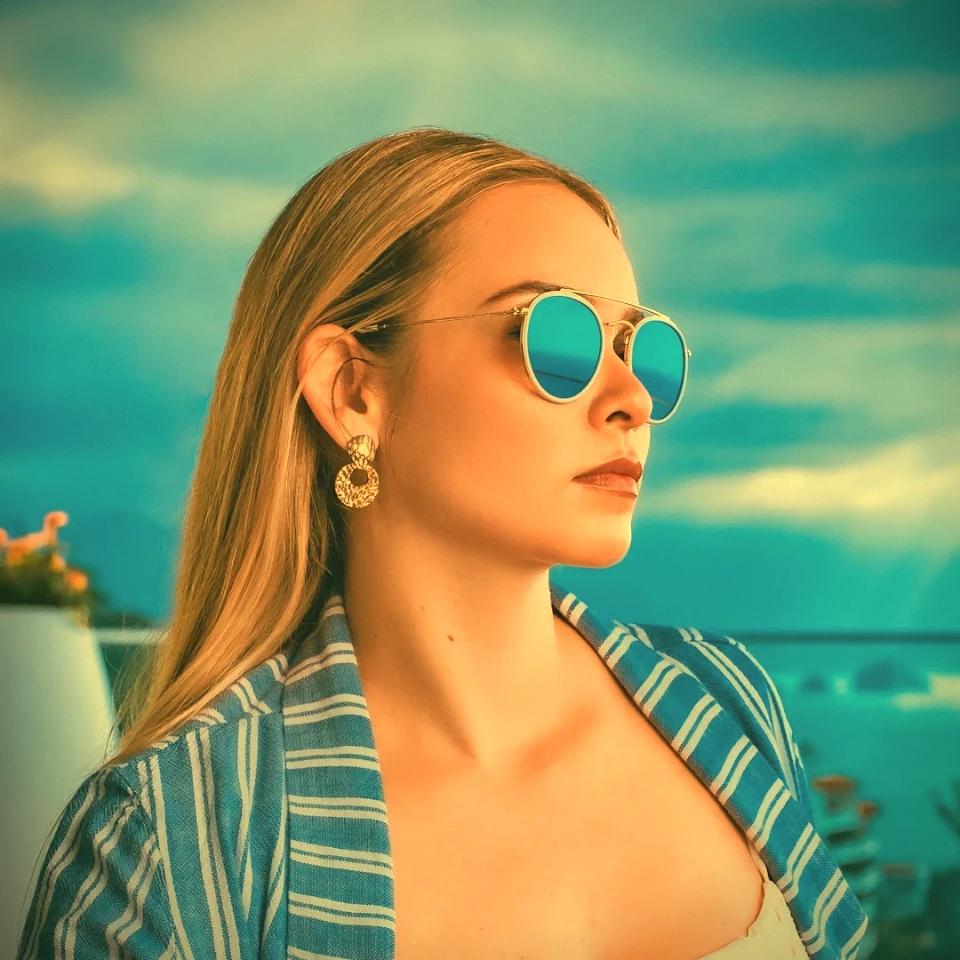
Apply grayscale, sepia, Holga, faded Polaroid, Kodachrome, cross…
Try Vintage effects yourself
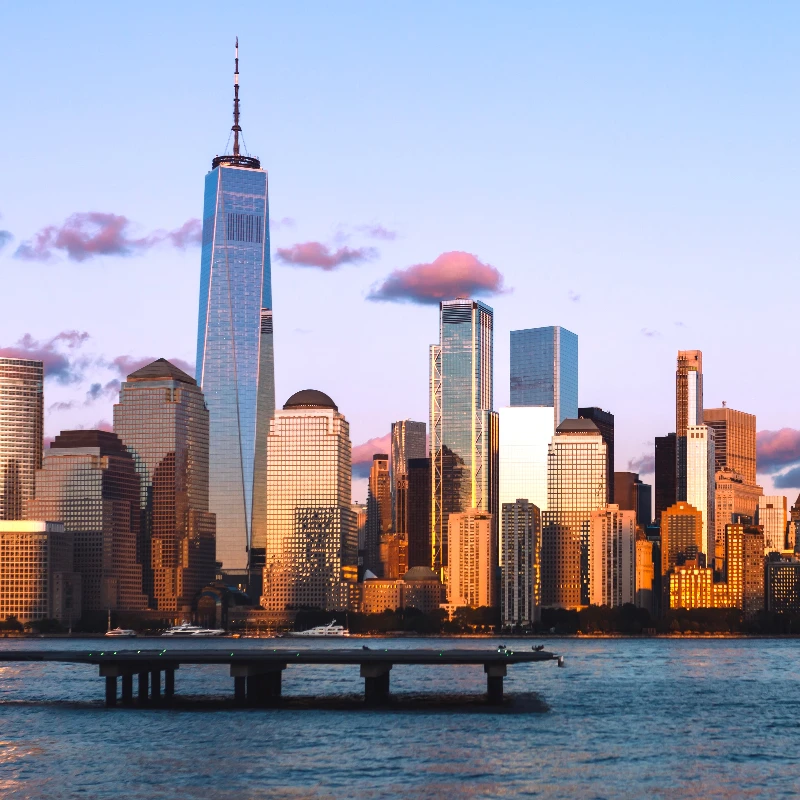
Soften focus with Gaussian, motion, radial, and tilt-shift blur—or bring…
Try Blur and Sharpen yourself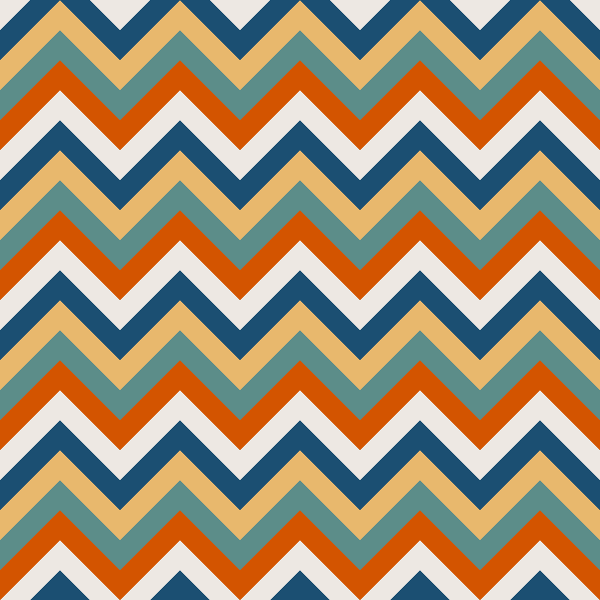
Generate procedural backgrounds and textures from Effects → Patterns.
Try Pattern filters yourself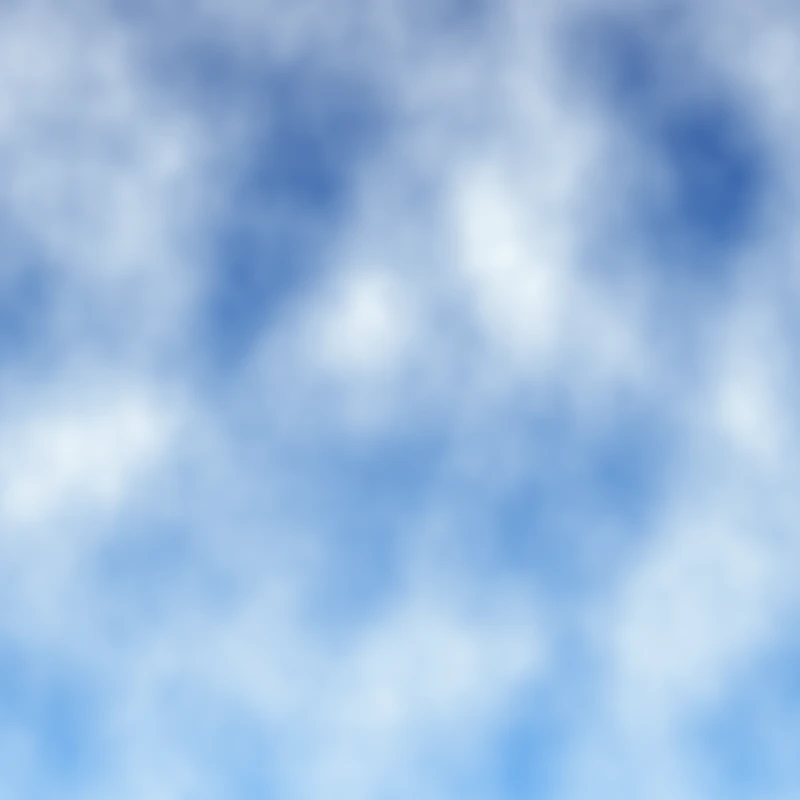
Generate linear and radial gradients, noise, lens flare, clouds, stars,…
Try Render effects yourself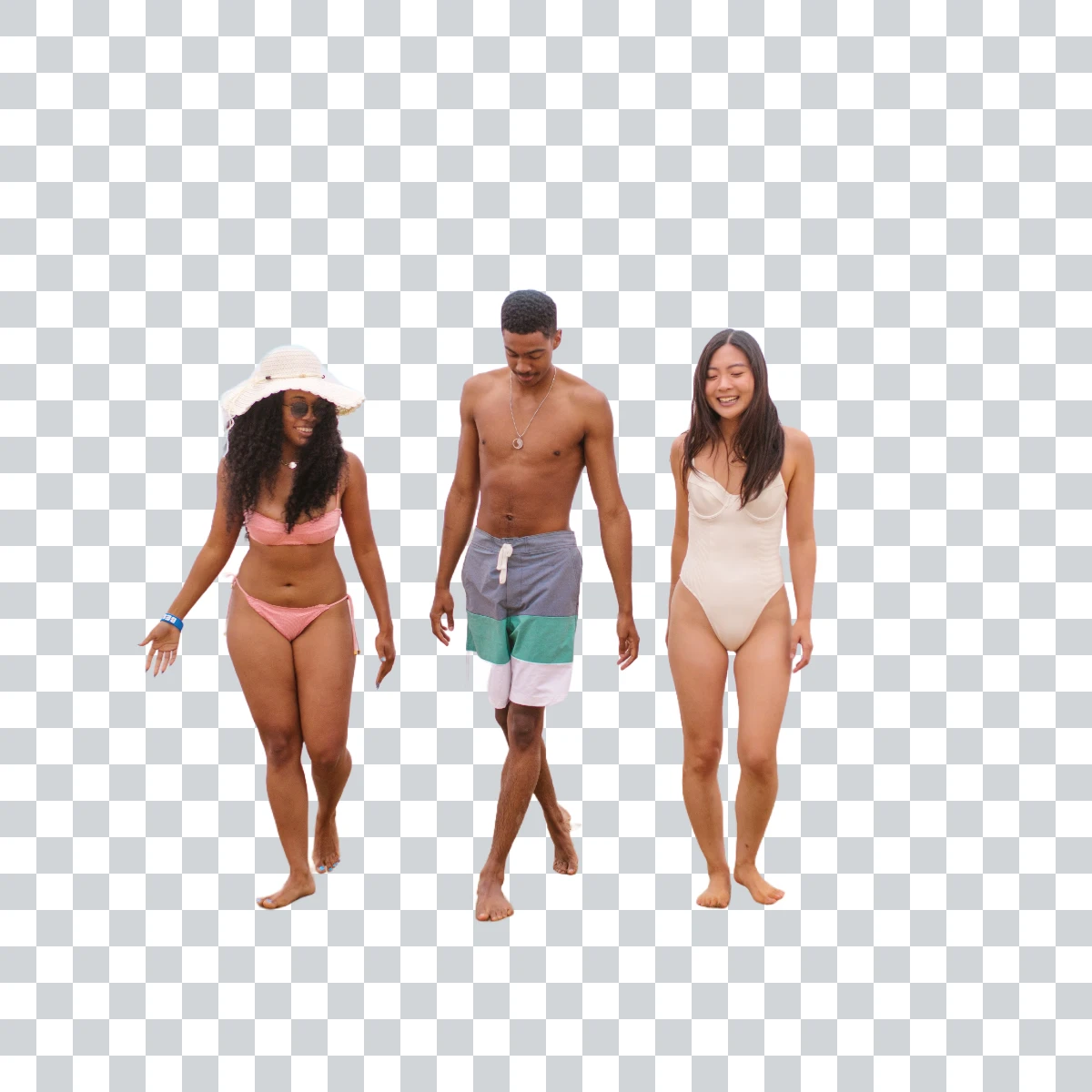
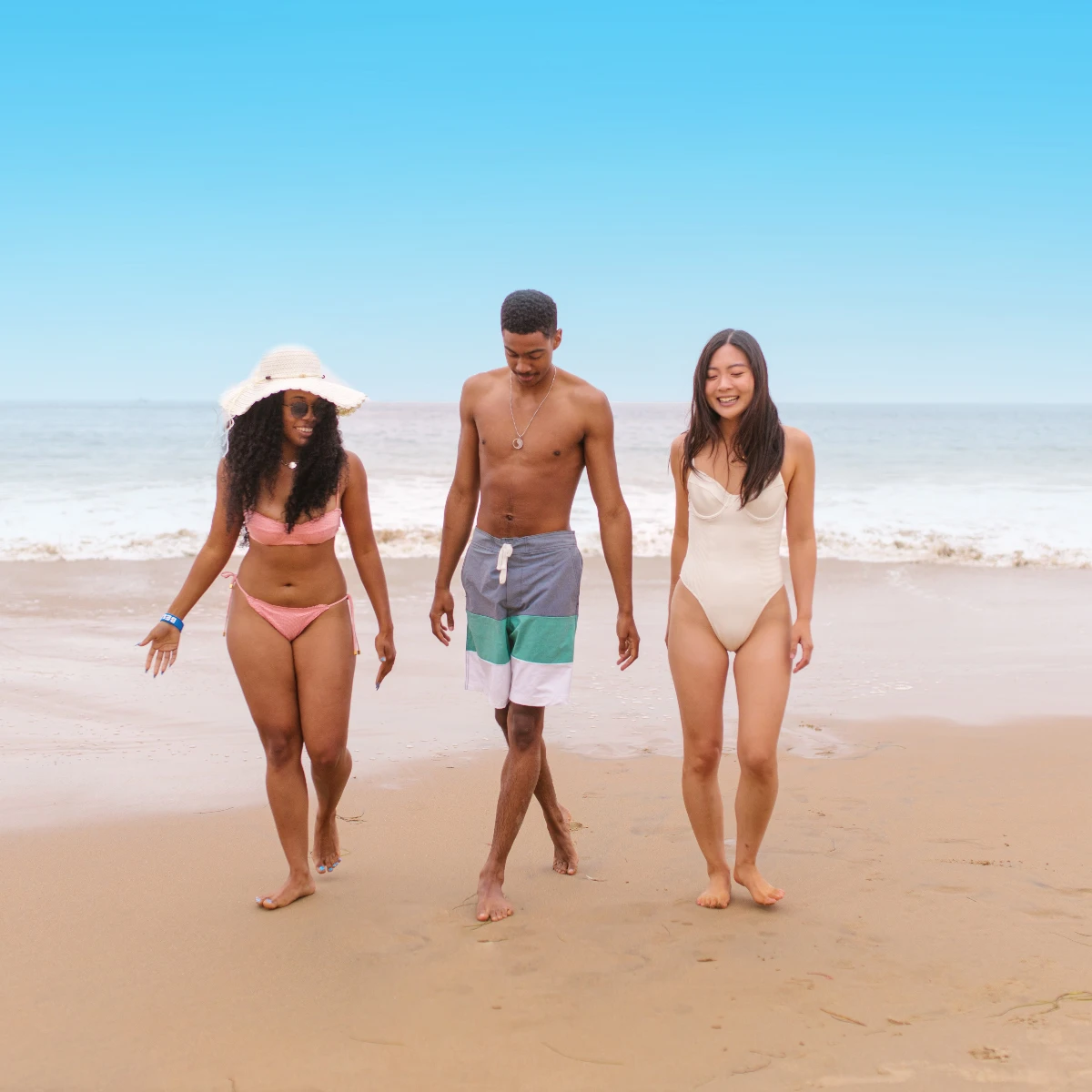
Cut out subjects with on-device AI in PictorX. Photos stay in your…
Try Remove backgrounds on your device yourself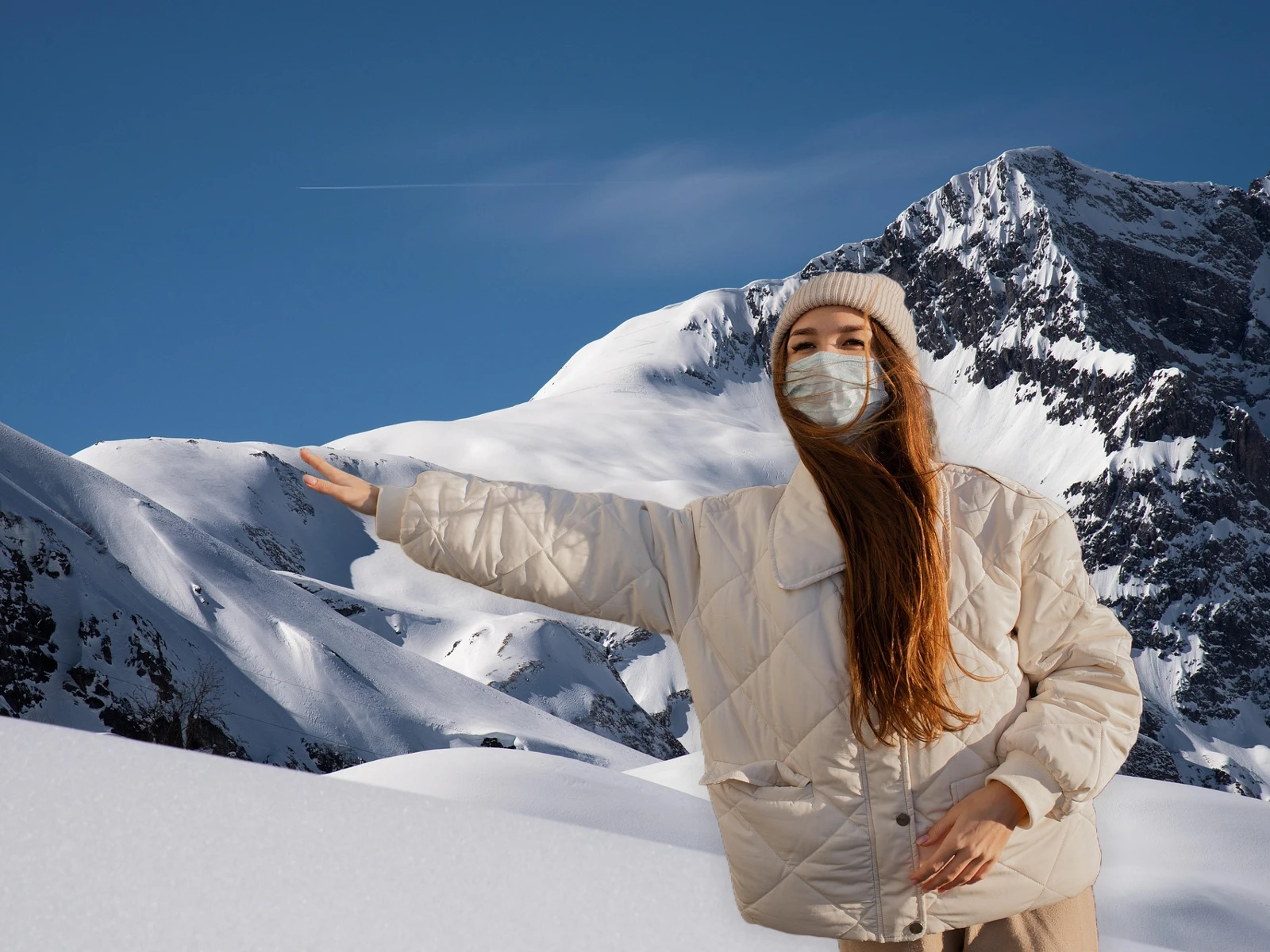
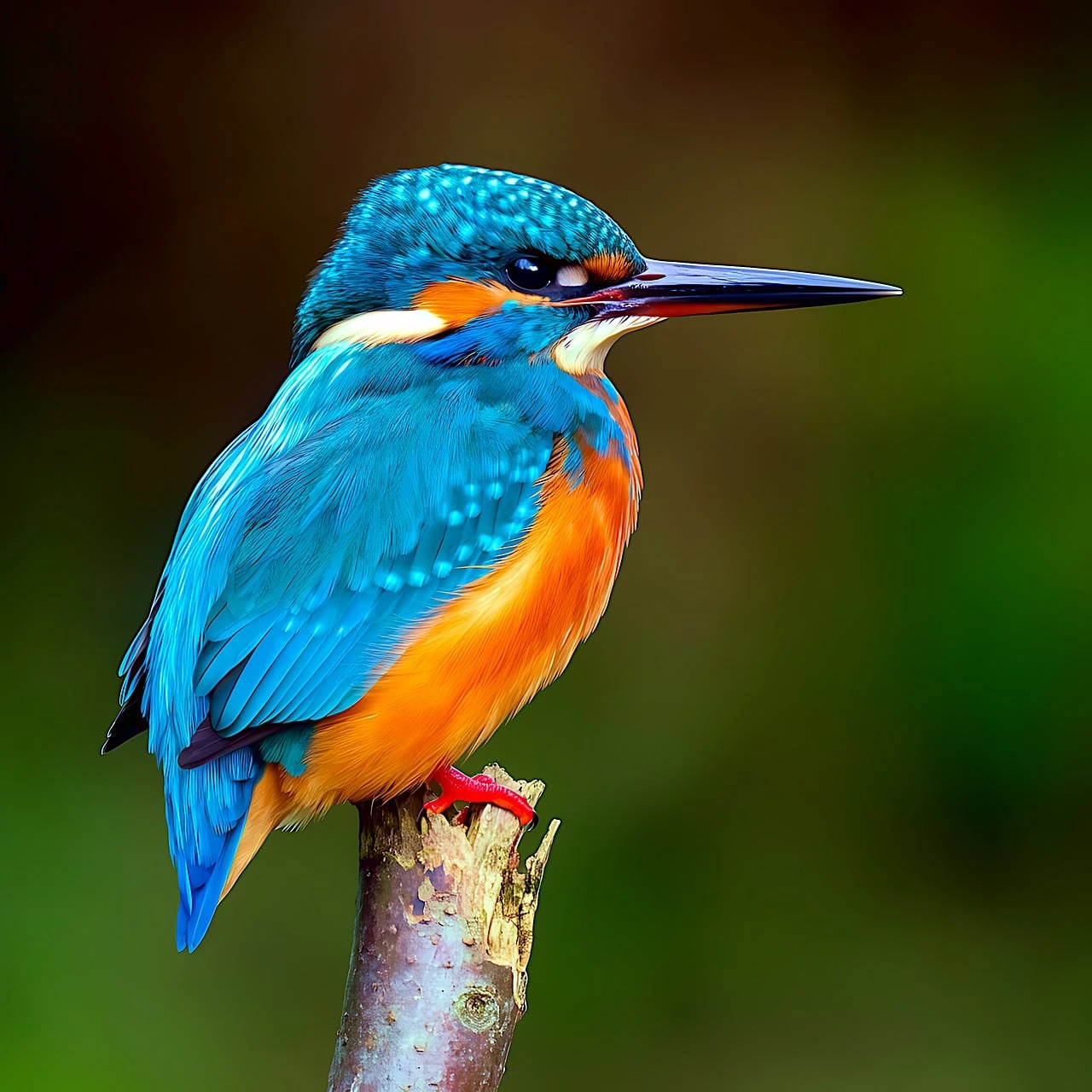
Replace the setting around a subject without uploading.
Try Replace background yourself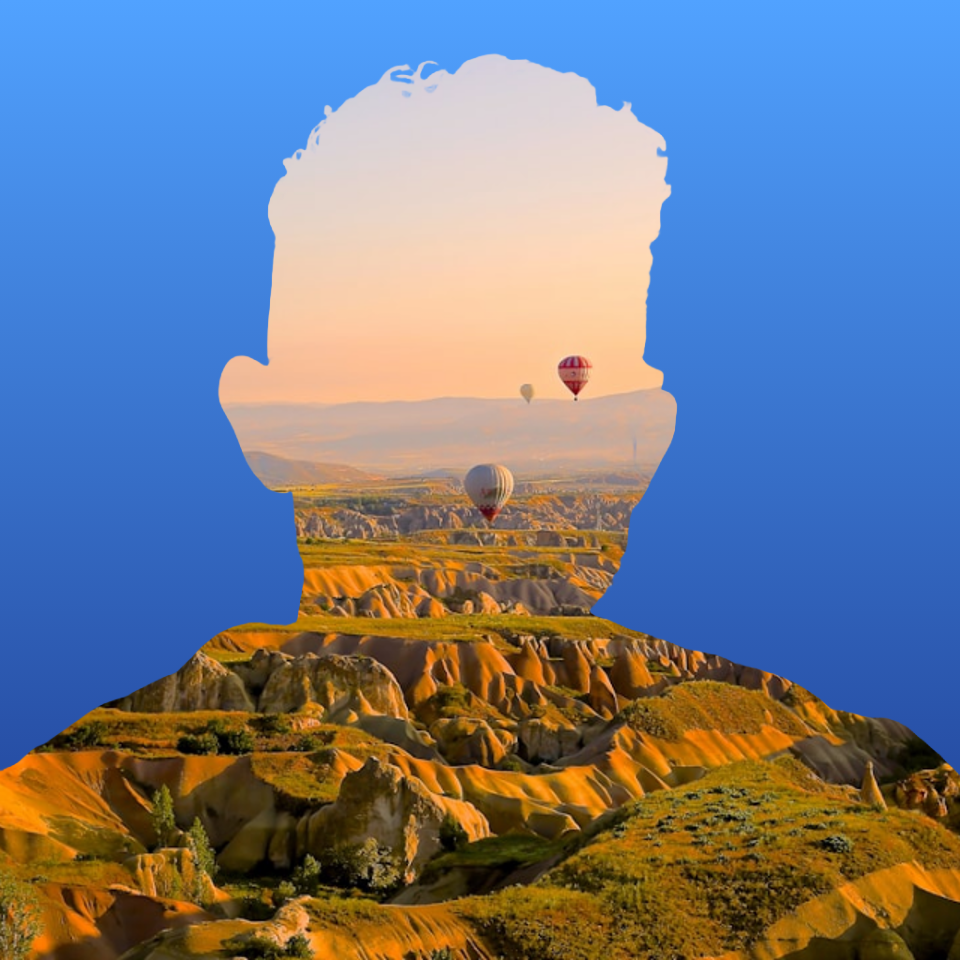
Fill a subject silhouette with a stock photo in your browser. On-device…
Try Fill a silhouette with a photo yourself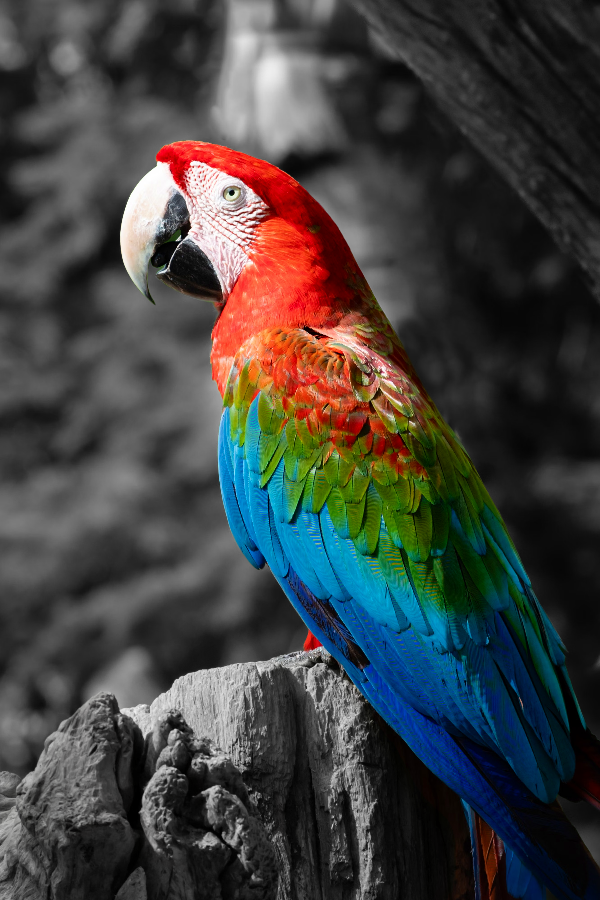
Turn everyday photos into cinematic moments.
Try Selective color spotlight yourself
Erase distractions without leaving holes.
Try AI object removal yourself
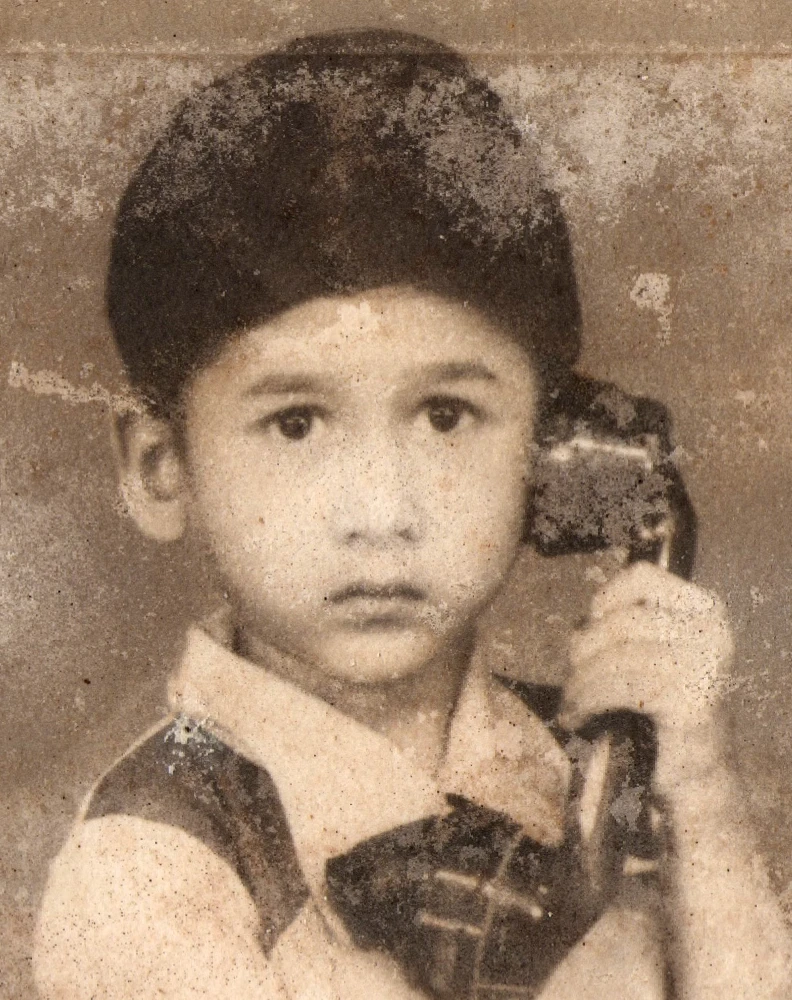
Repair old or damaged photos with PictorX AI image repair. Restore…
Try AI image repair online yourself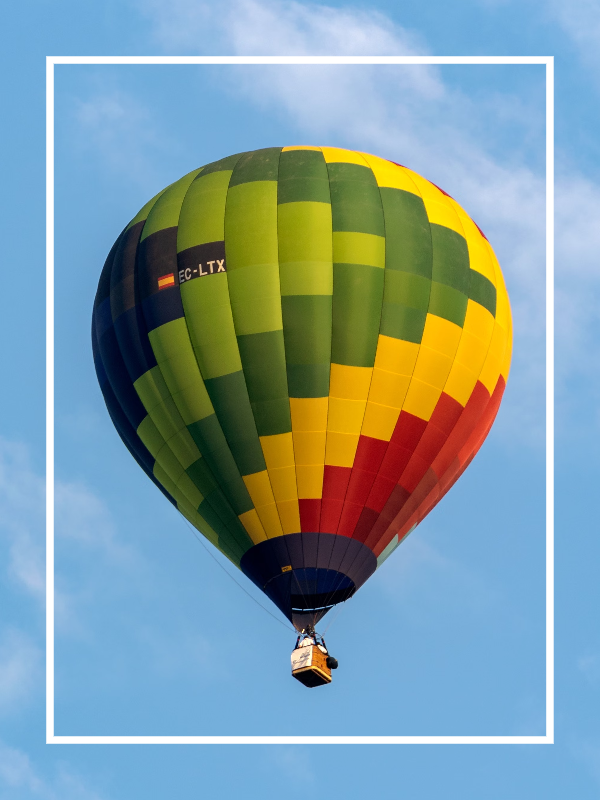
Expand photos beyond the frame with PictorX AI uncrop. Outpaint…
Try AI uncrop & outpaint images yourself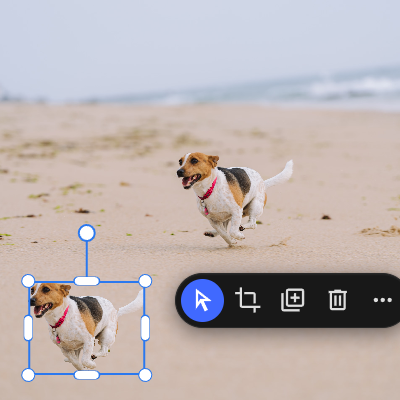
Lift any subject onto its own layer with a single click.
Try AI copy object yourself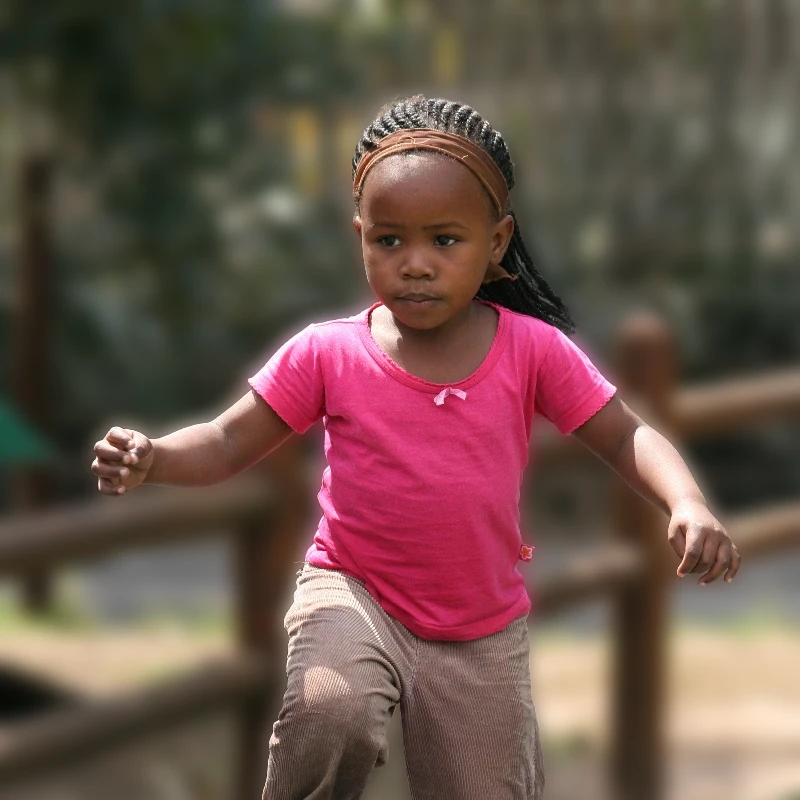

Keep the subject crisp while the backdrop softens—all on your device.
Try Blur background yourself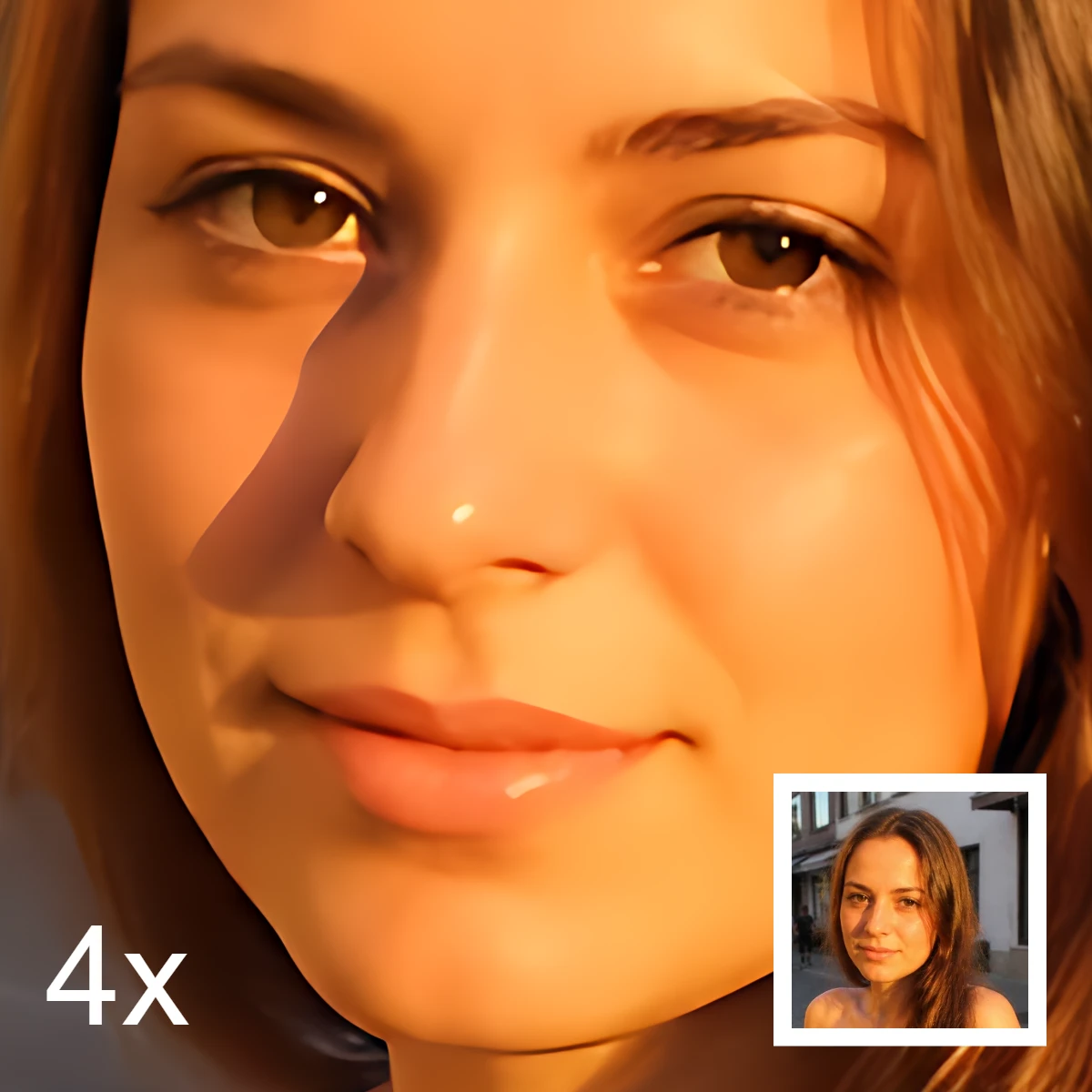
Sharpen and upscale photos in your browser with on-device Real-ESRGAN.…
Try Enhance and upscale photos on your device yourself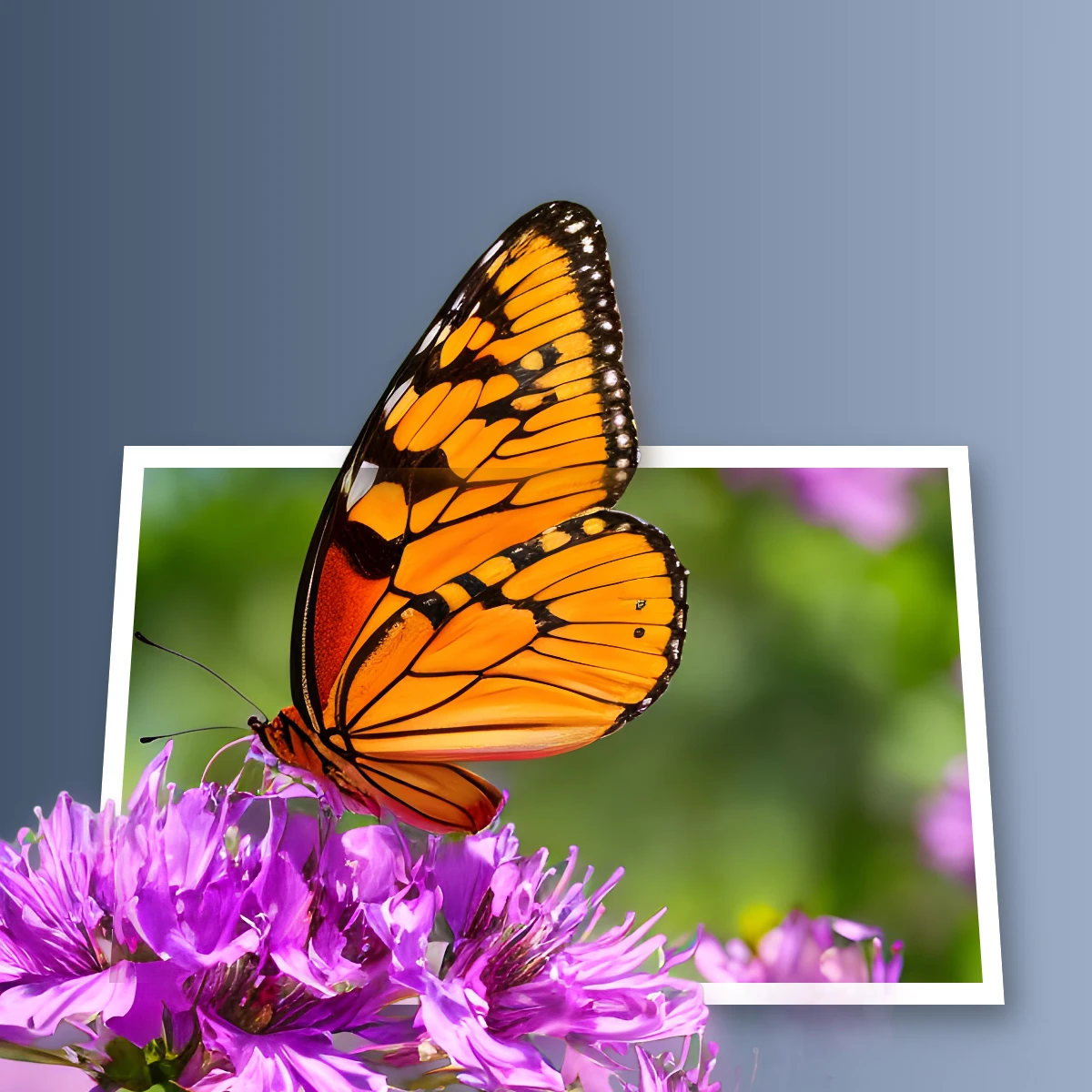
Create an out-of-bounds 3D photo effect in your browser. On-device AI…
Try Pop a subject out of the frame yourself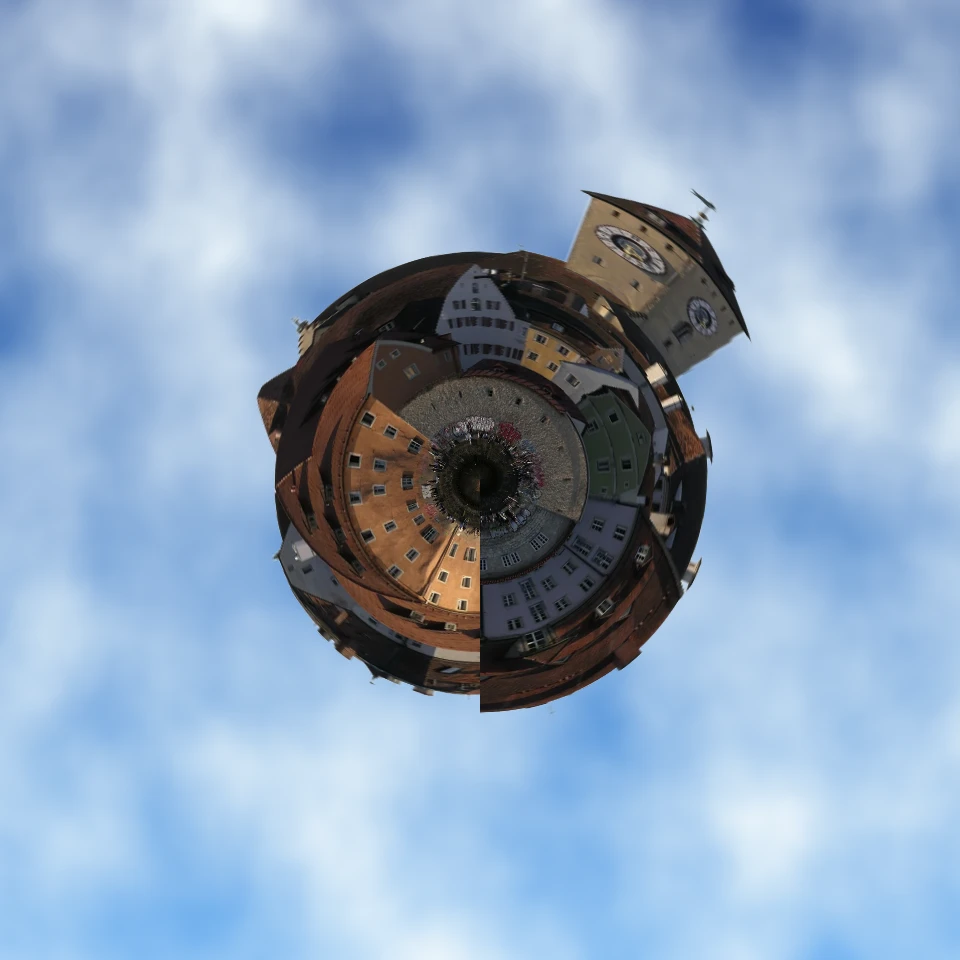
Turn a skyline or landscape into a tiny planet in your browser.…
Try Turn a photo into a tiny planet yourself
Turn a photo into a die-cut sticker in your browser. On-device AI cuts…
Try Make a die-cut sticker from any photo yourself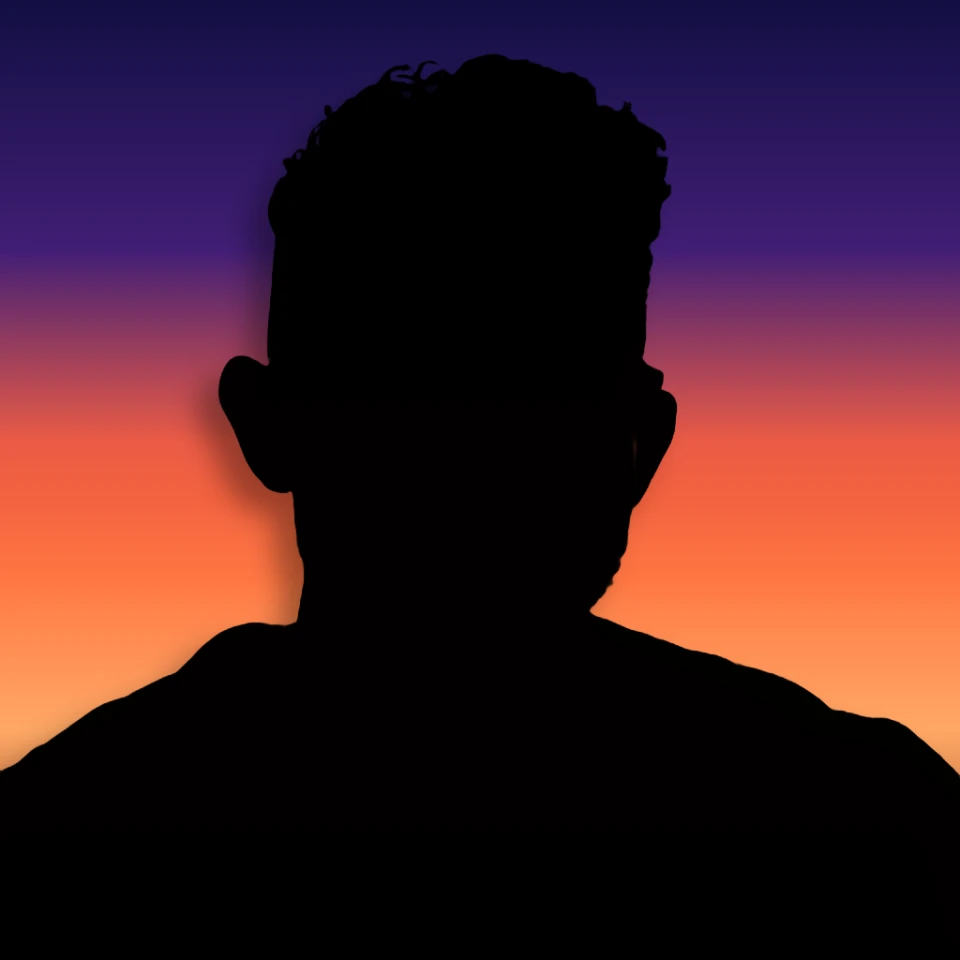
Turn a photo into a perfect silhouette in your browser. On-device AI…
Try Turn a photo into a perfect silhouette yourself
Remove backgrounds from a set of product or portrait photos in PictorX.…
Read more about Remove backgrounds from many photos at once
Rich text styling with fonts, fills, gradients, strokes, shadows, 3D…
Try Text & Typography tool yourself
Add geometric shapes and styled lines to your canvas. Use the free…
Read more about Shapes & Vectors tool
Build editable charts from a data table in your browser: columns, bars,…
Try Living charts & data yourself
Isolate exactly what you need—nothing more, nothing less. Use the free…
Read more about Selection tool
Pick a color on an interactive wheel, generate complementary, analogous,…
Try Color wheel yourself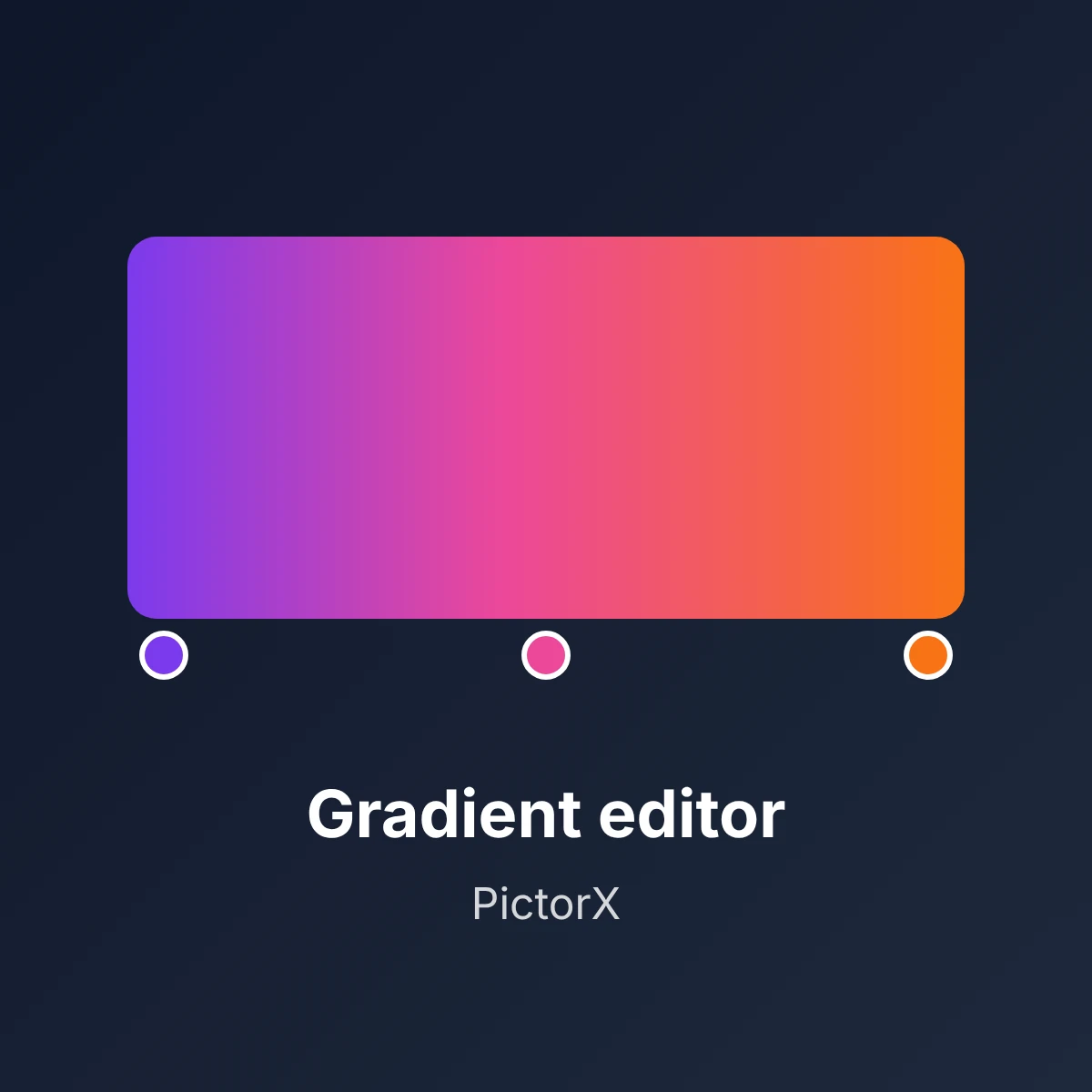
Build linear and radial CSS gradients in your browser. Drag color stops,…
Try Gradient editor yourself
Build, lock, and shuffle color palettes in your browser. Copy HEX, CSS…
Try Color palette generator yourself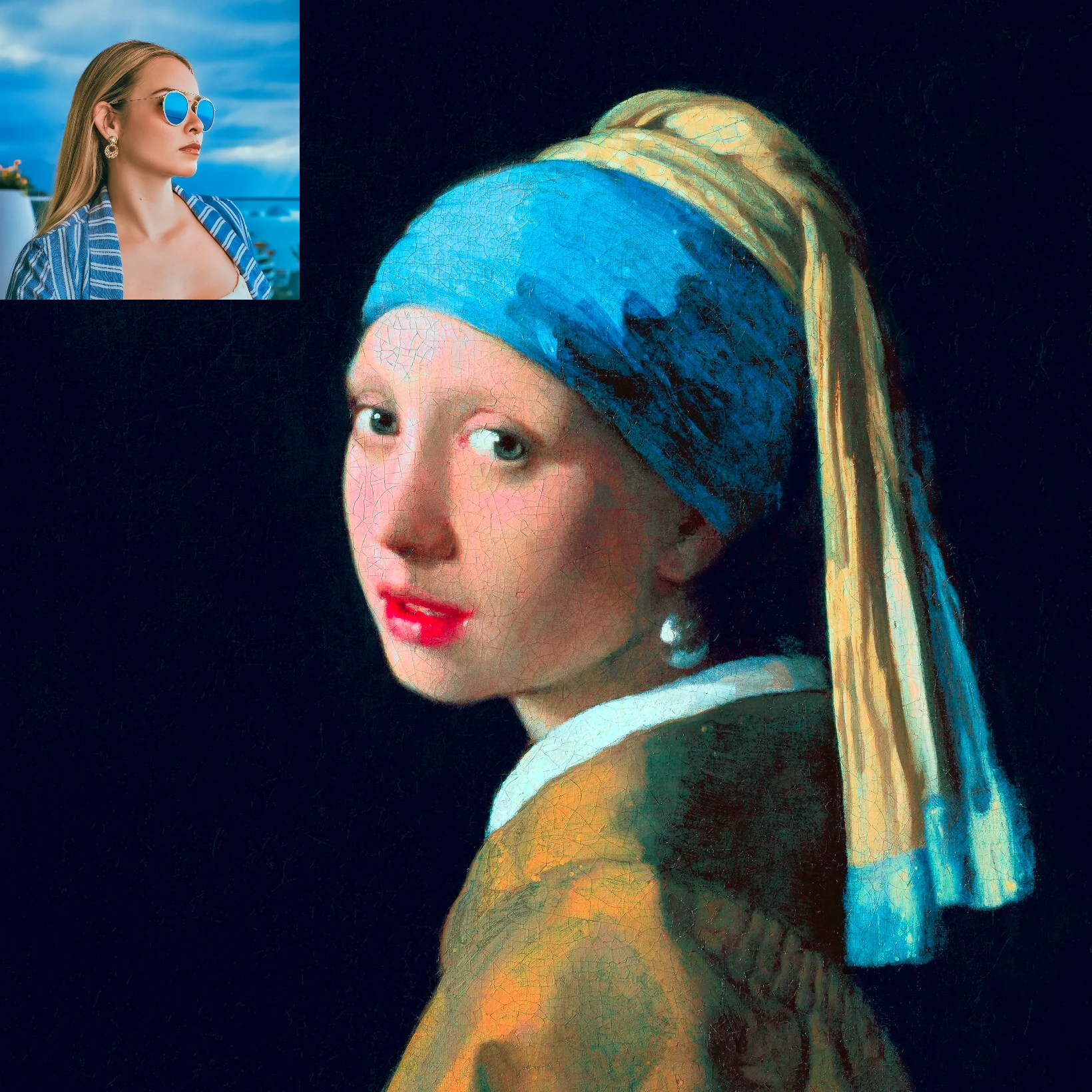
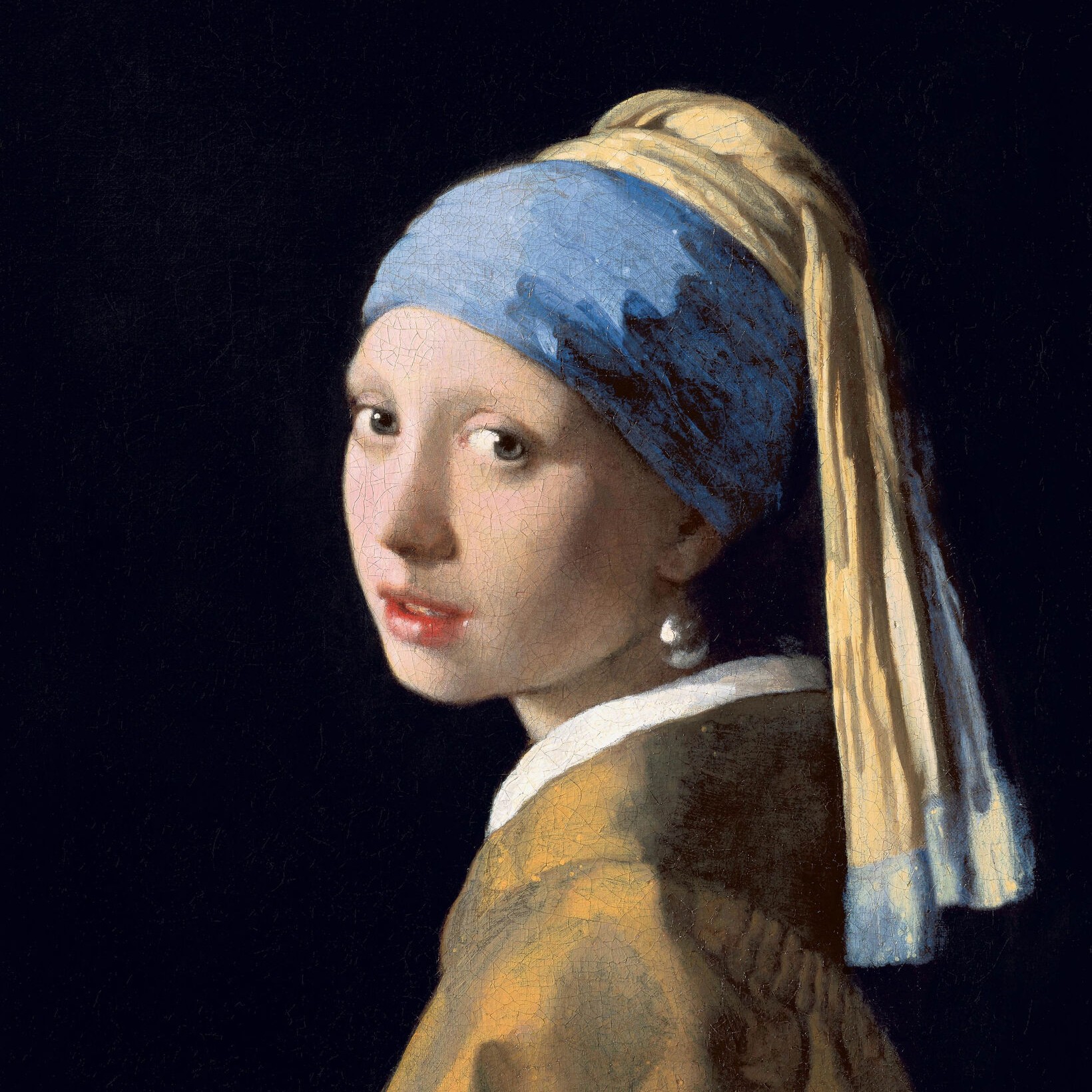
Recolor a photo using the colors of a second image. Live preview in your…
Try Color transfer yourself
Position, scale, align, and snap layers precisely on the PictorX canvas.…
Try Move & Resize tool yourself
Turn the active layer to the exact angle your image or layout needs. Use…
Try Rotate tool yourself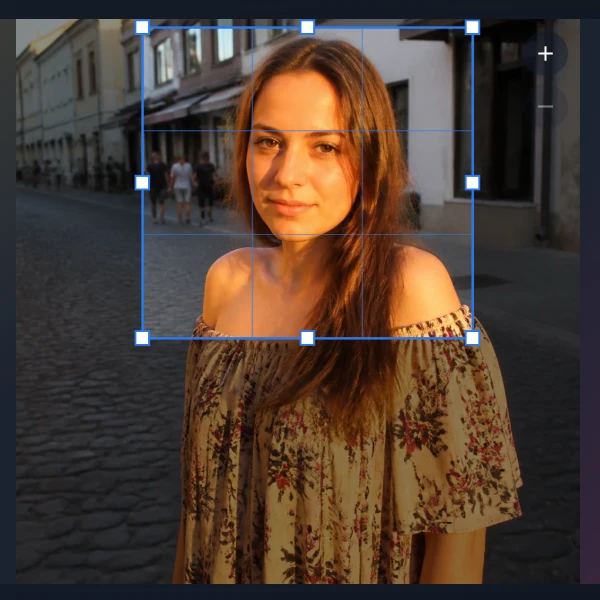
Trim a canvas to the part of an image or layout you want to keep. Use…
Try Crop tool yourself
Paint soft color with adjustable brush size, hardness, and tip shape.…
Try Airbrush tool yourself
Fill connected image areas with color using adjustable tolerance and…
Try Paint Bucket tool yourself
Erase pixels with a resizable brush on the active raster layer. Use the…
Try Eraser tool yourself
Brush away matching colors within a chosen tolerance while you paint.…
Try Magic Eraser tool yourself
Blend neighboring pixels by dragging through the image. Use the free…
Try Smudge tool yourself
Blur pixels under a resizable brush with adjustable radius and hardness.…
Try Blur Brush tool yourself
Paint a filter under a resizable brush with adjustable hardness. Choose…
Try Effect Brush tool yourself
Hide blemishes, spots, and small distractions with the free online Clone…
Try Clone Stamp tool yourself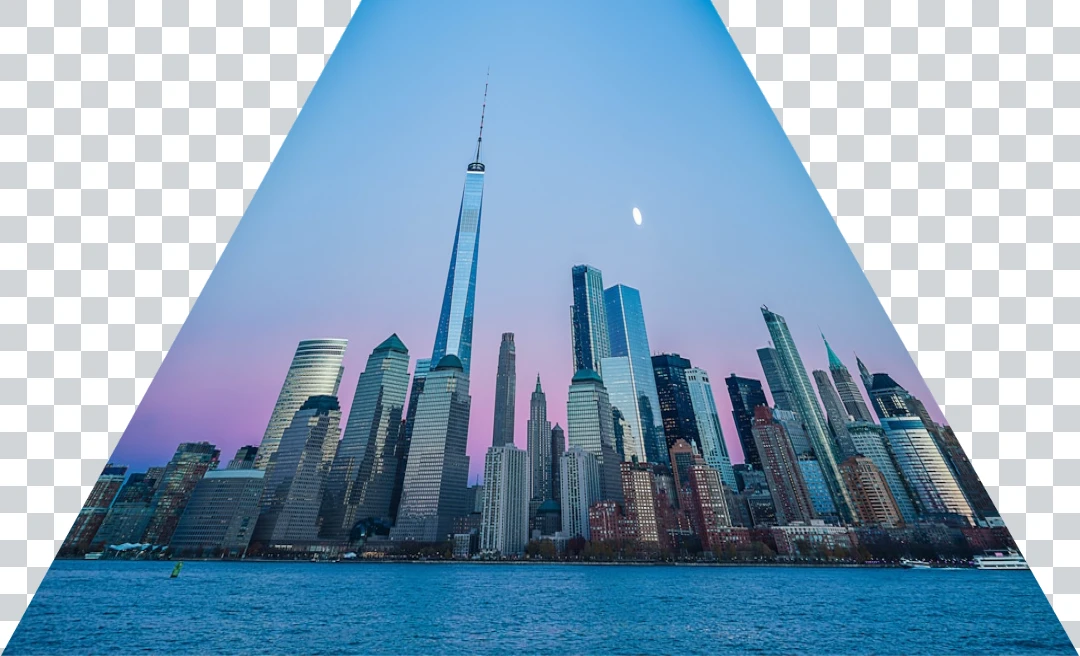
Warp an image in perspective by moving its four corners. Use the free…
Try Perspective tool yourself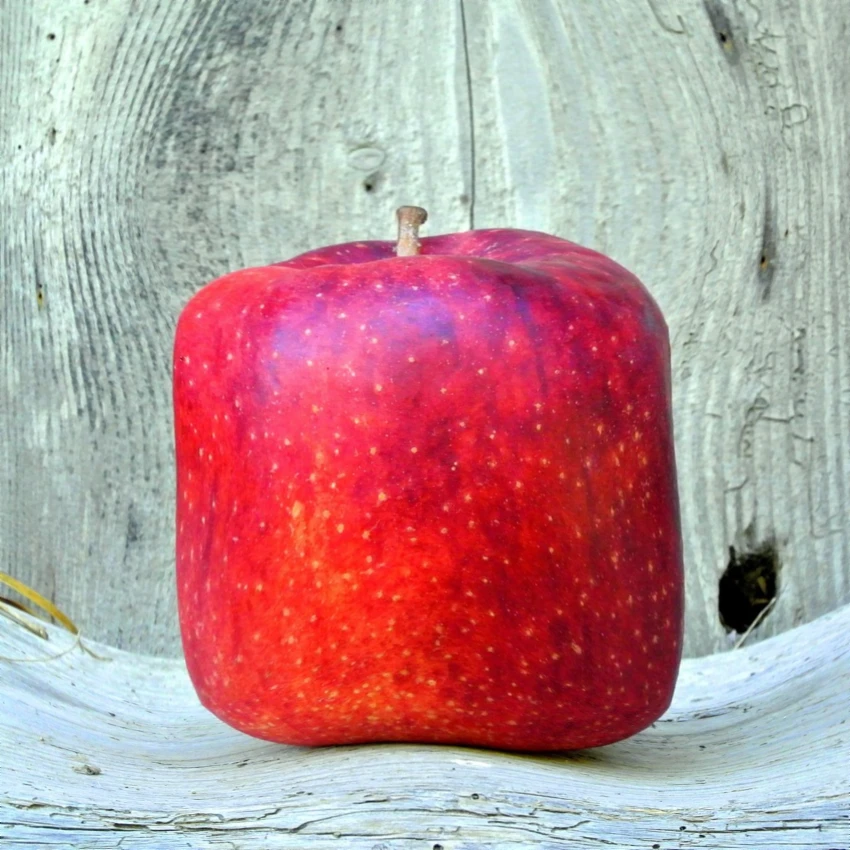
Distort an image by adjusting points across an editable mesh. Use the…
Try Mesh Warp tool yourself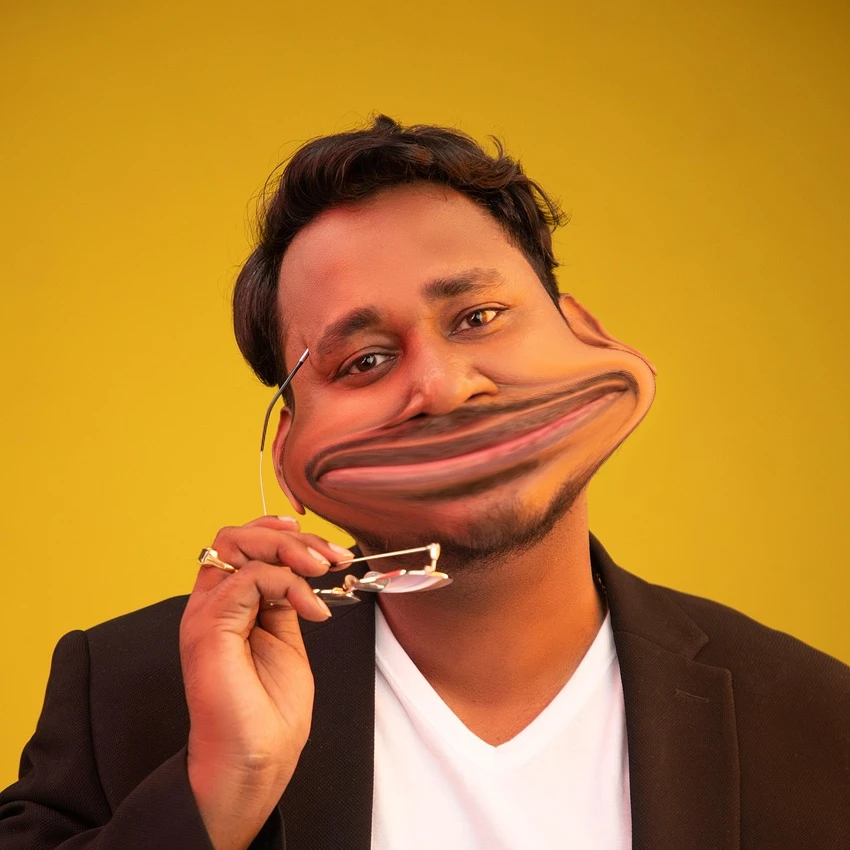
Push, pull, inflate, shrink, and rotate parts of an image for retouching…
Try Liquify tool yourself
Set the exact width and height for a new or existing design. Use the…
Try Canvas Size tool yourself
Move around large canvases comfortably while keeping your creative work…
Read more about Pan tool
Add styled lines and connectors to layouts, diagrams, and visual…
Read more about Lines tool
Draw freehand marks and straight lines directly on a raster layer. Use…
Read more about Line tool
Create closed polygon shapes by placing connected points on a raster…
Read more about Polygon toolPictograms lets you browse and add ready-made pictogram graphics to your…
Read more about Pictograms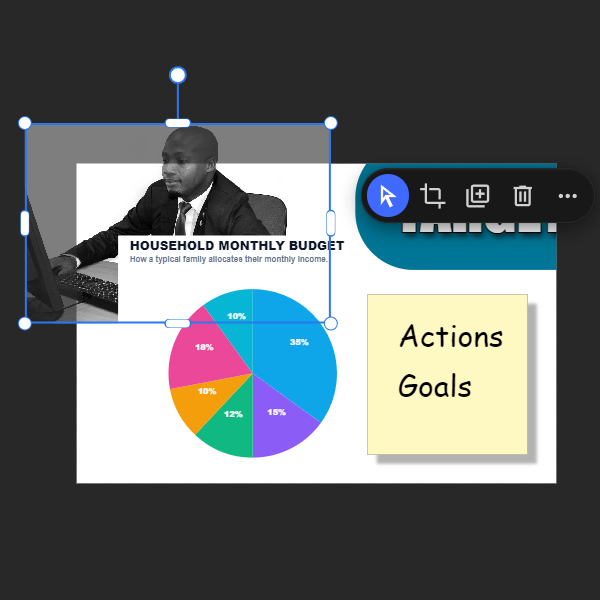
Pictorx adapts to the way you create.
Read more about Dual workspace editing
Document mode is Pictorx at its most precise: a familiar page-based…
Read more about Document mode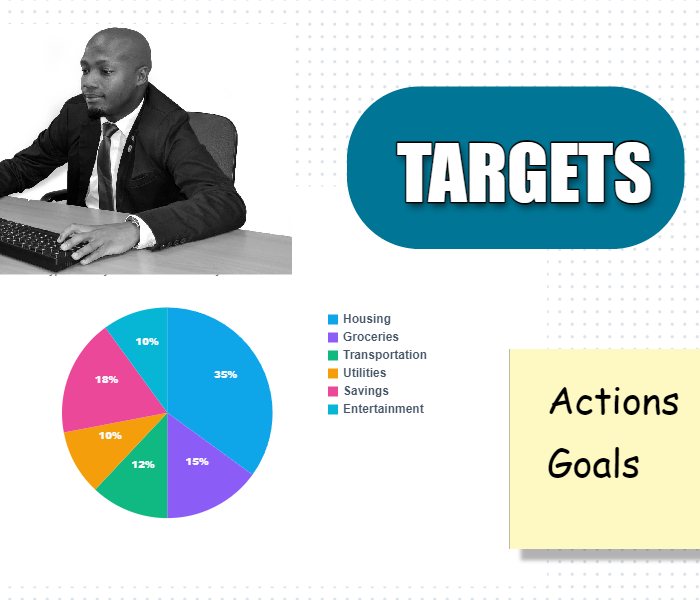
Turn on Whiteboard mode when fixed pages feel too tight.
Read more about Whiteboard mode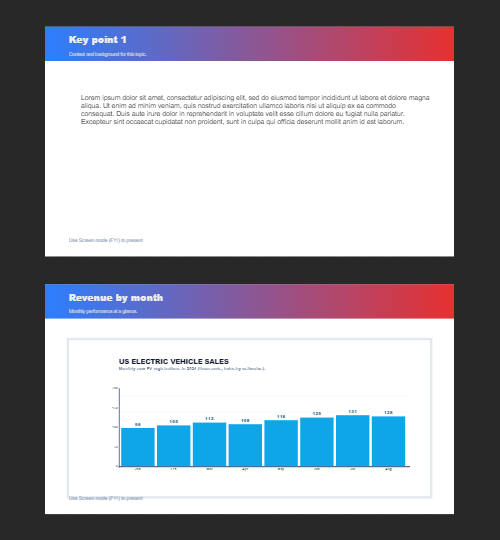
Build multi-page documents in Document mode—ideal for presentations,…
Read more about Multiple pages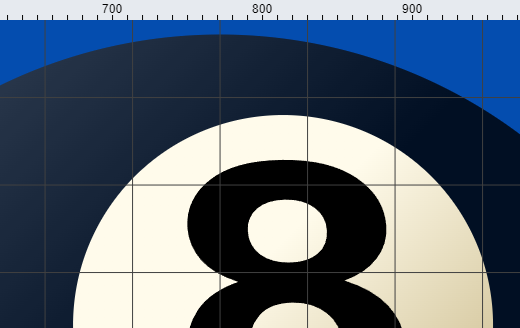
Inspect and place artwork with precise view controls.
Read more about Zoom, grids & rulers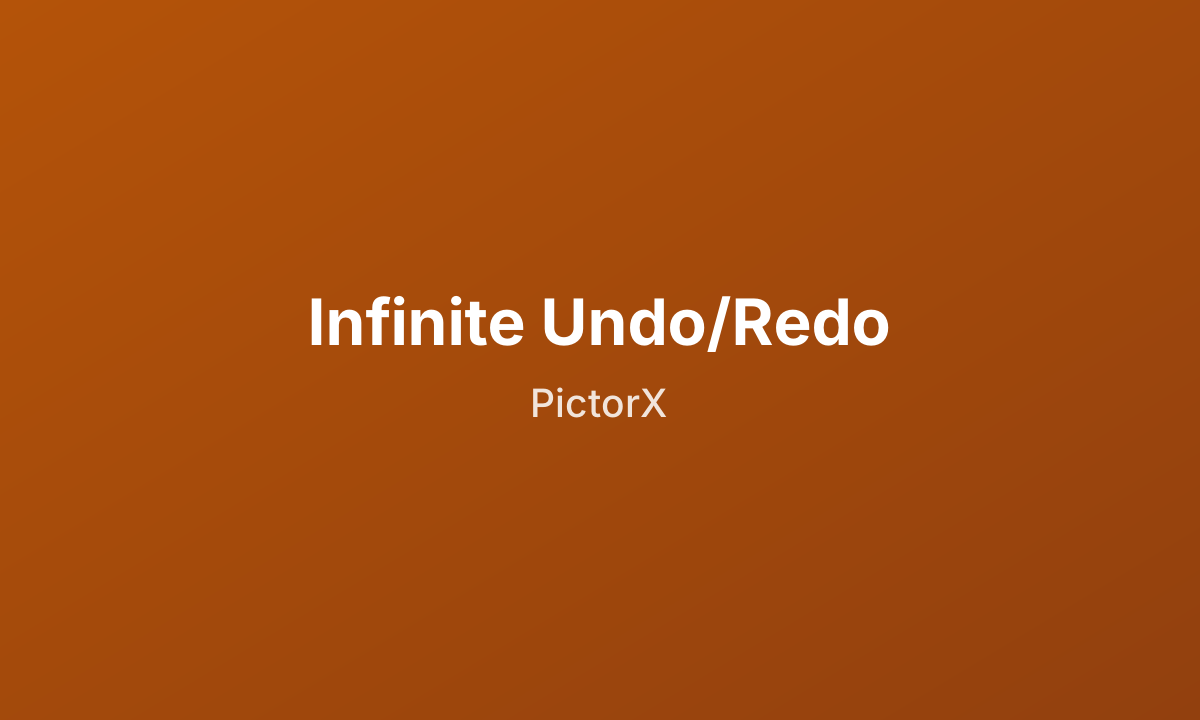
Experiment fearlessly—every brushstroke, filter, and layer change is…
Read more about Infinite undo/redo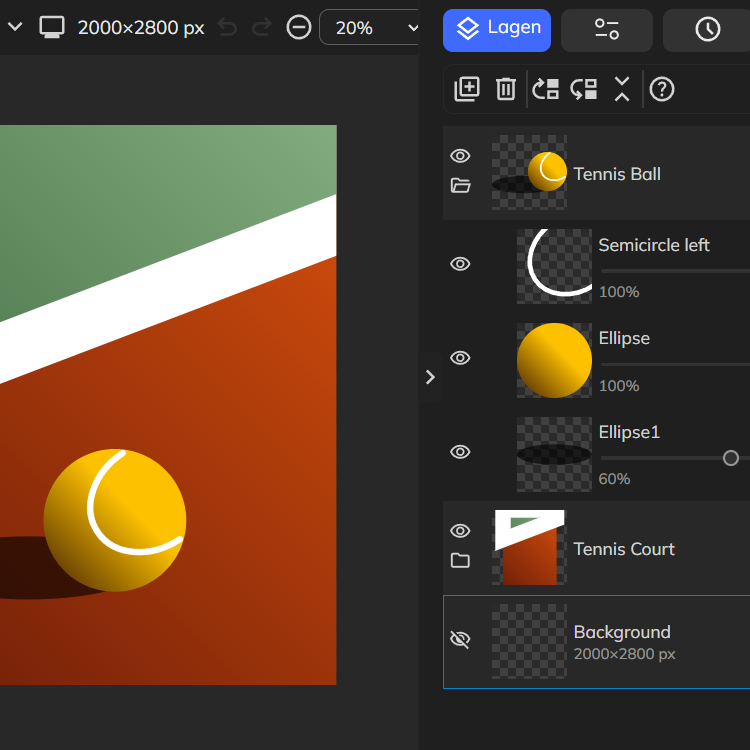
Stack images, text, and shapes with full layer support.
Read more about Layers & Blend Modes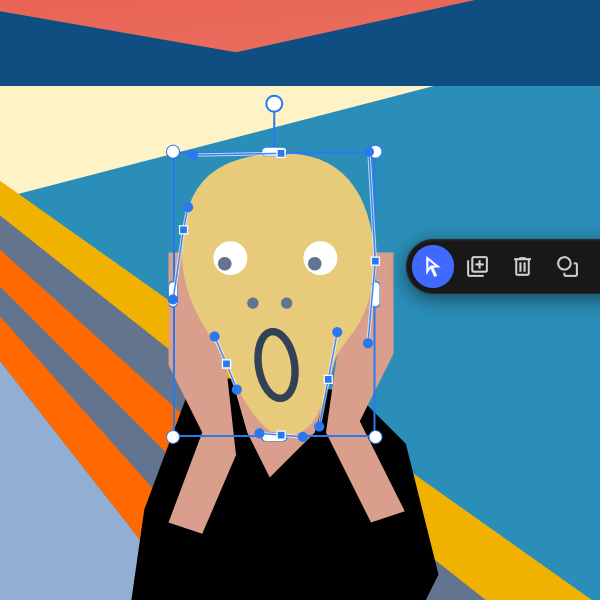
Reshape shape and line paths at the anchor level.
Read more about Paths, points & curves
Paint, erase, and refine pixels directly on raster layers.
Read more about Paint & draw tools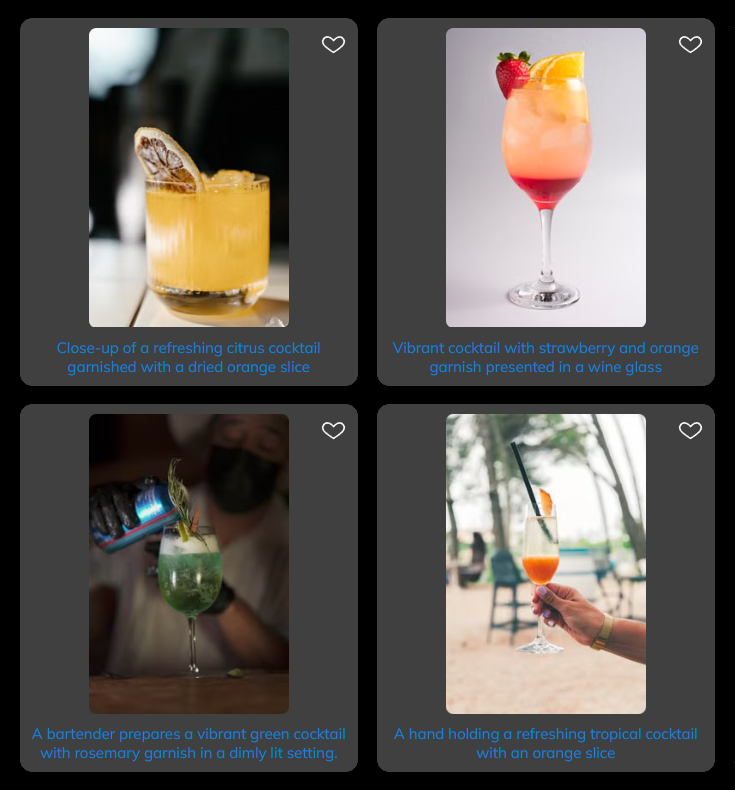
Search and open millions of free stock photos from Pexels, Unsplash, and…
Read more about Photo library
Fetch images from a public website, create a new image automatically,…
Read more about Import Website Images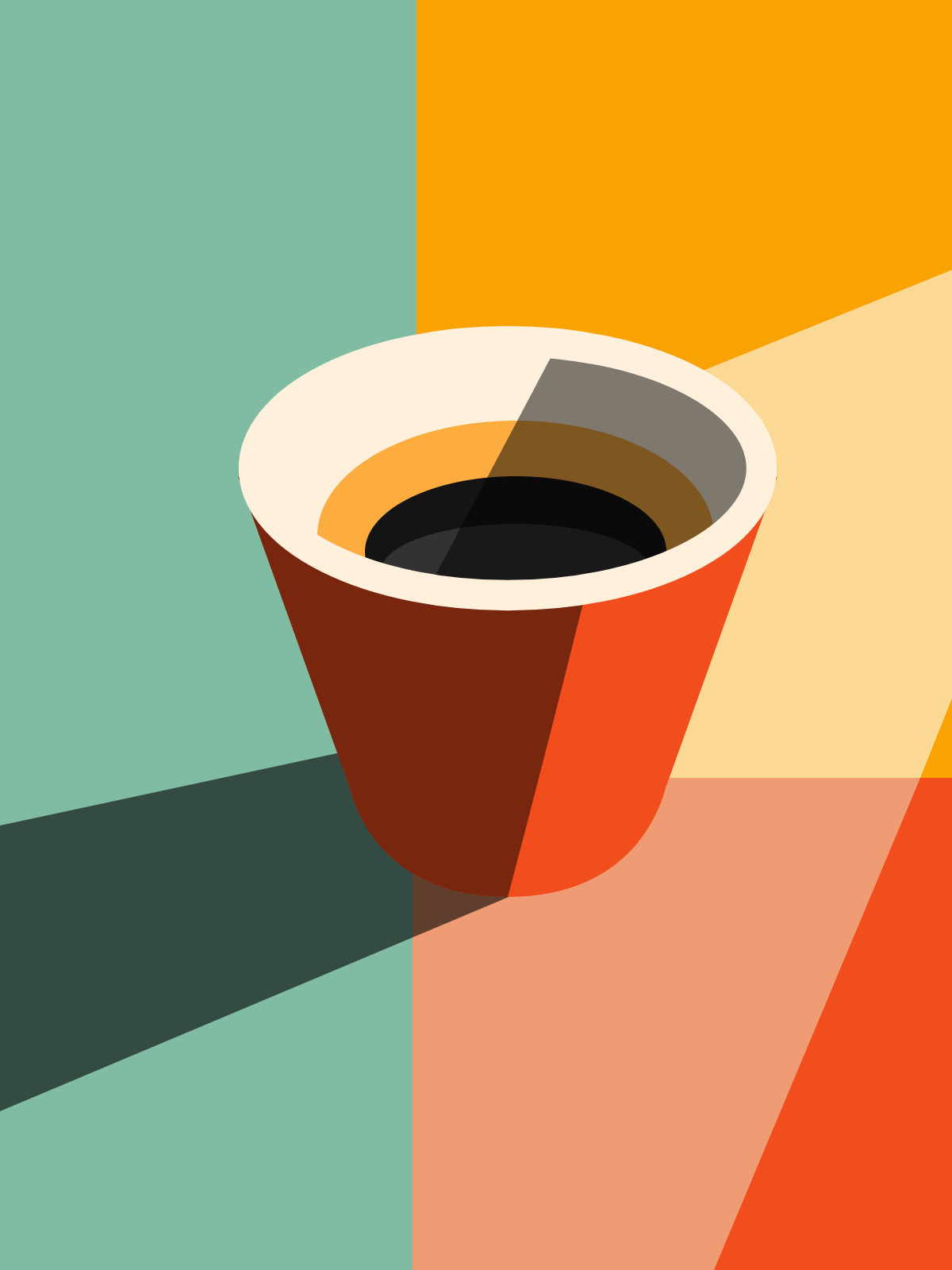
Jump-start any project with hundreds of ready-made layouts: artistic…
Read more about Design templates
Open an SVG in Pictorx and it is converted into editable layers.
Read more about Open, edit and save SVG files
Copy the visual style from a shape, line, or text layer and paste it…
Read more about Copy and paste layer styles
Reuse content from one project in another.
Read more about Copy layers between images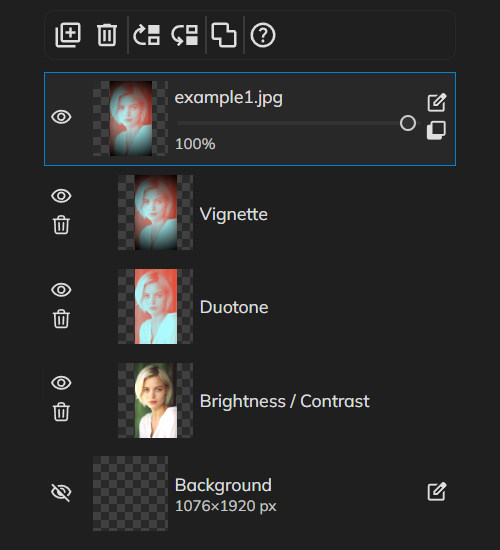
Grade color like a pro without baking pixels.
Read more about Non-destructive adjustments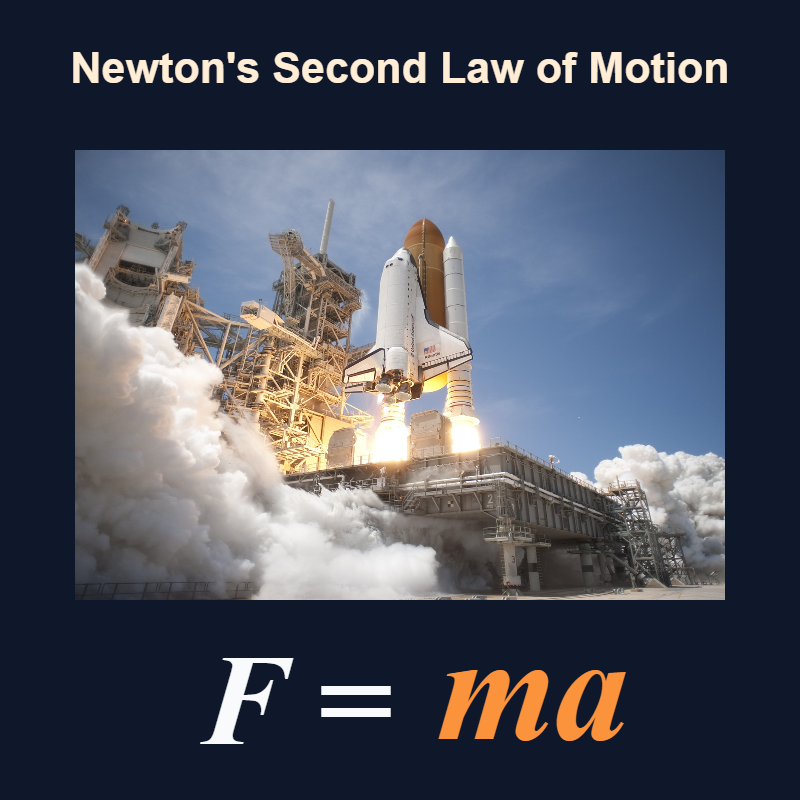
Block out distractions and edit in pure focus.
Read more about Zen canvas mode
Build a deck with PictorX’s step-by-step presentation wizard, then edit…
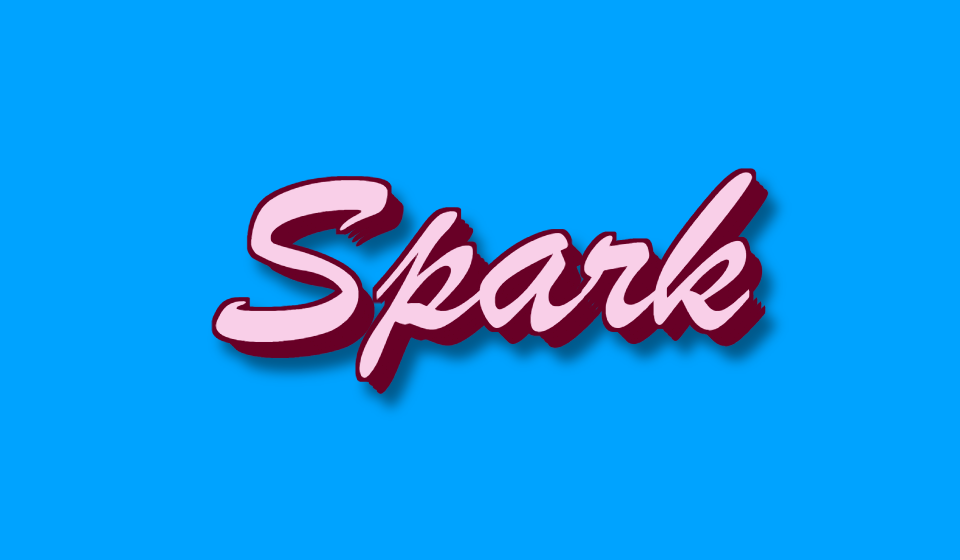
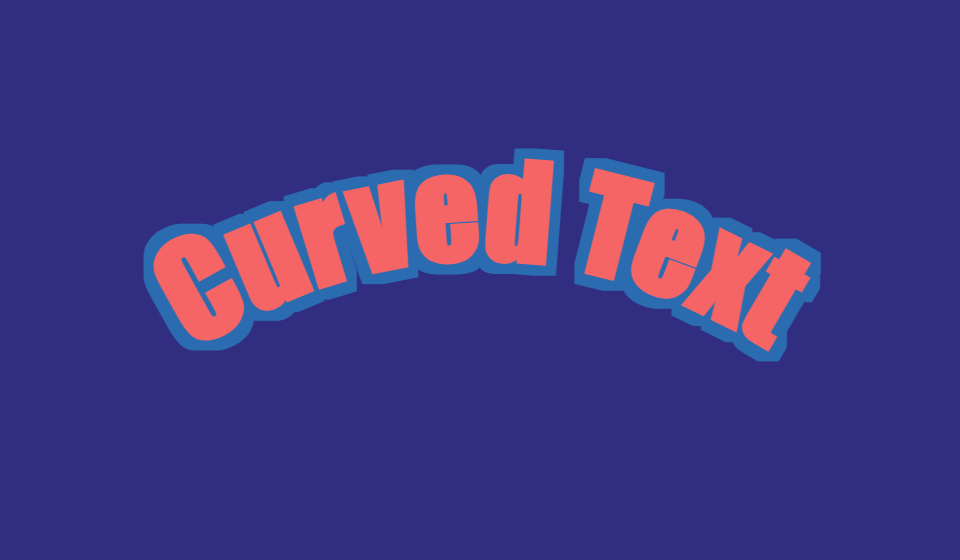
Read more about Build a deck with the presentation wizardBrowse stylish text presets, stroke, shadow, 3D and more.


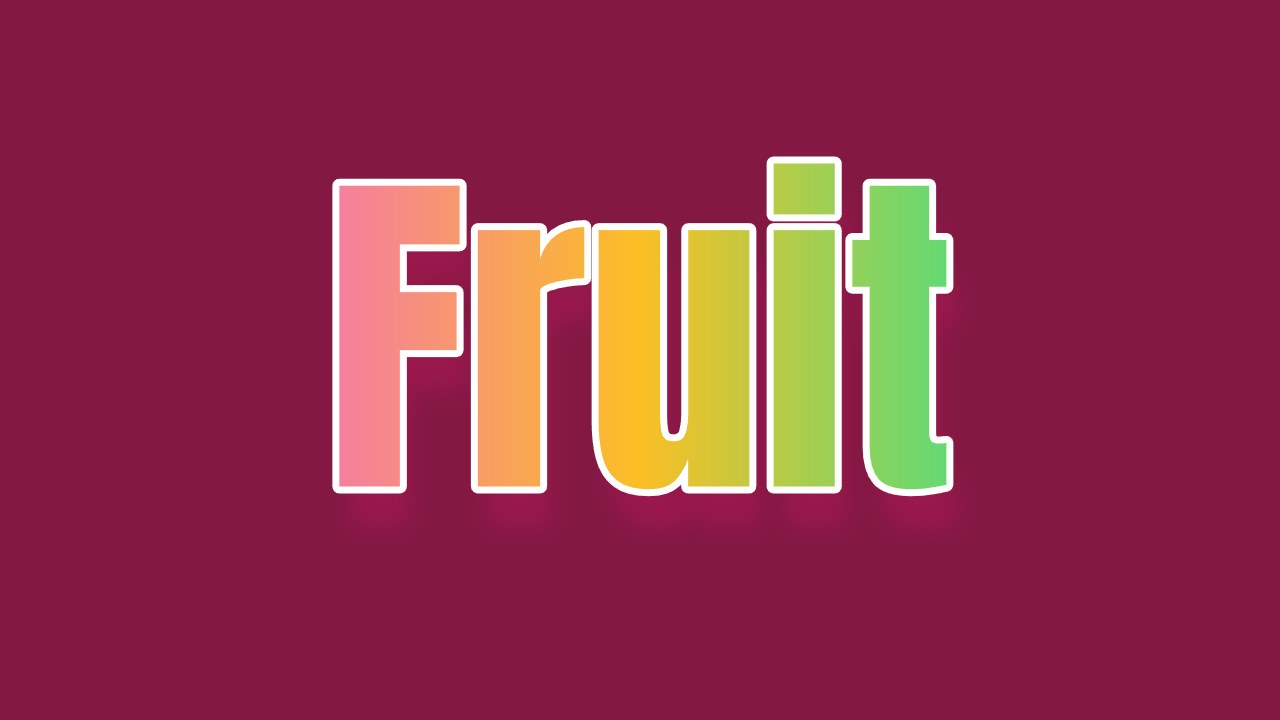

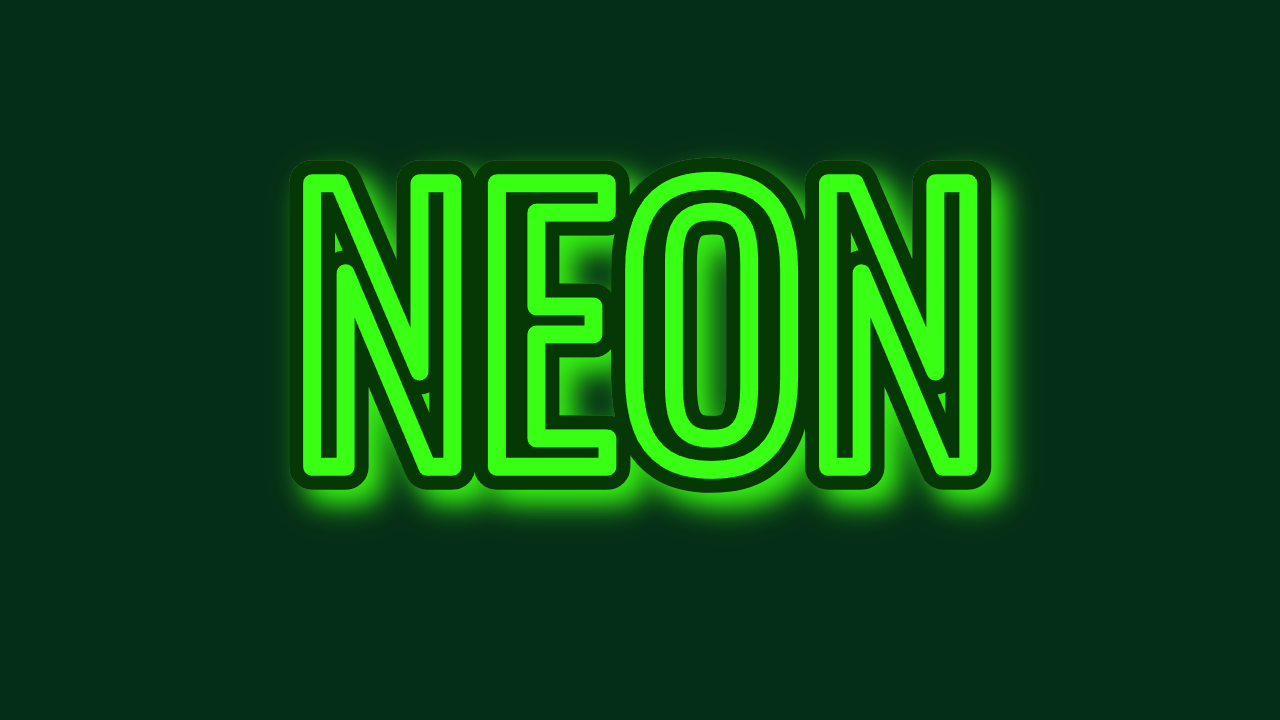
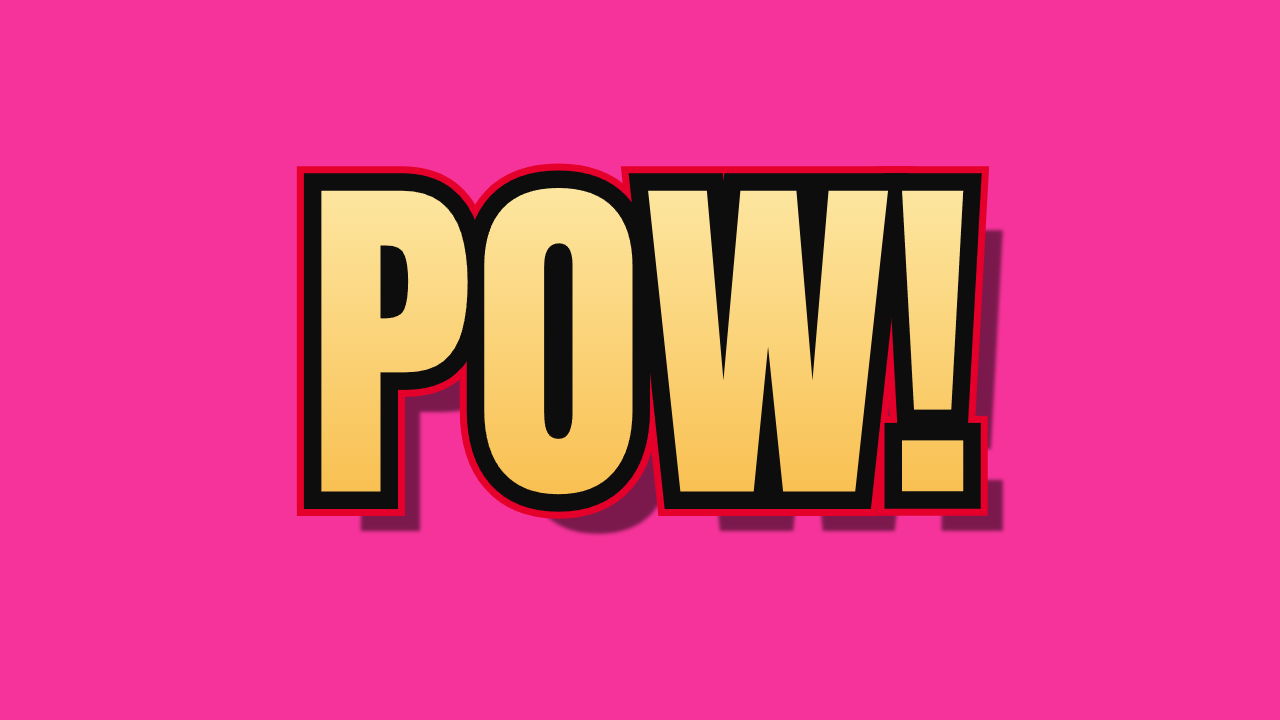
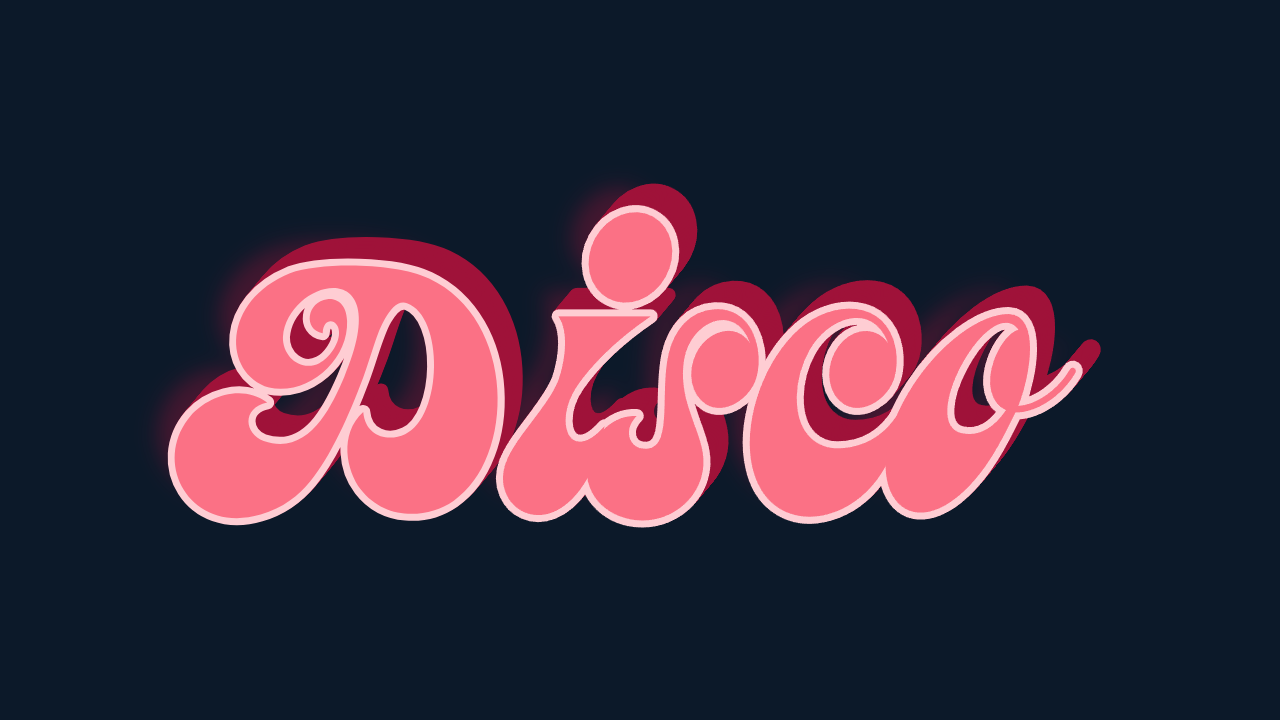
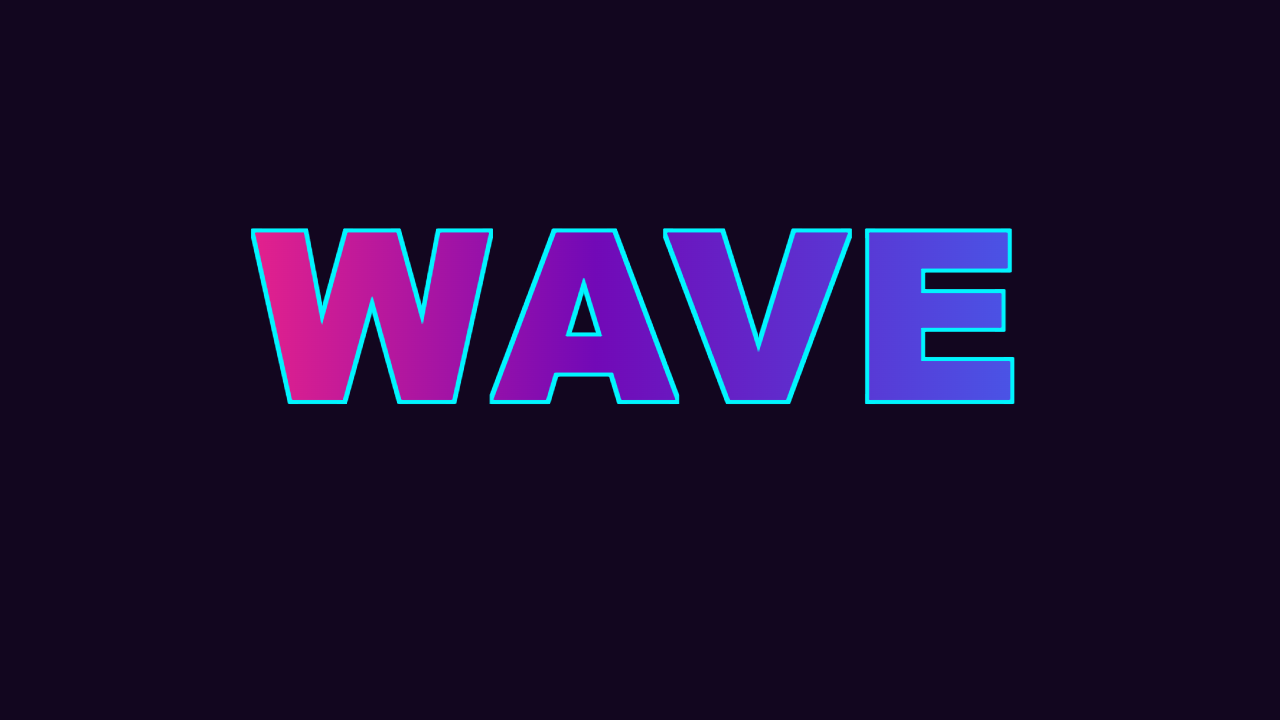
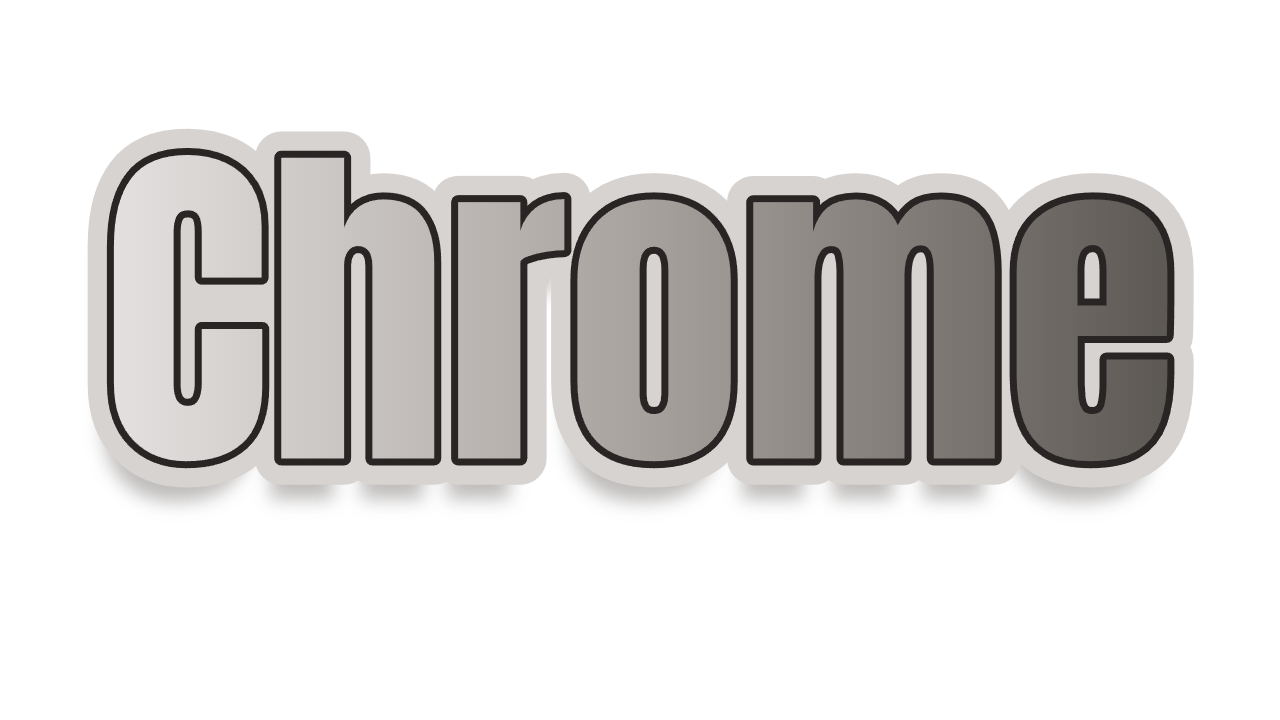
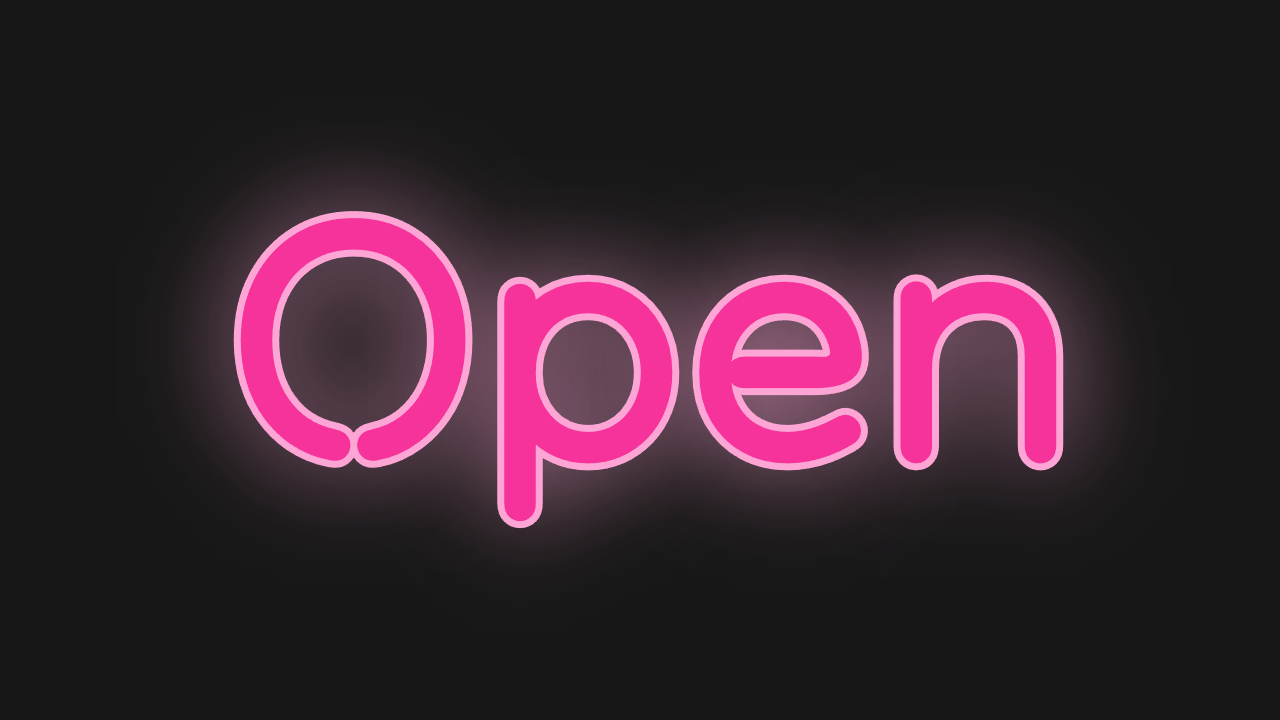
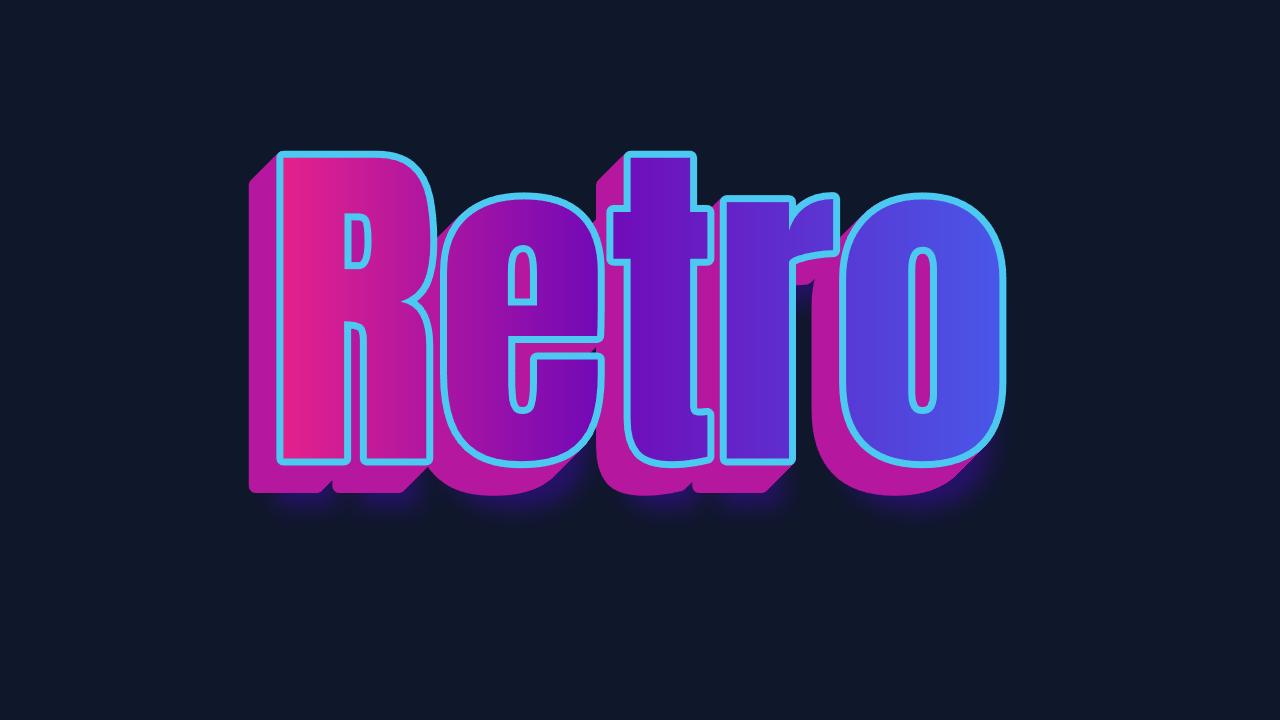










Buttons, controls, charts, and more. Tweak the HTML, CSS, and JavaScript live.
Design