

Paint on the photo below, or open your own picture.
Clone Stamp tool
Copy texture from a sampled point and paint it elsewhere from Tools → Draw → Clone Stamp. Alt-click (Option on Mac) to set the source, then brush to hide blemishes, duplicate details, or fill empty spots. Click to sample a source, then drag to clone. Alt-click (Option on Mac) picks a new source. Reset restores the original.
How it works
- Open PictorX in your browser and load an image or start a new design.
- Choose Clone Stamp from the editor tools and adjust the result to fit your composition.
- Continue editing with layers, effects, and text, then export when you are ready.
How to use the Clone Stamp tool
Copy texture from a sampled point and paint it elsewhere in an image. PictorX keeps the tool in the same browser workspace as your layers, photos, text, and design elements, so you can refine a composition without switching applications.
Keep creating in PictorX
Use Clone Stamp as one step in a complete editing workflow. Adjust the composition, add text or graphics, and keep every change editable while you turn an image into a finished design.
Frequently asked questions
How do I clone texture?
Sample a source point, then paint that texture over blemishes or empty spots.
Can I hide a small object this way?
Yes, for small distractions. Use AI object removal when the gap is large.
Why does the clone look repeated?
Realign the sample as you stamp so the texture continues instead of tiling.
Can I stamp onto another layer?
Yes. Sample the texture you want, then paint on the target layer.
Related tools
Smudge tool
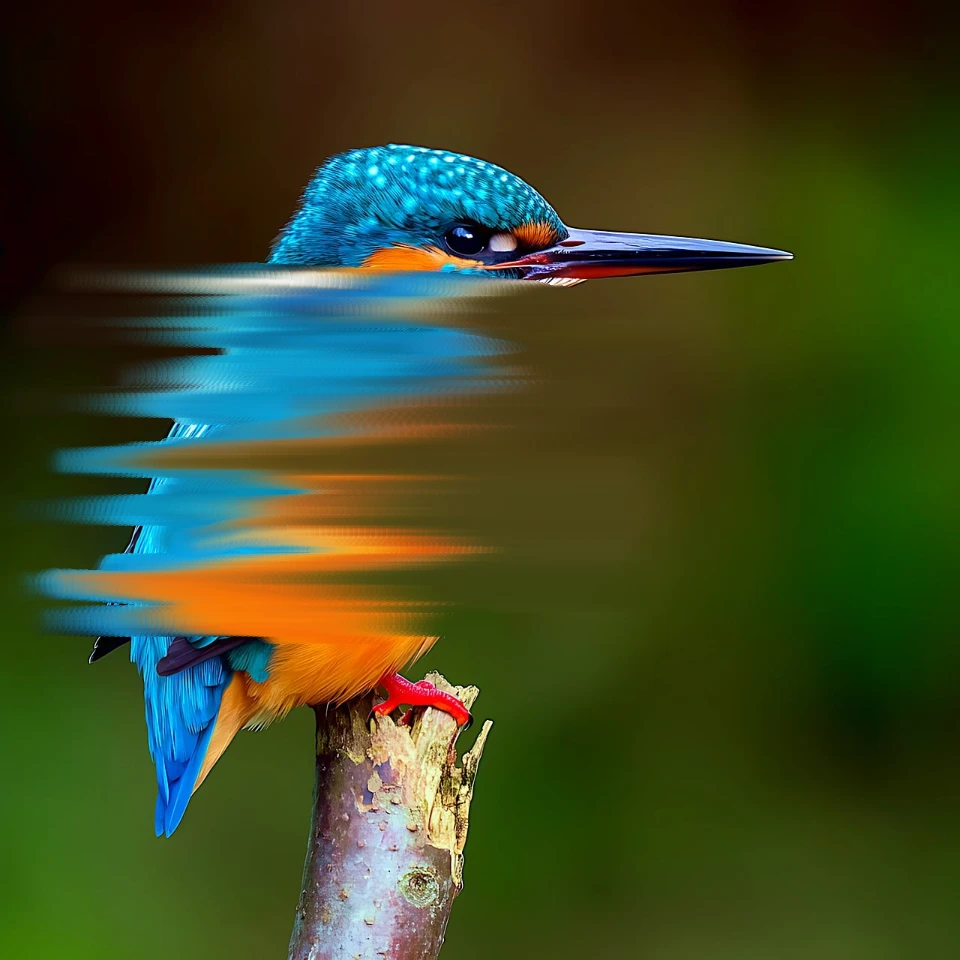
Blend neighboring pixels by dragging through the image. Use the free PictorX online editor in your browser.
AI object removal
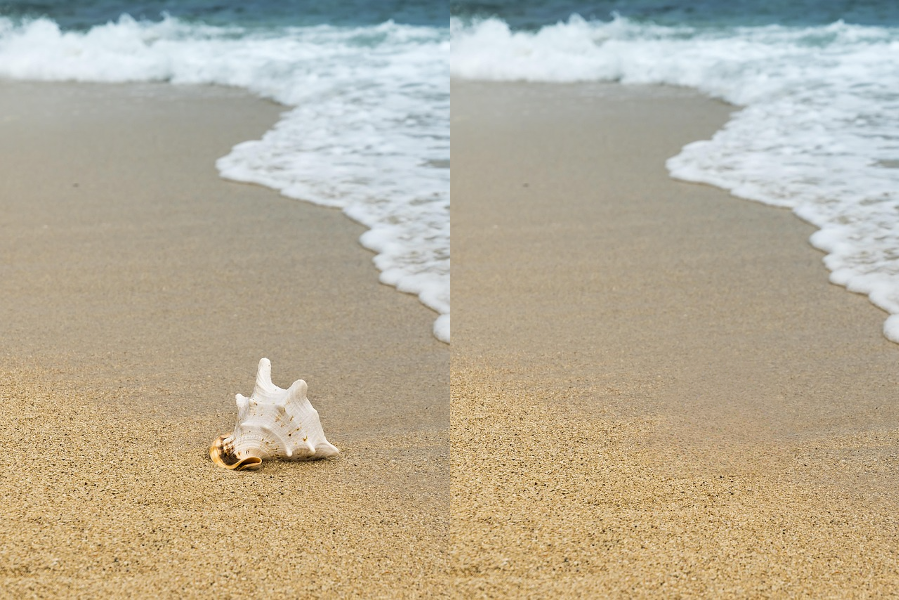
Erase distractions without leaving holes. Use PictorX free in your browser with no software install required.

Paint & draw tools
Paint, erase, and refine pixels directly on raster layers. Use PictorX free in your browser with no software install required.
Ready to try it?
Open PictorX in your browser — no install, no credit card required to start.
Go to Editor