
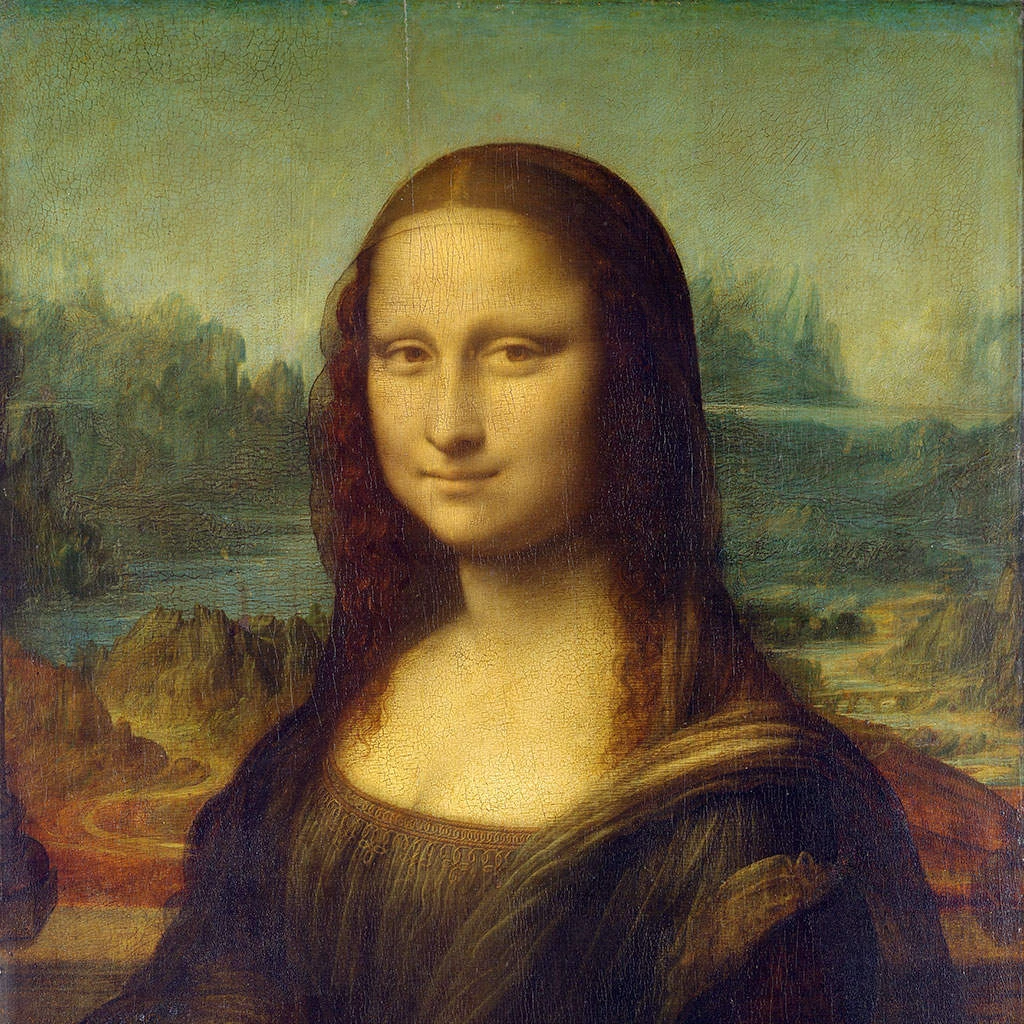
Try a pixelate look below, or open your own picture.
Pixelate effects
Pixelate photos from Effects → Pixelate. Build mosaic squares or dots, hexagon cells, crystallize shards, low-poly triangles, color halftone and dot-screen print looks, mezzotint grain, pointillize dots, arcade palettes, or CGA colors. Tune cell size, stack looks on layers, and export graphic-ready pixel art. Try a pixelate look below, or open your own picture.
How it works
- Open PictorX in your browser and start a new project or load an image.
- Use Pixelate effects to shape the result, then refine it with the surrounding editor tools.
- Keep editing, export your work, or turn the result into your next design.
How Pixelate effects fits your workflow
Turn photos into mosaic tiles, hexagons, crystals, low-poly art, halftone dots, and retro arcade palettes. PictorX keeps the feature alongside your photos, layers, typography, and design tools, so you can move from an idea to a finished graphic without switching applications.
Create more with Pixelate effects
Start with one focused change, review the result in context, and keep iterating. Combine Pixelate effects with other PictorX tools when you need a polished image for social media, a presentation, a print layout, or a personal project.
Looks in this set
Frequently asked questions
What do pixelate effects do?
They break a photo into cells, dots, or palettes: mosaic, hexagons, crystallize, low poly, Mondriaan mosaic, halftone, mezzotint, pointillize, arcade, and CGA colors.
Will pixelate hide a face?
Large cell sizes can. Use a smaller size if you still want the person to read.
Are these the same as a phone pixel filter?
They are editor filters with more looks and controls, including print-style halftone and retro palettes.
Can I pixelate only part of a photo?
Use a selection or a duplicate layer so the rest of the image stays sharp.
Related tools
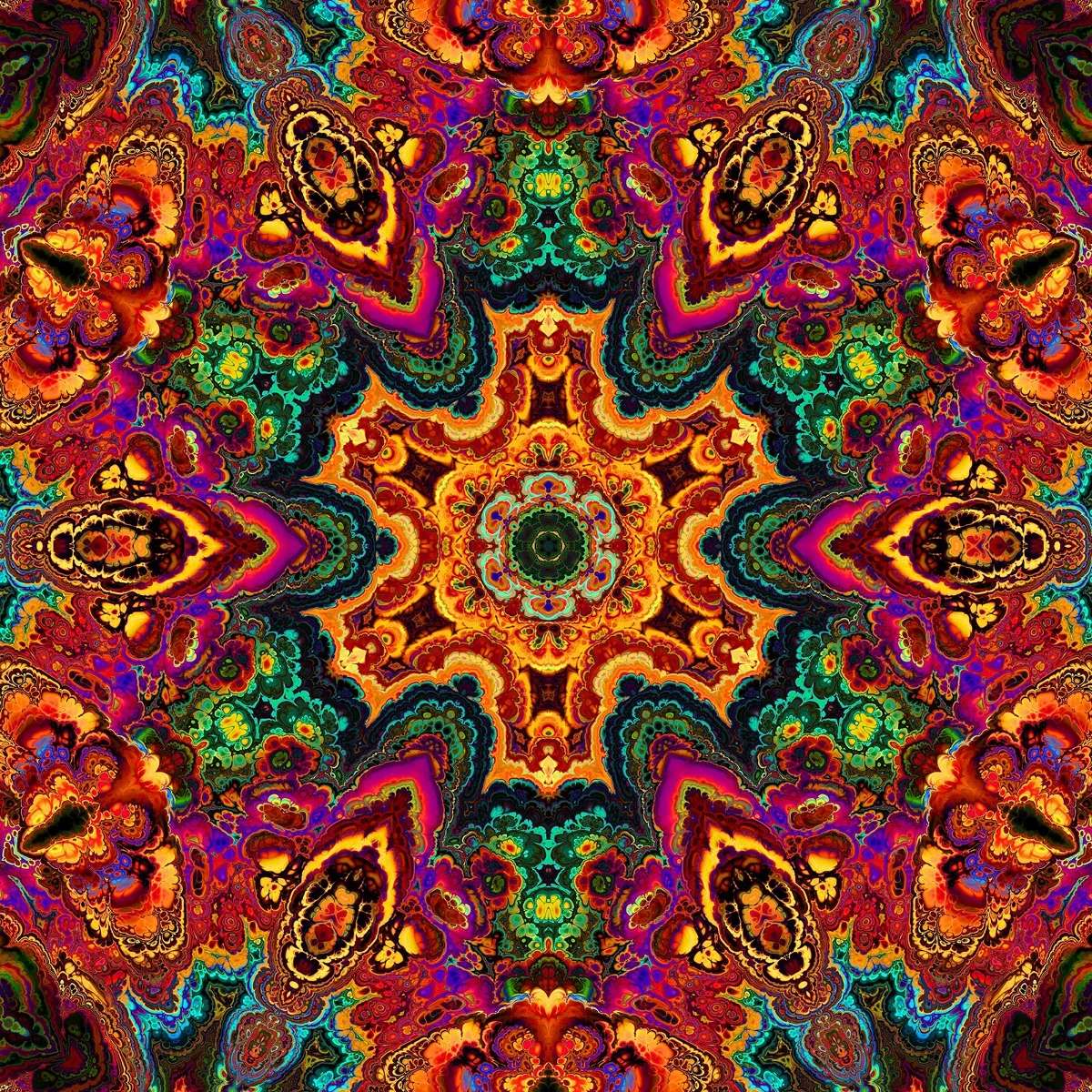
Kaleidoscopes
How kaleidoscopes work: Brewster’s invention, angled mirrors, radial symmetry, and digital kaleidoscope filters you can try on a photo in PictorX.
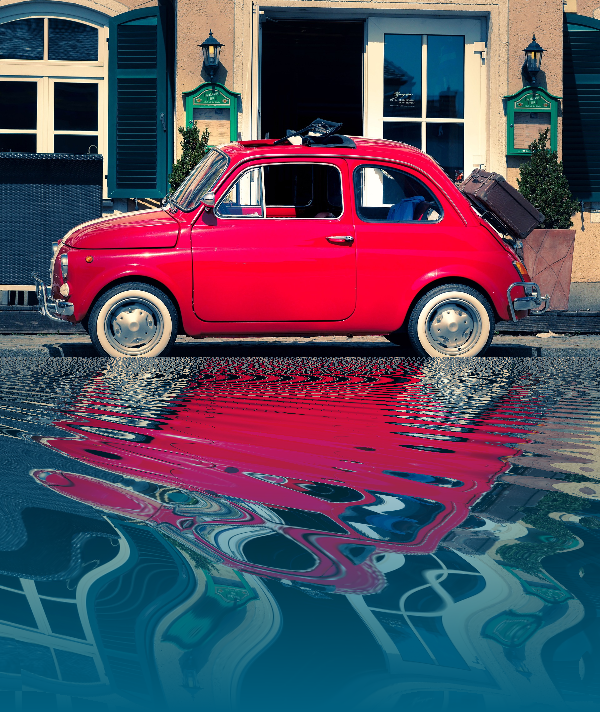
Reflection effects
Mirror, tile, water, wet-floor, and kaleidoscope looks that flip a photo into a reflected composition. Use PictorX free in your browser with no software install required.
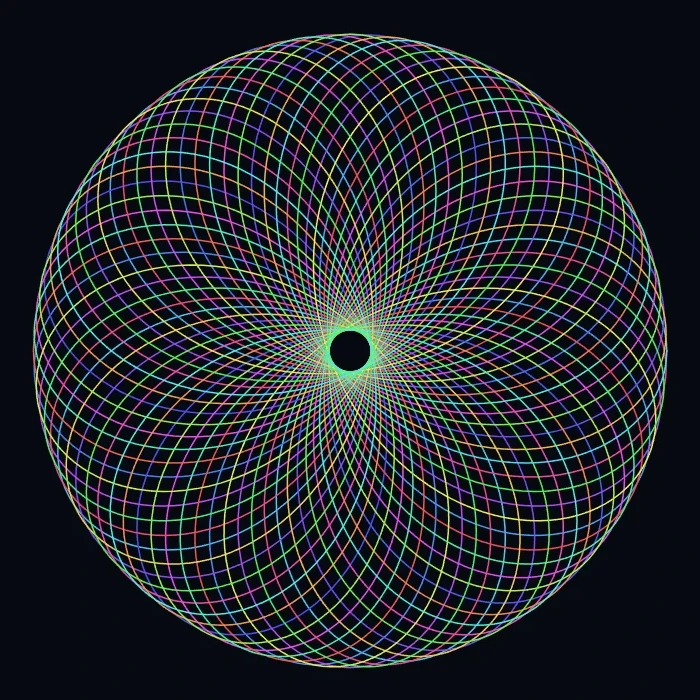
Spirograph
Draw hypotrochoids and epitrochoids in your browser. Tune R, r, and pen offset, animate the curve, randomize styles, and save a PNG. Nothing is uploaded.
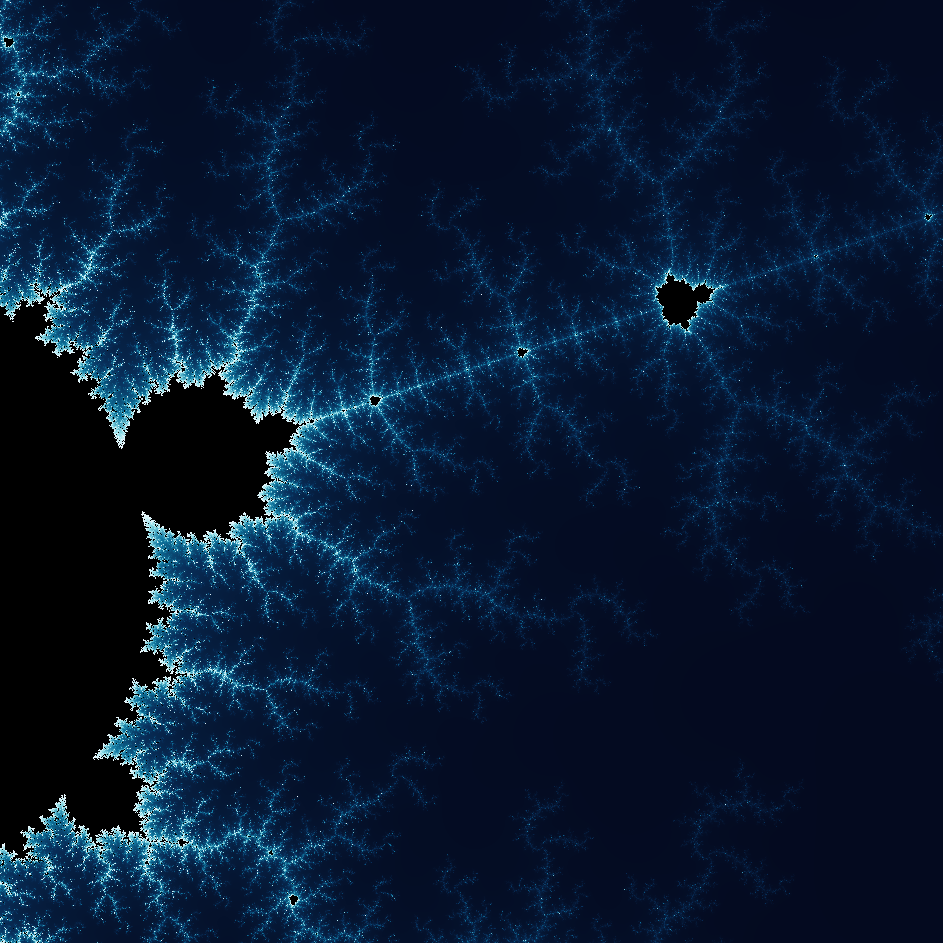
Explore the wonderful world of Fractals
Explore the wonderful world of Fractals. Fractals are complex, detailed geometric patterns found throughout the natural world.
Ready to try it?
Open PictorX in your browser — no install, no credit card required to start.
Go to Editor