

Blur background
Keep the subject crisp while the backdrop softens—all on your device. AI → Blur background cuts out the subject with on-device AI, then blurs only the background. Choose Gaussian, Motion, or Radial blur and dial in radius (plus angle or samples). Ideal for portraits, product shots, and cinematic social posts. Nothing is uploaded. Open a picture or use the sample, then click Start.
How it works
- Open PictorX in your browser and start a new project or load an image.
- Use Blur background to shape the result, then refine it with the surrounding editor tools.
- Keep editing, export your work, or turn the result into your next design.
How Blur background fits your workflow
Keep the subject crisp while the backdrop softens—all on your device. PictorX keeps the feature alongside your photos, layers, typography, and design tools, so you can move from an idea to a finished graphic without switching applications.
Create more with Blur background
Start with one focused change, review the result in context, and keep iterating. Combine Blur background with other PictorX tools when you need a polished image for social media, a presentation, a print layout, or a personal project.
Frequently asked questions
What blur styles can I use?
Choose Gaussian, motion, or radial blur. On-device AI keeps the subject sharp while softening the backdrop.
Do my photos leave my device when I blur the background?
Blur background runs with on-device AI in supported browsers, so the photo is not uploaded to PictorX servers for that step.
Is this the same as phone portrait mode?
It has a similar look—a sharp subject and a soft backdrop—but you can apply it to any photo, not only shots taken in portrait mode.
Can I still edit after blurring the background?
Yes. Keep going with layers, text, effects, or background removal in the same PictorX workspace.
Related tools
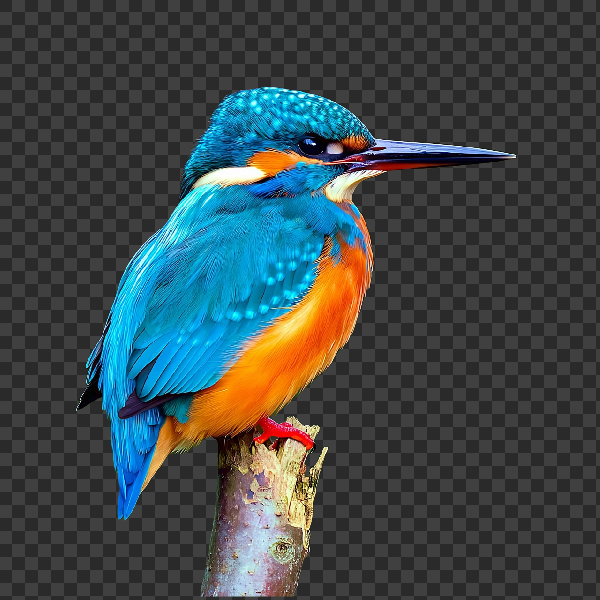
Remove backgrounds on your device
Cut out subjects with on-device AI in PictorX. Photos stay in your browser—no upload to our servers.
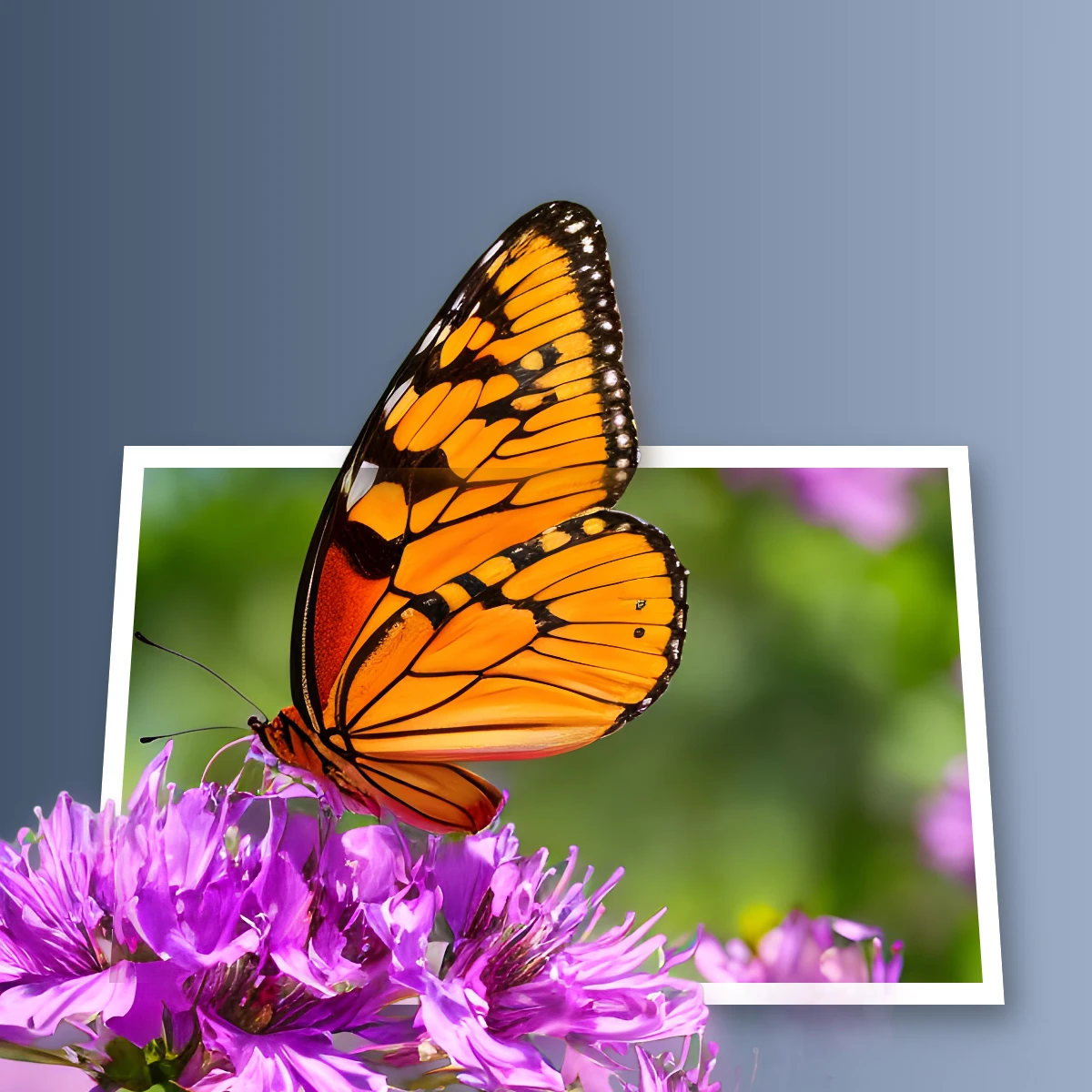
Pop a subject out of the frame
Create an out-of-bounds 3D photo effect in your browser. On-device AI isolates the subject so it pops out of a trapezoid frame. Nothing is uploaded.
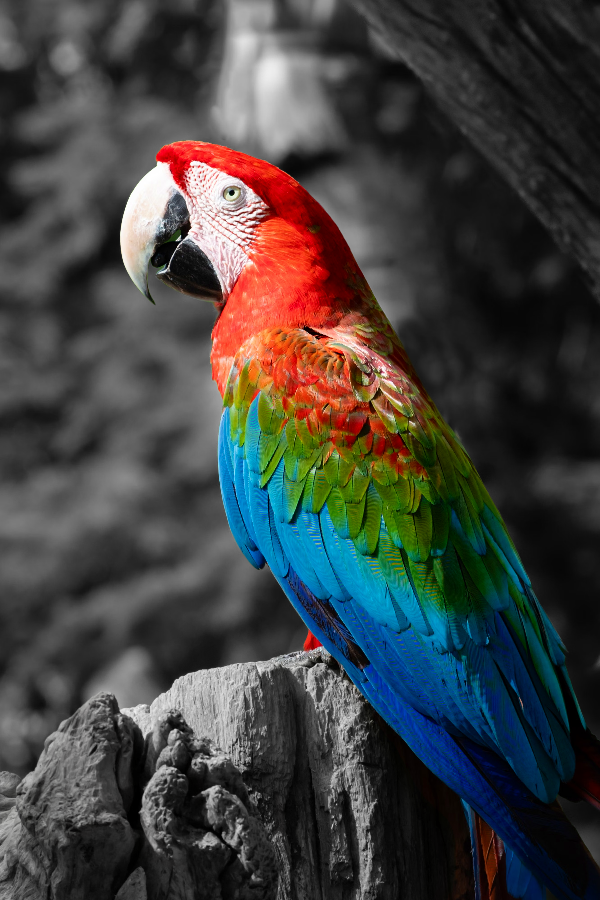
Selective color spotlight
Turn everyday photos into cinematic moments. Use PictorX free in your browser with no software install required.

Blur and Sharpen
Soften focus with Gaussian, motion, radial, and tilt-shift blur—or bring detail back with sharpen and unsharp mask. Use PictorX free in your browser with no software install required.

AI models
What AI and AI models are, how they power photo editing—background removal, inpainting, enhance, uncrop—and how PictorX runs many tools on-device.
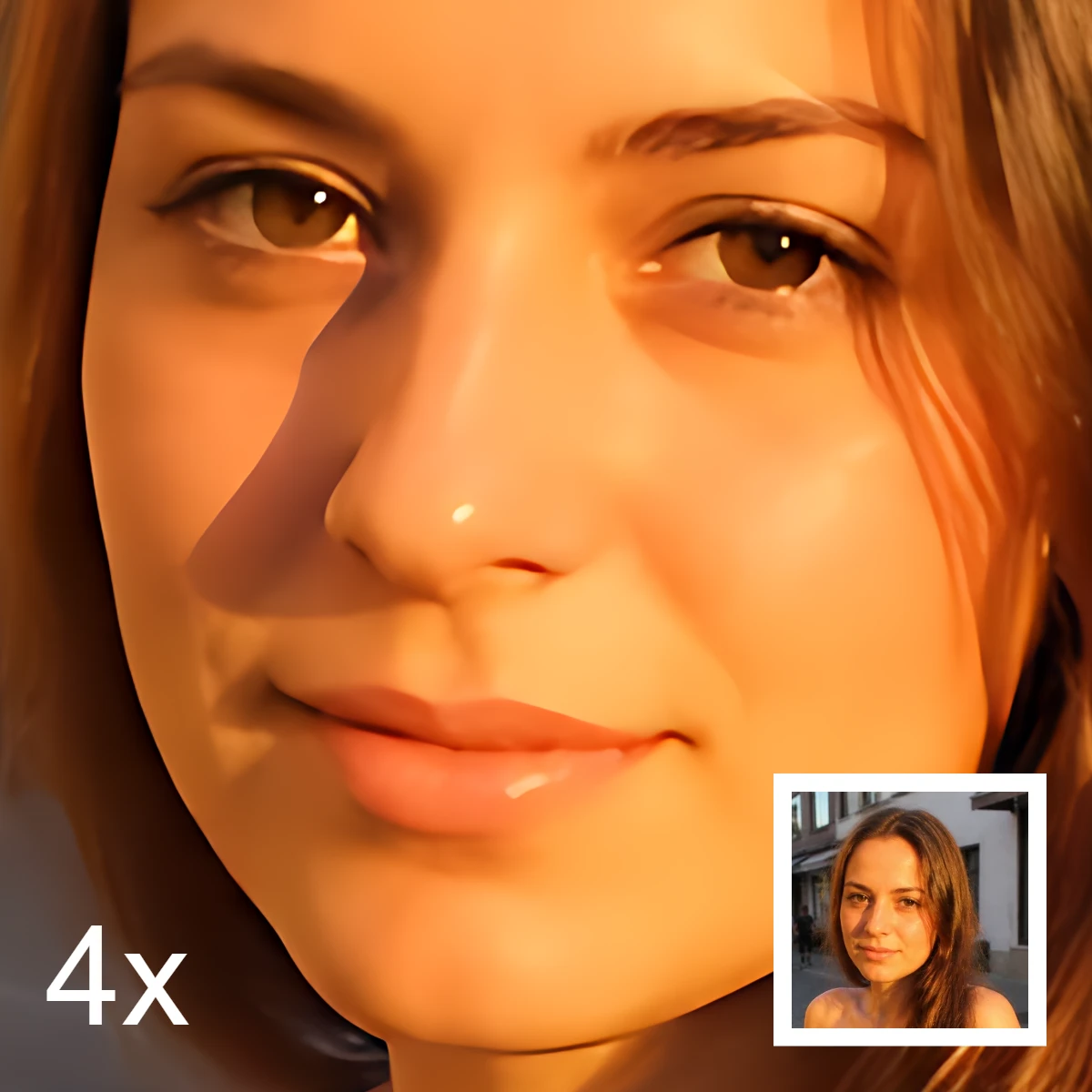
AI image editing
What AI image editing is—cutouts, object removal, enhance, repair, and uncrop—how it differs from classic retouching, and how PictorX runs many tools on-device.
Ready to try it?
Open PictorX in your browser — no install, no credit card required to start.
Go to Editor