
Build a deck with the presentation wizard
The wizard walks you through a deck, then leaves every slide editable. Use it when you want a guided start; use the presentation maker when you would rather open a slide template and design freely.

How it works
- Start the presentation wizard in PictorX.
- Follow the steps to structure titles, visuals, and pages.
- Refine each slide in the editor, then export or keep editing.
Wizard first, editor second
The wizard is a guided path into a multi-page project. When it finishes, you still have layers, charts, and templates in the same file—so a pitch deck does not get stuck as a one-shot export.
How this differs from the presentation maker
The presentation maker is the search page for slide templates and visual decks. This page is the product feature: a step-by-step wizard. Cross-link them, but pick the maker URL when you are choosing a template and the wizard URL when you want to be walked through a deck.
Frequently asked questions
What does the presentation wizard do?
It walks you through building a deck, then you refine every slide in the editor.
Can I edit a slide after the wizard finishes?
Yes. Each page stays editable in the project.
Can I drop a chart onto a wizard slide?
Yes. Pair the wizard with living charts and presentation templates.
Is this the same as the presentation maker?
No. The presentation maker is for opening slide templates. The wizard is a guided, step-by-step flow that still lands in the same editor.
Related tools

Free presentation maker
Create presentation slides free online with PictorX. Pitch decks, dashboards, and visual slides you can edit in the browser.

Living charts & data tool
Tell stories with numbers—not spreadsheets. Use the free PictorX online editor in your browser.
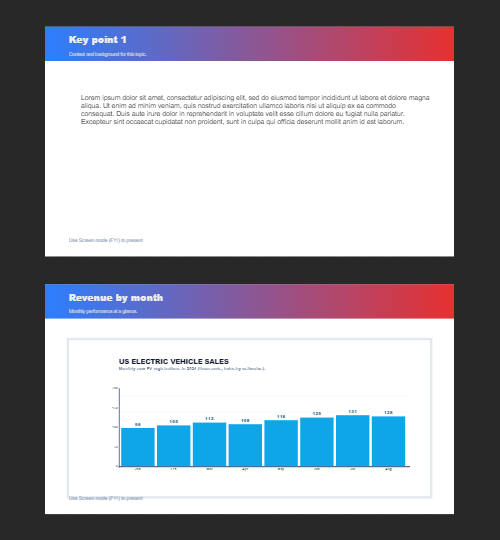
Multiple pages
Build multi-page documents in Document mode—ideal for presentations, brochures, and multi-screen layouts. Use PictorX free in your browser with no software install required.
Ready to try it?
Open PictorX in your browser — no install, no credit card required to start.
Try Step-by-step presentation wizard