
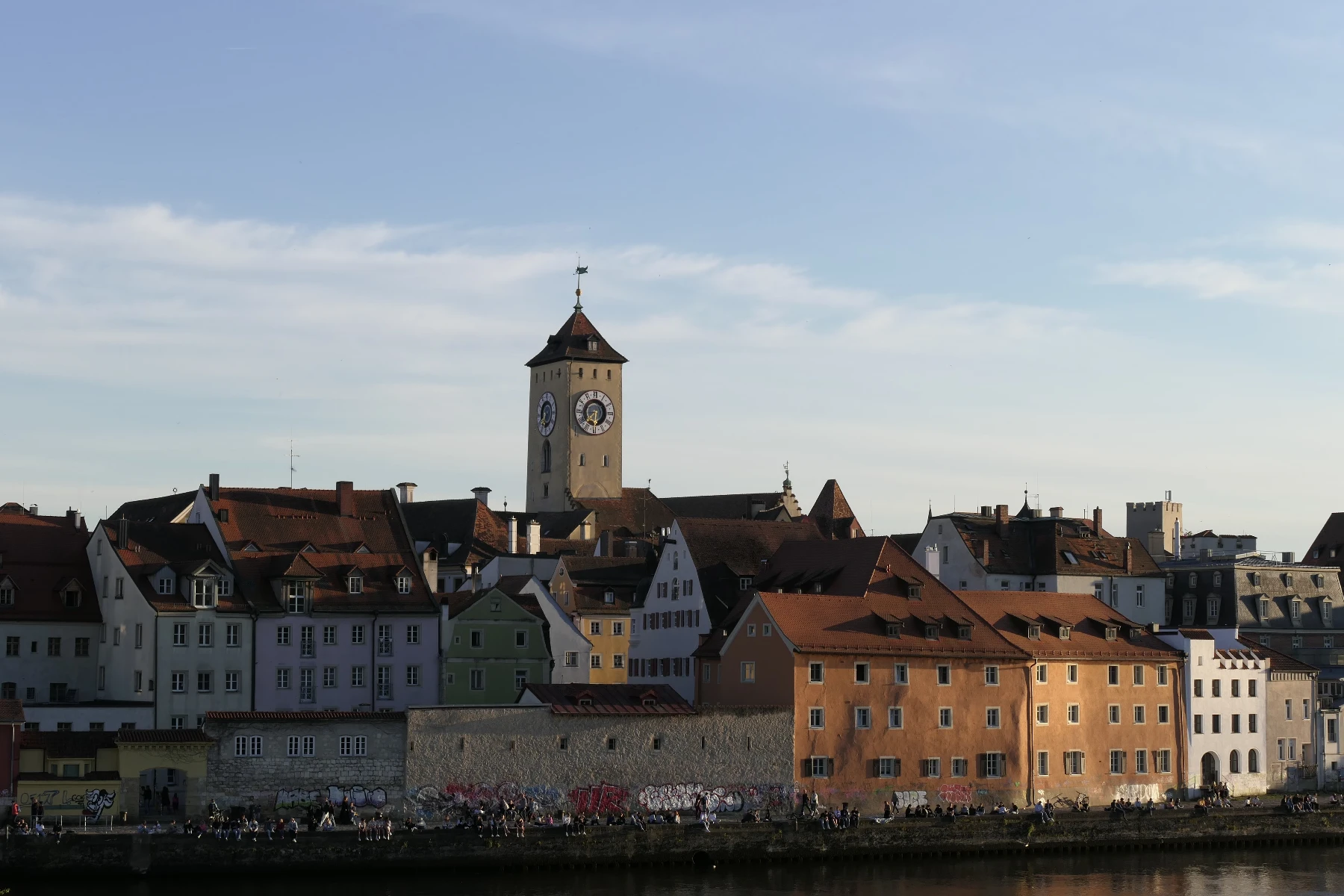
Open a picture or use the sample, then click Start.
Turn a photo into a tiny planet
Tiny Planet uses the same on-device cutout as Remove background. The isolated skyline is flipped, wrapped into a circle, and placed on a new backdrop—clouds, stars, a radial gradient, or a flat color. Tune Angle to rotate the planet. Keep editing in the same workspace. Open a picture or use the sample, then click Start.
How it works
- Open PictorX in your browser and load a wide photo—a city skyline or landscape works best.
- Choose Tiny Planet. On-device AI removes the sky, flips the scene, and wraps it into a planet.
- Pick Clouds, Stars, Gradient, or Color, tune the colors and angle, then export or keep editing.
Cut out, flip, then wrap
The first step is the same private cutout used by Remove background: RMBG runs on your device, so the photo is not uploaded. The isolated skyline is flipped vertically so the ground becomes the planet core, then Polar Coordinates wraps the panorama into a circle.
Clouds, stars, gradient, or color behind the city
A second layer sits behind the planet. Clouds paints a sky with Color 1, Color 2, and Color 3. Stars fills a night sky (Color 1) with bright points (Color 3). Gradient is a radial blend from Color 1 at the core to Color 2 at the edge. Color is a flat fill. Transparent keeps only the planet for compositing. Angle rotates where the panorama seam sits.
Frequently asked questions
What does Tiny Planet do?
It cuts the sky out of a photo with on-device AI, flips the remaining skyline, wraps it with polar coordinates into a circle, and places clouds, stars, a gradient, or a solid color behind it.
Do my photos leave my device?
Tiny Planet uses the same on-device background removal as Remove background in supported browsers, so the photo is not uploaded to PictorX servers for that step.
What photos work best?
Wide city skylines, waterfronts, and landscapes with a clear horizon. Panoramas wrap into a fuller planet; a regular landscape still works.
Can I change the sky behind the planet?
Yes. Background chooses Clouds, Stars, Gradient, Color, or Transparent. Color 1, Color 2, and Color 3 paint the sky. Angle rotates the planet so you can hide the panorama seam.
Related tools
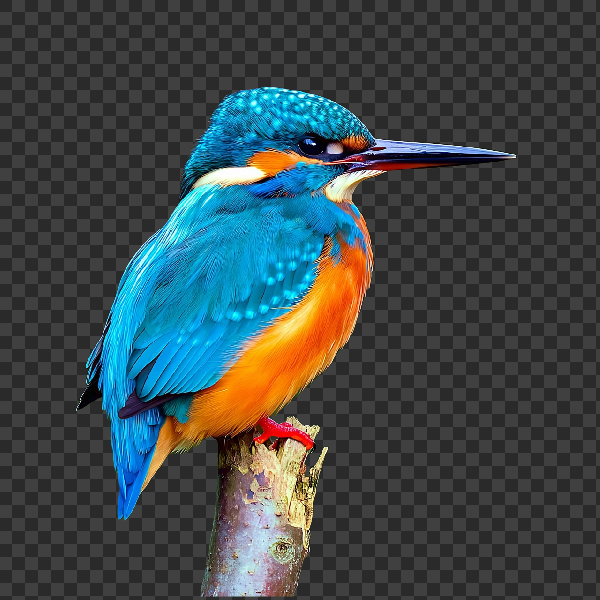
Remove backgrounds on your device
Cut out subjects with on-device AI in PictorX. Photos stay in your browser—no upload to our servers.
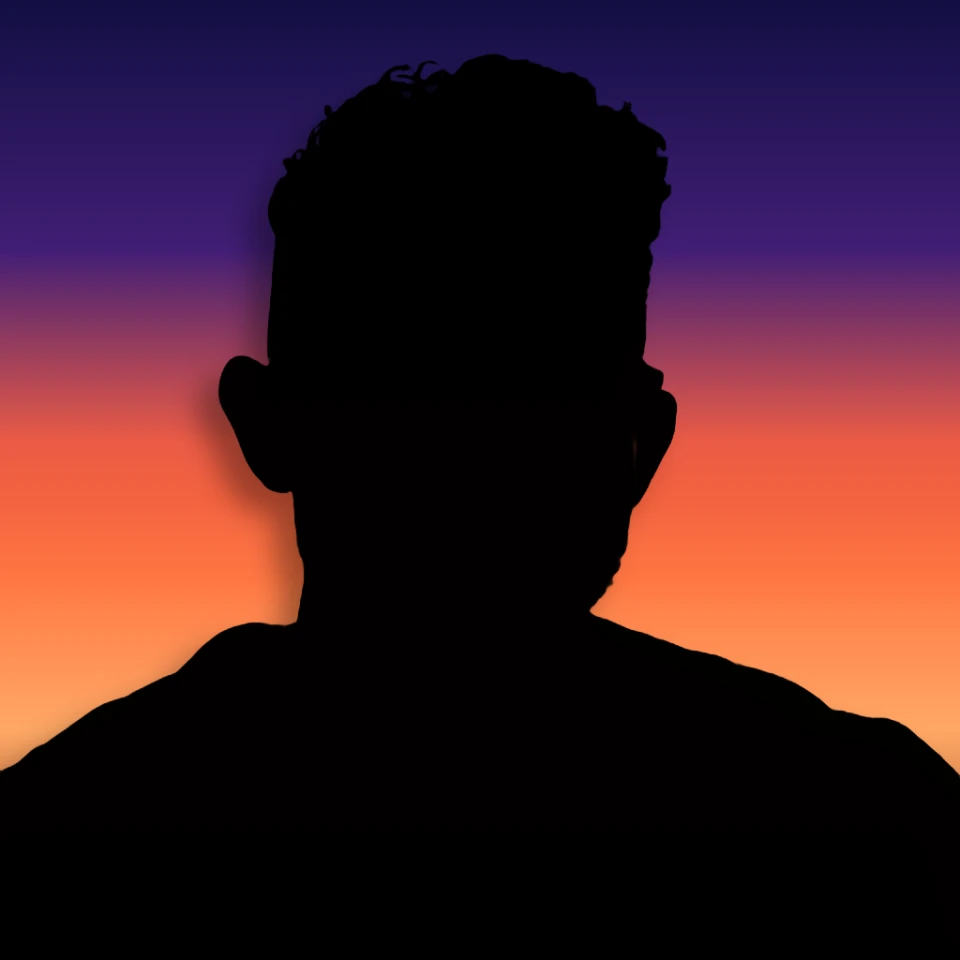
Turn a photo into a perfect silhouette
Turn a photo into a perfect silhouette in your browser. On-device AI cuts out the subject, fills it as a clean shape, and places it on a solid color, gradient, sunset, or transparent backdrop.
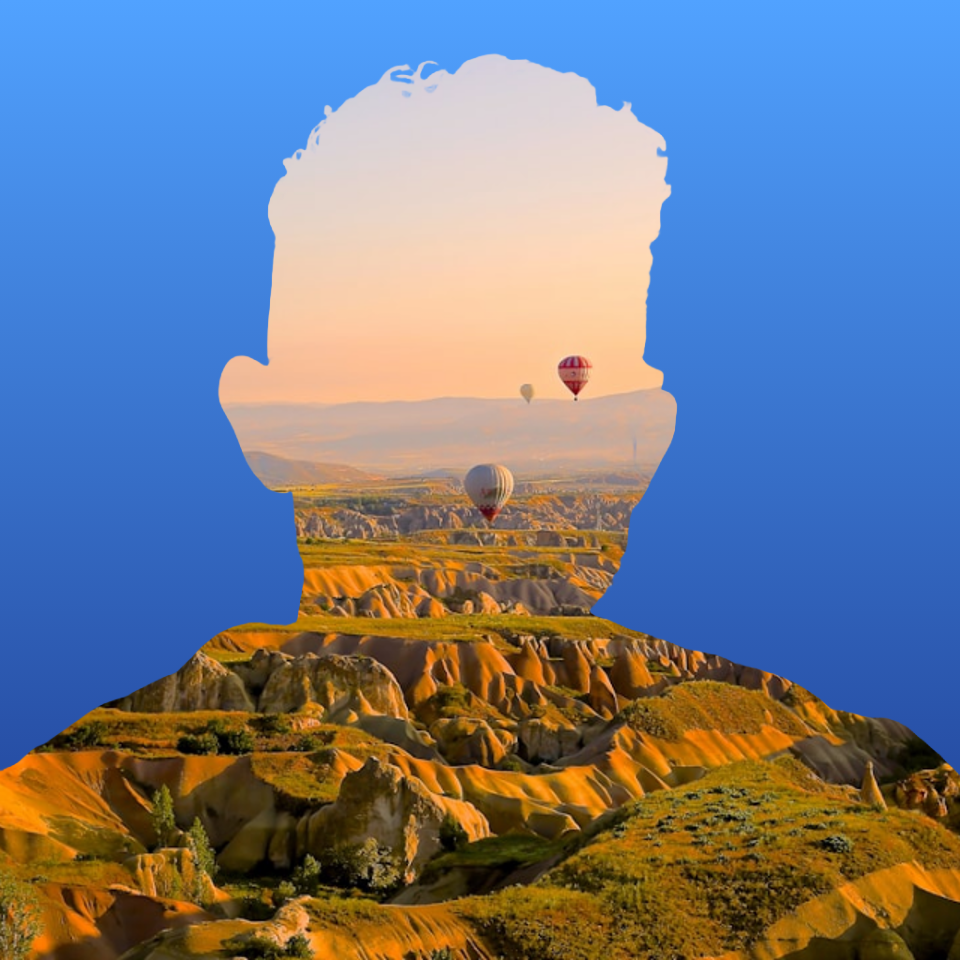
Fill a silhouette with a photo
Fill a subject silhouette with a stock photo in your browser. On-device AI cuts out the person or object, paints a library photo inside the shape, and sits it on a solid color, gradient, transparent backdrop, or the original image.
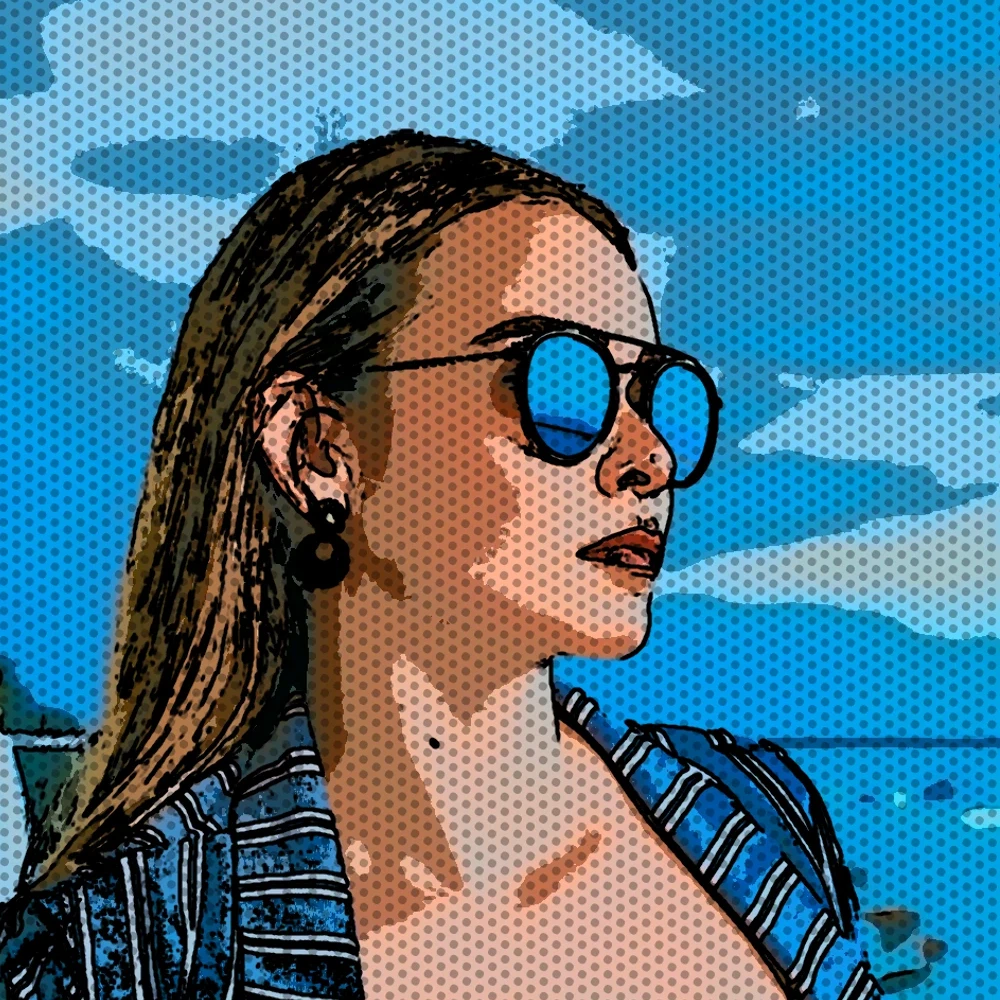
Turn a photo into comic panels
Turn a photo into a comic page in your browser. Zoom different details into 1, 2, 4, or 6 ink panels, then add optional Ben-Day dots and captions.
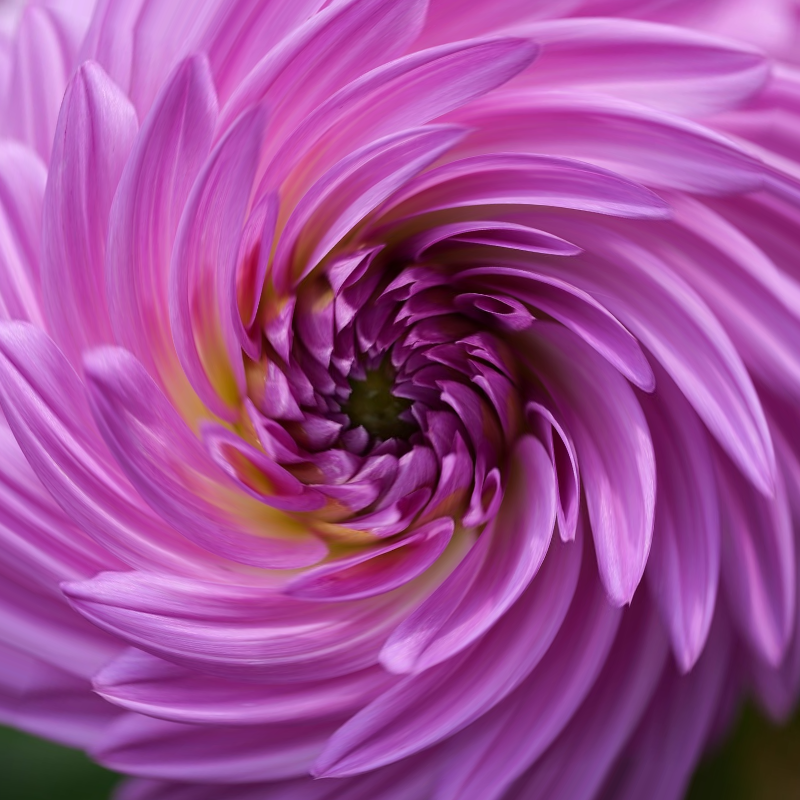
Liquid lens playground
Warp photos with polar coordinates, ripple, glass, spherize, timewarp, twirl, folds, and bend.
Render effects
Generate linear and radial gradients, noise, lens flare, clouds, stars, snow, water drops, paper, sand, and radial masks.

Make a die-cut sticker from any photo
Turn a photo into a die-cut sticker in your browser. On-device AI cuts out the person or object, then adds a white outline, shadow, holographic foil, or a colored rim. Export a transparent PNG.
Ready to try it?
Open PictorX in your browser — no install, no credit card required to start.
Go to Editor