
Whiteboard mode
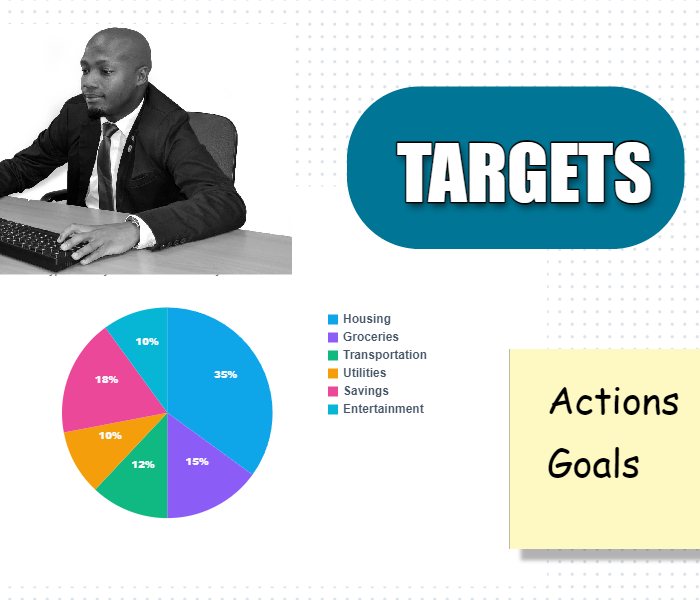
Turn on Whiteboard mode when fixed pages feel too tight. Spread layers across an open dot-grid surface—perfect for mood boards, wireframes, meeting notes, and exploratory design before you commit to a final layout. Enable from View → Whiteboard; toggle it off anytime to return to Document mode.
How it works
- Open PictorX in your browser and start a new project or load an image.
- Use Whiteboard mode to shape the result, then refine it with the surrounding editor tools.
- Keep editing, export your work, or turn the result into your next design.
How Whiteboard mode fits your workflow
Turn on Whiteboard mode when fixed pages feel too tight. PictorX keeps the feature alongside your photos, layers, typography, and design tools, so you can move from an idea to a finished graphic without switching applications.
Create more with Whiteboard mode
Start with one focused change, review the result in context, and keep iterating. Combine Whiteboard mode with other PictorX tools when you need a polished image for social media, a presentation, a print layout, or a personal project.
Frequently asked questions
What is whiteboard mode?
An open canvas for arranging photos, notes, and assets without a fixed page grid.
Is it useful for moodboards?
Yes. Spread references, cutouts, and type freely, then zoom to the area you are working on.
Can I pan around a large board?
Yes. Pan and zoom while every object stays editable.
Can I move work onto document pages later?
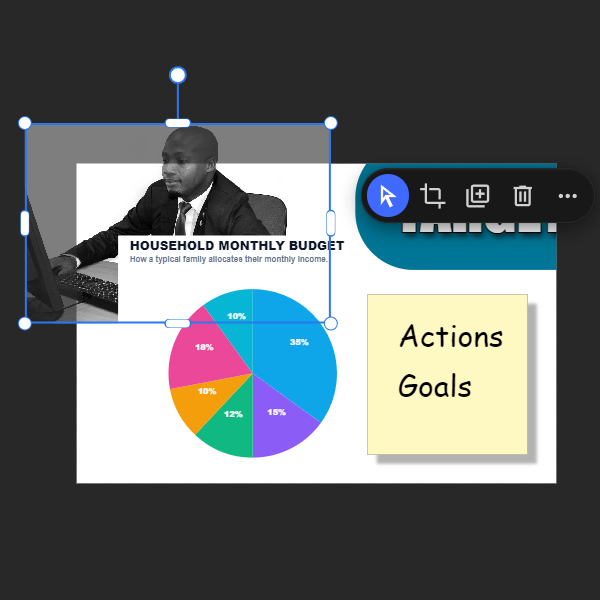
Yes. Dual workspace lets you take a freeform arrangement into a paged layout.
Related tools
Dual workspace editing
Pictorx adapts to the way you create. Use PictorX free in your browser with no software install required.

Zen canvas mode
Block out distractions and edit in pure focus. Use PictorX free in your browser with no software install required.
Selection tool
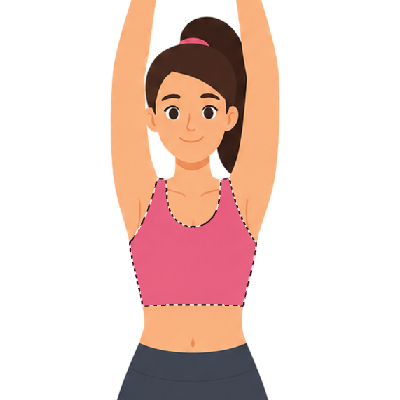
Isolate exactly what you need—nothing more, nothing less. Use the free PictorX online editor in your browser.
Ready to try it?
Open PictorX in your browser — no install, no credit card required to start.
Try Whiteboard mode