

AI uncrop & outpaint images
Need more sky for a banner or more room for text? PictorX uncrop expands the canvas with AI so you can turn a tight crop into a wider composition. Open a picture or use the sample, then click Start.
How it works
- Open a picture or use the sample, then pick an aspect ratio such as 16:9 or 1:1.
- Click Start. On-device LaMa AI fills the new borders — nothing is uploaded.
- Review the expanded edges, then continue in the editor to add text or export.
When to uncrop
Social banners, YouTube thumbnails, and presentation covers often need space that the original photo does not have. Uncrop extends edges so typography and logos fit without squashing the subject.
Tips for natural results
Start with a modest expansion, keep the subject centered when possible, and refine seams with clone or brush tools if needed. Then add text on the newly generated areas.
Frequently asked questions
Is uncrop the same as generative fill?
Uncrop focuses on extending the canvas outward. Results vary by image; always review edges before publishing.
Can I add text in the new space?
Yes. That is a common reason to uncrop: create room for a headline, logo, or YouTube title treatment.
Will faces look stretched?
Uncrop extends the edges rather than stretching the original subject. Start with a modest expansion and review the new areas before you go further.
Is uncrop useful for banners and thumbnails?
Yes. Social banners, YouTube thumbnails, and presentation covers often need space the original photo does not have.
Related tools

Replace background
Replace the setting around a subject without uploading. Use PictorX free in your browser with no software install required.
Free YouTube thumbnail maker
Create click-worthy YouTube thumbnails free in PictorX. Bold text, cutouts, effects, and templates—export ready for upload.
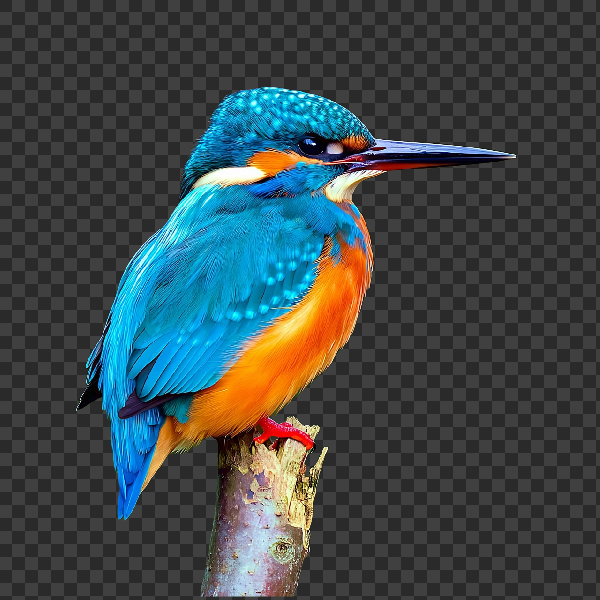
Remove backgrounds on your device
Cut out subjects with on-device AI in PictorX. Photos stay in your browser—no upload to our servers.

AI models
What AI and AI models are, how they power photo editing—background removal, inpainting, enhance, uncrop—and how PictorX runs many tools on-device.
Ready to try it?
Open PictorX in your browser — no install, no credit card required to start.
Go to Editor