

Make a die-cut sticker from any photo
Sticker Maker uses the same on-device cutout as Remove background and Copy object. Upload a photo, isolate the subject, then wrap it in a white sticker outline. Add a drop shadow, a holographic sheen, or a colored rim, and export a PNG with transparency—ready for chats, shops, and print. Open a picture or use the sample, then click Start.
How it works
- Open PictorX in your browser and load a photo with a clear subject.
- Choose Sticker Maker. On-device AI cuts out the person or object and builds the white outline.
- Tune outline, shadow, holographic strength, and border color, then export a transparent PNG.
Cut out, then the sticker look
The first step is the same private cutout used by Remove background and Copy object: RMBG runs on your device, so the photo is not uploaded. The isolated subject gets a die-cut white outline that follows hair, products, and irregular shapes instead of a rectangle.
Shadow, foil, and a colored rim
Shadow lifts the sticker off the canvas. Holographic paints a rainbow foil sheen over the subject. Border adds a colored rim outside the white outline—pink, neon, or brand color. Trim tightens the canvas so the PNG stays compact. File > Export PNG keeps the transparency.
Frequently asked questions
What does Sticker Maker do?
It cuts the person or object out of a photo with on-device AI, then wraps the cutout in a white die-cut outline. You can add a shadow, a holographic foil look, and a colored rim, then export a transparent PNG.
Do my photos leave my device?
Sticker Maker uses the same on-device background removal as Remove background in supported browsers, so the photo is not uploaded to PictorX servers for that step.
Can I export a PNG with transparency?
Yes. The sticker sits on a transparent canvas. Use File > Export and choose PNG so chats, shops, and print files keep the clear background.
How is this different from Remove background or Copy object?
Remove background leaves a clean cutout. Copy object lifts a clicked subject onto a new layer. Sticker Maker starts from that same cutout and adds the sticker outline, shadow, holographic sheen, and optional colored border.
Related tools
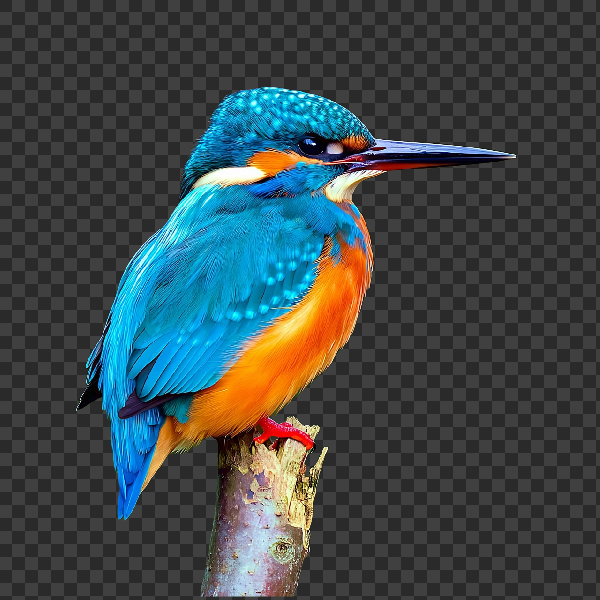
Remove backgrounds on your device
Cut out subjects with on-device AI in PictorX. Photos stay in your browser—no upload to our servers.
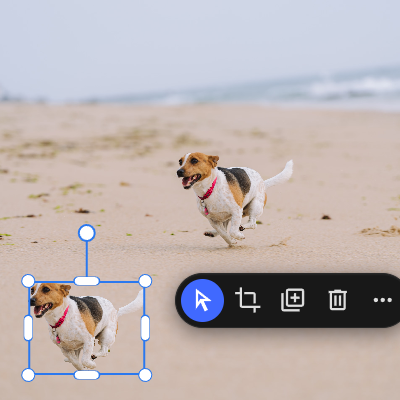
AI copy object
Lift any subject onto its own layer with a single click.
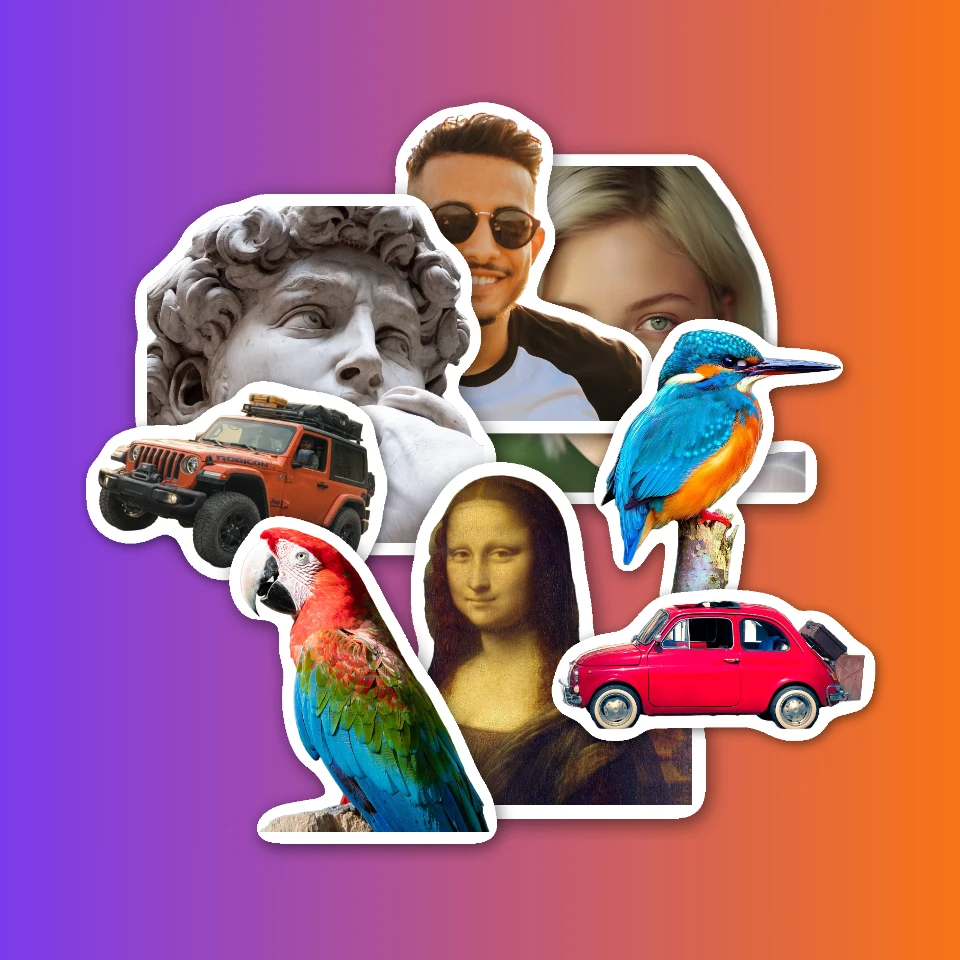
Sticker collage
Make a sticker collage free online with PictorX. Open 1 to 8 photos, cut out each subject, wrap it as a sticker, then drag and resize on a transparent, solid, or gradient backdrop.
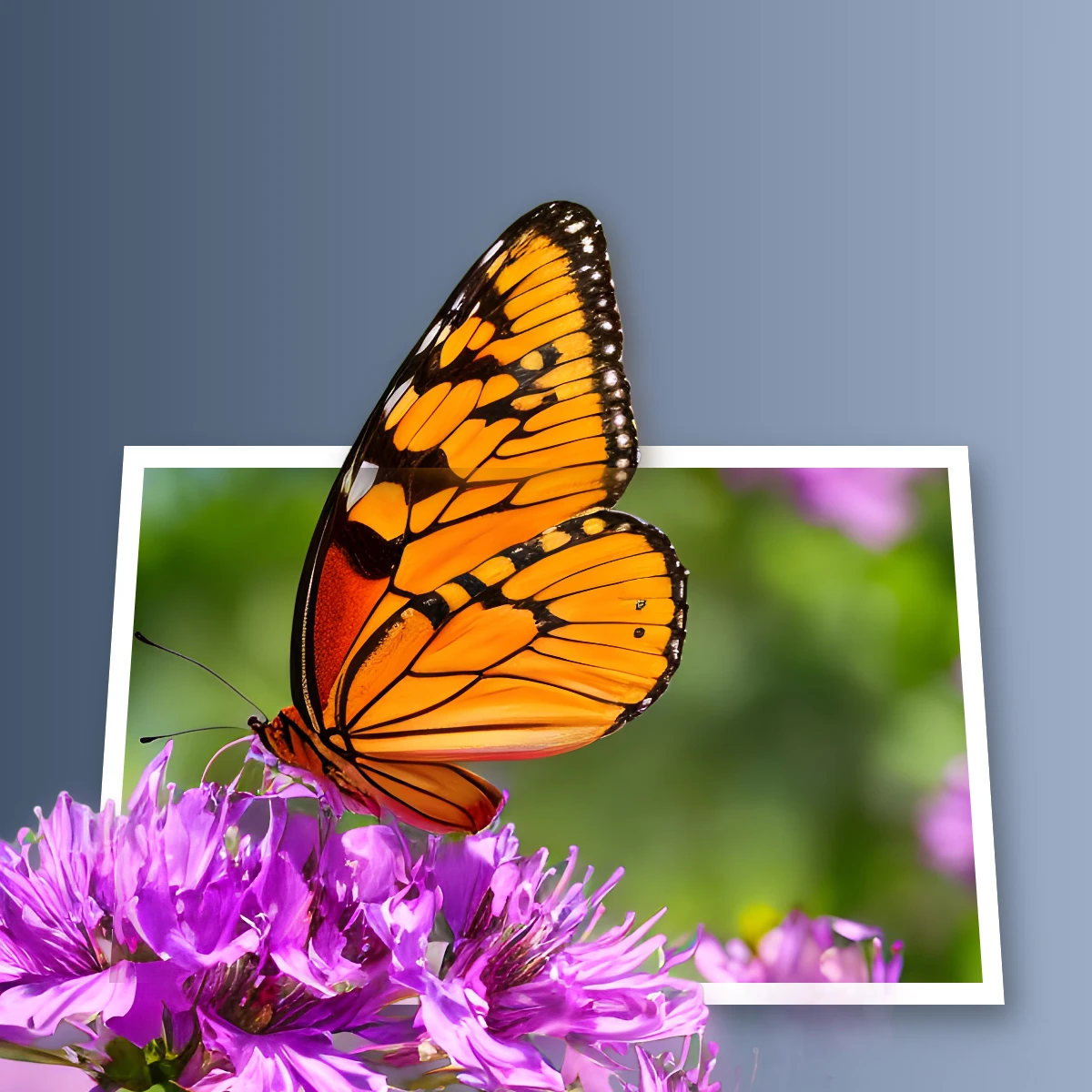
Pop a subject out of the frame
Create an out-of-bounds 3D photo effect in your browser. On-device AI isolates the subject so it pops out of a trapezoid frame.
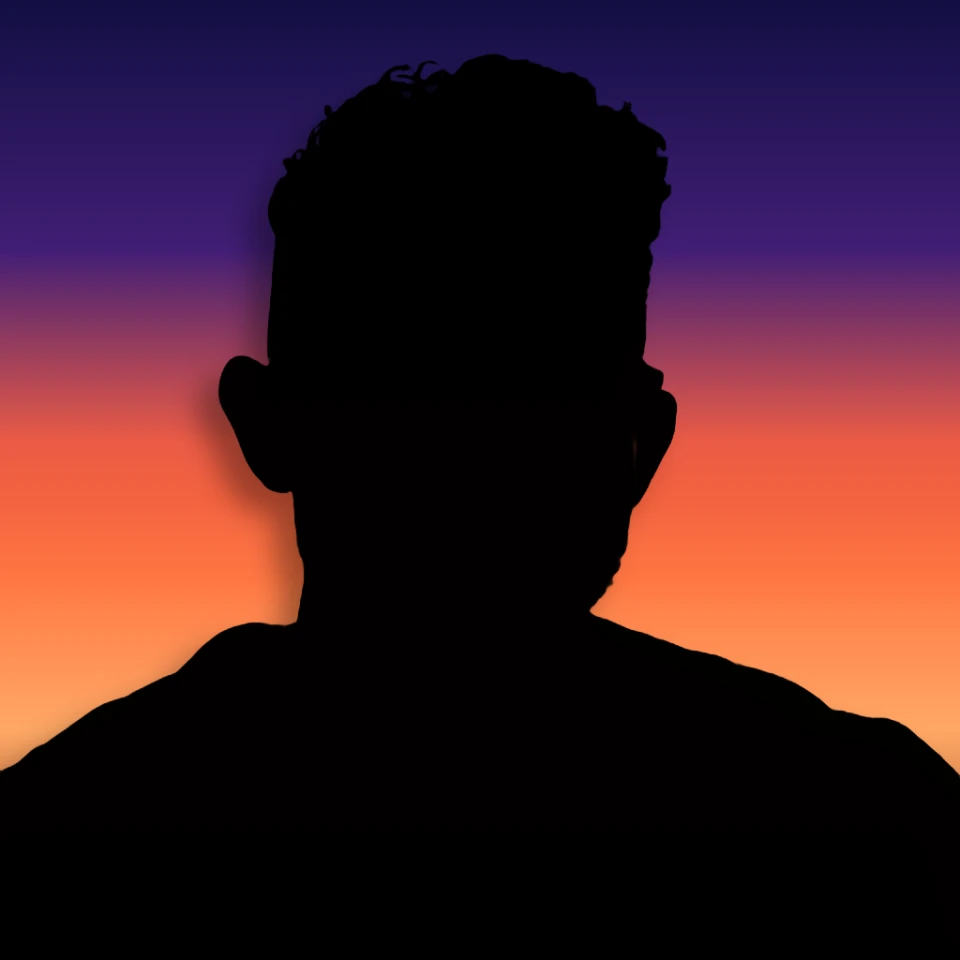
Turn a photo into a perfect silhouette
Turn a photo into a perfect silhouette in your browser. On-device AI cuts out the subject, fills it as a clean shape, and places it on a solid color, gradient, sunset, or transparent backdrop.
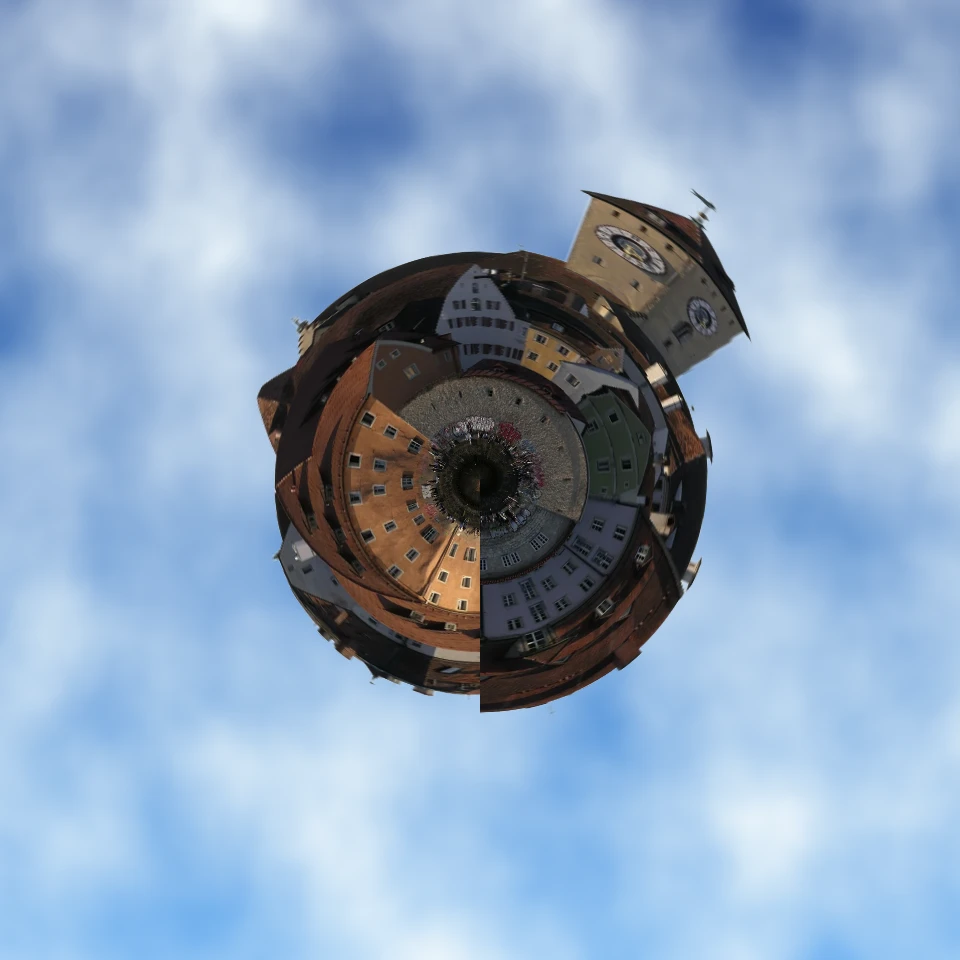
Turn a photo into a tiny planet
Turn a skyline or landscape into a tiny planet in your browser. On-device AI removes the sky, flips the scene, wraps it with polar coordinates, and sits it on clouds, stars, a gradient, or a solid color.
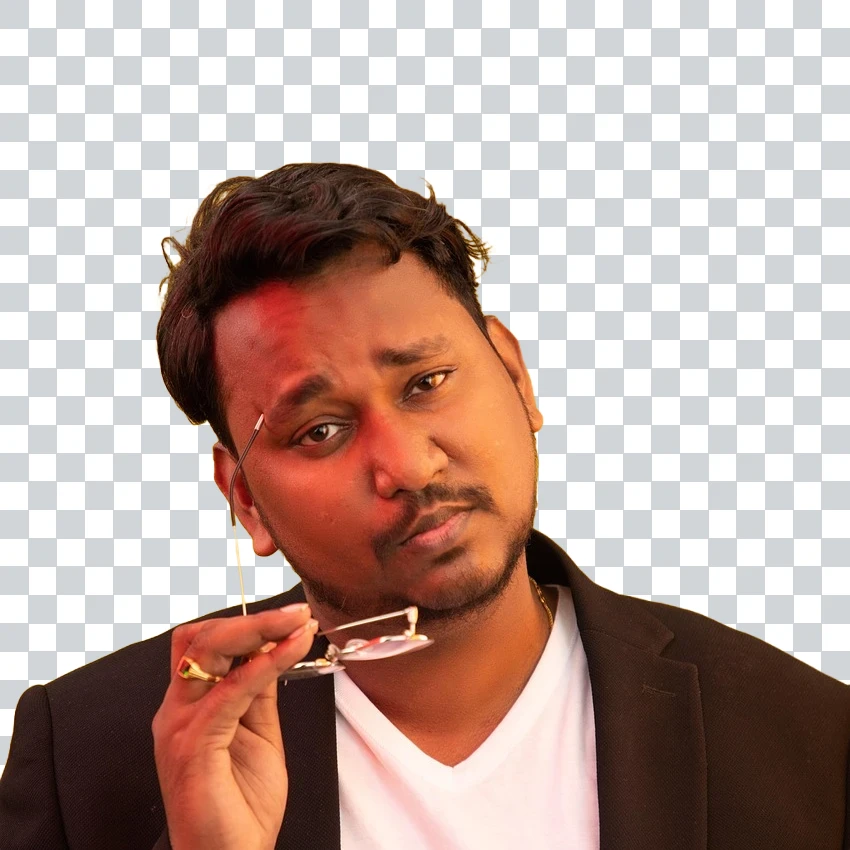
Free transparent PNG maker
Make a transparent PNG free online. Remove backgrounds and export clear PNGs with PictorX for logos, products, and stickers.
Ready to try it?
Open PictorX in your browser — no install, no credit card required to start.
Go to Editor