
Color wheel
Explore color relationships the way designers do. Drag the handles, choose a harmony, and copy HEX, RGB, HSL, HSV, or CMYK for logos, templates, and photo edits. PictorX runs the wheel in your browser. Drag the handles, choose a harmony, and copy HEX, RGB, HSL, HSV, or CMYK.
How it works
- Drag a handle on the wheel, or type a HEX, RGB, or HSL value.
- Choose a harmony—complementary, analogous, triadic, split, square, tetradic, or shades—then copy a color or the whole palette.
- Use the codes in PictorX on text, shapes, and color effects, or keep exploring the wheel.
Harmonies that sit well together
Complementary colors sit opposite on the wheel and make each other pop. Analogous hues sit next to each other for a calmer set. Triadic and square schemes space hues evenly; split complementary softens a high-contrast pair; monochromatic and shades stay in one hue and change saturation or brightness.
Codes you can paste anywhere
Every swatch shows HEX for CSS and design tools, RGB and HSL for the web, HSV for the wheel itself, and CMYK as a print approximation. Copy one color or the whole palette, then keep editing in PictorX.
Frequently asked questions
What is a color wheel?
A color wheel arranges hues in a circle so you can see how colors relate. Angle is hue; distance from the center is saturation. PictorX adds a brightness slider and harmony handles so you can build a palette, not only pick one swatch.
What do complementary and analogous mean?
Complementary colors sit opposite each other (about 180°) and create contrast. Analogous colors sit next to each other and feel more blended. Triadic uses three hues spaced 120° apart; split complementary uses a hue plus the two neighbors of its opposite.
Can I copy HEX, RGB, and CMYK?
Yes. Select a swatch and copy HEX, RGB, HSL, HSV, or CMYK. Copy palette copies every hex code at once. CMYK is a conversion from the screen color, useful as a starting point for print.
Does the color wheel upload my work?
No. The wheel runs in your browser. Copy the codes, then use them in PictorX on text, shapes, and photo effects in the same workspace.
Related tools

Colors
How color works on screens and in print: RGB, CMYK, HSL, hex, the color wheel, gradients, contrast, and PictorX tools.
Gradient editor
Build linear and radial CSS gradients in your browser. Drag color stops, set the angle, and copy CSS, HEX, RGB, HSL, HSV, or CMYK.
Color palette generator
Build, lock, and shuffle color palettes in your browser. Copy HEX, CSS variables, or JSON, export PNG or SVG, and extract colors from a photo.
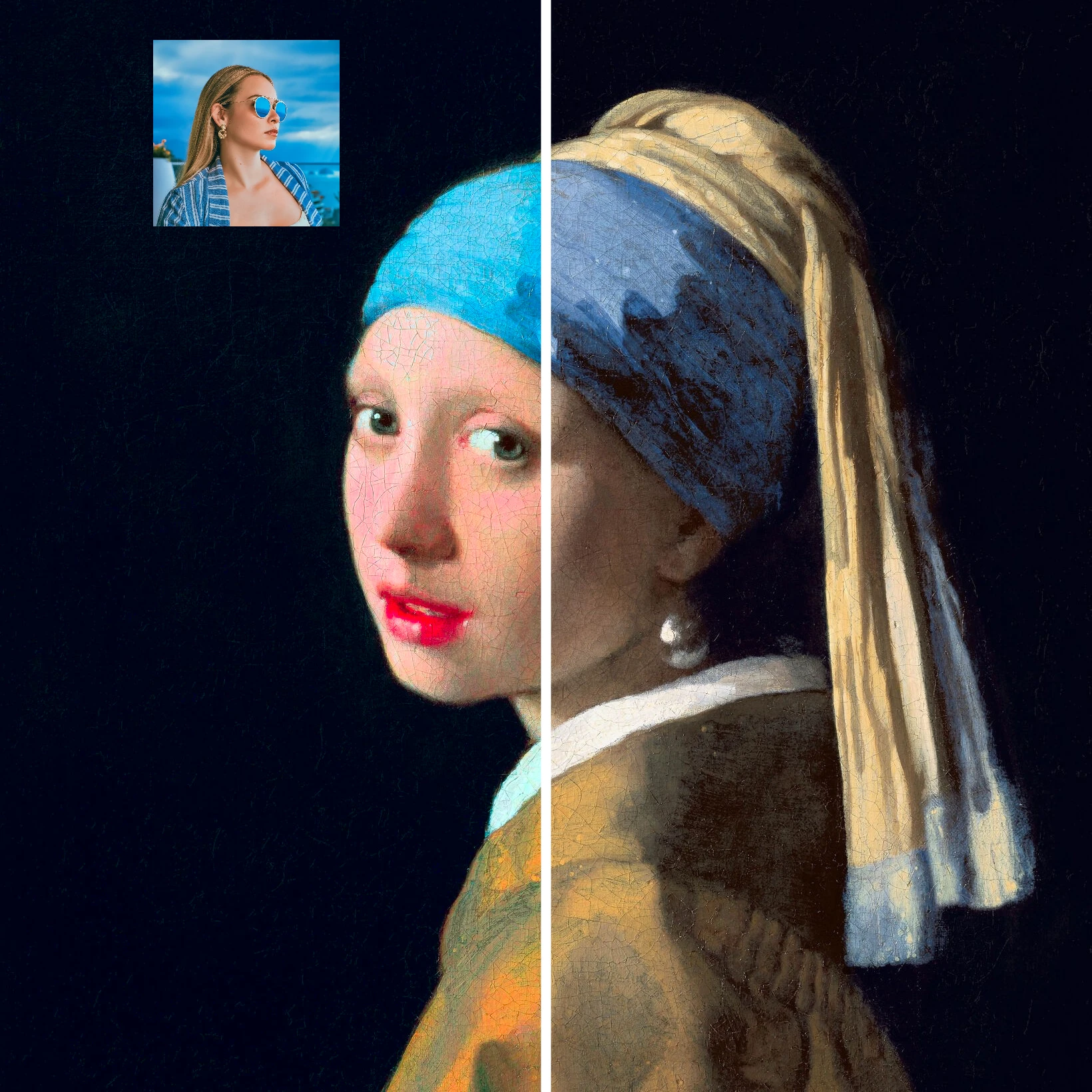
Color transfer
Recolor a photo using the colors of a second image. Live preview in your browser with a strength slider and optional preserved brightness.

Color effects
Recolor a photo from Effects → Color with neon edges, heat maps, and two- or three-color palettes.

Design templates
Jump-start any project with hundreds of ready-made layouts: artistic compositions, text and poem designs, tables, charts, infographics, illustrations, presentation slides, and more.
Free online logo maker
Design a simple logo free online with PictorX. Combine shapes, text, and icons—then export PNG for your brand.
Ready to try it?
Open PictorX in your browser — no install, no credit card required to start.
Go to Editor