
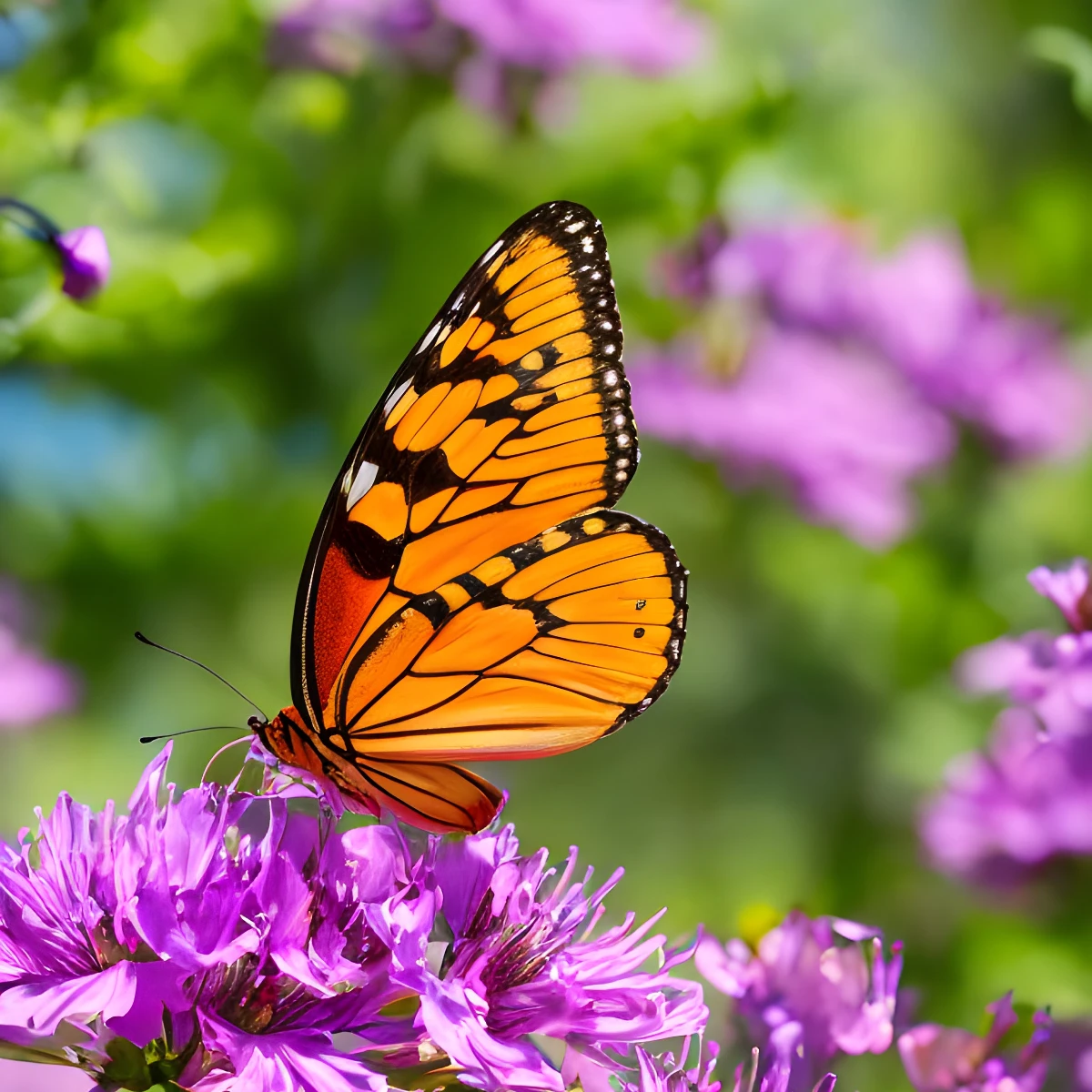
Open a picture or use the sample, then click Start.
Pop a subject out of the frame
Out of bounds uses on-device AI to cut out the subject, then keeps the original photo inside a perspective frame so the subject breaks over the border. A left-to-right gradient fills the space around the card. Adjust size, offset, skew, and colors, then keep editing in the same workspace. Open a picture or use the sample, then click Start.
How it works
- Open PictorX in your browser and load a photo with a clear subject.
- Choose Out of bounds. On-device AI isolates the subject, then builds the frame, gradient, and pop-out.
- Tune size, offset, and skew, then export or keep editing with layers and effects.
Why the out-of-bounds look works
The illusion is a photo that leaves its own border: the scene stays inside a trapezoid frame while the subject crosses that edge. Hair, wings, hands, and product edges read as 3D when a shadow sits behind the overflow and a simple gradient replaces the cropped background.
On-device cutout, then the frame
PictorX runs background removal locally in a supported browser, then composites the framed photo and the isolated subject. Skew only changes the frame shape—narrower at the top—so the subject stays aligned. Color 1 and Color 2 paint the left-to-right backdrop.
Frequently asked questions
What is an out-of-bounds photo effect?
The subject appears to break out of a picture frame. PictorX isolates the subject with on-device AI, keeps the original photo inside a trapezoid frame, and lets the subject pop over the border with a shadow.
Do my photos leave my device?
Out of bounds uses on-device background removal in supported browsers, so the photo is not uploaded to PictorX servers for that step.
What photos work best?
Clear subjects with a distinct edge—portraits, birds, products, and full-body shots. Busy scenes where the subject blends into the background are harder to cut cleanly.
Can I change the frame and colors?
Yes. Size, offset, border, and skew shape the card. Color is the frame; Color 1 and Color 2 are the left-to-right gradient. Transparent skips the gradient.
Related tools
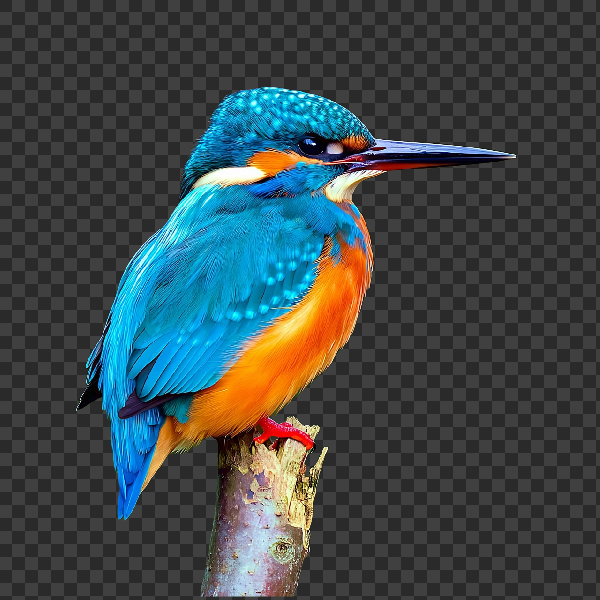
Remove backgrounds on your device
Cut out subjects with on-device AI in PictorX. Photos stay in your browser—no upload to our servers.

Make a die-cut sticker from any photo
Turn a photo into a die-cut sticker in your browser. On-device AI cuts out the person or object, then adds a white outline, shadow, holographic foil, or a colored rim. Export a transparent PNG.
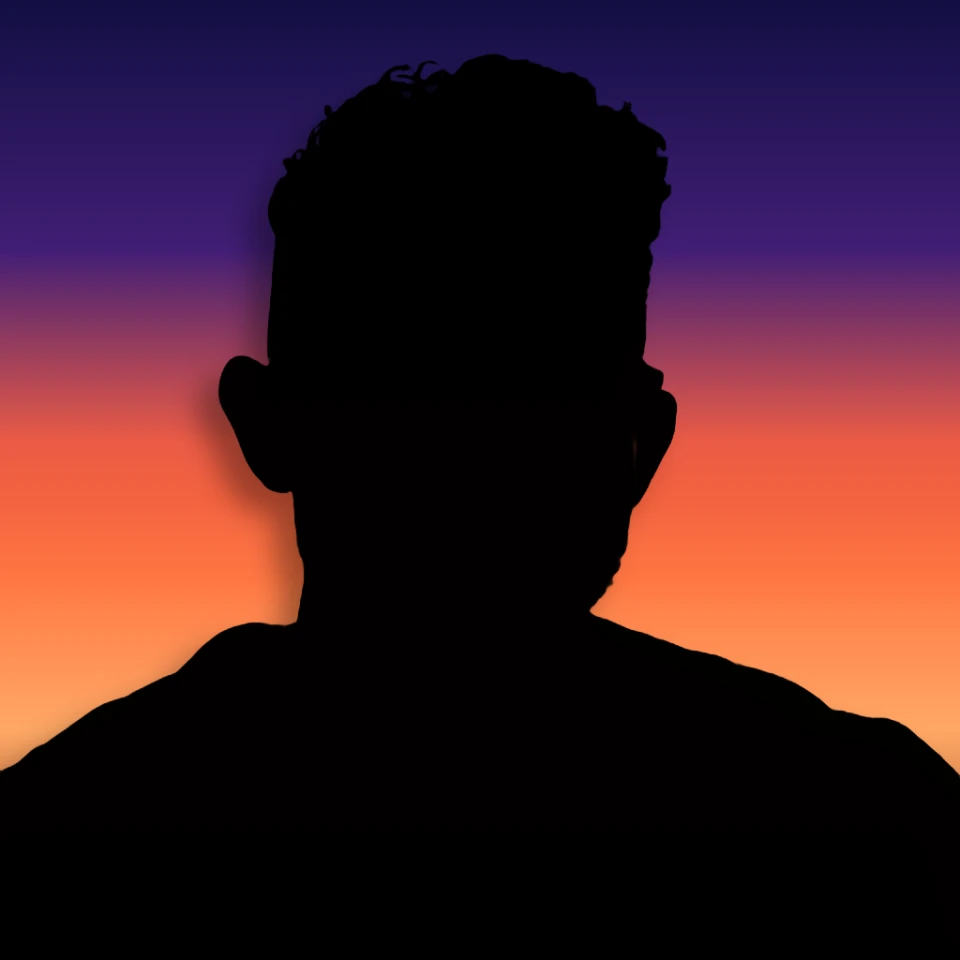
Turn a photo into a perfect silhouette
Turn a photo into a perfect silhouette in your browser. On-device AI cuts out the subject, fills it as a clean shape, and places it on a solid color, gradient, sunset, or transparent backdrop.
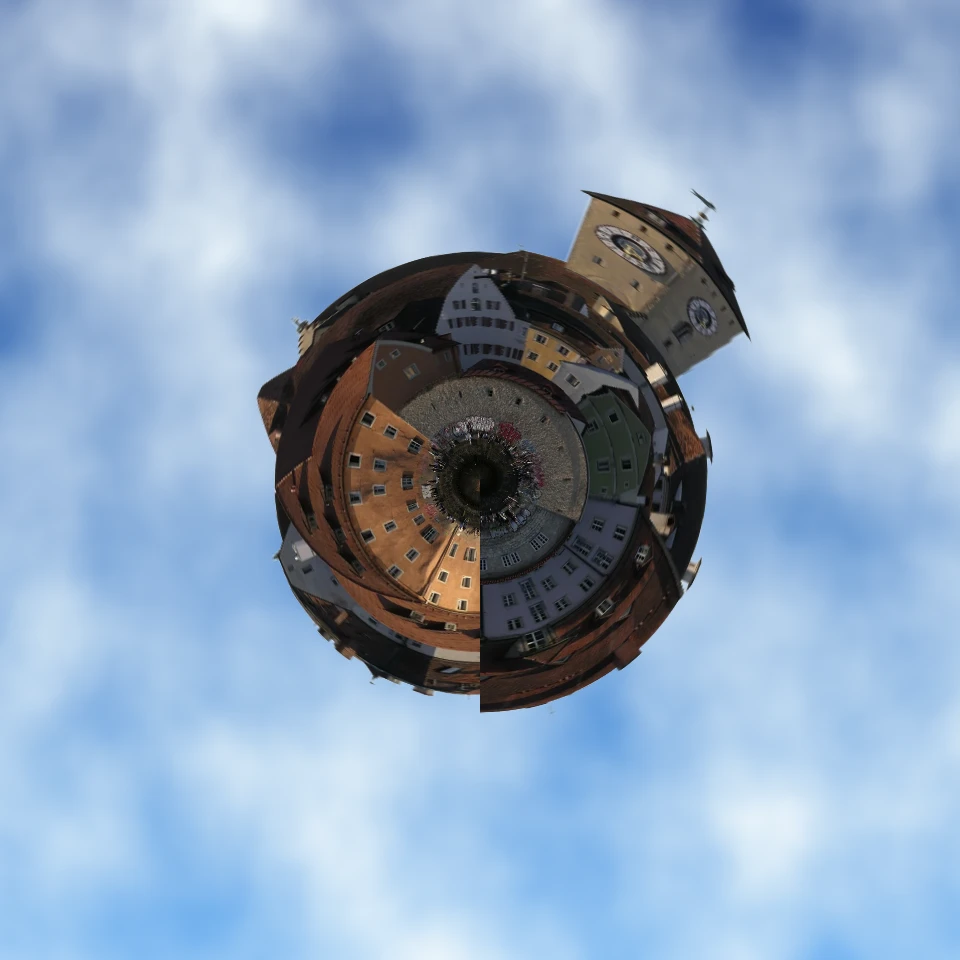
Turn a photo into a tiny planet
Turn a skyline or landscape into a tiny planet in your browser. On-device AI removes the sky, flips the scene, wraps it with polar coordinates, and sits it on clouds, stars, a gradient, or a solid color.

Blur background
Keep the subject crisp while the backdrop softens—all on your device.
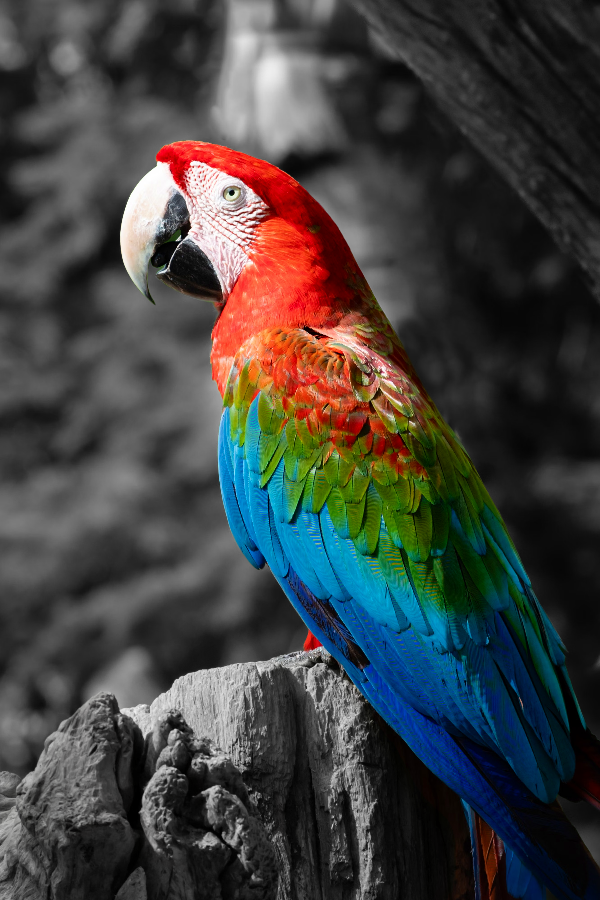
Selective color spotlight
Turn everyday photos into cinematic moments.

Polaroid effects
Give photos an instant-film look with frames, vintage styling, and creative Polaroid compositions.
Ready to try it?
Open PictorX in your browser — no install, no credit card required to start.
Go to Editor