
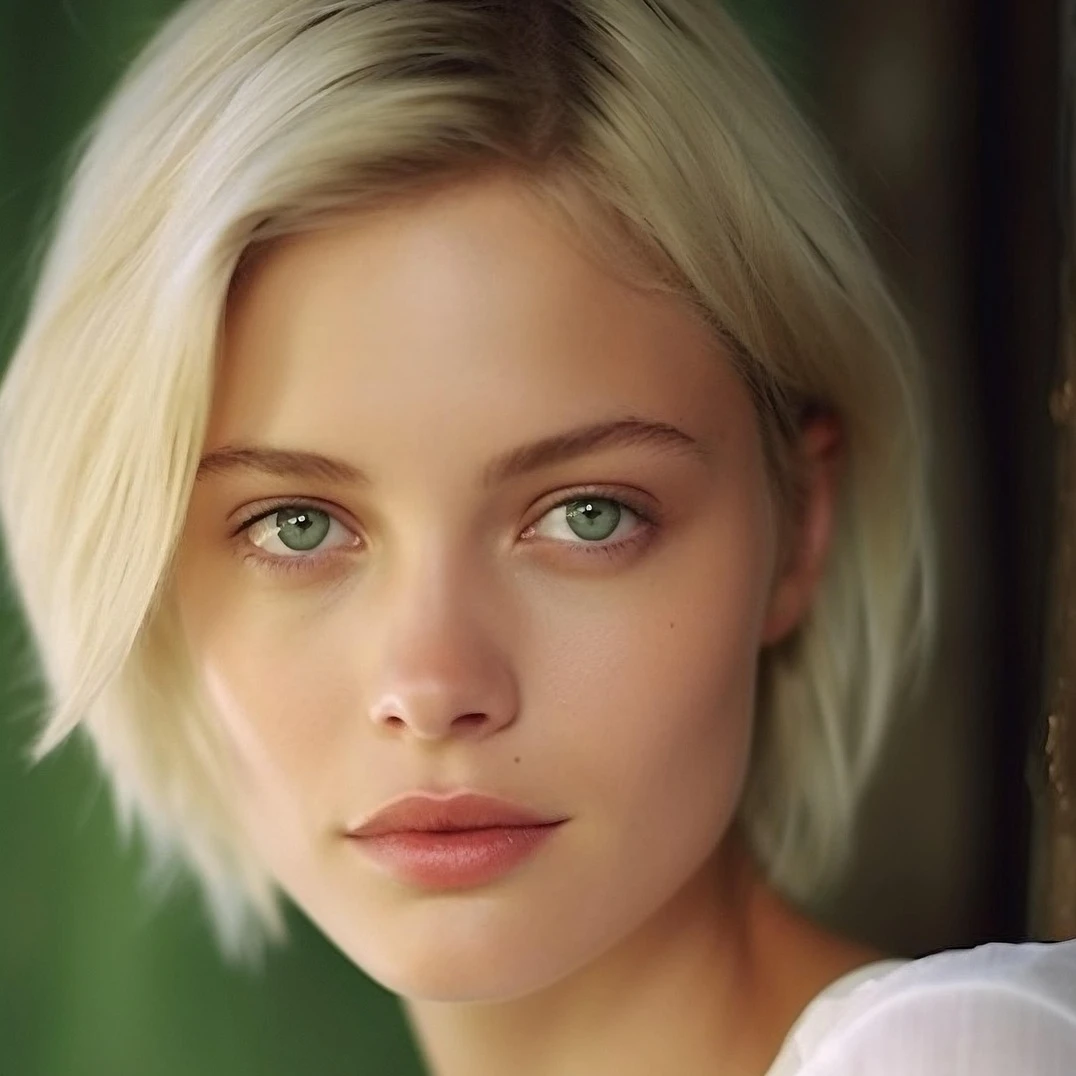
Adjust
Correct exposure and color from Image → Adjust. Tune brightness and contrast, hue and saturation, vibrance, grayscale, threshold, levels, curves, posterize, color balance, RGB filter, channel mixer, and gradient map, then keep editing in PictorX. Try an adjustment below, or open your own picture.
How it works
- Open PictorX in your browser and start a new project or load an image.
- Use Adjust to shape the result, then refine it with the surrounding editor tools.
- Keep editing, export your work, or turn the result into your next design.
How Adjust fits your workflow
Correct exposure and color from Image → Adjust. PictorX keeps the feature alongside your photos, layers, typography, and design tools, so you can move from an idea to a finished graphic without switching applications.
Create more with Adjust
Start with one focused change, review the result in context, and keep iterating. Combine Adjust with other PictorX tools when you need a polished image for social media, a presentation, a print layout, or a personal project.
Looks in this set
Frequently asked questions
What is in the Adjust menu?
Brightness and contrast, hue and saturation, vibrance, black-and-white tools (threshold and grayscale), levels, curves, posterize, color balance, RGB filter, channel mixer, and gradient map.
How is Adjust different from Color effects?
Adjust is for correcting tone and color. Color effects are stylized looks such as invert, heatmap, x-ray, neon glow, duotone, and tritone.
Can I change brightness without losing the original?
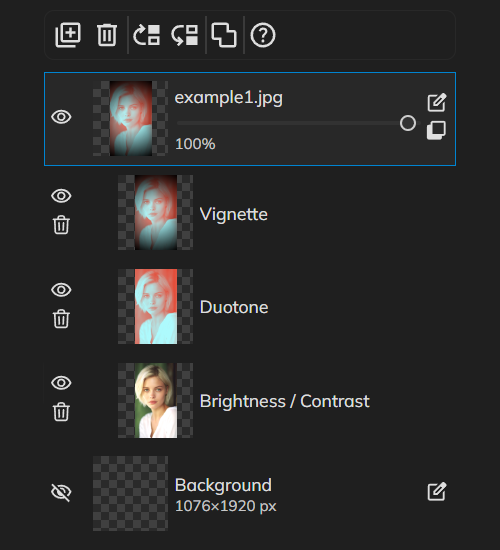
Yes. Apply Adjust on a layer, then keep editing. Non-destructive adjustments and undo let you refine or reverse the change.
Do these tools run in the browser?
Yes. PictorX applies Adjust in your browser, then you can keep editing with layers, text, and other effects.
Related tools
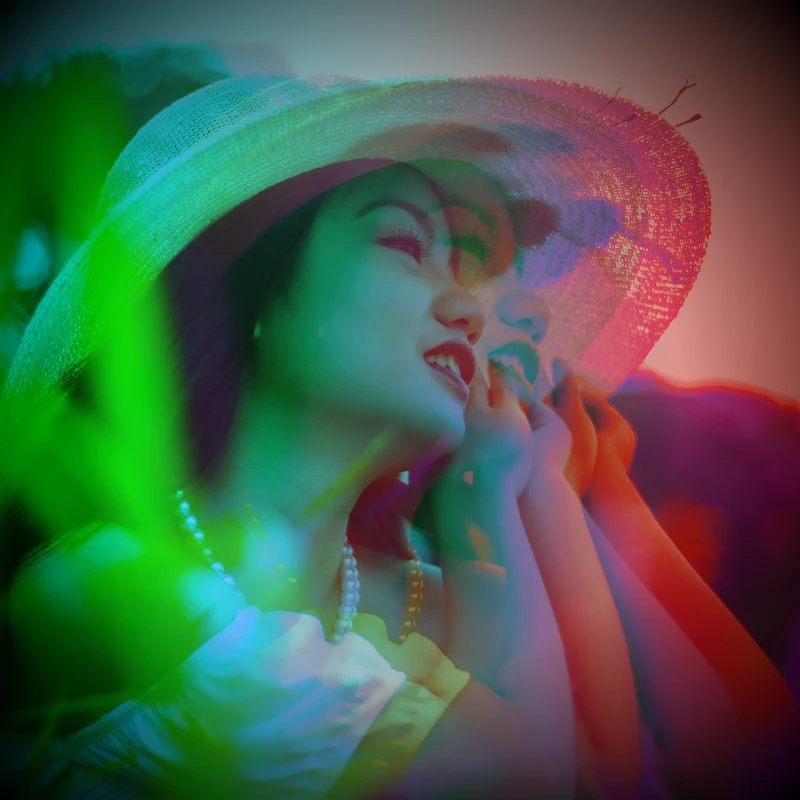
Color effects
Recolor a photo from Effects → Color with neon edges, heat maps, and two- or three-color palettes.
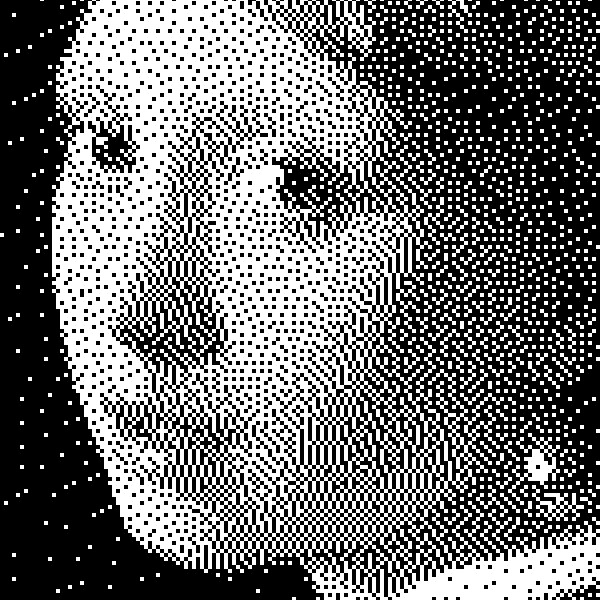
Black and White effects
Apply grayscale, threshold, dots, squares, ordered dithering, error diffusion, and mezzotint to a photo in your browser. Full gray ramps or two-tone prints with custom foreground and background colors.
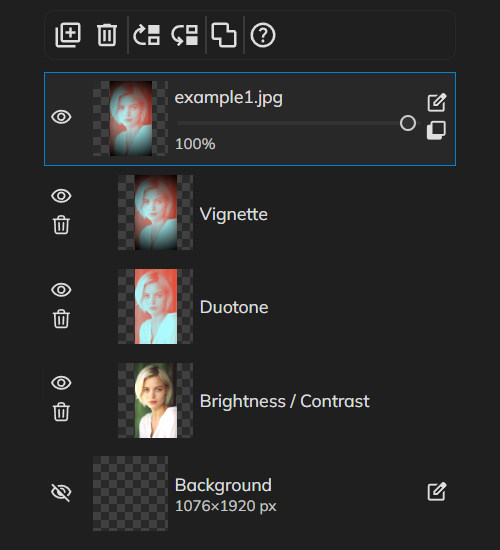
Non-destructive adjustments
Grade color like a pro without baking pixels.
Best practices for editing digital images
Non-destructive workflows, resolution, color, layers, export formats, and backups—practical best practices for editing digital images in PictorX.
Ready to try it?
Open PictorX in your browser — no install, no credit card required to start.
Go to Editor