
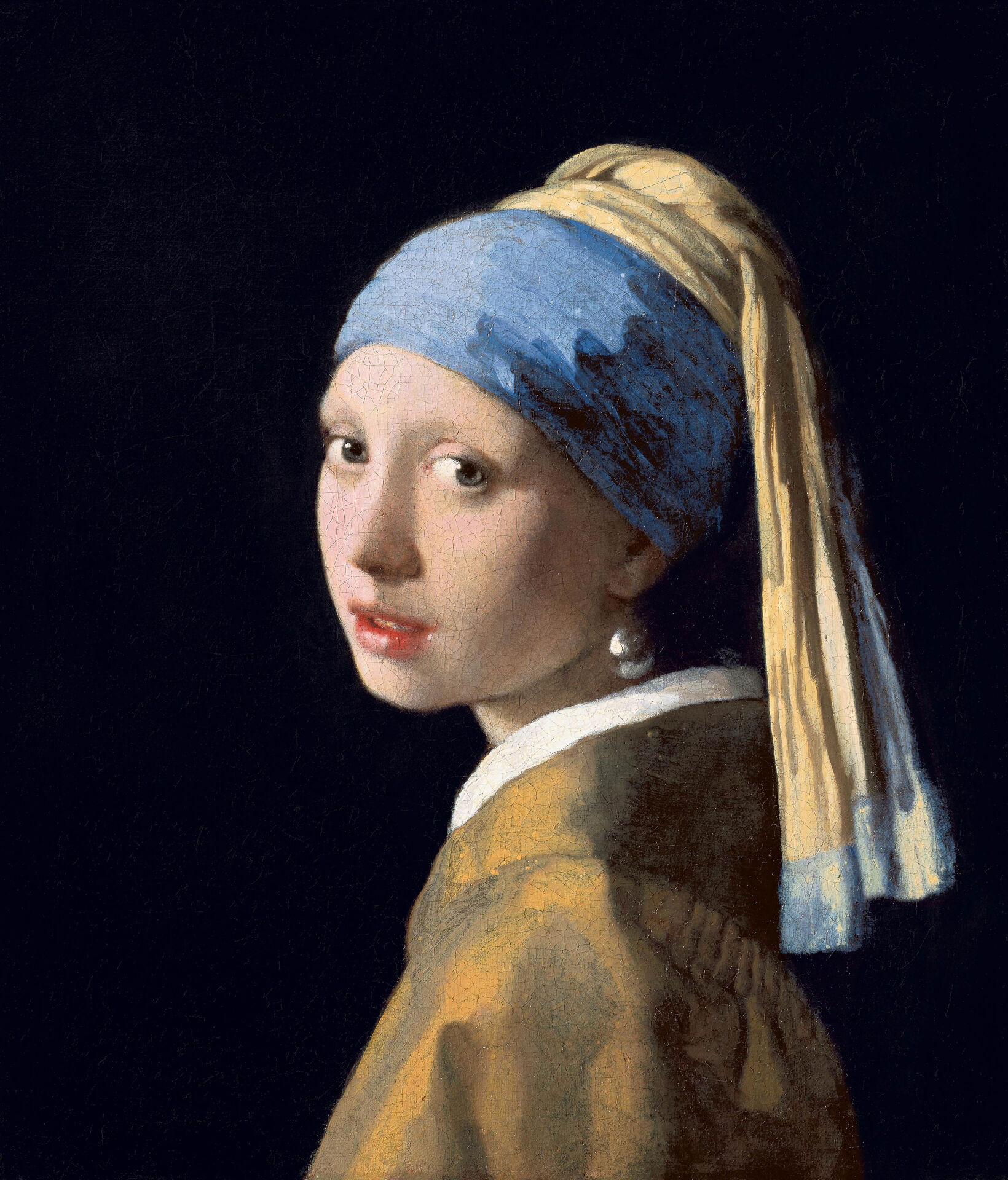
Drag the canvas frame to set the document size, or open your own picture.
Canvas Size tool
Set the exact width and height for a new or existing design. Drag the handles to resize the canvas. Add margin or pick an aspect, then Apply. Reset restores the original.
How it works
- Open PictorX in your browser and load an image or start a new design.
- Choose Canvas Size from the editor tools and adjust the result to fit your composition.
- Continue editing with layers, effects, and text, then export when you are ready.
How to use the Canvas Size tool
Set the exact width and height for a new or existing design. PictorX keeps the tool in the same browser workspace as your layers, photos, text, and design elements, so you can refine a composition without switching applications.
Keep creating in PictorX
Use Canvas Size as one step in a complete editing workflow. Adjust the composition, add text or graphics, and keep every change editable while you turn an image into a finished design.
Frequently asked questions
What does canvas size change?
The width and height of the working document, not necessarily the photo itself.
Can I add a margin around a photo?
Yes. Enlarge the canvas, then fill, uncrop, or place new elements in the extra room.
Is canvas size the same as resizing the image?
No. Resize scales content. Canvas size changes the document bounds.
How do I match a social or print size?
Set width and height to the pixel or print target you plan to export.
Related tools
Crop tool
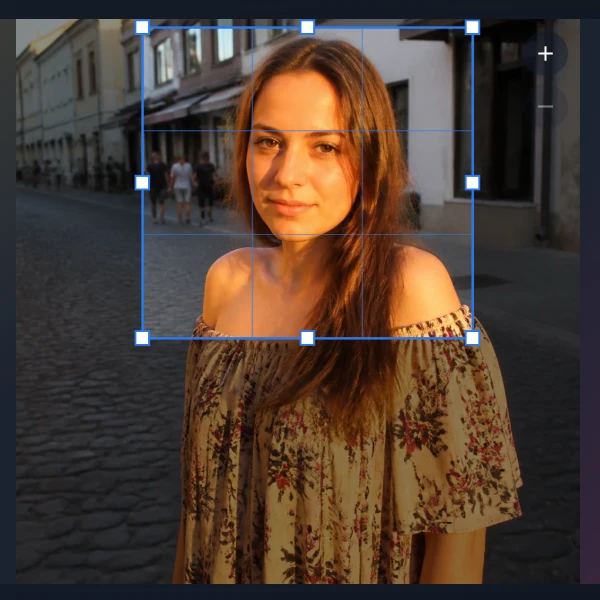
Trim a canvas to the part of an image or layout you want to keep. Use the free PictorX online editor in your browser.
Rotate tool
Turn the active layer to the exact angle your image or layout needs. Use the free PictorX online editor in your browser.
AI uncrop & outpaint images
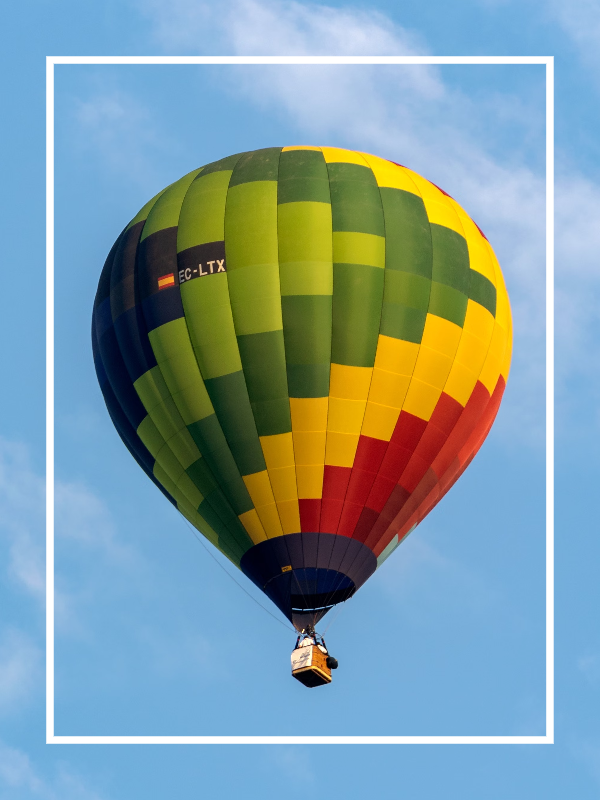
Expand photos beyond the frame with PictorX AI uncrop. Outpaint backgrounds free in your browser for banners and thumbnails.
Ready to try it?
Open PictorX in your browser — no install, no credit card required to start.
Go to Editor