
Zoom, grids & rulers
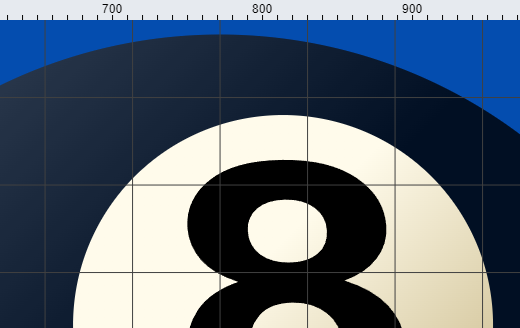
Inspect and place artwork with precise view controls. Zoom from a broad overview all the way to 10,000% for pixel-level work, then enable View → Grid, View → Pixel grid, View → Rulers, and snap-to-grid helpers when alignment matters.
How it works
- Open PictorX in your browser and start a new project or load an image.
- Use Zoom, grids & rulers to shape the result, then refine it with the surrounding editor tools.
- Keep editing, export your work, or turn the result into your next design.
How Zoom, grids & rulers fits your workflow
Inspect and place artwork with precise view controls. PictorX keeps the feature alongside your photos, layers, typography, and design tools, so you can move from an idea to a finished graphic without switching applications.
Create more with Zoom, grids & rulers
Start with one focused change, review the result in context, and keep iterating. Combine Zoom, grids & rulers with other PictorX tools when you need a polished image for social media, a presentation, a print layout, or a personal project.
Frequently asked questions
Why turn on grids and rulers?
They keep type, logos, and photos aligned instead of placing everything by eye.
Can I snap objects to the grid?
Yes. Zoom in and use guides or rulers when a few pixels of misalignment would show in print.
Does zooming in reduce image quality?
Zoom is for viewing. Vector shapes stay sharp; raster layers keep their pixel size.
When do grids matter most?
Logos, business cards, and print layouts where edges and margins need to line up.
Related tools
Document mode
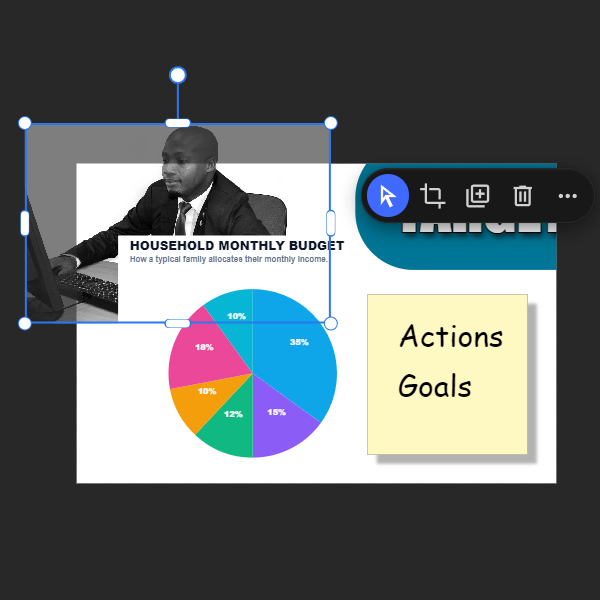
Document mode is Pictorx at its most precise: a familiar page-based canvas where every layer stays within your artboard, multi-page projects stack cleanly, and what you see is what you export. Use PictorX free in your browser with no software install required.

Selection tool
Isolate exactly what you need—nothing more, nothing less. Use the free PictorX online editor in your browser.
Paths, points & curves
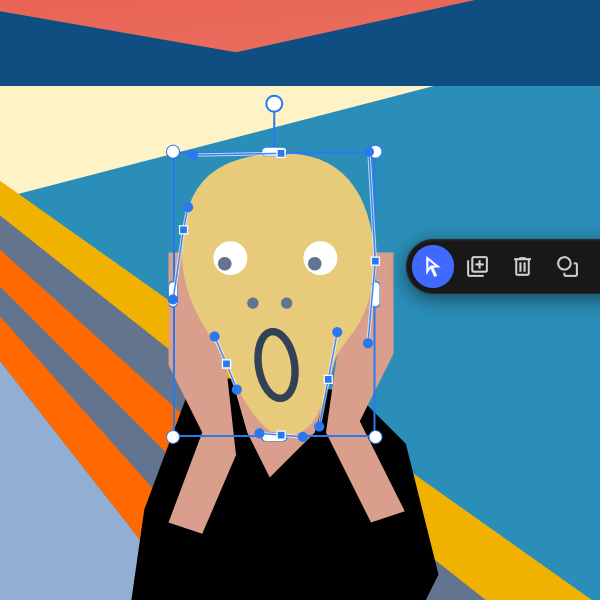
Reshape shape and line paths at the anchor level. Use PictorX free in your browser with no software install required.
Ready to try it?
Open PictorX in your browser — no install, no credit card required to start.
Try Zoom, grids & rulers