
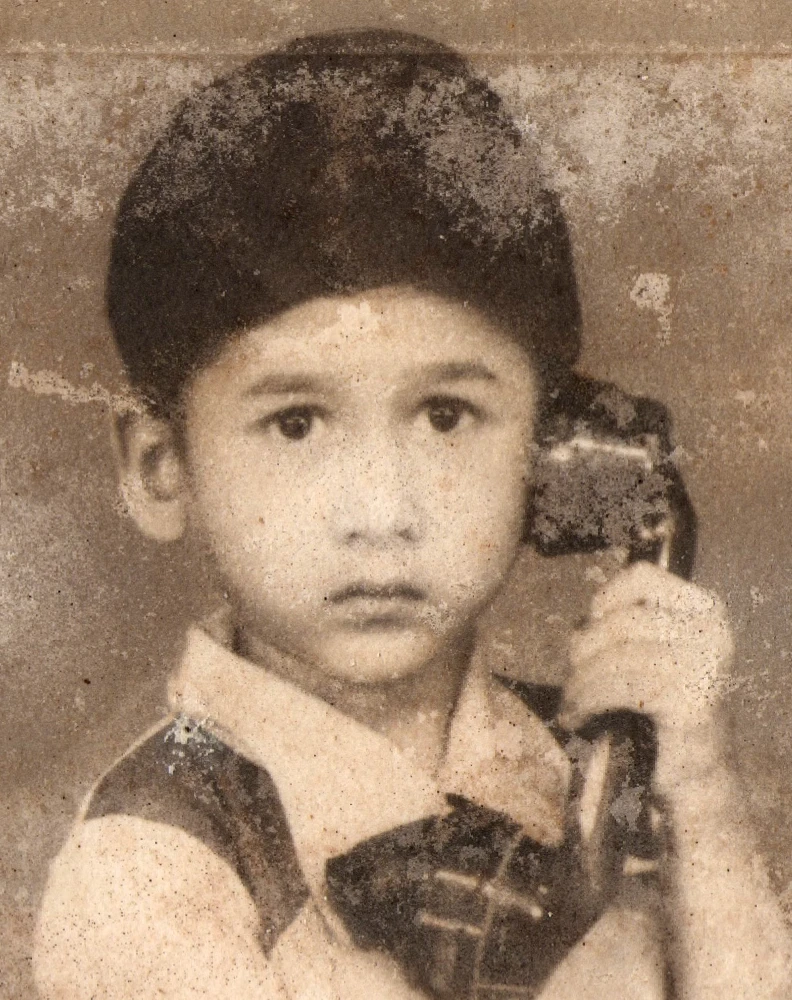
Open a picture or use the sample. Paint over scratches or damage with your mouse or finger, then click Start.
AI image repair online
Revive scratched, noisy, or soft photos with PictorX repair tools. Open an old family photo or a low-quality download, run AI repair, then refine with classic editing tools. Paint over scratches or damage with your mouse or finger, then click Start. Paint leftovers and click Start again. Clear removes only the current selection. Reset starts all over again.
How it works
- Open a picture or use the sample. Paint over scratches, spots, or damage.
- Click Start. On-device LaMa AI repairs the painted area — nothing is uploaded.
- Paint leftovers and click Start again, or use Reset to start over.
Restore, then redesign
After repair, crop, color-correct, and place the photo into a scrapbook, poster, or social template. PictorX keeps restoration and creative layout in one flow.
Good candidates for repair
Scanned prints, compressed social downloads, and slightly soft phone photos often improve noticeably. For extreme damage, combine repair with manual touch-ups using layers.
Frequently asked questions
Does repair work on black-and-white photos?
Yes. You can repair grayscale images and optionally add creative color treatments afterward.
Should I repair in several small steps?
Yes. Smaller incremental passes usually look more natural than one aggressive pass. Stop when the photo looks restored, not over-smoothed.
What photos are good candidates for repair?
Scanned prints, compressed social downloads, and slightly soft phone photos often improve noticeably. Extreme damage may still need manual touch-ups.
Can I keep editing after repair?
Yes. Crop, color-correct, and place the restored photo into a scrapbook, poster, or social template in the same workspace.
Related tools
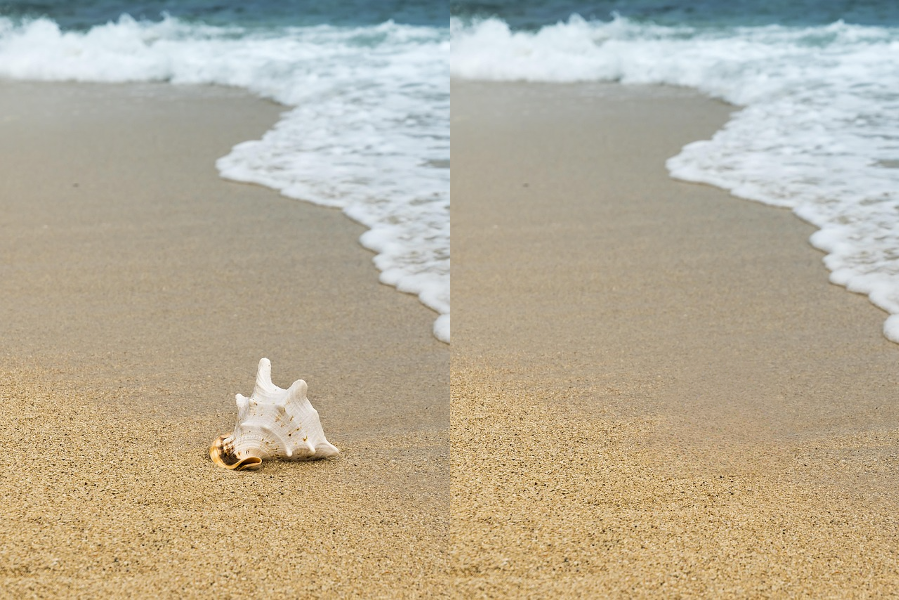
AI object removal
Erase distractions without leaving holes. Use PictorX free in your browser with no software install required.

AI uncrop & outpaint images
Expand photos beyond the frame with PictorX AI uncrop. Outpaint backgrounds free in your browser for banners and thumbnails.
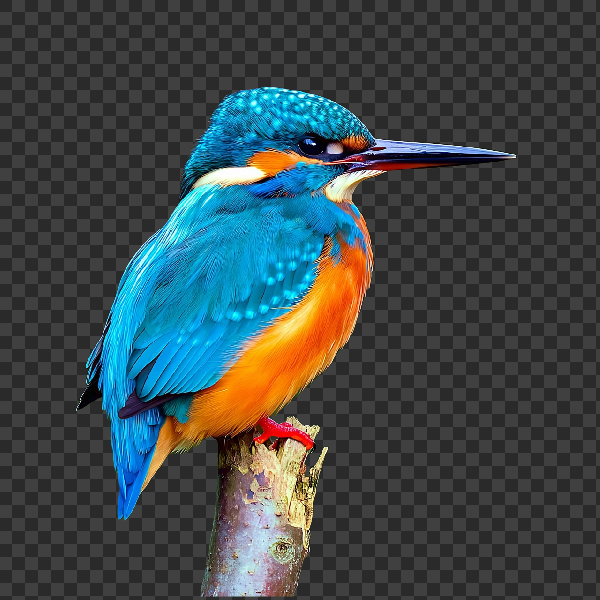
Remove backgrounds on your device
Cut out subjects with on-device AI in PictorX. Photos stay in your browser—no upload to our servers.

AI models
What AI and AI models are, how they power photo editing—background removal, inpainting, enhance, uncrop—and how PictorX runs many tools on-device.
Ready to try it?
Open PictorX in your browser — no install, no credit card required to start.
Go to Editor