

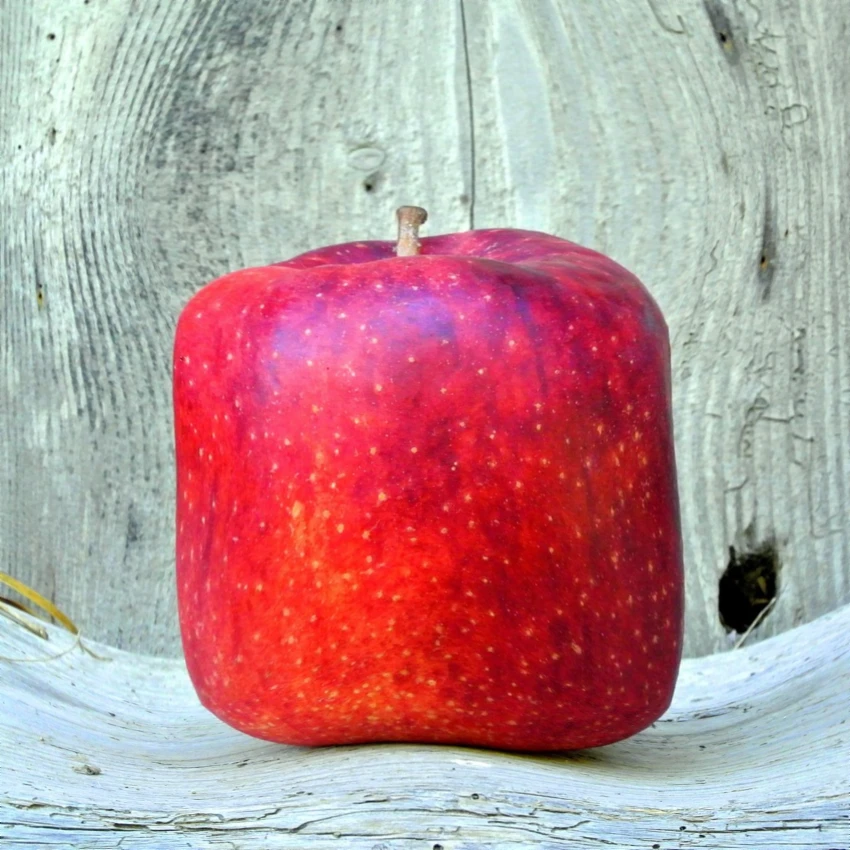
Paint on the photo below, or open your own picture.
Liquify tool
Push, pull, inflate, shrink, and rotate any area of an image from Tools → Draw → Liquify. Distortions can be subtle or drastic for retouching or artistic effects. Drag on the photo to use the tool. Reset restores the original.
How it works
- Open PictorX in your browser and load an image or start a new design.
- Choose Liquify from the editor tools and adjust the result to fit your composition.
- Continue editing with layers, effects, and text, then export when you are ready.
How to use the Liquify tool
Push, pull, inflate, shrink, and rotate parts of an image for retouching or creative effects. PictorX keeps the tool in the same browser workspace as your layers, photos, text, and design elements, so you can refine a composition without switching applications.
Keep creating in PictorX
Use Liquify as one step in a complete editing workflow. Adjust the composition, add text or graphics, and keep every change editable while you turn an image into a finished design.
Frequently asked questions
What can liquify do?
Push, pull, inflate, shrink, and rotate pixels for retouching or a creative warp.
Will a big warp look fake on a face?
Usually. Keep strokes small and compare against the original.
Can I liquify on a duplicate layer?
Yes. That makes it easy to hide the warp or lower its opacity.
How is liquify different from liquid lens?
Liquify is a manual brush. Liquid lens is a filter-style distortion look.
Related tools
Mesh Warp tool
Distort an image by adjusting points across an editable mesh. Use the free PictorX online editor in your browser.

Perspective tool
Warp an image in perspective by moving its four corners. Use the free PictorX online editor in your browser.

Liquid lens playground
Warp photos with polar coordinates, ripple, glass, spherize, timewarp, twirl, folds, and bend. Use PictorX free in your browser with no software install required.
Ready to try it?
Open PictorX in your browser — no install, no credit card required to start.
Go to Editor