
Gradient editor
Mix colors into a smooth blend the way designers do. Drag the stops, switch linear or radial, set the angle, and copy CSS or color codes for backgrounds, text, and photo edits. PictorX runs the editor in your browser. Drag the color stops, switch linear or radial, and copy CSS or HEX.
How it works
- Drag a color stop, or type a HEX, RGB, or HSL value.
- Choose linear or radial, set the angle, then copy the CSS or a stop color.
- Paste the gradient in PictorX on fills, text, and shapes, or keep editing the stops.
Color stops you can drag
Each handle is a color stop. Drag it along the bar to change where that color sits, click it to edit HEX, RGB, HSL, HSV, or CMYK, and add or remove stops with the color count. Linear gradients also take an angle so the blend can run in any direction; radial gradients spread from the center.
CSS you can paste anywhere
Copy the full linear-gradient or radial-gradient string for CSS and design tools, or copy a single stop as HEX, RGB, HSL, HSV, or CMYK. Copy palette copies every hex code at once. Then keep editing in PictorX.
Frequently asked questions
What is a gradient editor?
A gradient editor lets you mix two or more colors along a line or from a center point. Each handle is a color stop: drag it to change where that color sits, then copy CSS or HEX for backgrounds, text, and shapes.
How do linear and radial gradients differ?
A linear gradient blends colors in one direction—set the angle so it can run left to right, top to bottom, or on a diagonal. A radial gradient blends from the center outward, like a spotlight.
Can I copy CSS and HEX?
Yes. Copy CSS copies the full linear-gradient or radial-gradient string. Select a stop to copy HEX, RGB, HSL, HSV, or CMYK. Copy palette copies every hex code at once.
Does the gradient editor upload my work?
No. The editor runs in your browser. Copy the CSS or codes, then use them in PictorX on fills, text, and photo effects in the same workspace.
Related tools
Colors
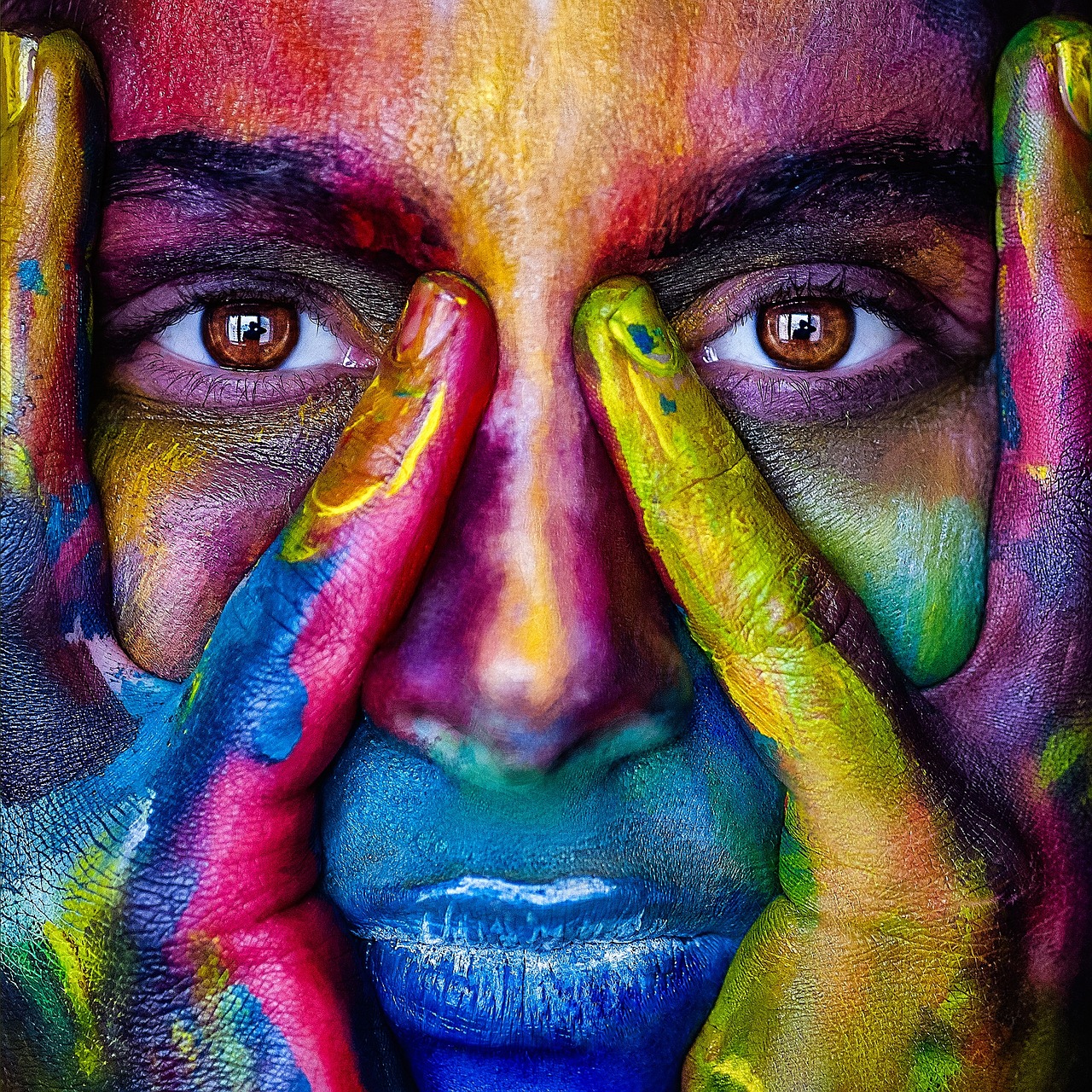
How color works on screens and in print: RGB, CMYK, HSL, hex, the color wheel, gradients, contrast, and PictorX tools.
Color wheel
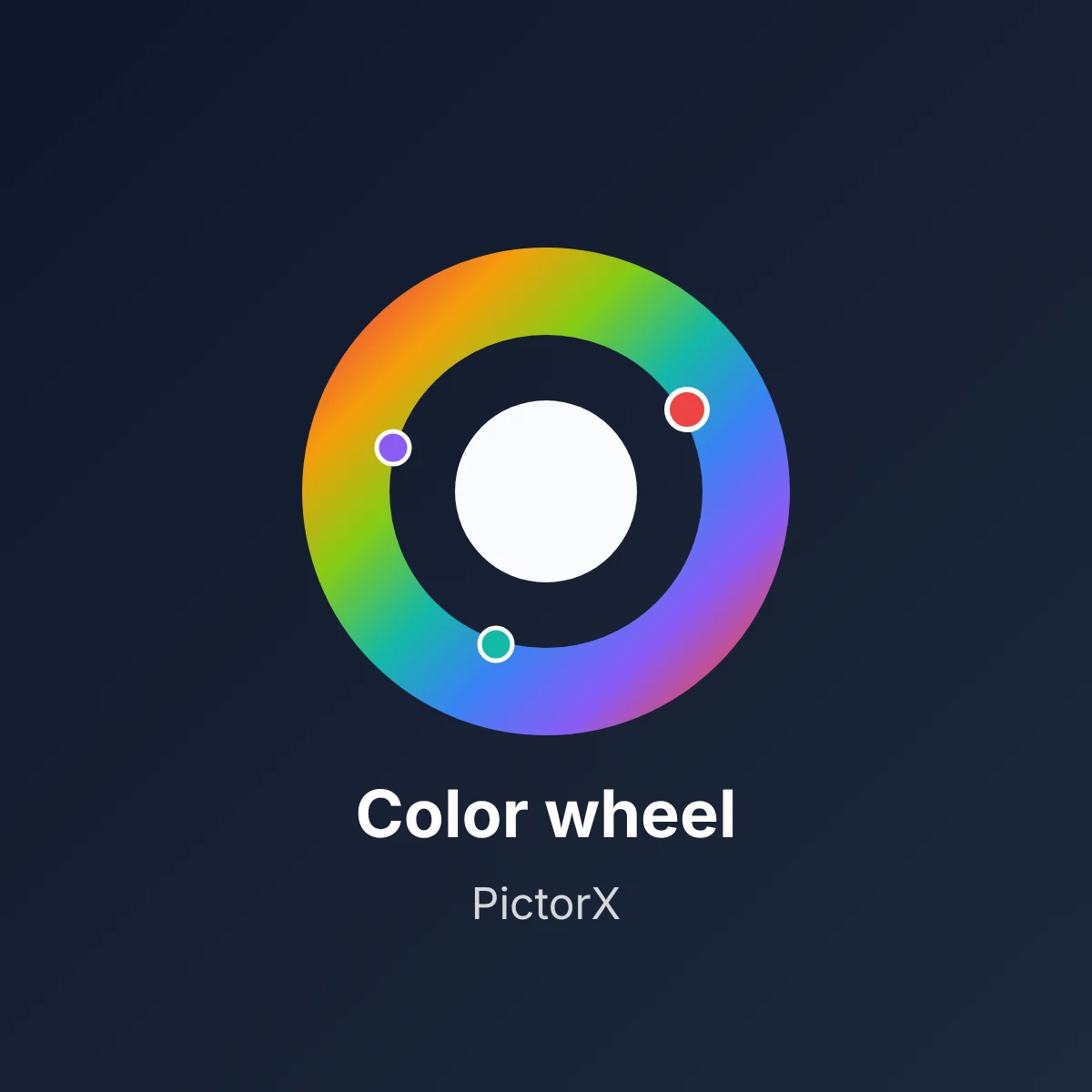
Pick a color on an interactive wheel, generate complementary, analogous, triadic, and other palettes, and copy HEX, RGB, HSL, HSV, or CMYK.
Color palette generator
Build, lock, and shuffle color palettes in your browser. Copy HEX, CSS variables, or JSON, export PNG or SVG, and extract colors from a photo.
Color transfer
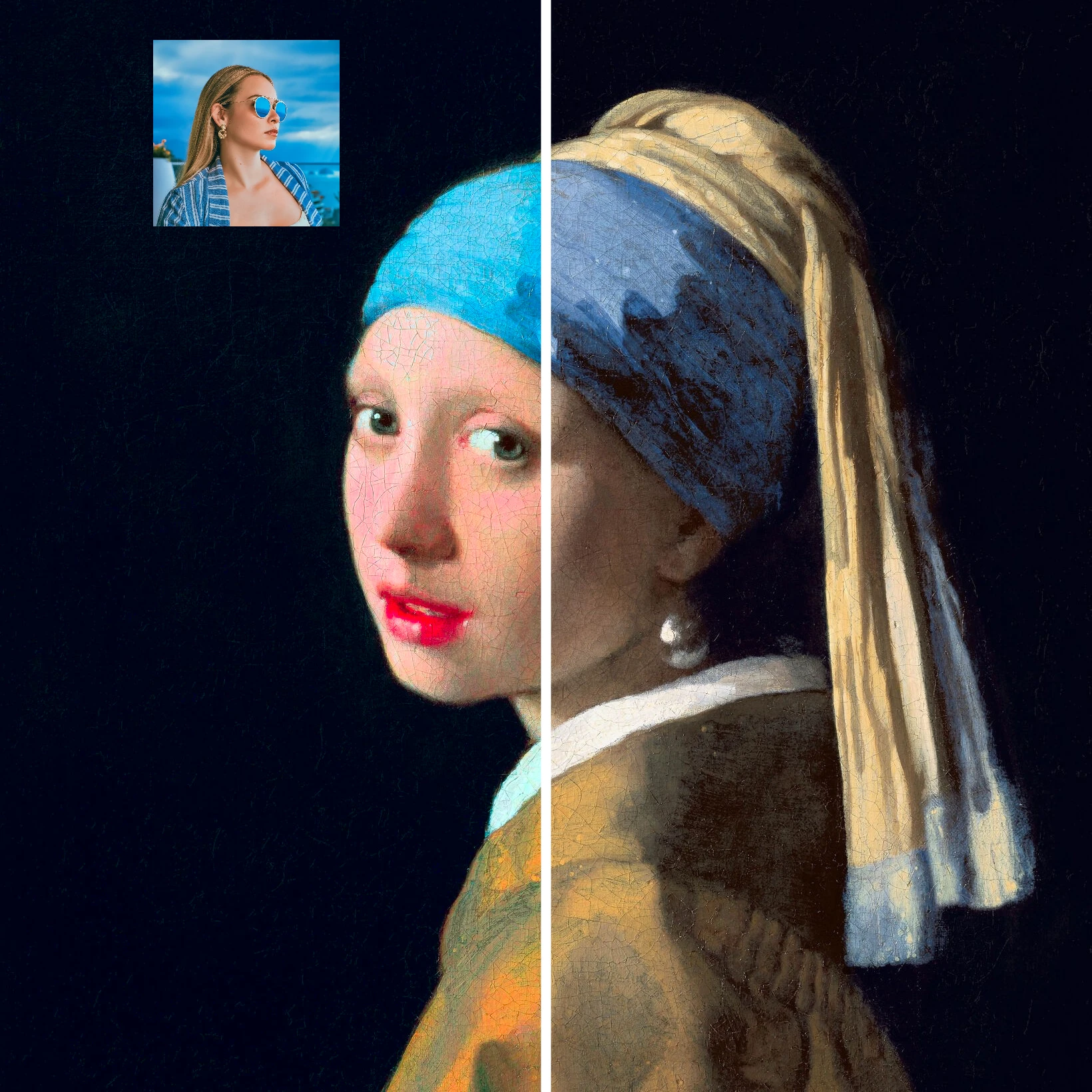
Recolor a photo using the colors of a second image. Live preview in your browser with a strength slider and optional preserved brightness.

Color effects
Recolor a photo from Effects → Color with neon edges, heat maps, and two- or three-color palettes.

Design templates
Jump-start any project with hundreds of ready-made layouts: artistic compositions, text and poem designs, tables, charts, infographics, illustrations, presentation slides, and more.
Ready to try it?
Open PictorX in your browser — no install, no credit card required to start.
Go to Editor