
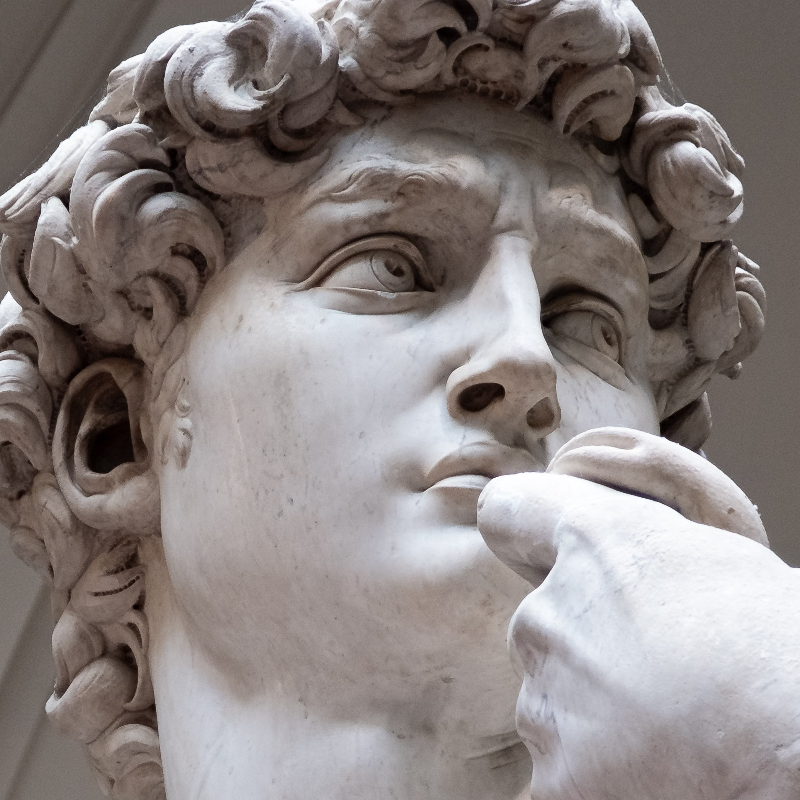
Try a stylize look below, or open your own picture.
Stylize effects
Give photos a studio finish from Effects → Stylize. Shatter a frame into shards, split RGB channels, emboss relief, etch engraved lines, draft a blueprint, frost glass, wrap a surface in plastic wrap, blow wind streaks, glitch the signal, weave a woven photo, extrude blocks, explode cubes, set a photo on fire, sprinkle sands of time, or darken edges with a vignette. Stack looks on layers, dial opacity, and export poster-ready stylized graphics. Try a stylize look below, or open your own picture.
How it works
- Open PictorX in your browser and start a new project or load an image.
- Use Stylize effects to shape the result, then refine it with the surrounding editor tools.
- Keep editing, export your work, or turn the result into your next design.
How Stylize effects fits your workflow
Add shatter, glitch, fire, emboss, vignette, and other studio stylize looks to photos. PictorX keeps the feature alongside your photos, layers, typography, and design tools, so you can move from an idea to a finished graphic without switching applications.
Create more with Stylize effects
Start with one focused change, review the result in context, and keep iterating. Combine Stylize effects with other PictorX tools when you need a polished image for social media, a presentation, a print layout, or a personal project.
Looks in this set
Frequently asked questions
Which looks count as stylize?
Shatter, glitch, fire, emboss, vignette, plastic wrap, and similar studio treatments.
Will stylize wreck a portrait?
Strong settings can. Start milder and undo if the face no longer reads.
Are glitch and vignette useful for thumbnails?
Yes. They add energy or focus without leaving the editor.
Can I stylize only part of a photo?
Use a selection or a duplicate layer so the rest of the image stays clean.
Related tools
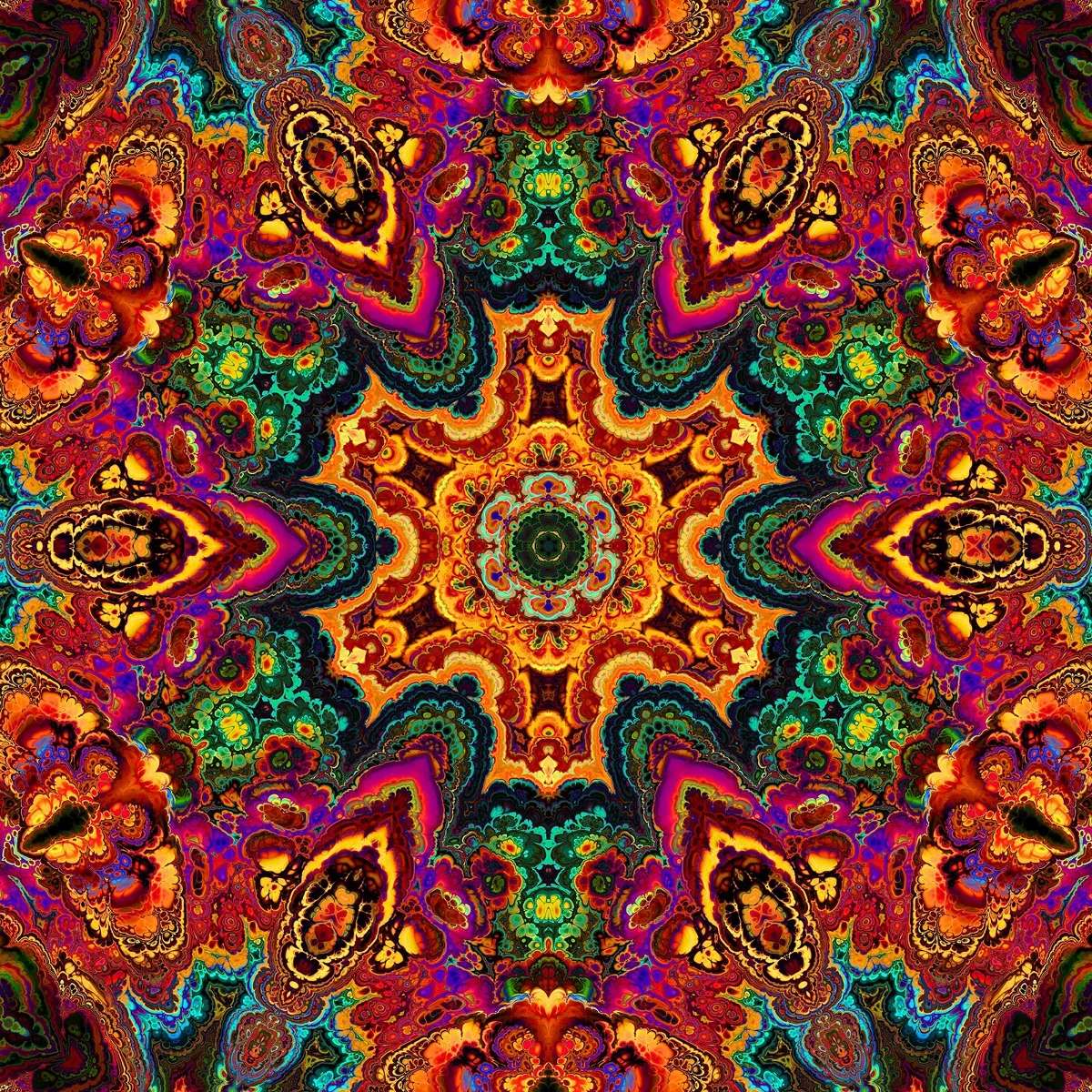
Kaleidoscopes
How kaleidoscopes work: Brewster’s invention, angled mirrors, radial symmetry, and digital kaleidoscope filters you can try on a photo in PictorX.
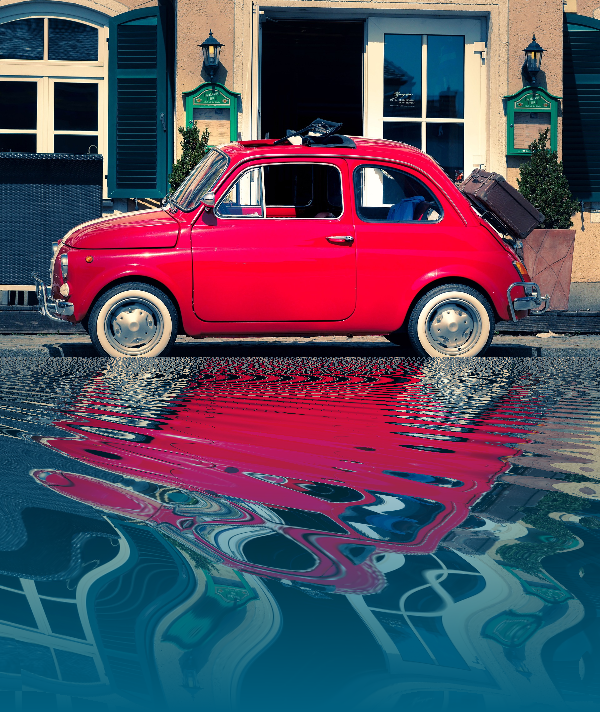
Reflection effects
Mirror, tile, water, wet-floor, and kaleidoscope looks that flip a photo into a reflected composition. Use PictorX free in your browser with no software install required.
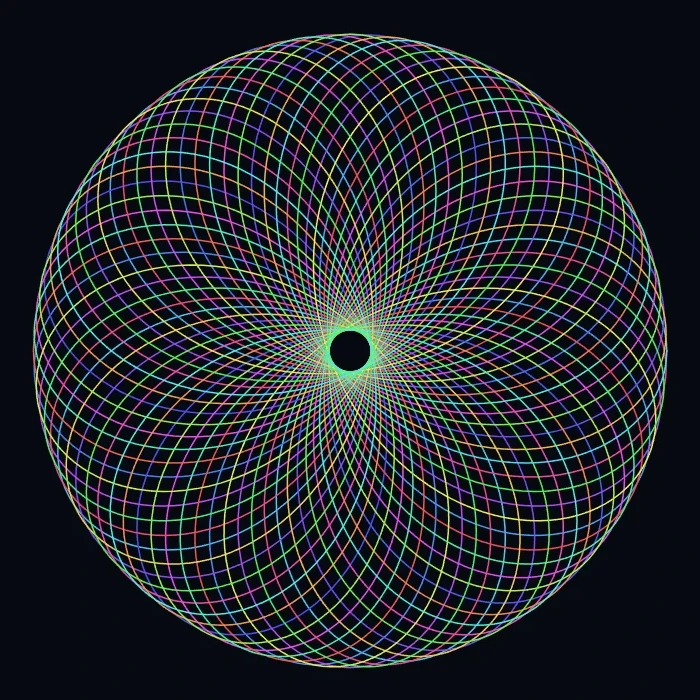
Spirograph
Draw hypotrochoids and epitrochoids in your browser. Tune R, r, and pen offset, animate the curve, randomize styles, and save a PNG. Nothing is uploaded.
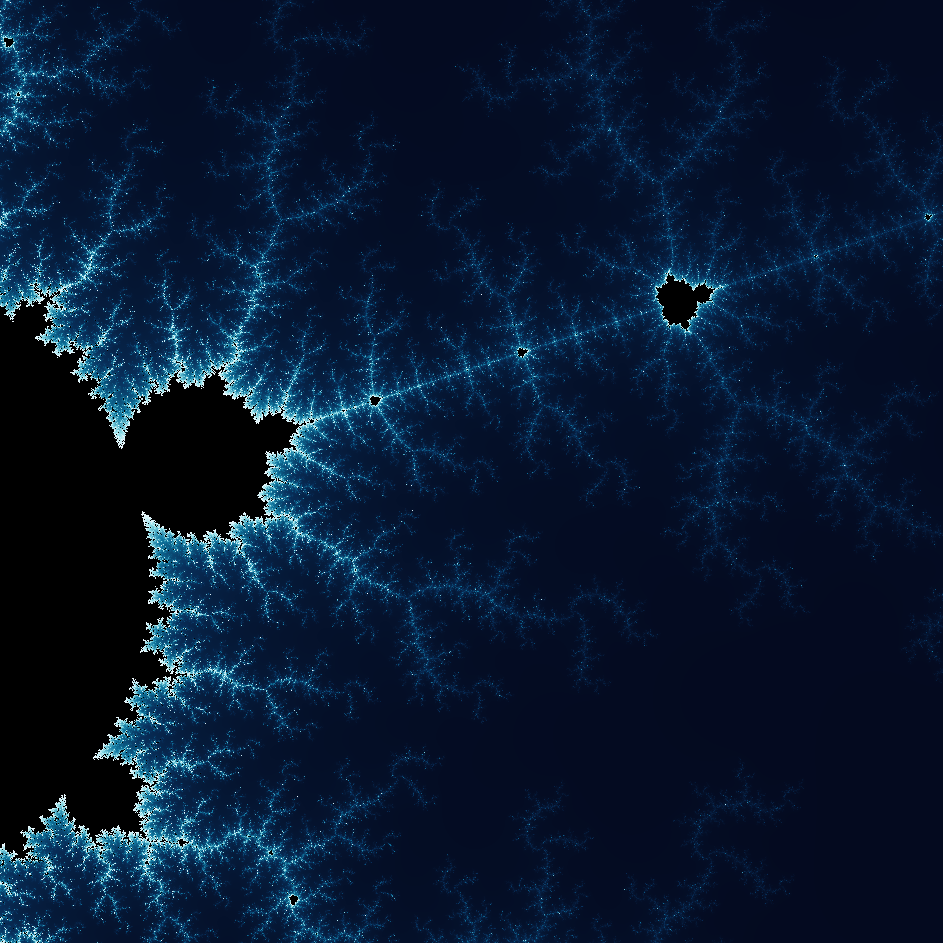
Explore the wonderful world of Fractals
Explore the wonderful world of Fractals. Fractals are complex, detailed geometric patterns found throughout the natural world.
Ready to try it?
Open PictorX in your browser — no install, no credit card required to start.
Go to Editor