
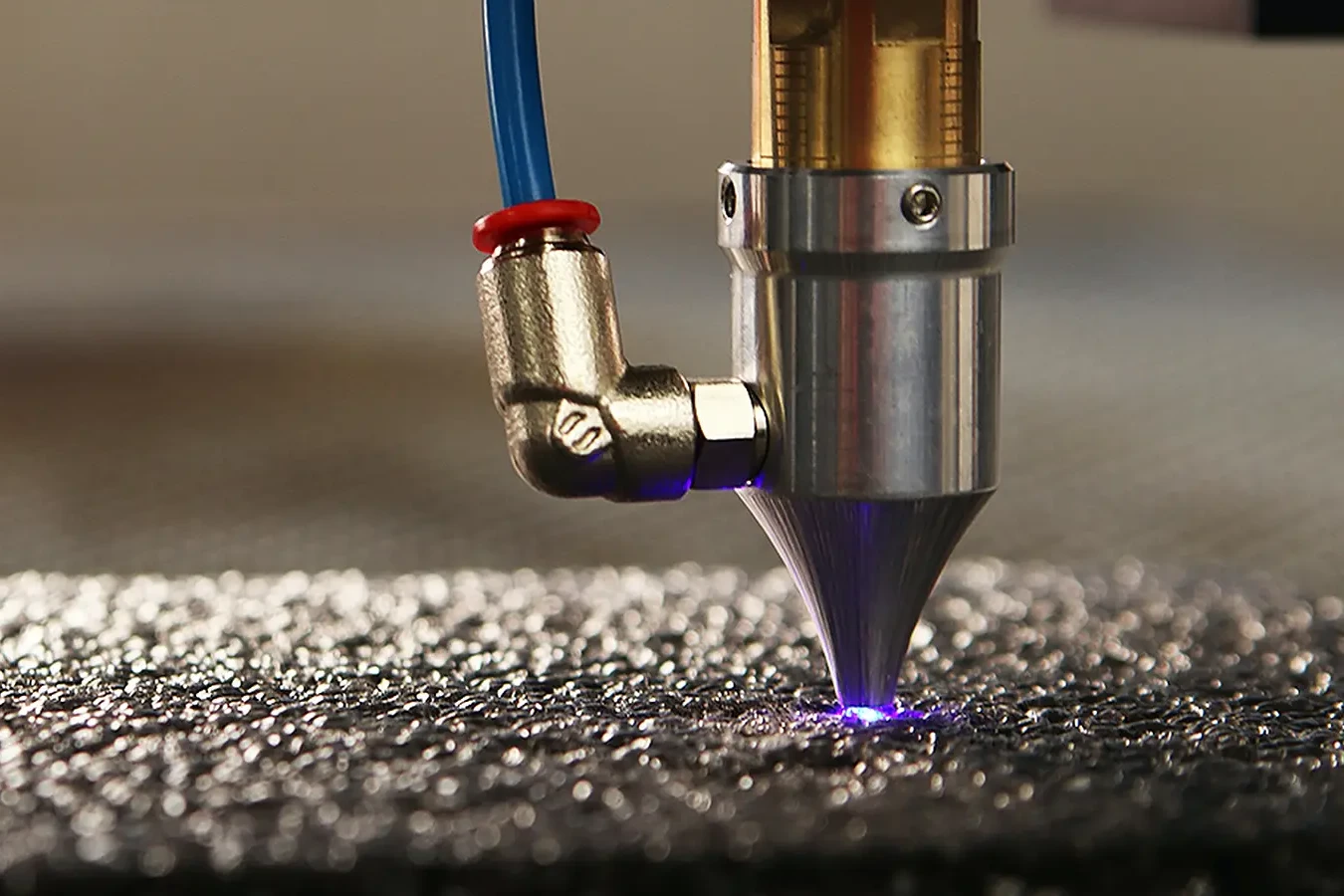
Edge effects
Trace outlines from Effects → Edge. Run Canny, Sobel, Laplace, or XDoG, use Morphological Gradient for thicker contours, or Find Edges and Glowing Edges for line-art and neon-style looks. Invert colors, keep transparency, then keep editing in PictorX. Try an edge look below, or open your own picture.
How it works
- Open PictorX in your browser and start a new project or load an image.
- Use Edge effects to shape the result, then refine it with the surrounding editor tools.
- Keep editing, export your work, or turn the result into your next design.
How Edge effects fits your workflow
Trace outlines with Canny, Sobel, Laplace, Find Edges, Glowing Edges, XDoG, and Morphological Gradient—classic detectors that turn a photo into line art. PictorX keeps the feature alongside your photos, layers, typography, and design tools, so you can move from an idea to a finished graphic without switching applications.
Create more with Edge effects
Start with one focused change, review the result in context, and keep iterating. Combine Edge effects with other PictorX tools when you need a polished image for social media, a presentation, a print layout, or a personal project.
Looks in this set
Frequently asked questions
What do edge effects do?
They trace outlines in a photo: Canny, Sobel, Laplace, Find Edges, Glowing Edges, XDoG, and Morphological Gradient.
How is Canny different from Sobel?
Canny traces thin binary lines with blur and thresholds. Sobel is a softer gradient look. XDoG is a sketch from two blurs; Morphological Gradient draws thicker shape contours.
Will Find Edges invert the photo?
Yes by default: edges show as dark lines on a light field. Turn invert off for bright edges on black.
Can I apply edges to only part of a photo?
Use a selection or a duplicate layer so the rest of the image stays unchanged.
Related tools
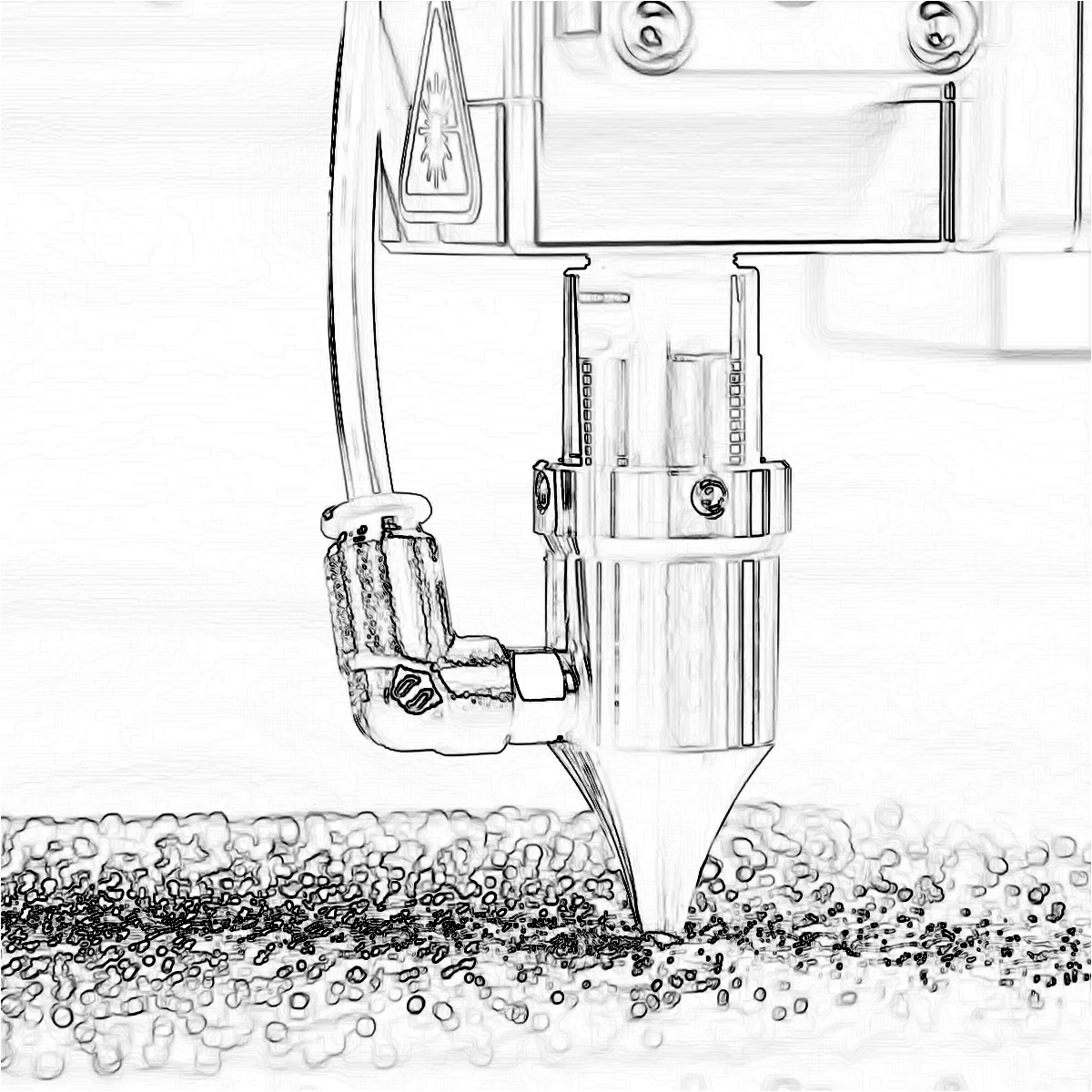
Find edges
Learn how Find Edges, Canny, Sobel, Laplace, Glowing Edges, XDoG, and Morphological Gradient detect outlines in a photo.
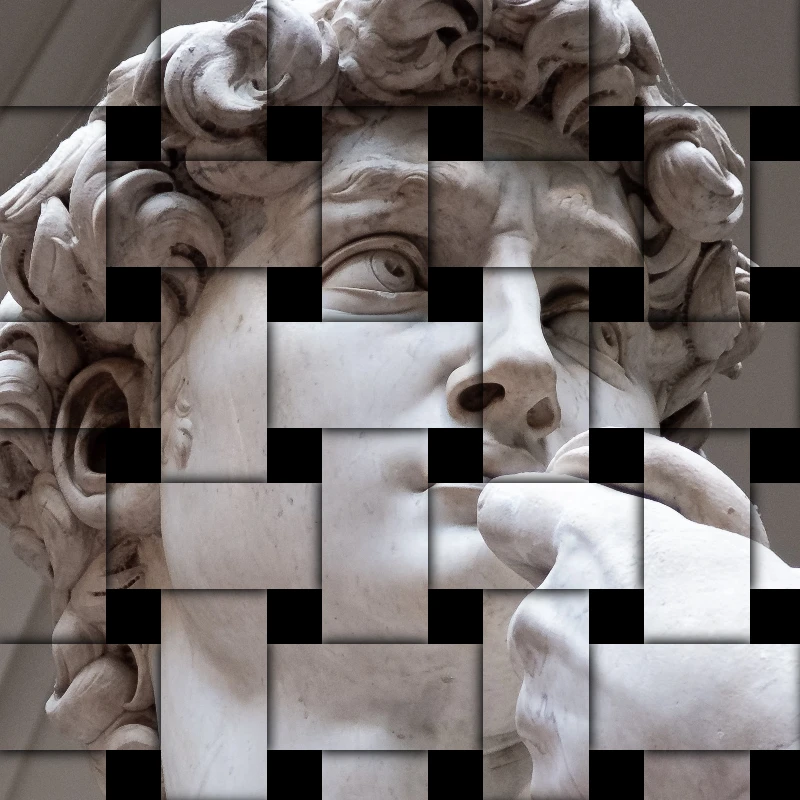
Stylize effects
Add shatter, glitch, fire, emboss, vignette, and other studio stylize looks to photos.
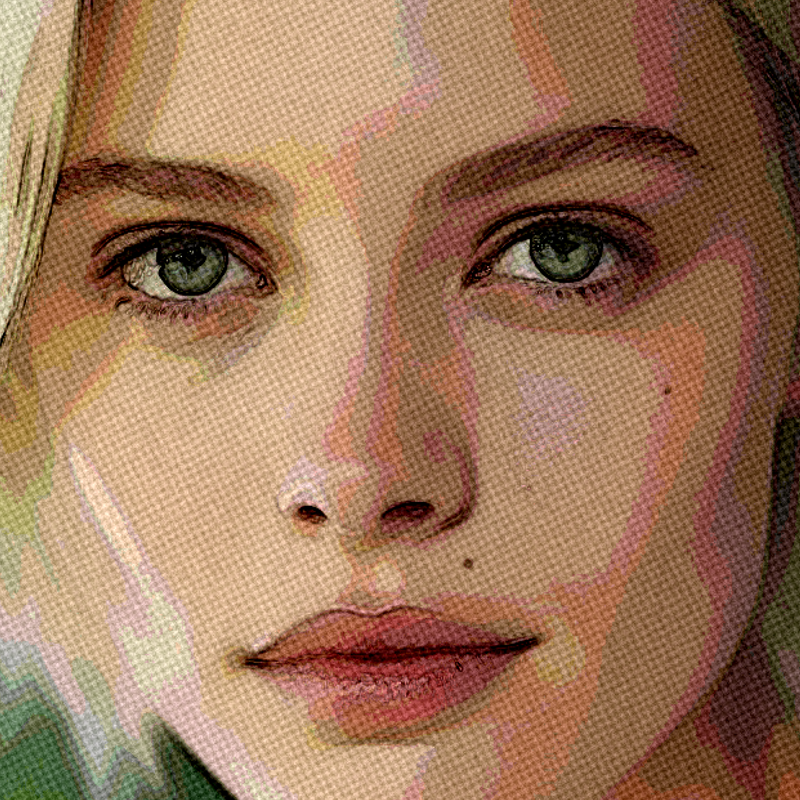
Artistic effects
Transform photos with oil painting, watercolor, pencil, comic ink, pastels, paper cut-out, and other studio art looks.
Ready to try it?
Open PictorX in your browser — no install, no credit card required to start.
Go to Editor