

AI copy object
Lift any subject onto its own layer with a single click. AI → Copy object uses on-device SAM to mask the object you click, then places a clean cutout on a new layer—optionally removing it from the original. Nothing is uploaded. Ideal for product composites, collages, and layered designs. Click an object to copy it. Drag a copy, or click elsewhere to copy another. Apply adds the copies to the original. Reset restores the original.
How it works
- Open PictorX in your browser and start a new project or load an image.
- Use AI copy object to shape the result, then refine it with the surrounding editor tools.
- Keep editing, export your work, or turn the result into your next design.
How AI copy object fits your workflow
Lift any subject onto its own layer with a single click. PictorX keeps the feature alongside your photos, layers, typography, and design tools, so you can move from an idea to a finished graphic without switching applications.
Create more with AI copy object
Start with one focused change, review the result in context, and keep iterating. Combine AI copy object with other PictorX tools when you need a polished image for social media, a presentation, a print layout, or a personal project.
Frequently asked questions
What does copy object do?
It duplicates a detected object in the photo so you can build a new composition from something already in the frame.
Can I move the copied object?
Yes. After the copy appears, drag it to a new place on the photo.
Does copy object work on products and people?
It works best when the object is clearly separated from the background. Products, props, and distinct figures usually copy more cleanly than items that blend into a busy scene.
Do I need to select the object first?
Click the object in the photo. On-device AI copies it, then you can drag the duplicate.
Related tools
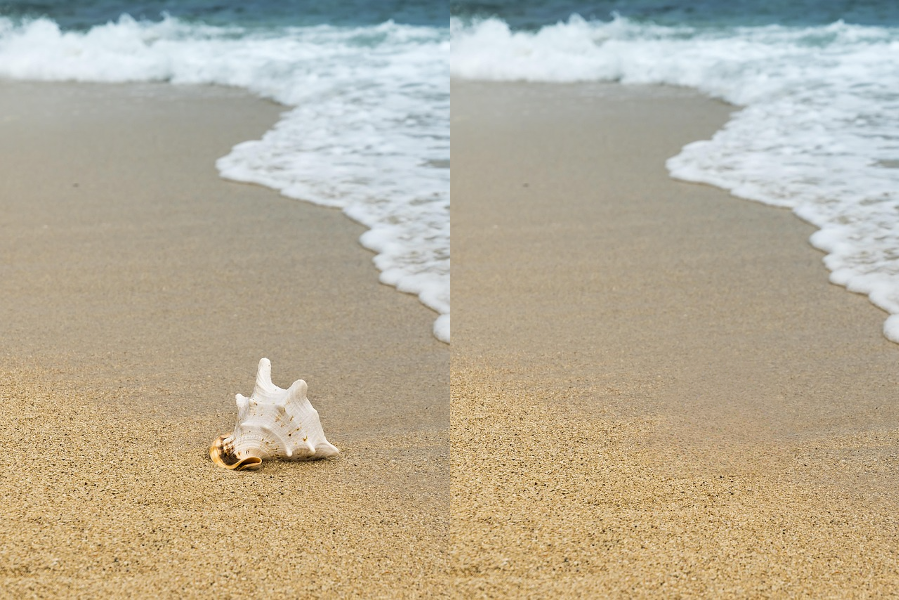
AI object removal
Erase distractions without leaving holes. Use PictorX free in your browser with no software install required.

Make a die-cut sticker from any photo
Turn a photo into a die-cut sticker in your browser. On-device AI cuts out the person or object, then adds a white outline, shadow, holographic foil, or a colored rim. Export a transparent PNG. Nothing is uploaded.

Selection tool
Isolate exactly what you need—nothing more, nothing less. Use the free PictorX online editor in your browser.
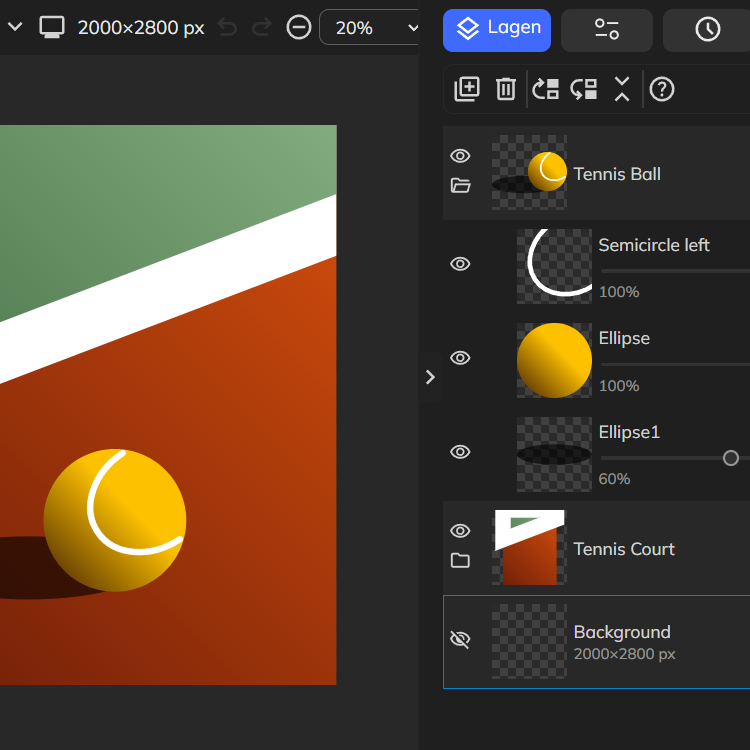
Layers & Blend Modes
Stack images, text, and shapes with full layer support. Use PictorX free in your browser with no software install required.

AI models
What AI and AI models are, how they power photo editing—background removal, inpainting, enhance, uncrop—and how PictorX runs many tools on-device.
AI image editing
What AI image editing is—cutouts, object removal, enhance, repair, and uncrop—how it differs from classic retouching, and how PictorX runs many tools on-device.
Ready to try it?
Open PictorX in your browser — no install, no credit card required to start.
Go to Editor