
Dual workspace editing
Pictorx adapts to the way you create. Stay in Document mode for pixel-perfect layouts, fixed artboard pages, and export-ready designs—or flip to Whiteboard mode when you need room to explore, sketch, and arrange ideas on a dot-grid canvas. Switch anytime from View; layers and tools stay intact.
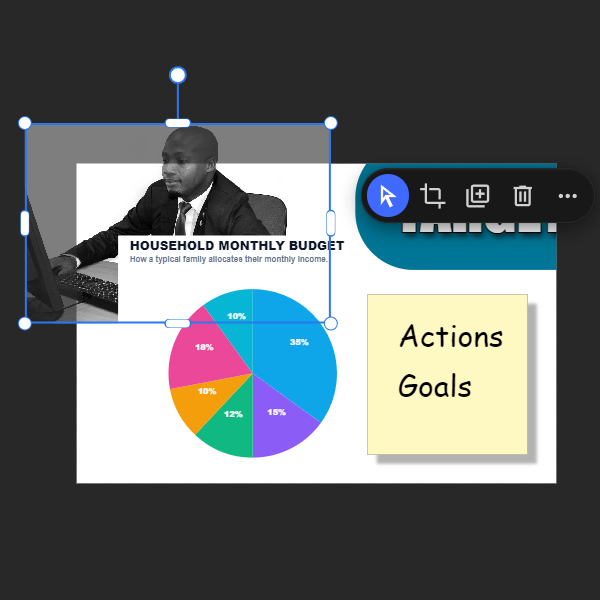
How it works
- Open PictorX in your browser and start a new project or load an image.
- Use Dual workspace editing to shape the result, then refine it with the surrounding editor tools.
- Keep editing, export your work, or turn the result into your next design.
How Dual workspace editing fits your workflow
Pictorx adapts to the way you create. PictorX keeps the feature alongside your photos, layers, typography, and design tools, so you can move from an idea to a finished graphic without switching applications.
Create more with Dual workspace editing
Start with one focused change, review the result in context, and keep iterating. Combine Dual workspace editing with other PictorX tools when you need a polished image for social media, a presentation, a print layout, or a personal project.
Frequently asked questions
What are the two workspaces?
One is a photo-editing canvas; the other is a document or whiteboard layout. Both live in the same PictorX project.
Can I retouch a photo and then design a poster?
Yes. Finish the photo, then continue in document or whiteboard mode without exporting to another app.
Do both modes share undo history?
Yes. Layers, history, and the open project stay with you as you switch modes.
When is dual workspace useful?
Whenever a job mixes retouching with slides, mockups, or print layouts.
Related tools
Document mode
Document mode is Pictorx at its most precise: a familiar page-based canvas where every layer stays within your artboard, multi-page projects stack cleanly, and what you see is what you export. Use PictorX free in your browser with no software install required.
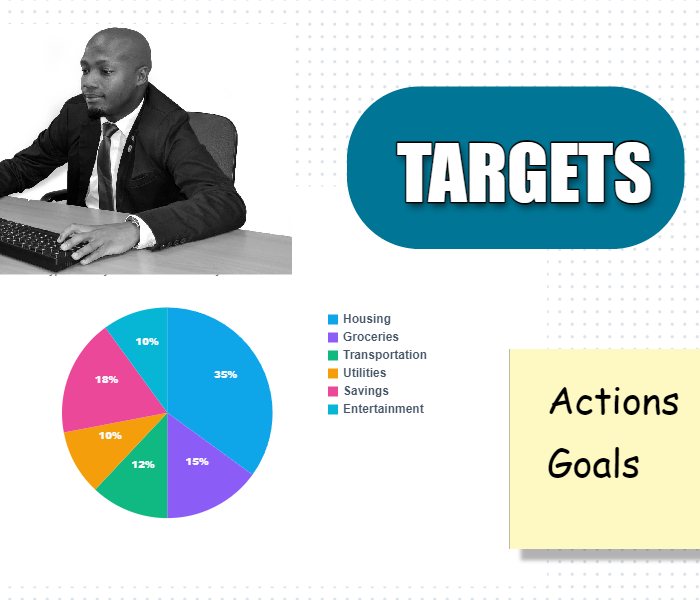
Whiteboard mode
Turn on Whiteboard mode when fixed pages feel too tight. Use PictorX free in your browser with no software install required.
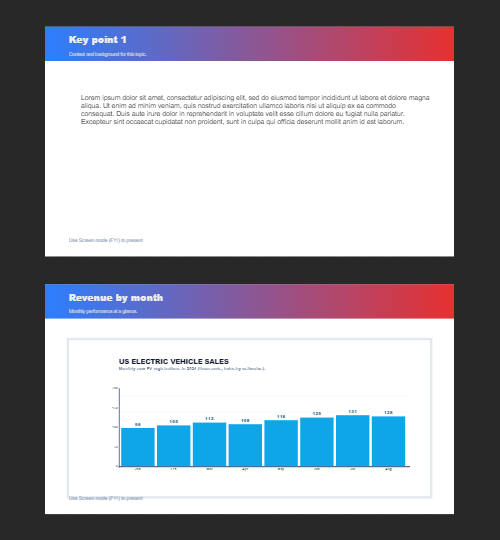
Multiple pages
Build multi-page documents in Document mode—ideal for presentations, brochures, and multi-screen layouts. Use PictorX free in your browser with no software install required.
Ready to try it?
Open PictorX in your browser — no install, no credit card required to start.
Try Dual workspace editing