
Zen canvas mode
Block out distractions and edit in pure focus. Toggle View → Screen mode (F11) to hide panels and expand the canvas edge-to-edge—perfect for long retouching sessions, client previews, and presentation walkthroughs. Press F11 again to bring your tools back instantly.

How it works
- Open PictorX in your browser and start a new project or load an image.
- Use Zen canvas mode to shape the result, then refine it with the surrounding editor tools.
- Keep editing, export your work, or turn the result into your next design.
How Zen canvas mode fits your workflow
Block out distractions and edit in pure focus. PictorX keeps the feature alongside your photos, layers, typography, and design tools, so you can move from an idea to a finished graphic without switching applications.
Create more with Zen canvas mode
Start with one focused change, review the result in context, and keep iterating. Combine Zen canvas mode with other PictorX tools when you need a polished image for social media, a presentation, a print layout, or a personal project.
Frequently asked questions
What is zen canvas mode?
A quieter, less cluttered view so the composition takes center stage.
Do I lose tools in zen mode?
Chrome is reduced, but you can still edit and switch back when you need full panels.
Is zen mode the same as whiteboard mode?
No. Whiteboard is a freeform canvas; zen mode is about a calmer editing view.
When should I use it?
When you are judging crop, color, or layout and the extra UI is in the way.
Related tools
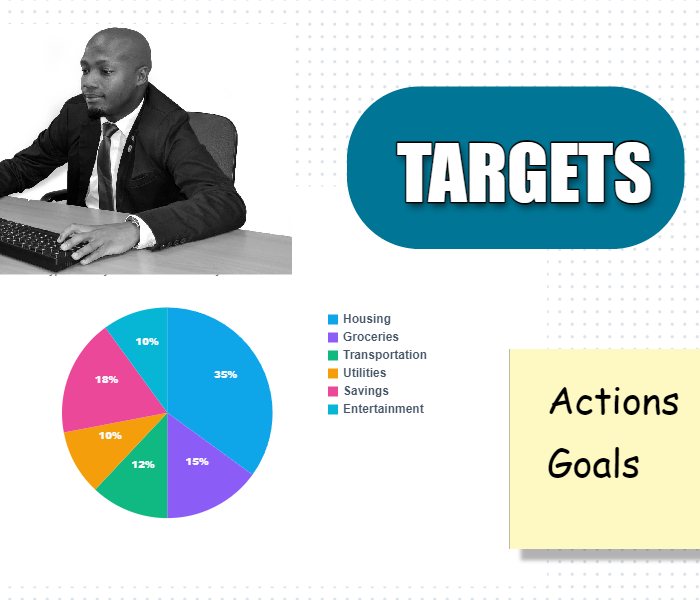
Whiteboard mode
Turn on Whiteboard mode when fixed pages feel too tight. Use PictorX free in your browser with no software install required.
Infinite undo/redo
Experiment fearlessly—every brushstroke, filter, and layer change is recorded. Use PictorX free in your browser with no software install required.
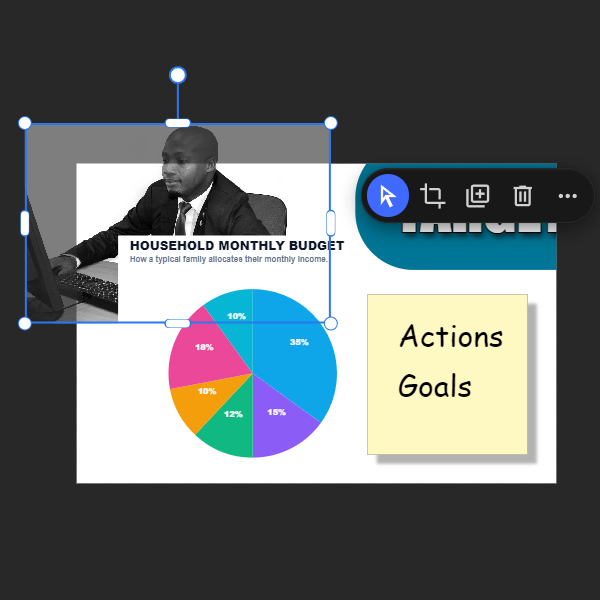
Dual workspace editing
Pictorx adapts to the way you create. Use PictorX free in your browser with no software install required.
Ready to try it?
Open PictorX in your browser — no install, no credit card required to start.
Try Zen canvas mode