

Type your text, click Randomize for a new style, or open your own picture.
Font
Fill
Outline
Shadow
3D
Bend
Deform
Decoration
Background box
Layer
Text & Typography tool
Rich text styling with fonts, fills, gradients, strokes, shadows, 3D effects, contours, and decoration. Bend, skew, or taper lettering, add circular text and backgrounds, and craft standout headlines. Type your text, click Randomize for a new style, or open your own picture.
How it works
- Open PictorX in your browser and load an image or start a new design.
- Choose Text & Typography from the editor tools and adjust the result to fit your composition.
- Continue editing with layers, effects, and text, then export when you are ready.
How to use the Text & Typography tool
Rich text styling with fonts, fills, gradients, strokes, shadows, 3D effects, contours, and decoration. PictorX keeps the tool in the same browser workspace as your layers, photos, text, and design elements, so you can refine a composition without switching applications.
Keep creating in PictorX
Use Text & Typography as one step in a complete editing workflow. Adjust the composition, add text or graphics, and keep every change editable while you turn an image into a finished design.
Frequently asked questions
Can I put a headline on a photo?
Yes. Add captions, titles, and labels on photos, posts, and documents.
Does the text stay editable?
Yes. Keep type on its own layer so you can rewrite it later.
Can I control font and size for thumbnails?
Yes. Style type so it still reads when the image is small.
Where do letter-mosaic looks live?
Use typographic effects when you want the photo itself built from characters.
Related tools
Typographic effects
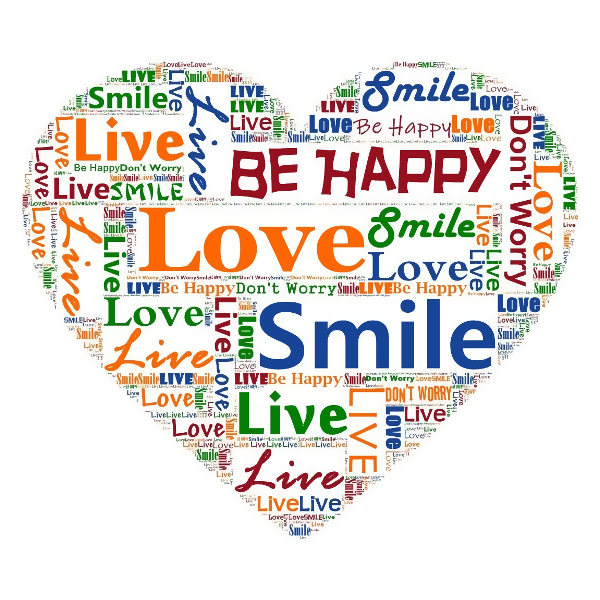
Turn photos into letter-built art from Effects → Text. Use PictorX free in your browser with no software install required.

Shapes & Vectors tool
Add geometric shapes and styled lines to your canvas. Use the free PictorX online editor in your browser.

Design templates
Jump-start any project with hundreds of ready-made layouts: artistic compositions, text and poem designs, tables, charts, infographics, illustrations, presentation slides, and more. Use PictorX free in your browser with no software install required.
Ready to try it?
Open PictorX in your browser — no install, no credit card required to start.
Go to Editor