
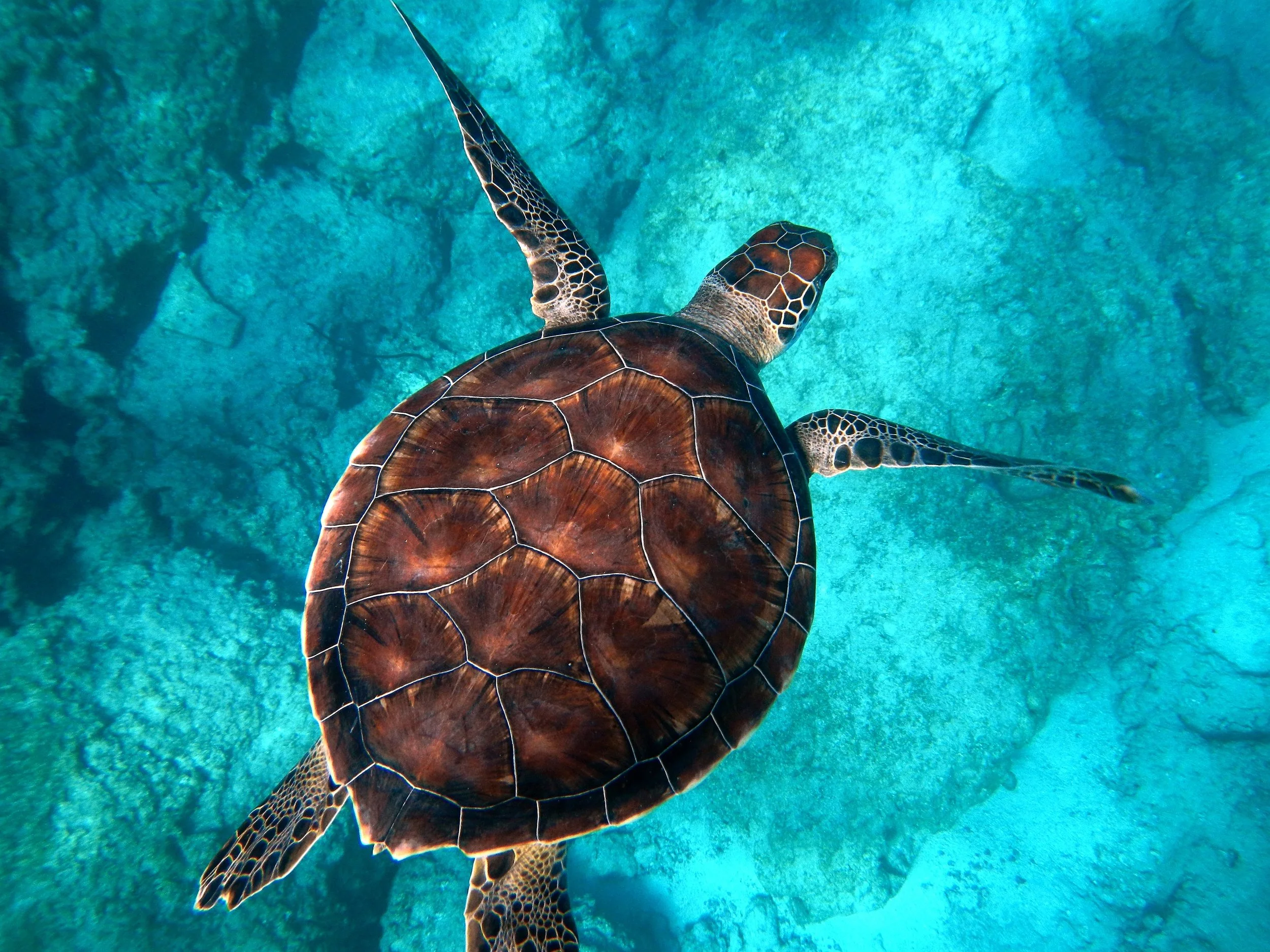
Aboriginal dot painting
Canny outlines become concentric dots, and the background is filled with flattened color dots from the photo. PictorX Aboriginal Art runs in the browser, then lets you keep editing with layers, text, and other effects. Try an Aboriginal Art look below, or open your own picture.
How it works
- Open PictorX in your browser and load a photo.
- Choose Aboriginal Art, then try dot size, outline colors, and whether inner dots are on.
- Export the dot painting, or keep editing with layers and other effects in the same workspace.
Why the dot-painting look works
Portraits, birds, animals, and landscapes with clear edges become a field of dots. Outline dots trace the subject; background dots pick flattened colors from each region, so a sky, a face, or a jacket reads as a color field instead of a photograph.
Dot size, outline colors, and inner dots
Dot size sets how large each circle is. Color 1 is the outer ring on edges; Color 2 is the optional inner dot. Background color fills gaps between dots. Turn Dots off for outline rings only. Transparent background keeps a clear PNG around the dots.
Frequently asked questions
What does the Aboriginal Art filter do?
It turns a photo into dot painting. Edge dots follow Canny outlines; the rest of the frame is filled with color-reduced dots sampled from the photo.
What do Dots and the two outline colors do?
Dots adds a smaller inner circle on edge dots. Color 1 is the outer ring; Color 2 is that inner circle. Background color fills the space between dots.
What photos work best?
Clear subjects with distinct colors—portraits, birds, animals, and landscapes. Soft, low-contrast photos still work; they become quieter color fields.
Can I keep editing after applying Aboriginal Art?
Yes. Continue with layers, text, other artistic looks, or export from the same PictorX workspace.
Related tools
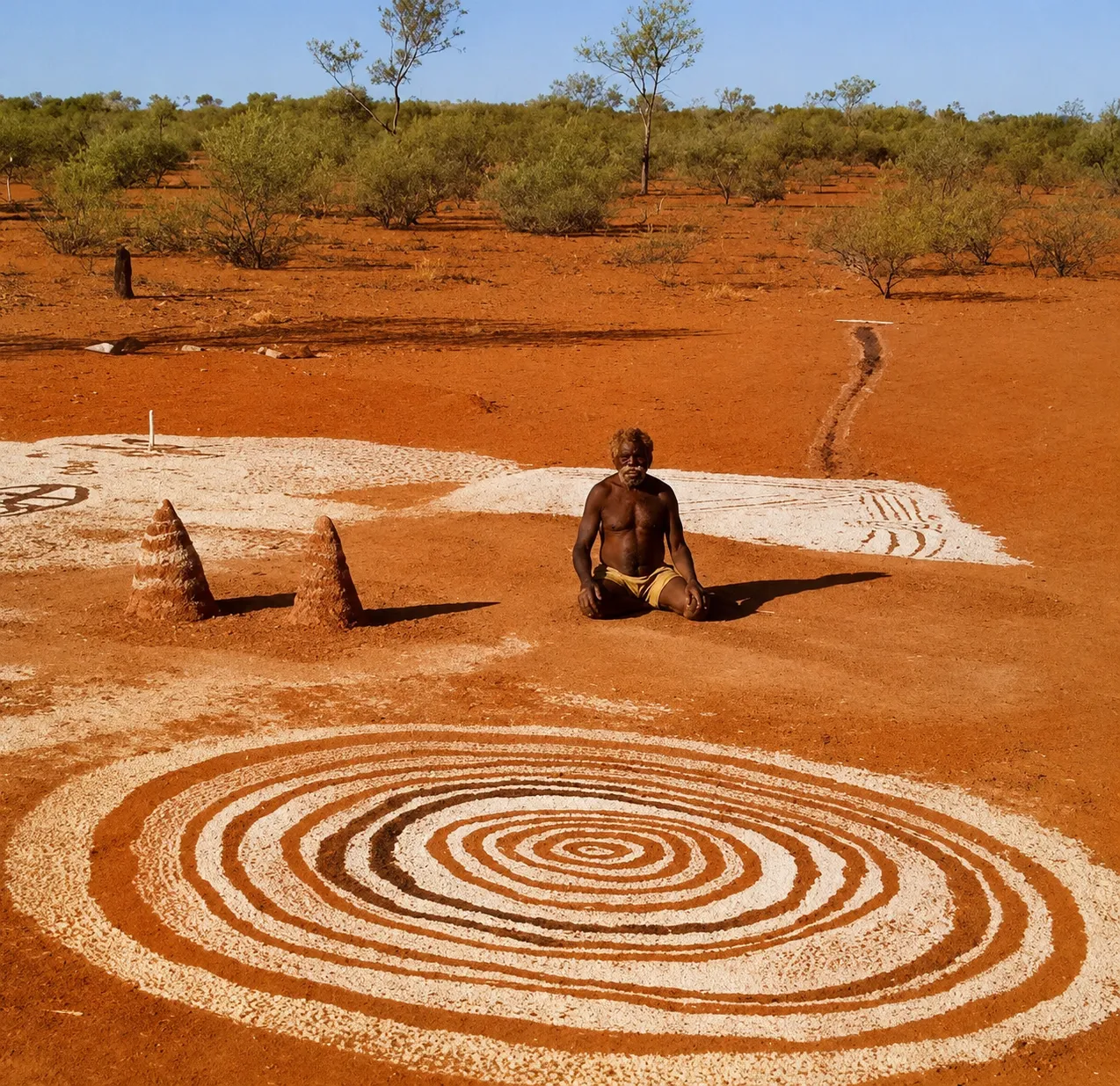
Aboriginal art
Learn how Aboriginal art maps Country, story, and law—from rock art and ochre to Papunya dot painting—and try a respectful digital homage in PictorX.
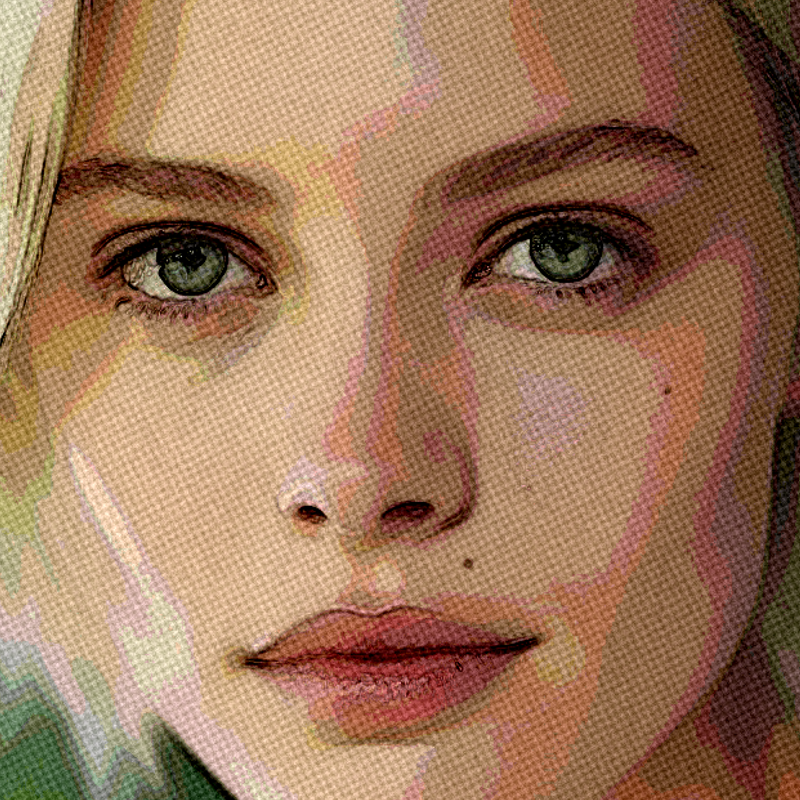
Artistic effects
Transform photos with oil painting, watercolor, pencil, comic ink, pastels, paper cut-out, and other studio art looks.
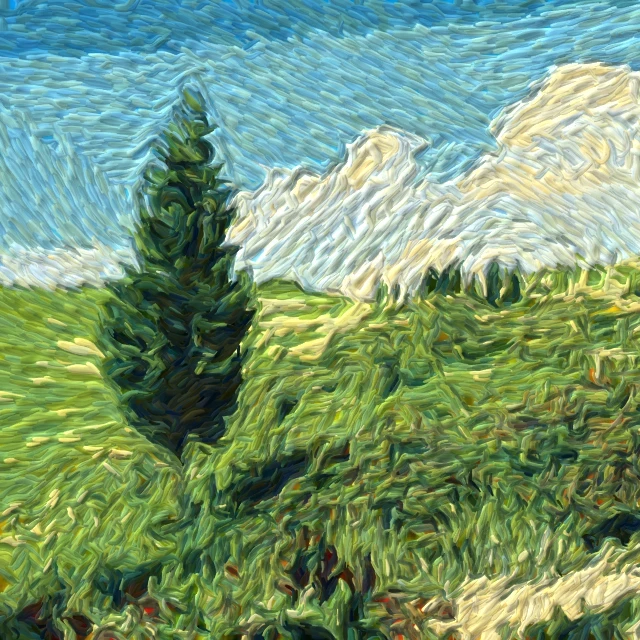
Paint a photo in Van Gogh brushstrokes
Turn a photo into swirling Starry Night-style brushstrokes in your browser. A digital homage to Van Gogh impasto—not a museum reproduction.
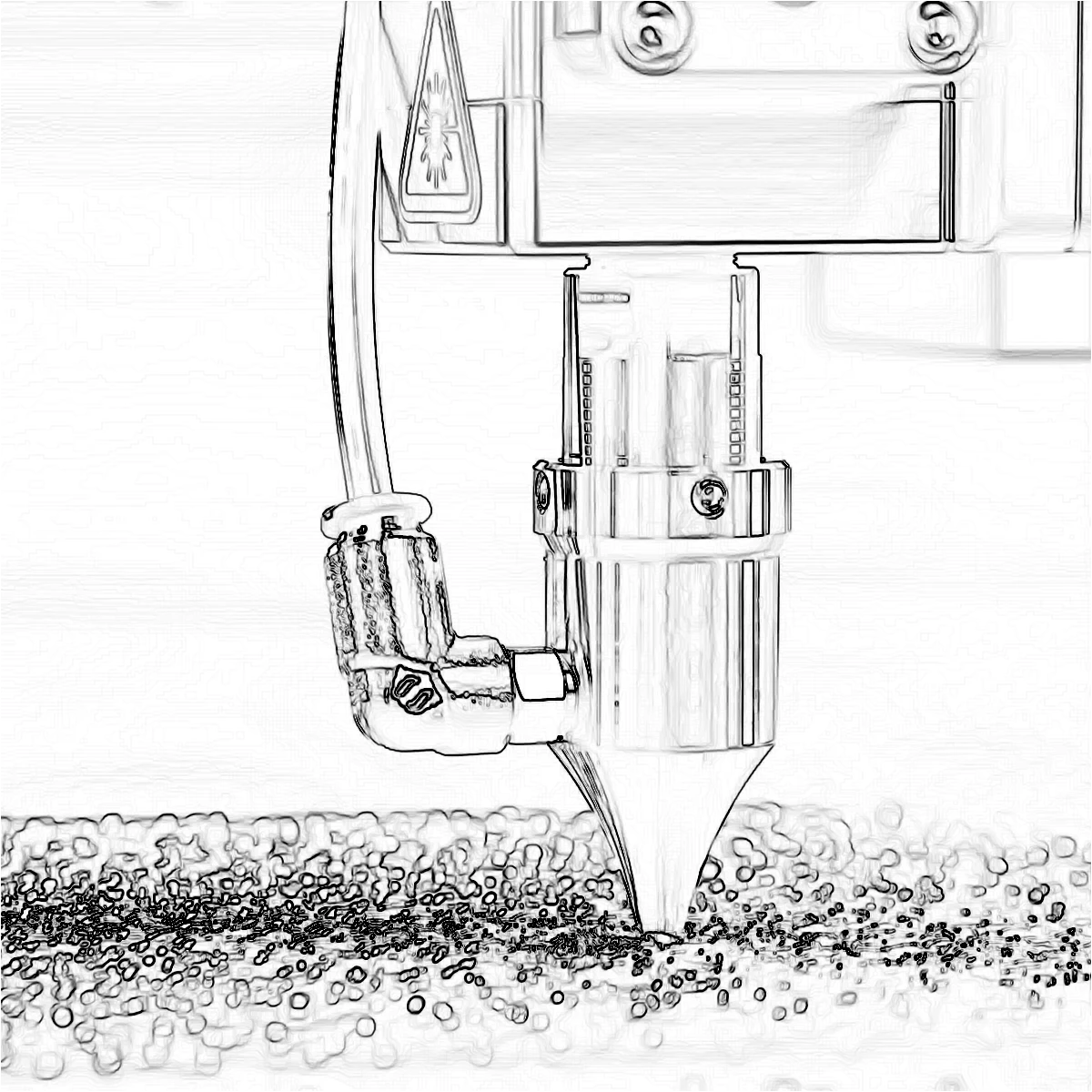
Edge effects
Trace outlines with Canny, Sobel, Laplace, Find Edges, Glowing Edges, XDoG, and Morphological Gradient—classic detectors that turn a photo into line art.
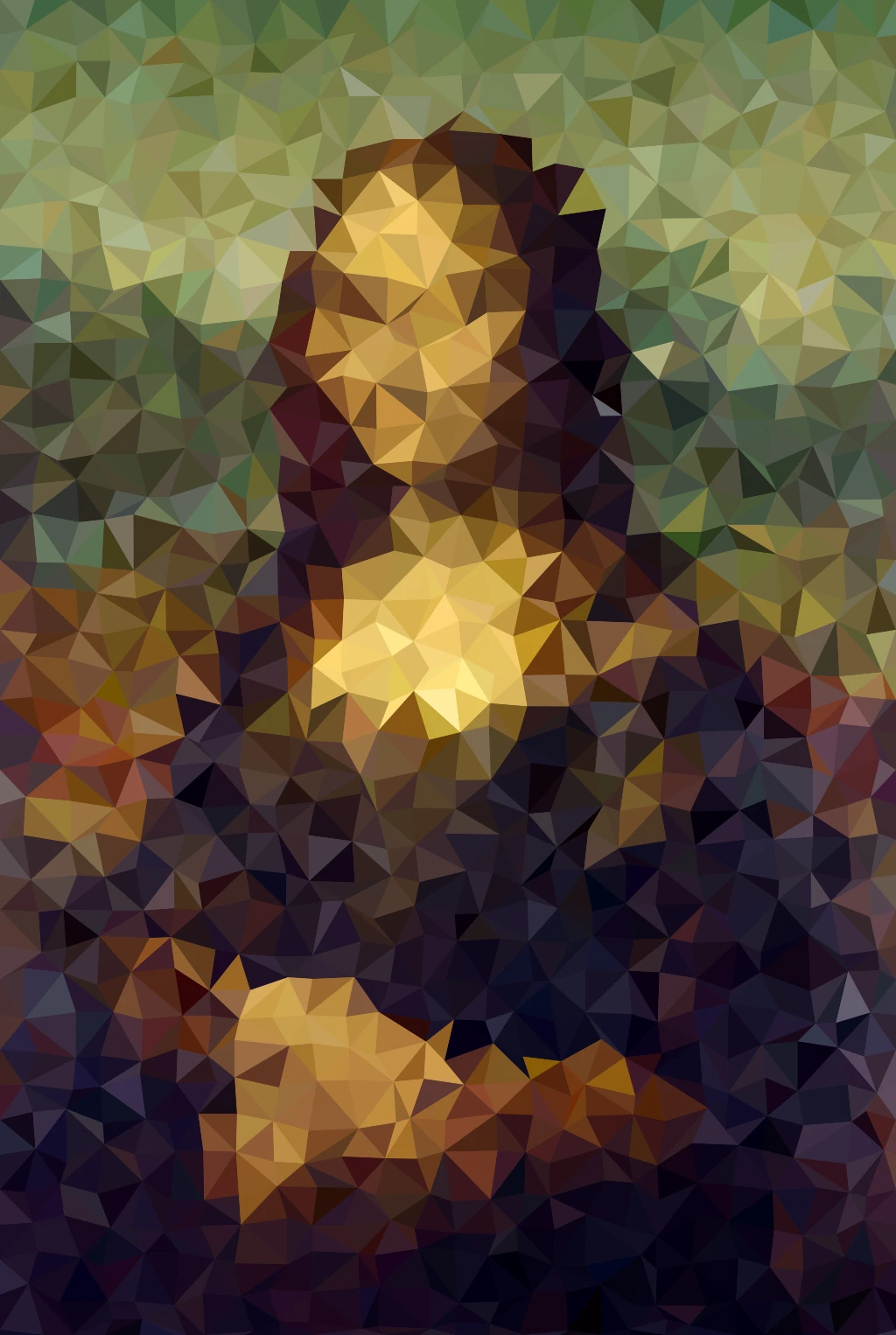
Pixelate effects
Turn photos into mosaic tiles, hexagons, crystals, low-poly art, halftone dots, and retro arcade palettes.
Ready to try it?
Open PictorX in your browser — no install, no credit card required to start.
Go to Editor