
Color palette generator
Build, lock, and shuffle palettes, extract colors from a photo, and copy HEX, CSS variables, JSON, PNG, or SVG. Lock the colors you want to keep, then shuffle, nudge, or extract the rest from a photo.
How it works
- Add, edit, or paste HEX values, then lock any color you want to keep.
- Randomize or adjust unlocked swatches, pick a harmony, or extract colors from a photo on your device.
- Copy HEX, CSS variables, or JSON, download PNG or SVG, and use the codes in PictorX.
Lock, shuffle, and extract
Locked swatches stay put when you randomize, nudge, or extract from a photo. Extraction runs in your browser—the image never leaves your device. Harmonies such as complementary and analogous fill only the unlocked slots.
Codes and files you can take with you
Copy a HEX list, CSS custom properties, or JSON, or download a PNG or SVG of the stripes. Then keep editing in PictorX on text, shapes, and color effects.
Frequently asked questions
What is a color palette generator?
A color palette generator lets you build a set of colors you can reuse in a design. In PictorX you edit HEX values, lock swatches, shuffle or nudge the rest, and copy HEX, CSS variables, or JSON—or download PNG and SVG.
How do I extract colors from a photo?
Choose Import image and pick a photo on your device. PictorX samples it in the browser with a median-cut quantizer and fills unlocked swatches. Locked colors stay put, and the file is not uploaded.
What can I export?
Copy a HEX list, CSS custom properties, or JSON to the clipboard. Download a PNG or SVG of the palette stripes for mockups and mood boards.
Does the palette generator upload my work?
No. Randomizing, adjusting, locking, and extracting from an image all run in your browser. Copy the codes, then use them in PictorX on text, shapes, and photo effects in the same workspace.
Related tools
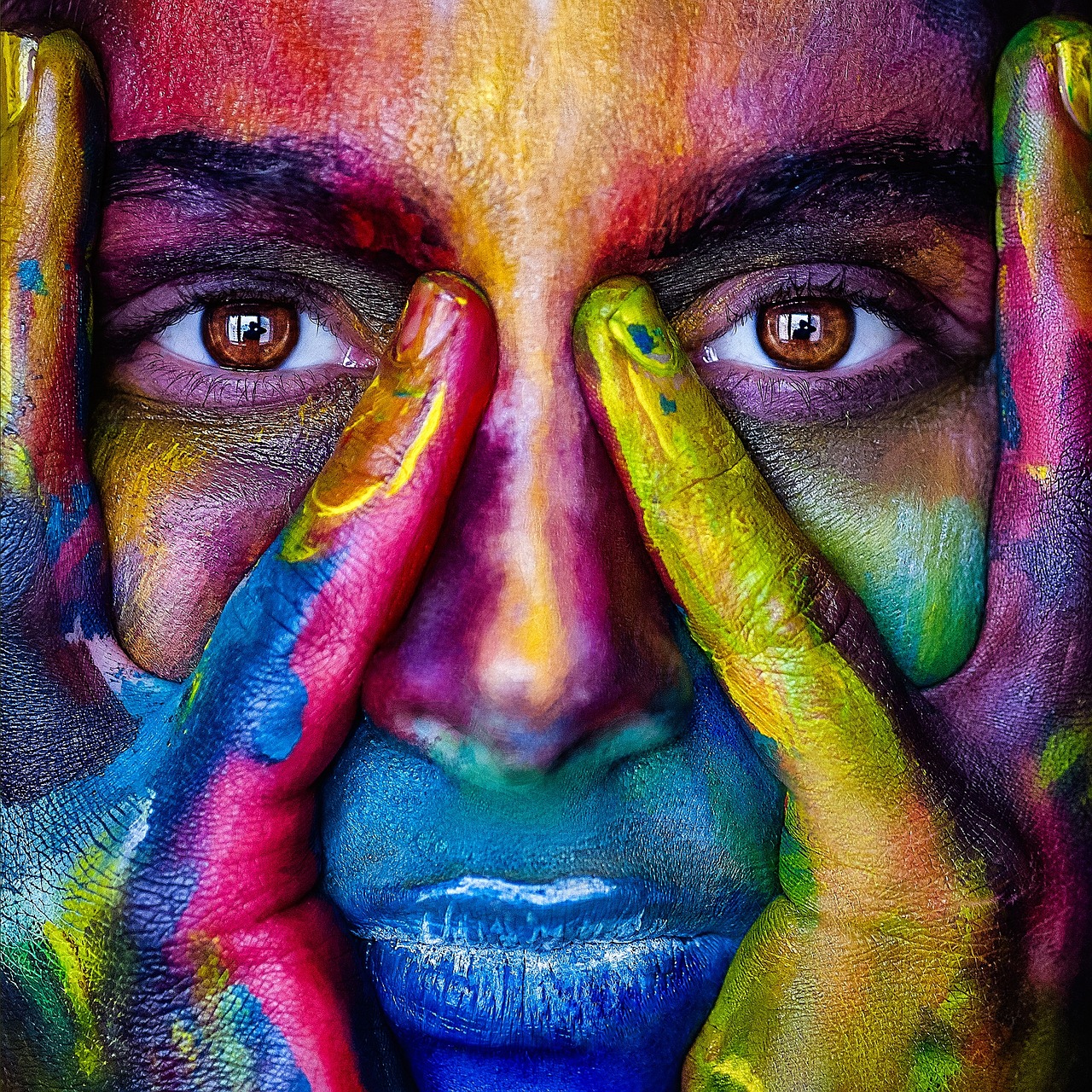
Colors
How color works on screens and in print: RGB, CMYK, HSL, hex, the color wheel, gradients, contrast, and PictorX tools.
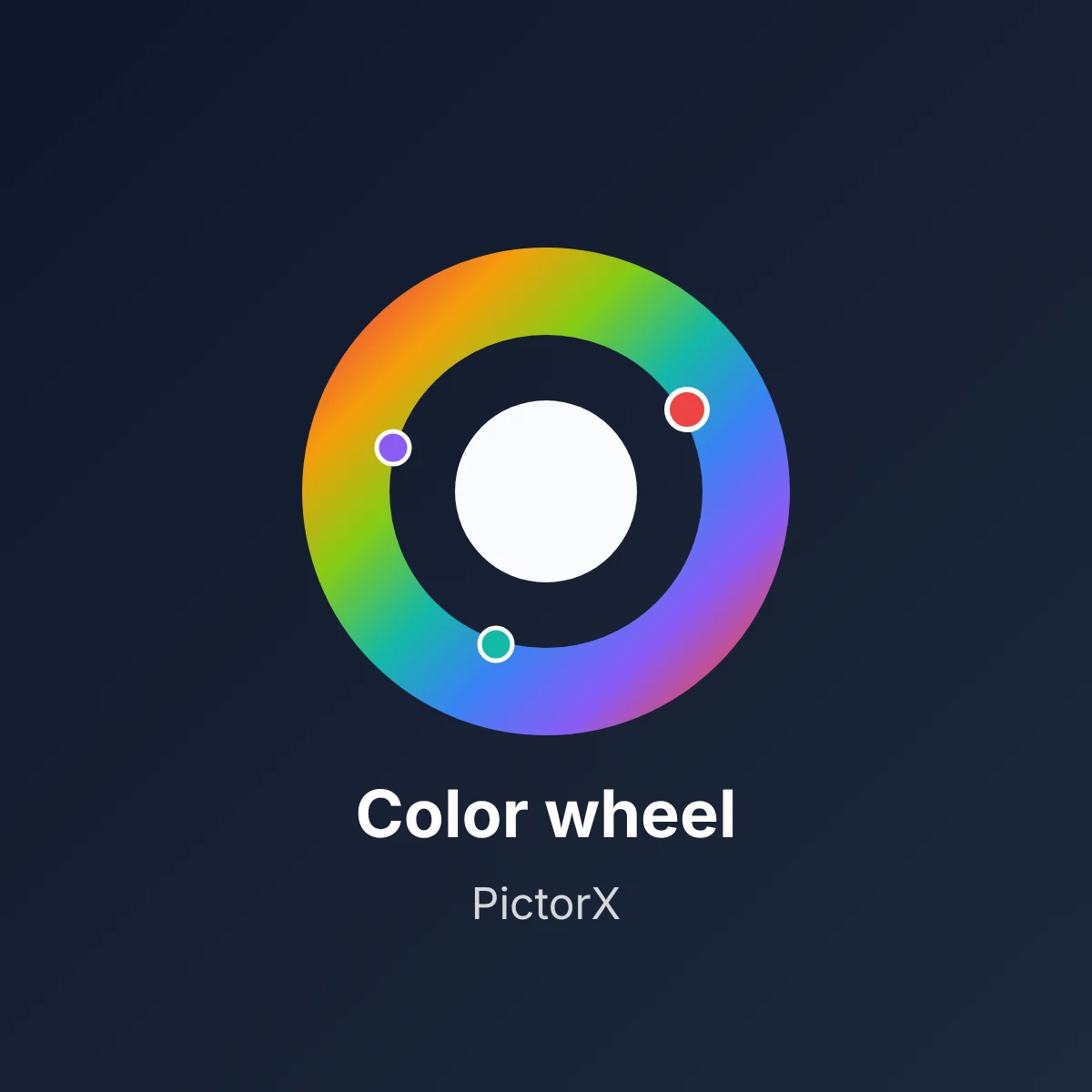
Color wheel
Pick a color on an interactive wheel, generate complementary, analogous, triadic, and other palettes, and copy HEX, RGB, HSL, HSV, or CMYK.
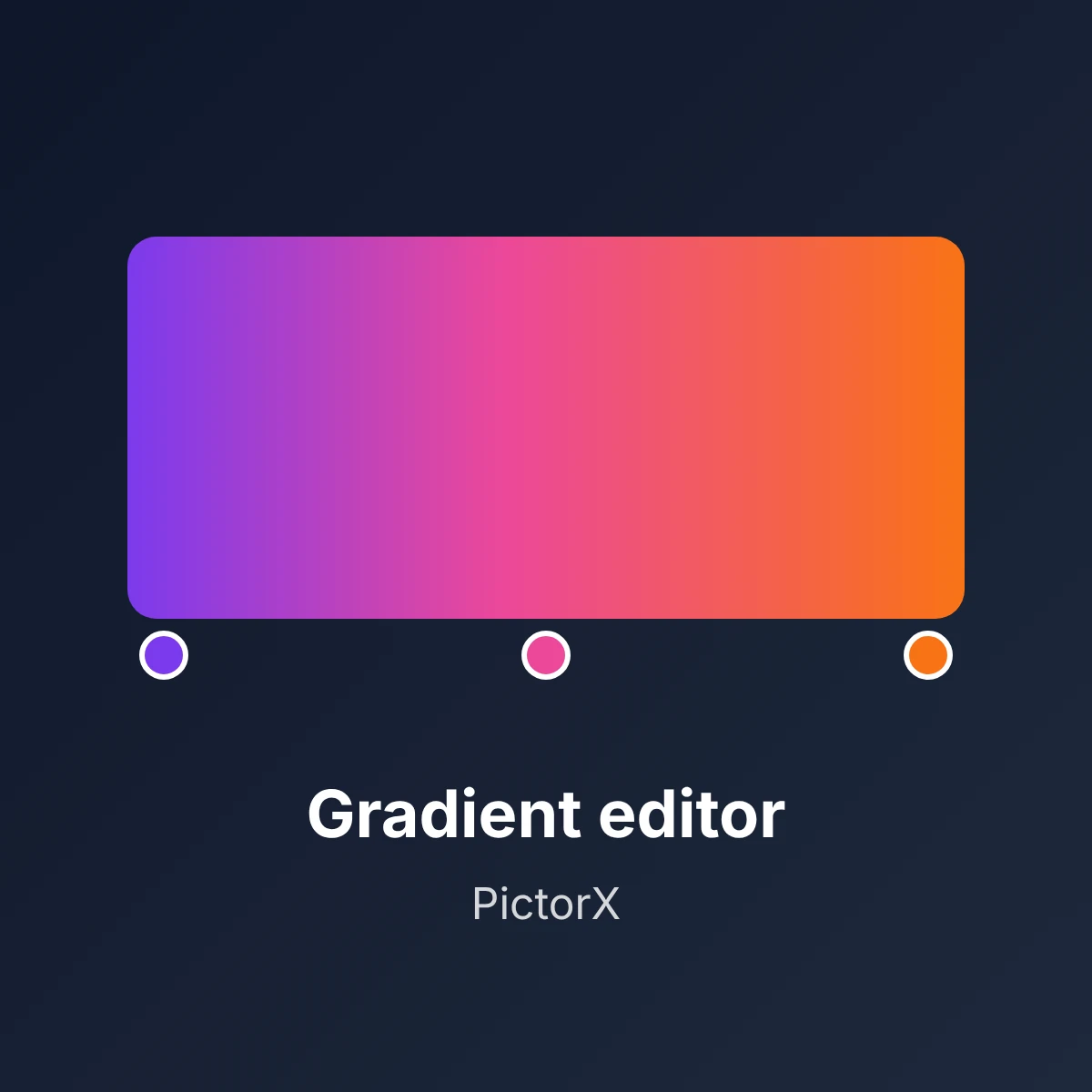
Gradient editor
Build linear and radial CSS gradients in your browser. Drag color stops, set the angle, and copy CSS, HEX, RGB, HSL, HSV, or CMYK.
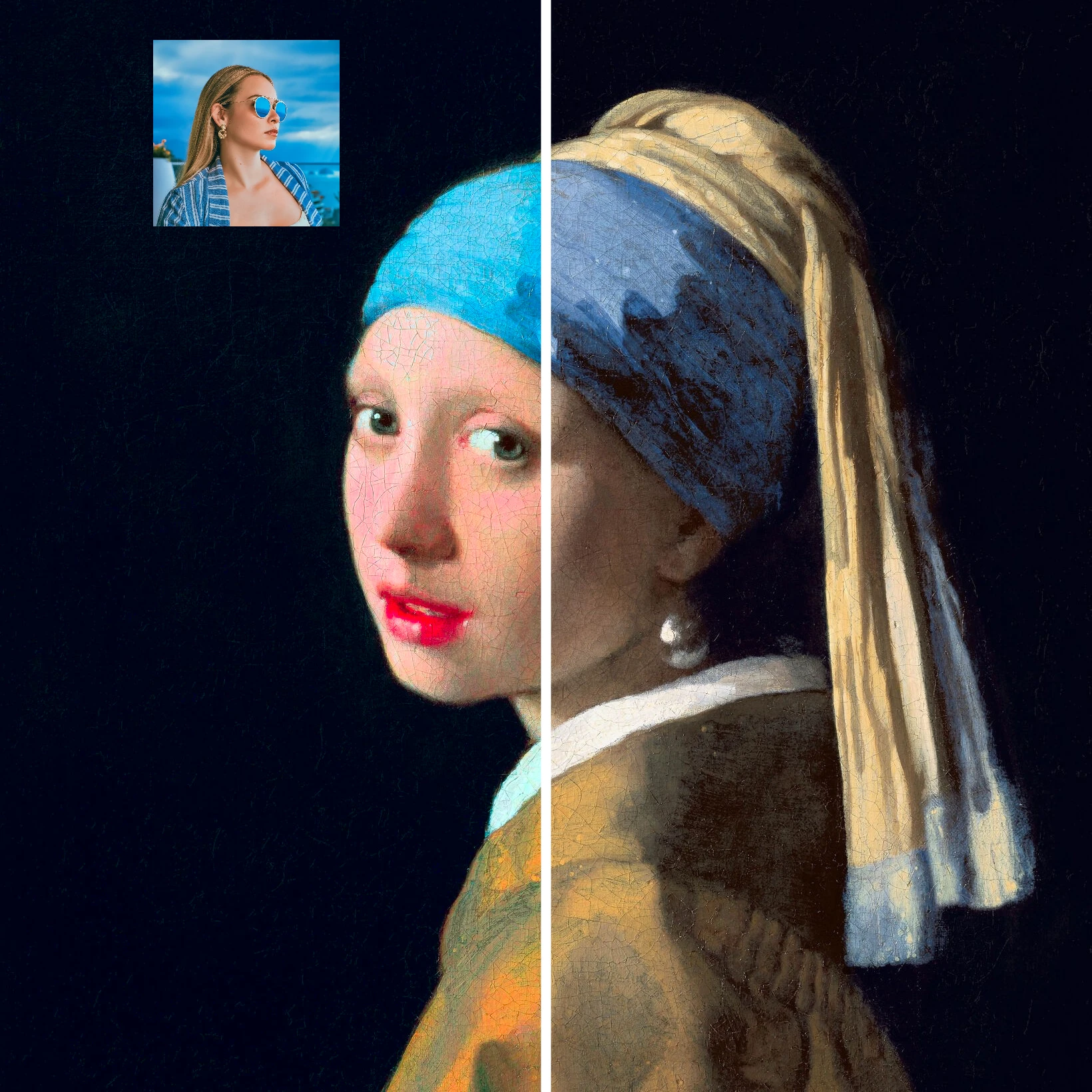
Color transfer
Recolor a photo using the colors of a second image. Live preview in your browser with a strength slider and optional preserved brightness.
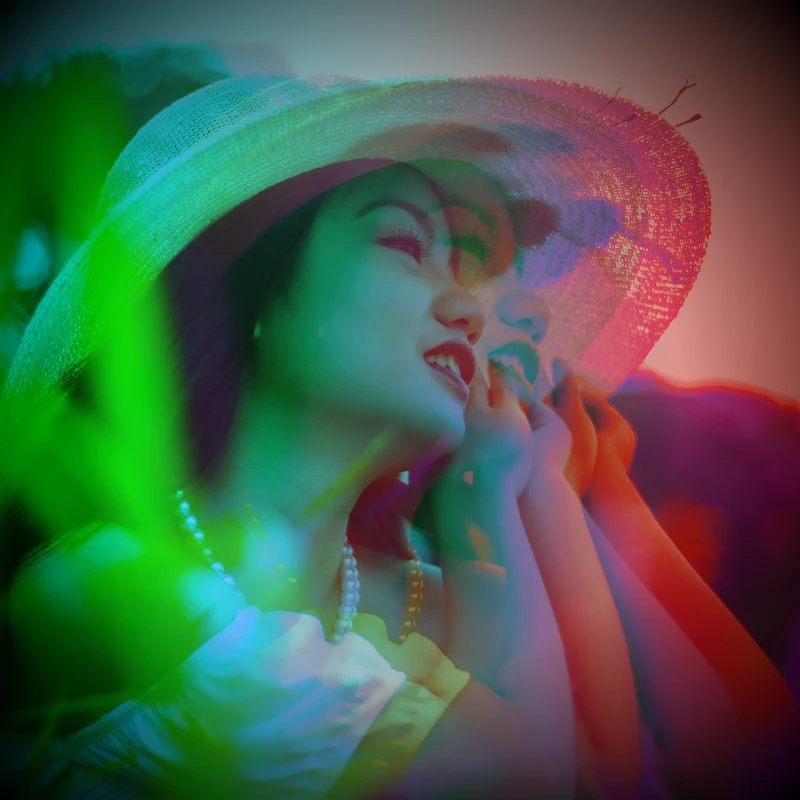
Color effects
Recolor a photo from Effects → Color with neon edges, heat maps, and two- or three-color palettes.

Design templates
Jump-start any project with hundreds of ready-made layouts: artistic compositions, text and poem designs, tables, charts, infographics, illustrations, presentation slides, and more.
Ready to try it?
Open PictorX in your browser — no install, no credit card required to start.
Go to Editor