

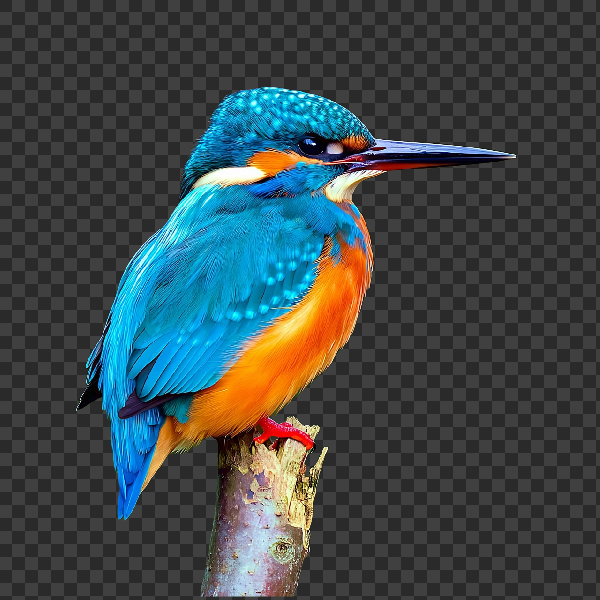
Paint on the photo below, or open your own picture.
Magic Eraser tool
Brush away matching colors within a chosen tolerance from Tools → Draw → Magic Eraser. Drag on the photo to use the tool. Reset restores the original.
How it works
- Open PictorX in your browser and load an image or start a new design.
- Choose Magic Eraser from the editor tools and adjust the result to fit your composition.
- Continue editing with layers, effects, and text, then export when you are ready.
How to use the Magic Eraser tool
Brush away matching colors within a chosen tolerance while you paint. PictorX keeps the tool in the same browser workspace as your layers, photos, text, and design elements, so you can refine a composition without switching applications.
Keep creating in PictorX
Use Magic Eraser as one step in a complete editing workflow. Adjust the composition, add text or graphics, and keep every change editable while you turn an image into a finished design.
Frequently asked questions
How does magic eraser choose what to remove?
It brushes away colors that match within a tolerance, not every pixel under the tip.
Can I knock out a white backdrop?
Yes. Brush the white, then raise tolerance for leftover specks or lower it if it bites the subject.
Will it chew through hair?
Similar colors in hair may go with the backdrop. Use a lower tolerance or finish with the regular eraser.
Can I undo one stroke and retry?
Yes. Undo, change tolerance, and brush again.
Related tools

Eraser tool
Erase pixels with a resizable brush on the active raster layer. Use the free PictorX online editor in your browser.
Paint Bucket tool
Fill connected image areas with color using adjustable tolerance and flood mode. Use the free PictorX online editor in your browser.
Remove backgrounds on your device
Cut out subjects with on-device AI in PictorX. Photos stay in your browser—no upload to our servers.

AI models
What AI and AI models are, how they power photo editing—background removal, inpainting, enhance, uncrop—and how PictorX runs many tools on-device.
Ready to try it?
Open PictorX in your browser — no install, no credit card required to start.
Go to Editor