
Graffiti Wall
Spray paint, stamp tags, and drips on a brick graffiti wall. Randomize, move tags, undo, and save as PNG. Spray tags and drips on a brick graffiti wall — or let Auto-spray go wild.
How it works
- Open PictorX in your browser and start a new project or load an image.
- Use Graffiti Wall to shape the result, then refine it with the surrounding editor tools.
- Keep editing, export your work, or turn the result into your next design.
How Graffiti Wall fits your workflow
Spray paint, stamp tags, and drips on a brick graffiti wall. PictorX keeps the feature alongside your photos, layers, typography, and design tools, so you can move from an idea to a finished graphic without switching applications.
Create more with Graffiti Wall
Start with one focused change, review the result in context, and keep iterating. Combine Graffiti Wall with other PictorX tools when you need a polished image for social media, a presentation, a print layout, or a personal project.
Frequently asked questions
Is Graffiti Wall free to try?
Yes. Open PictorX in a modern browser to try Graffiti Wall as part of the free editing workflow.
Do I need to install software for Graffiti Wall?
No. PictorX runs in your browser, so you can start creating without a desktop software install.
How do I get started with Graffiti Wall?
Open an image or create a new design in PictorX, select Graffiti Wall, then adjust the result while viewing the rest of your composition.
Can I combine Graffiti Wall with other PictorX tools?
Yes. Use Graffiti Wall alongside layers, selections, text, filters, and other PictorX editing tools to finish your design in one workflow.
Related tools

Magazine Cutout Letters Generator
Turn typed words into magazine-style cutout letters. Mix fonts or lock one, randomize colors and sizes, and download a PNG. Nothing is uploaded.
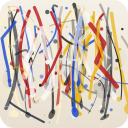
Pollock Painter
Paint Jackson-Pollock-style drips and splatters in your browser. Gesture brushes, Auto-Pollock, palettes, and PNG export — nothing is uploaded.
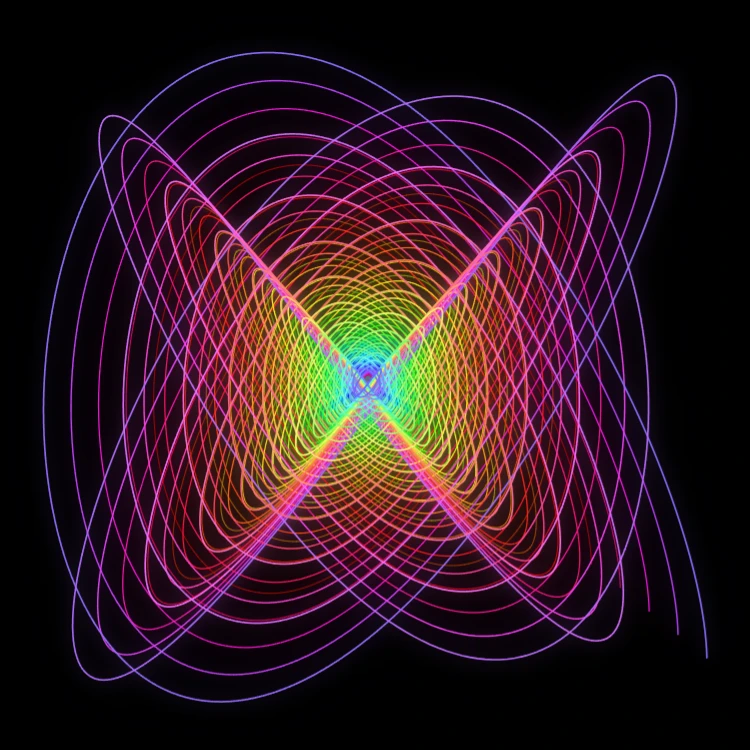
Painting Pendulum
Paint damped Lissajous curves in your browser—the classic Blackburn painting pendulum. Tune frequency ratios, phases, and damping, animate the trail, and save a PNG. Nothing is uploaded.
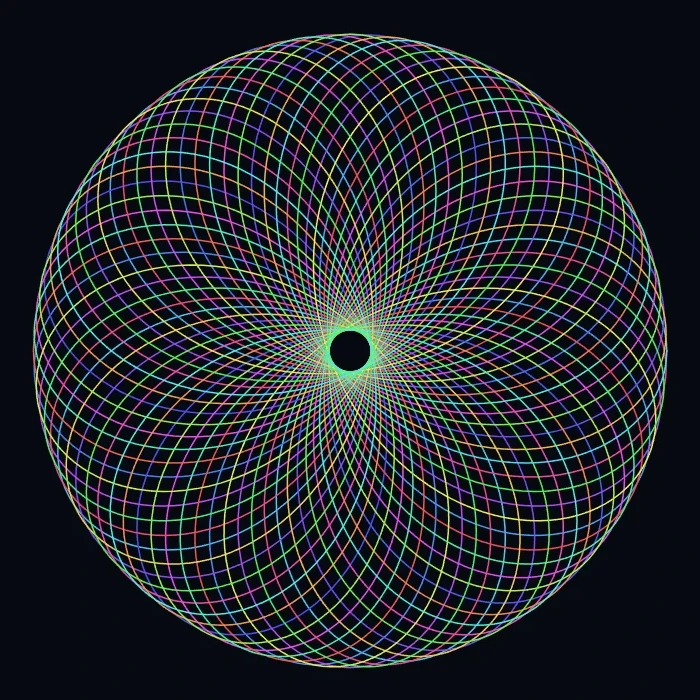
Spirograph
Draw hypotrochoids and epitrochoids in your browser. Tune R, r, and pen offset, animate the curve, randomize styles, and save a PNG. Nothing is uploaded.
Ready to try it?
Open PictorX in your browser — no install, no credit card required to start.
Go to Editor