
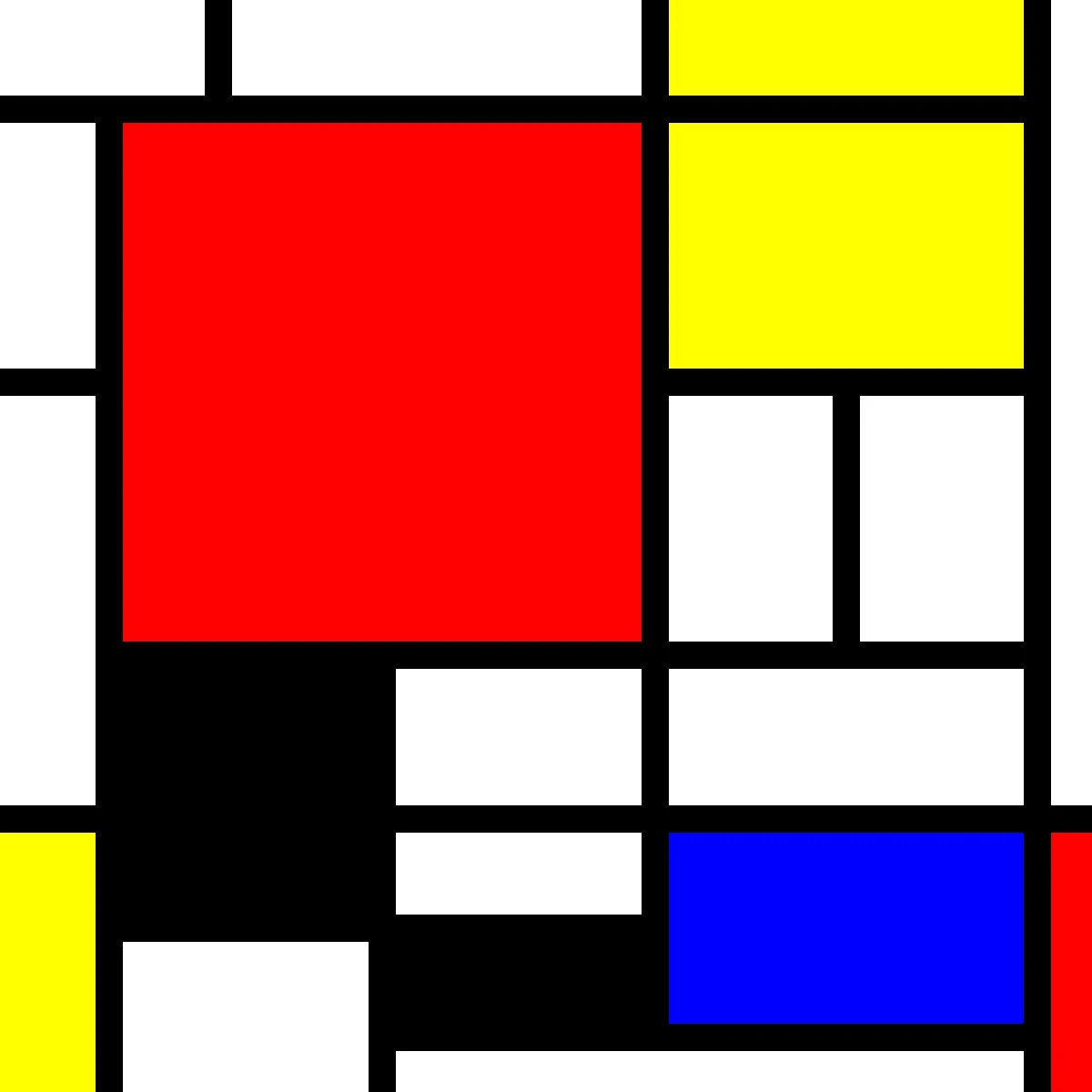
Paint on the photo below, or open your own picture.
Paint Bucket tool
Fill connected areas with color using adjustable tolerance and flood mode from Tools → Draw → Paint Bucket. Click an area to fill it. Reset restores the original.
How it works
- Open PictorX in your browser and load an image or start a new design.
- Choose Paint Bucket from the editor tools and adjust the result to fit your composition.
- Continue editing with layers, effects, and text, then export when you are ready.
How to use the Paint Bucket tool
Fill connected image areas with color using adjustable tolerance and flood mode. PictorX keeps the tool in the same browser workspace as your layers, photos, text, and design elements, so you can refine a composition without switching applications.
Keep creating in PictorX
Use Paint Bucket as one step in a complete editing workflow. Adjust the composition, add text or graphics, and keep every change editable while you turn an image into a finished design.
Frequently asked questions
What does the paint bucket fill?
Connected pixels that match within the tolerance you set.
Why did it flood the whole photo?
Tolerance was too high, or the area was not isolated. Lower tolerance or fill inside a selection.
Can I fill only a selected region?
Yes. Make a selection first so the flood cannot leak.
Is this a vector fill?
No. It fills pixels on a raster layer.
Related tools

Airbrush tool
Paint soft color with adjustable brush size, hardness, and tip shape. Use the free PictorX online editor in your browser.

Magic Eraser tool
Brush away matching colors within a chosen tolerance while you paint. Use the free PictorX online editor in your browser.

Paint & draw tools
Paint, erase, and refine pixels directly on raster layers. Use PictorX free in your browser with no software install required.
Ready to try it?
Open PictorX in your browser — no install, no credit card required to start.
Go to Editor