

Try a blur or sharpen look below, or open your own picture.
Blur and Sharpen
Soften focus with Gaussian, motion, radial, smart, lens, and tilt-shift blur—or restore detail with sharpen and unsharp mask from Effects → Blur and Sharpen. Dial radius and strength, then keep editing in PictorX. Try a blur or sharpen look below, or open your own picture.
How it works
- Open PictorX in your browser and start a new project or load an image.
- Use Blur and Sharpen to shape the result, then refine it with the surrounding editor tools.
- Keep editing, export your work, or turn the result into your next design.
How Blur and Sharpen fits your workflow
Soften focus with Gaussian, motion, radial, and tilt-shift blur—or bring detail back with sharpen and unsharp mask. PictorX keeps the feature alongside your photos, layers, typography, and design tools, so you can move from an idea to a finished graphic without switching applications.
Create more with Blur and Sharpen
Start with one focused change, review the result in context, and keep iterating. Combine Blur and Sharpen with other PictorX tools when you need a polished image for social media, a presentation, a print layout, or a personal project.
Looks in this set
Frequently asked questions
What blur types are in this set?
Gaussian, motion, radial, and tilt-shift, plus sharpen and unsharp mask.
When should I sharpen instead of blur?
Sharpen brings back edge detail. Blur softens focus or adds a sense of motion.
Is this the same as AI blur background?
No. These filters affect the layer or a selection. AI blur background separates the subject first.
Can I blur a backdrop by hand?
Yes. Select the backdrop, or use AI blur background when you want the subject detected for you.
Related tools

Blur
How blur really works: Gaussian softening, unsharp mask, radial and motion blur, smart blur, lens blur, and tilt-shift in PictorX.
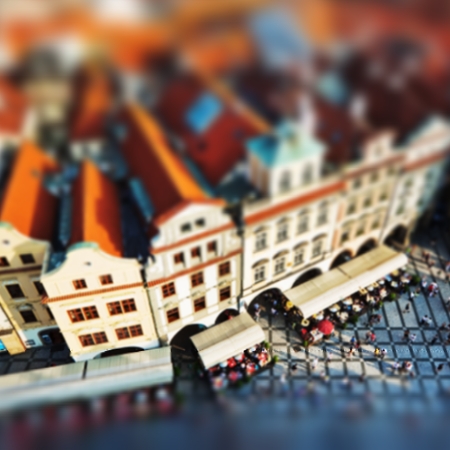
Tilt Shift
Add a miniature-style tilt-shift effect to direct attention in a scene. Use PictorX free in your browser with no software install required.
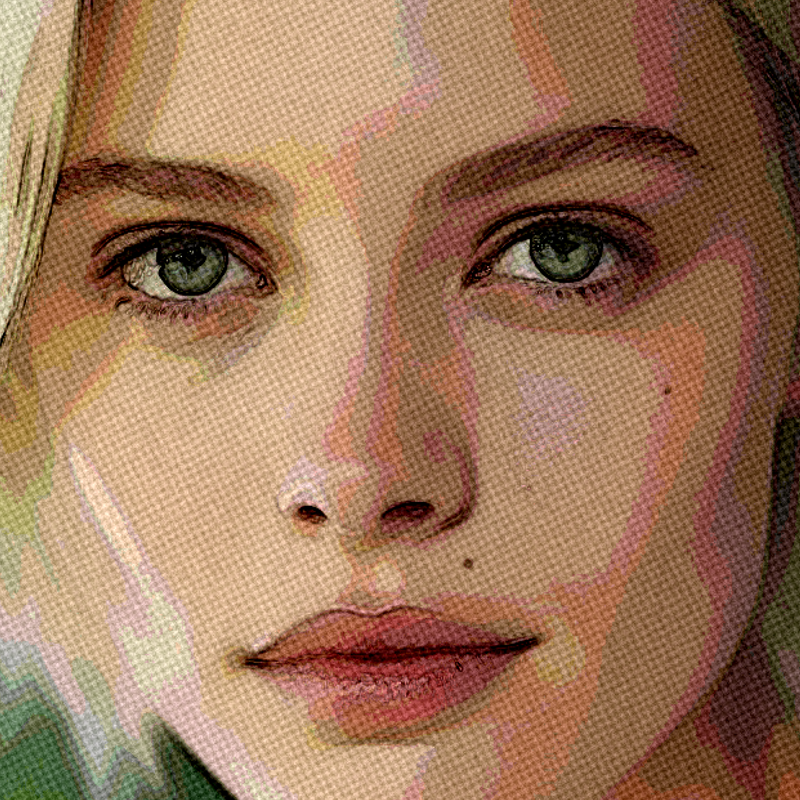
Artistic effects
Transform photos with oil painting, watercolor, pencil, comic ink, pastels, paper cut-out, and other studio art looks. Use PictorX free in your browser with no software install required.
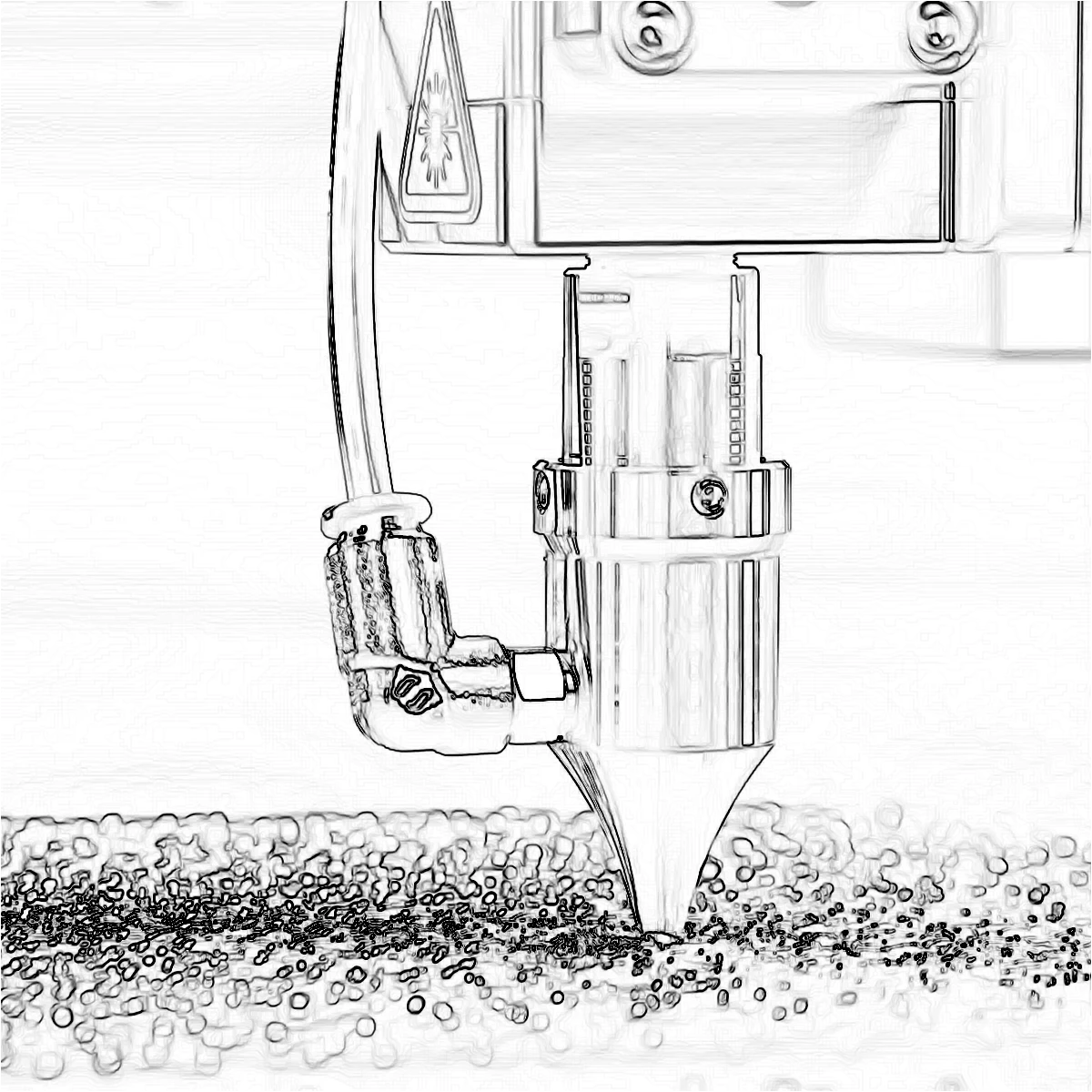
Edge effects
Trace outlines with Canny, Sobel, Laplace, Find Edges, Glowing Edges, XDoG, and Morphological Gradient—classic detectors that turn a photo into line art. Use PictorX free in your browser with no software install required.
Ready to try it?
Open PictorX in your browser — no install, no credit card required to start.
Go to Editor