
Multiple pages
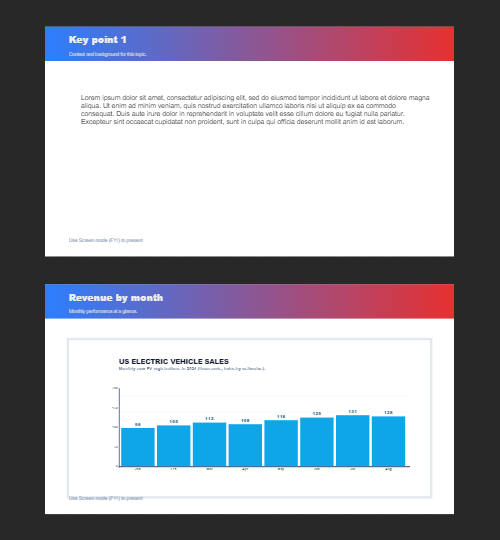
Build multi-page documents in Document mode—ideal for presentations, brochures, and multi-screen layouts. Switch pages from the strip above the canvas. From the document pages menu, add pages, duplicate the current page, and reorder with Move page up or Move page down. Copy a layer on one page with Edit → Copy (Ctrl+C), switch to another page, and paste with Edit → Paste as new layer (Ctrl+V). Shapes, text, styles, and effects come along intact.
How it works
- Open PictorX in your browser and start a new project or load an image.
- Use Multiple pages to shape the result, then refine it with the surrounding editor tools.
- Keep editing, export your work, or turn the result into your next design.
How Multiple pages fits your workflow
Build multi-page documents in Document mode—ideal for presentations, brochures, and multi-screen layouts. PictorX keeps the feature alongside your photos, layers, typography, and design tools, so you can move from an idea to a finished graphic without switching applications.
Create more with Multiple pages
Start with one focused change, review the result in context, and keep iterating. Combine Multiple pages with other PictorX tools when you need a polished image for social media, a presentation, a print layout, or a personal project.
Frequently asked questions
Can I build a whole deck in one project?
Yes. Add pages for slides, storyboards, or print spreads and keep them together.
Can pages share logos and styles?
Yes. Copy layers or styles between pages so titles, colors, and frames stay consistent.
Is this only for presentations?
No. Use extra pages for booklets, lookbooks, and a series of social posts.
How do I start a new page?
Add a page, duplicate an existing one, or start blank—then keep editing in the same file.
Related tools
Document mode
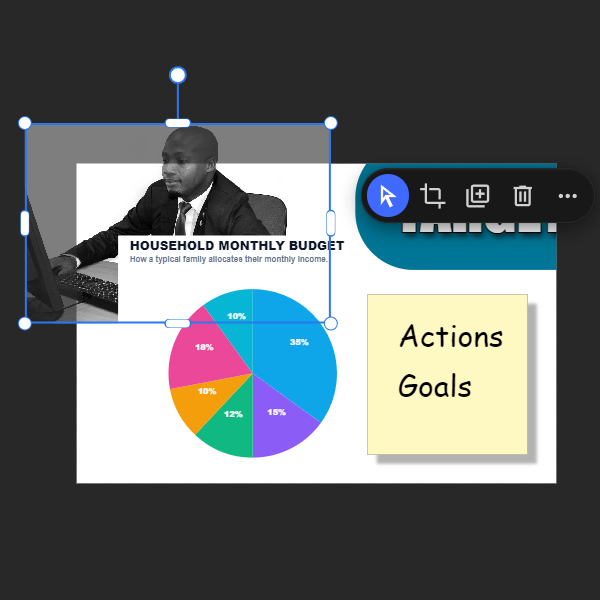
Document mode is Pictorx at its most precise: a familiar page-based canvas where every layer stays within your artboard, multi-page projects stack cleanly, and what you see is what you export. Use PictorX free in your browser with no software install required.

Build a deck with the presentation wizard
Build a deck with PictorX’s step-by-step presentation wizard, then edit every slide in the same browser workspace.

Design templates
Jump-start any project with hundreds of ready-made layouts: artistic compositions, text and poem designs, tables, charts, infographics, illustrations, presentation slides, and more. Use PictorX free in your browser with no software install required.
Ready to try it?
Open PictorX in your browser — no install, no credit card required to start.
Try Multiple pages