
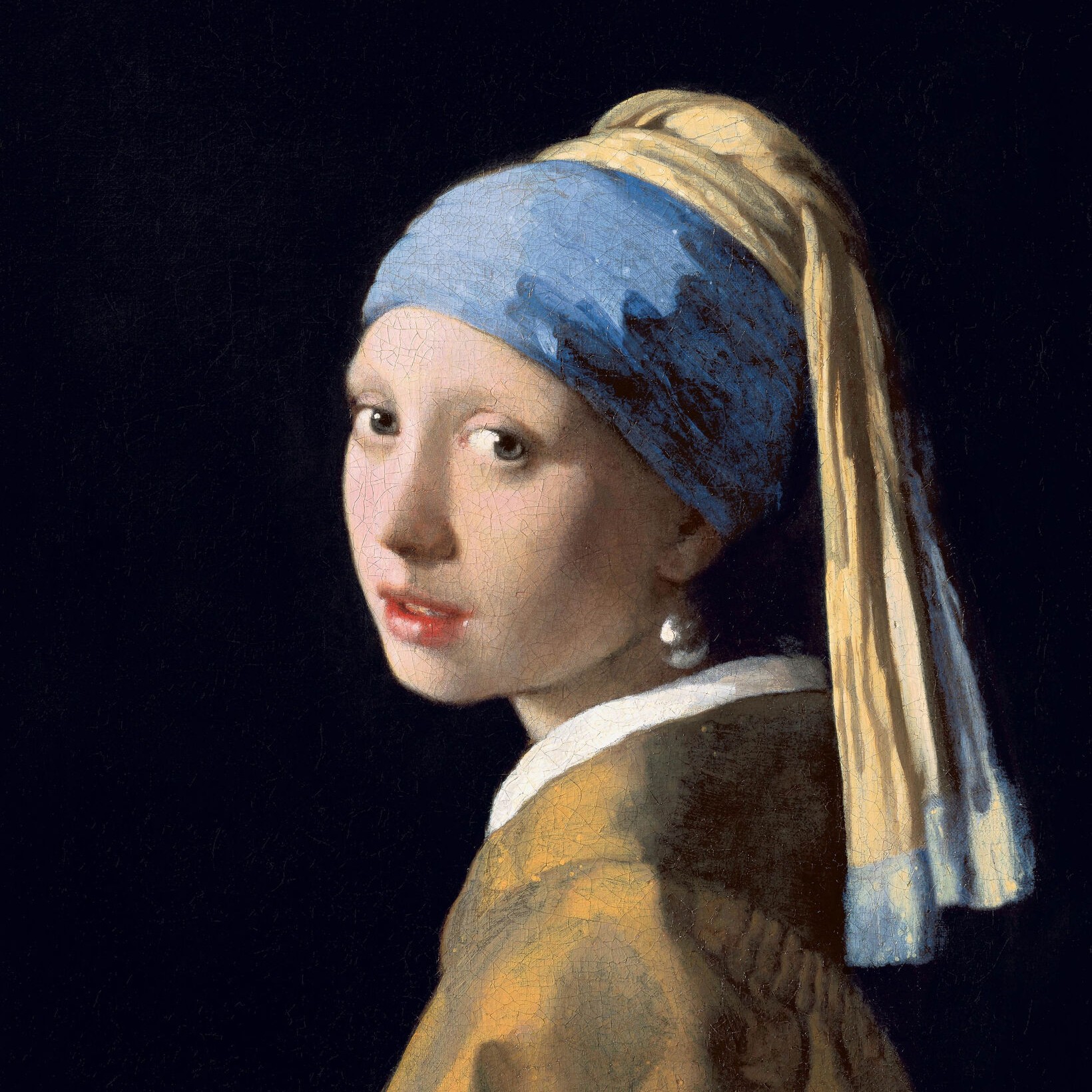
Open a photo and a color source, then transfer the palette. Strength blends the look; preserve brightness keeps original lighting.

Color transfer
Load a photo and a colorful reference. PictorX matches mean and spread of color in OKLab, then optionally nudges hues toward the reference palette. Stay in the browser—your pictures are not uploaded. Open a photo and a color source, then transfer the palette. Strength blends the look; preserve brightness keeps original lighting.
How it works
- Open a photo (or keep the sample) and pick a color source—another picture whose palette you want.
- Watch the live preview. Raise or lower Strength, and use Preserve brightness if you want original lighting with new hues.
- Save the result or Edit to continue in the PictorX photo editor with layers and effects.
How color transfer works
The tool measures lightness and chroma of both pictures in OKLab, then shifts the photo so its color statistics match the reference. A small extracted palette nudges hues toward the donor colors. Preserve brightness transfers chroma and hue only, which usually looks more natural on portraits and products.
When to recolor from another image
Match a product shot to brand colors, give a portrait the warmth of a golden-hour reference, or restyle a flat lay from a mood board. Combine Color transfer with the palette generator, color wheel, and color effects, then keep editing in the same PictorX workspace.
Frequently asked questions
Does color transfer upload my photos?
No. Matching runs in your browser on a preview-sized canvas. Save and Edit apply the same look at full resolution locally.
What does Preserve brightness do?
It transfers hue and chroma from the color source but keeps the original lightness of your photo. That usually looks better on faces and product shots.
Can I use any picture as the color source?
Yes. Open Color source and pick a photo, illustration, or palette graphic. Strong, distinct colors transfer more clearly than a muted scene.
How do I keep editing after color transfer?
Click Edit to send the current result into the PictorX photo editor, or Save a PNG, JPEG, or WebP. You can also open other color tools such as the palette generator.
Related tools
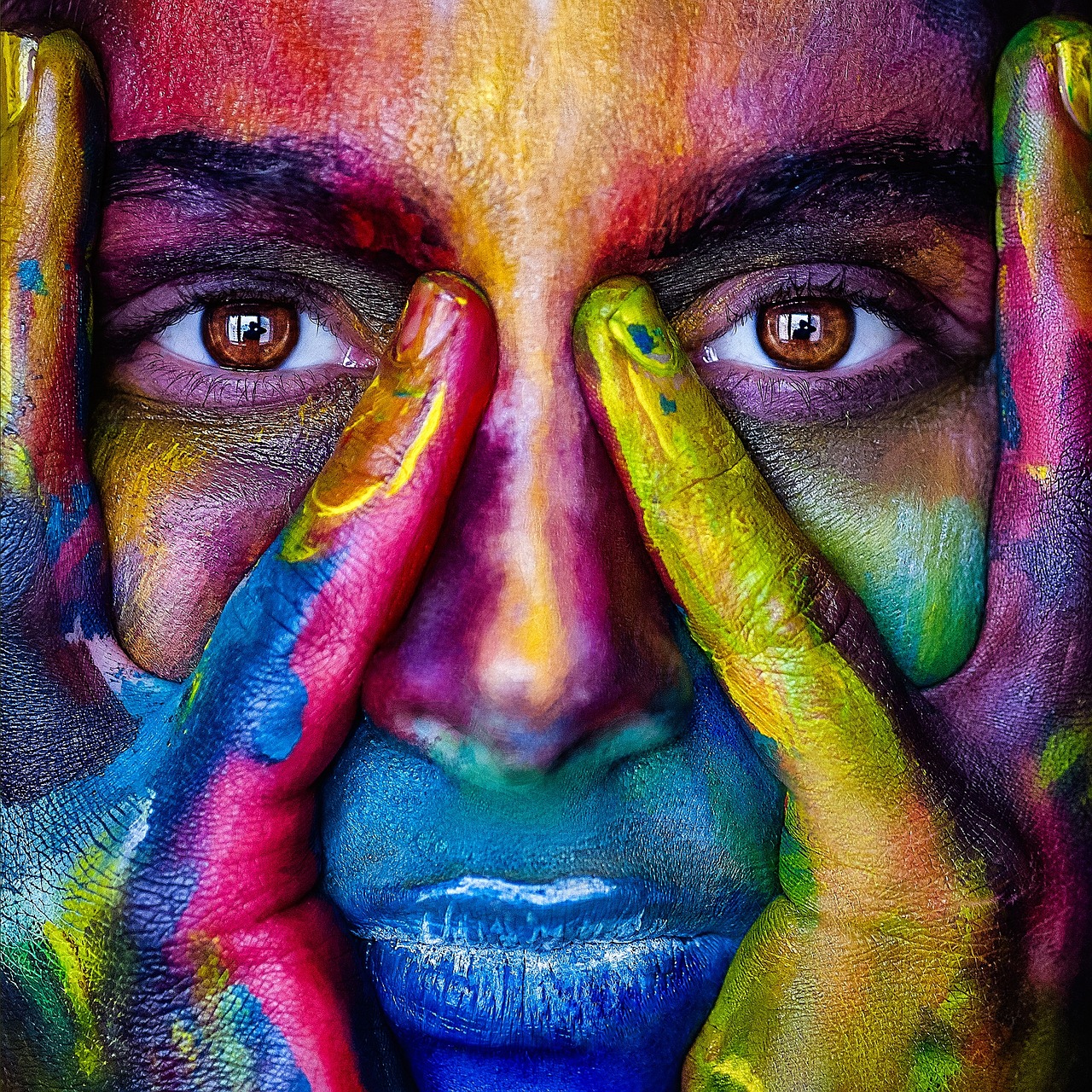
Colors
How color works on screens and in print: RGB, CMYK, HSL, hex, the color wheel, gradients, contrast, and PictorX tools.
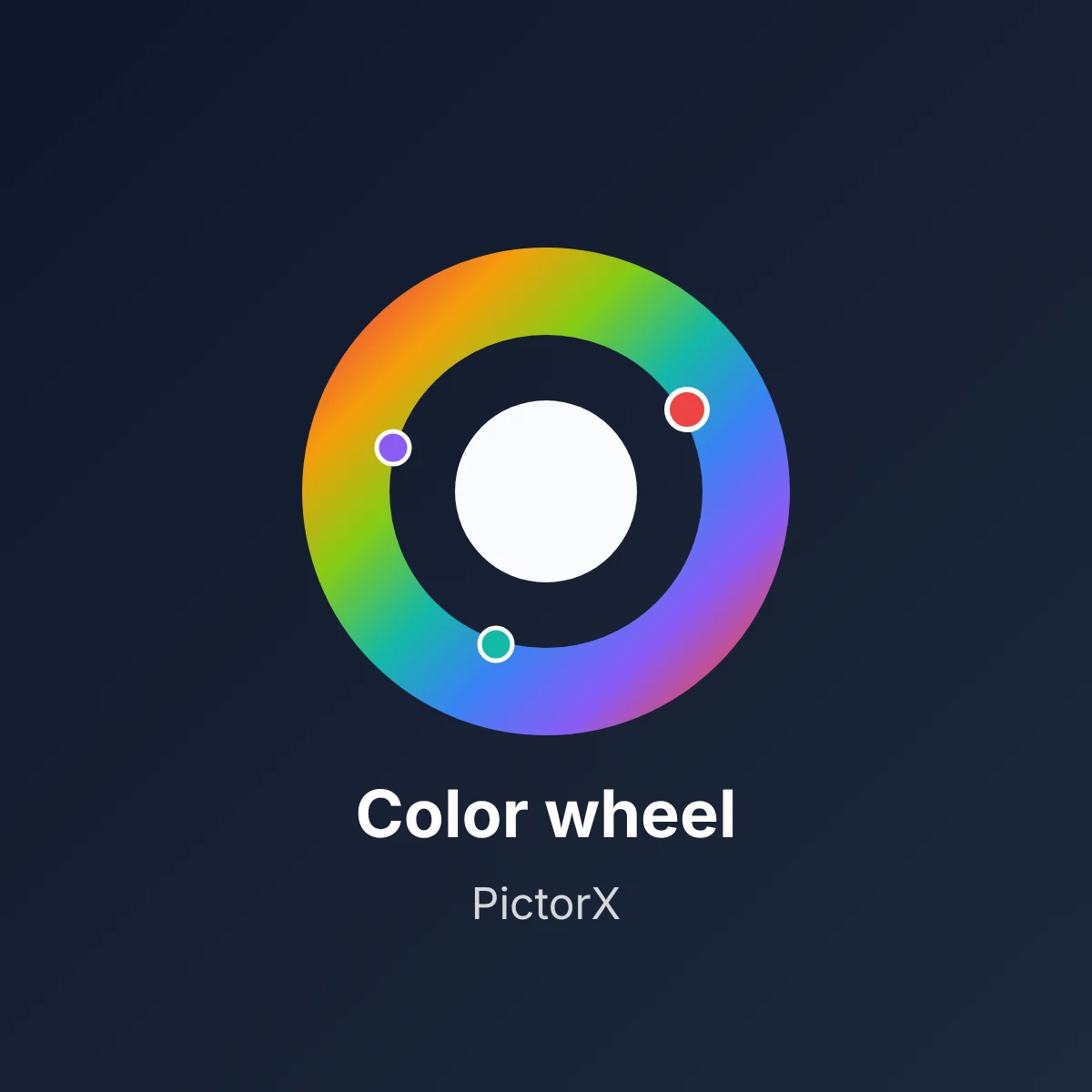
Color wheel
Pick a color on an interactive wheel, generate complementary, analogous, triadic, and other palettes, and copy HEX, RGB, HSL, HSV, or CMYK.
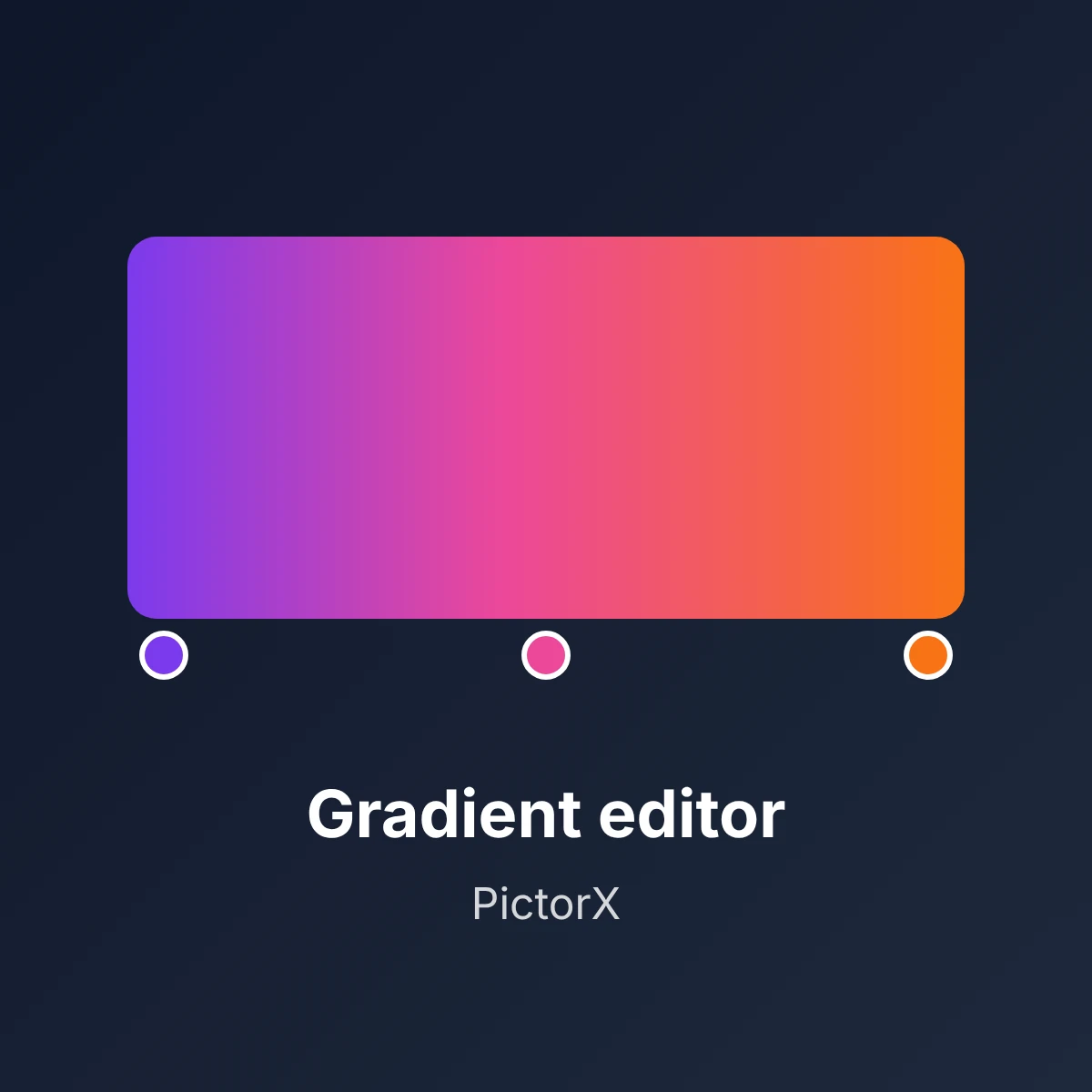
Gradient editor
Build linear and radial CSS gradients in your browser. Drag color stops, set the angle, and copy CSS, HEX, RGB, HSL, HSV, or CMYK.
Color palette generator
Build, lock, and shuffle color palettes in your browser. Copy HEX, CSS variables, or JSON, export PNG or SVG, and extract colors from a photo.
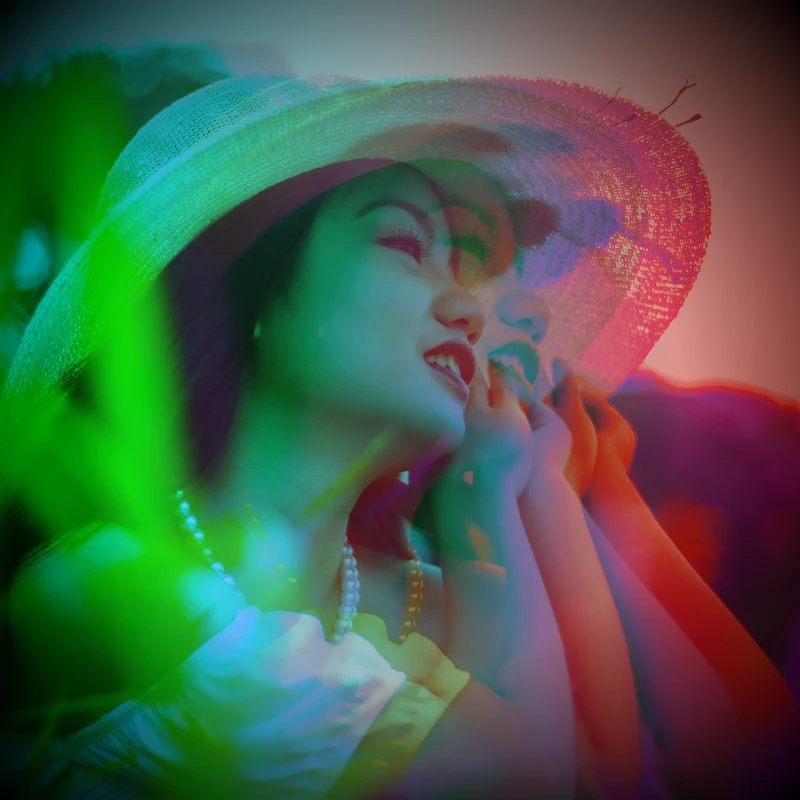
Color effects
Recolor a photo from Effects → Color with neon edges, heat maps, and two- or three-color palettes.
Ready to try it?
Open PictorX in your browser — no install, no credit card required to start.
Go to Editor