
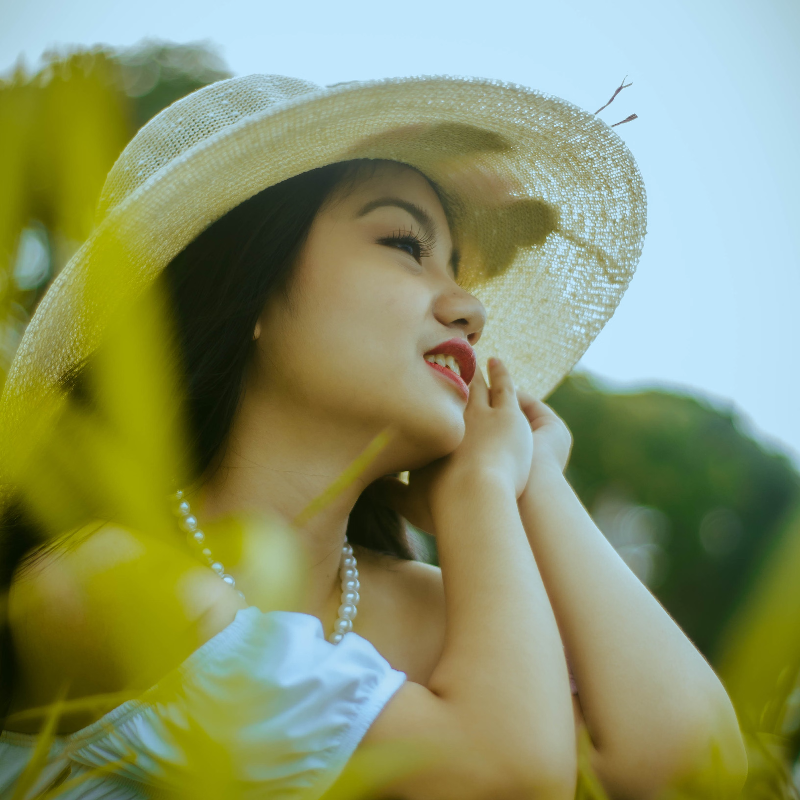
Try a render look below, or open your own picture.
Render effects
Generate textures and overlays from Effects → Render. Add a linear or radial gradient, film-grain noise, a lens flare, procedural clouds or a starfield, falling snow, water drops, paper and sand textures, or a radial mask. Tune size, density, and color, then keep editing in PictorX. Try a render look below, or open your own picture.
How it works
- Open PictorX in your browser and start a new project or load an image.
- Use Render effects to shape the result, then refine it with the surrounding editor tools.
- Keep editing, export your work, or turn the result into your next design.
How Render effects fit your workflow
Generate linear and radial gradients, noise, lens flare, clouds, stars, snow, water drops, paper, sand, and radial masks from the Render filters. PictorX keeps the feature alongside your photos, layers, typography, and design tools, so you can move from an idea to a finished graphic without switching applications.
Create more with Render effects
Start with one focused change, review the result in context, and keep iterating. Combine Render effects with other PictorX tools when you need a polished image for social media, a presentation, a print layout, or a personal project.
Looks in this set
Frequently asked questions
What can I render onto a photo?
Linear and radial gradients, noise, lens flare, clouds, stars, snow, water drops, paper and sand textures, and a radial mask.
Will clouds or stars replace my photo?
Gradients, clouds, stars, paper, sand, noise, and radial mask generate a new look. Snow, water drops, and lens flare overlay the existing photo.
How is Render different from Pattern filters?
Patterns tile graphic repeats such as stripes, grids, and mazes. Render adds photographic textures and overlays like weather, grain, and flare.
Can I apply a render look to only part of a photo?
Use a selection or a duplicate layer so the rest of the image stays unchanged.
Related tools
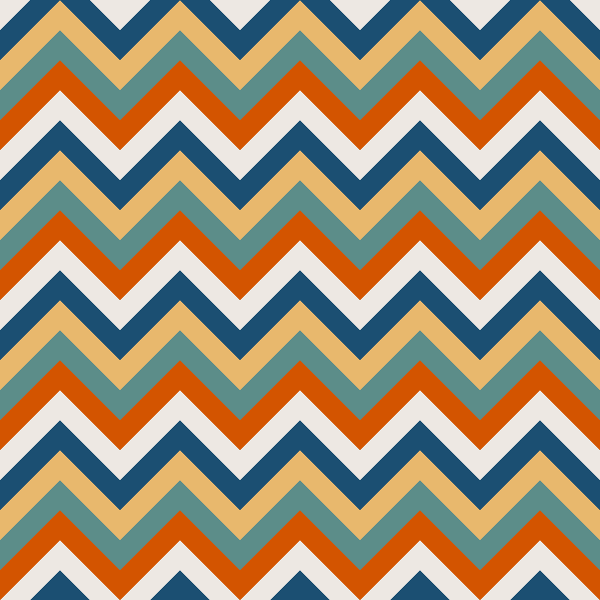
Pattern filters
Generate procedural backgrounds and textures from Effects → Patterns.
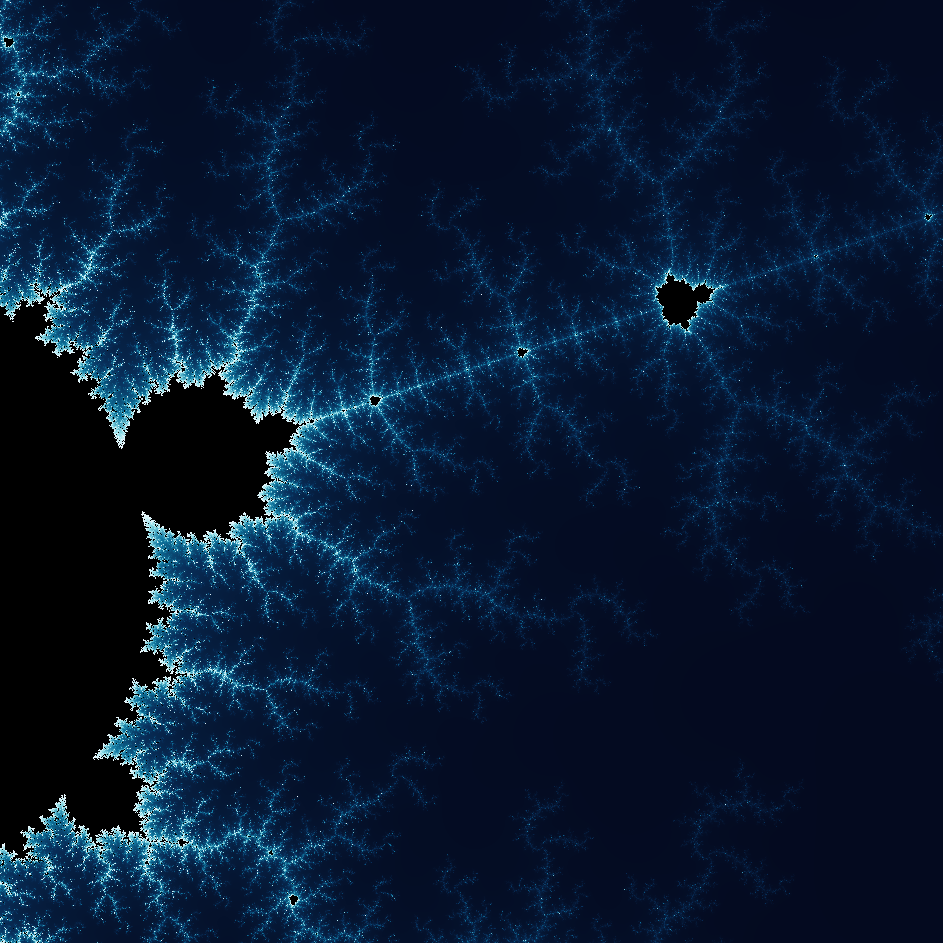
Explore the wonderful world of Fractals
Explore the wonderful world of Fractals. Fractals are complex, detailed geometric patterns found throughout the natural world.
Blur and Sharpen
Soften focus with Gaussian, motion, radial, and tilt-shift blur—or bring detail back with sharpen and unsharp mask.
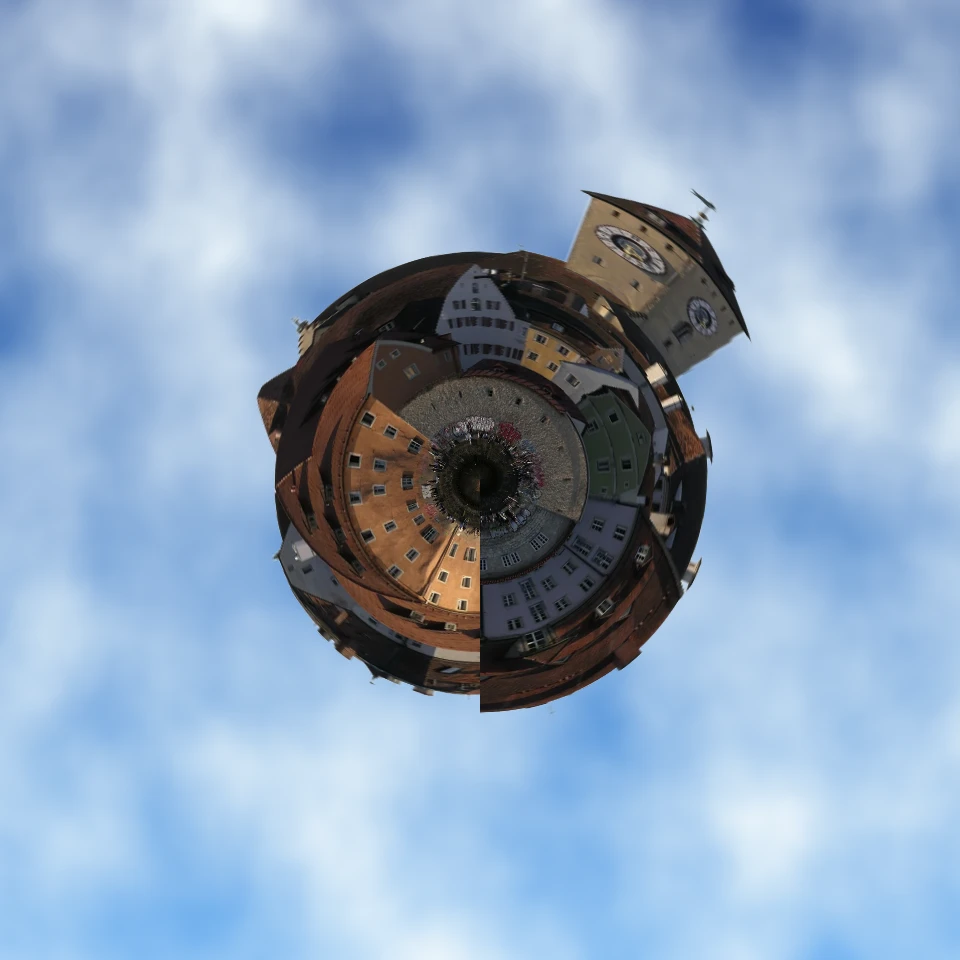
Turn a photo into a tiny planet
Turn a skyline or landscape into a tiny planet in your browser. On-device AI removes the sky, flips the scene, wraps it with polar coordinates, and sits it on clouds, stars, a gradient, or a solid color.
Ready to try it?
Open PictorX in your browser — no install, no credit card required to start.
Go to Editor