

Try a Games look below, or open your own picture.
Games
Turn photos into playable looks with Effects → Games—jigsaw puzzle, Lego and Ministeck mosaics, Tetris blocks, and sliding puzzles. Open a picture, pick a Games effect, and keep editing in PictorX. Try a Games look below, or open your own picture.
How it works
- Open PictorX in your browser and start a new project or load an image.
- Use Games to shape the result, then refine it with the surrounding editor tools.
- Keep editing, export your work, or turn the result into your next design.
How Games fits your workflow
Turn photos into playable looks with Effects → Games—jigsaw puzzle, Lego and Ministeck mosaics, Tetris blocks, and sliding puzzles. PictorX keeps the feature alongside your photos, layers, typography, and design tools, so you can move from an idea to a finished graphic without switching applications.
Create more with Games
Start with one focused change, review the result in context, and keep iterating. Combine Games with other PictorX tools when you need a polished image for social media, a presentation, a print layout, or a personal project.
Looks in this set
Frequently asked questions
Which Games looks are included?
Jigsaw Puzzle, Lego Mosaic, Ministeck Mosaic, Tetris, and Sliding Puzzle—the full Games filter menu.
Is this the same as the Puzzle page?
Puzzle is a dedicated jigsaw landing. Games groups every Games-menu effect, including puzzle, brick mosaics, Tetris, and sliding tiles.
Will Lego or Tetris look like real toys?
They are photo effects that rebuild the image as bricks or blocks. Block size and color options change how toy-like it feels.
Can I keep editing after applying a look?
Yes. Apply a Games effect, then keep using layers, text, and other filters in the same PictorX workspace.
Related tools
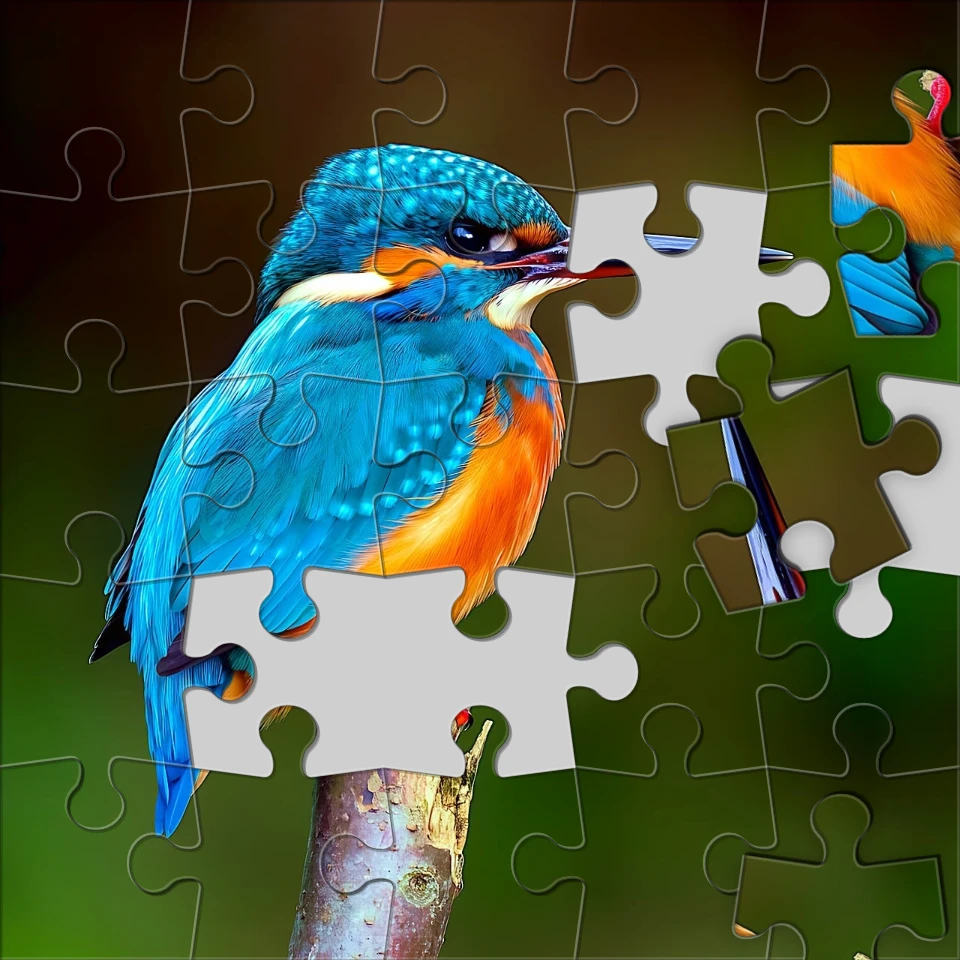
Turn a photo into a jigsaw puzzle
Turn a photo into a jigsaw puzzle in your browser. Set piece count, remove or scatter tiles, and fade the picture into a puzzle.
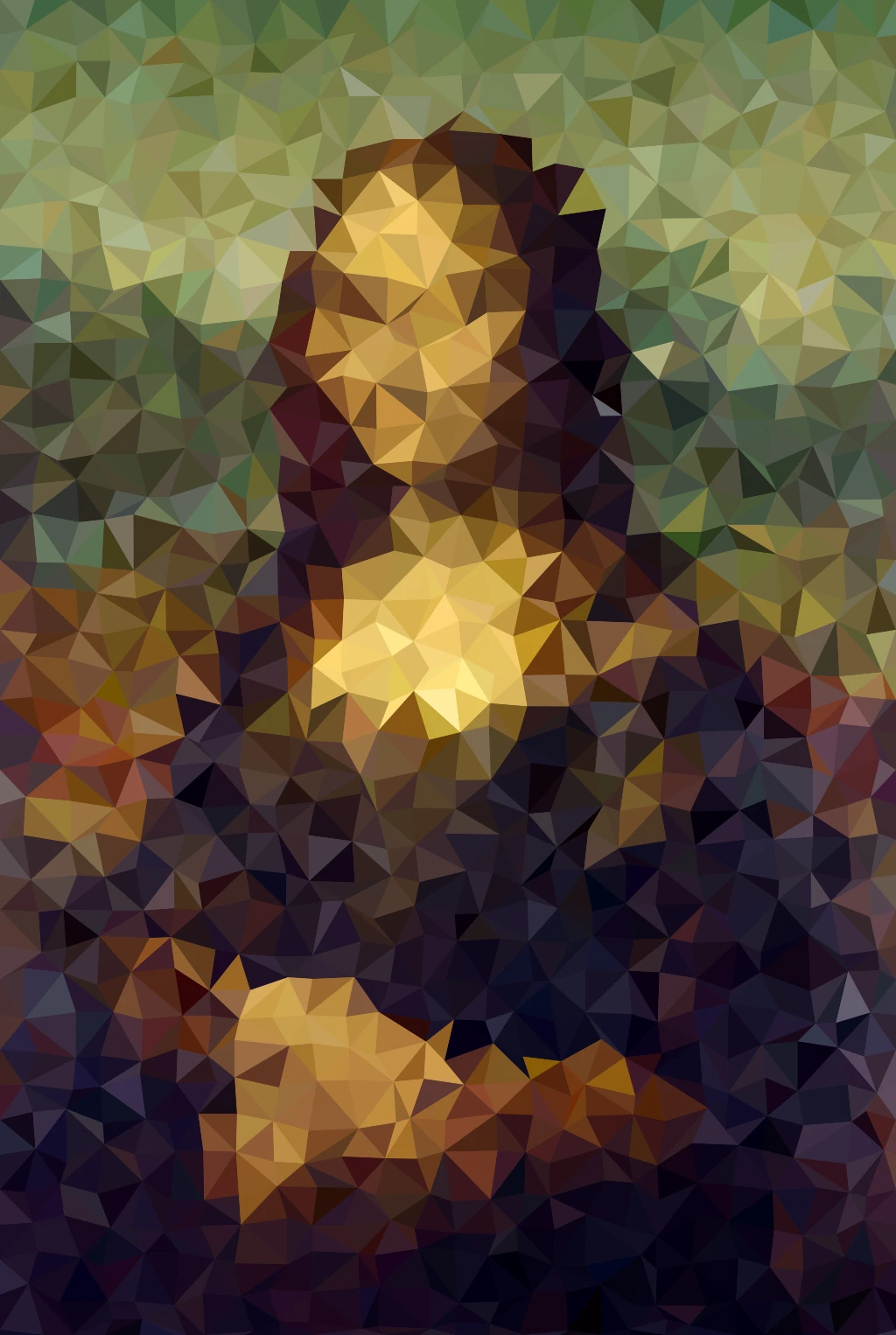
Pixelate effects
Turn photos into mosaic tiles, hexagons, crystals, low-poly art, halftone dots, and retro arcade palettes.
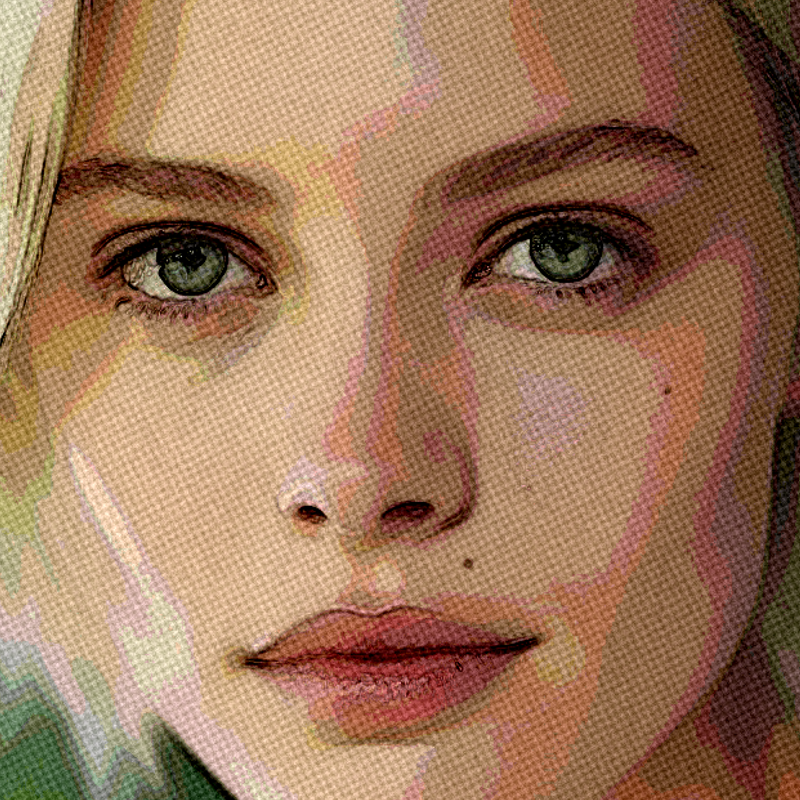
Artistic effects
Transform photos with oil painting, watercolor, pencil, comic ink, pastels, paper cut-out, and other studio art looks.
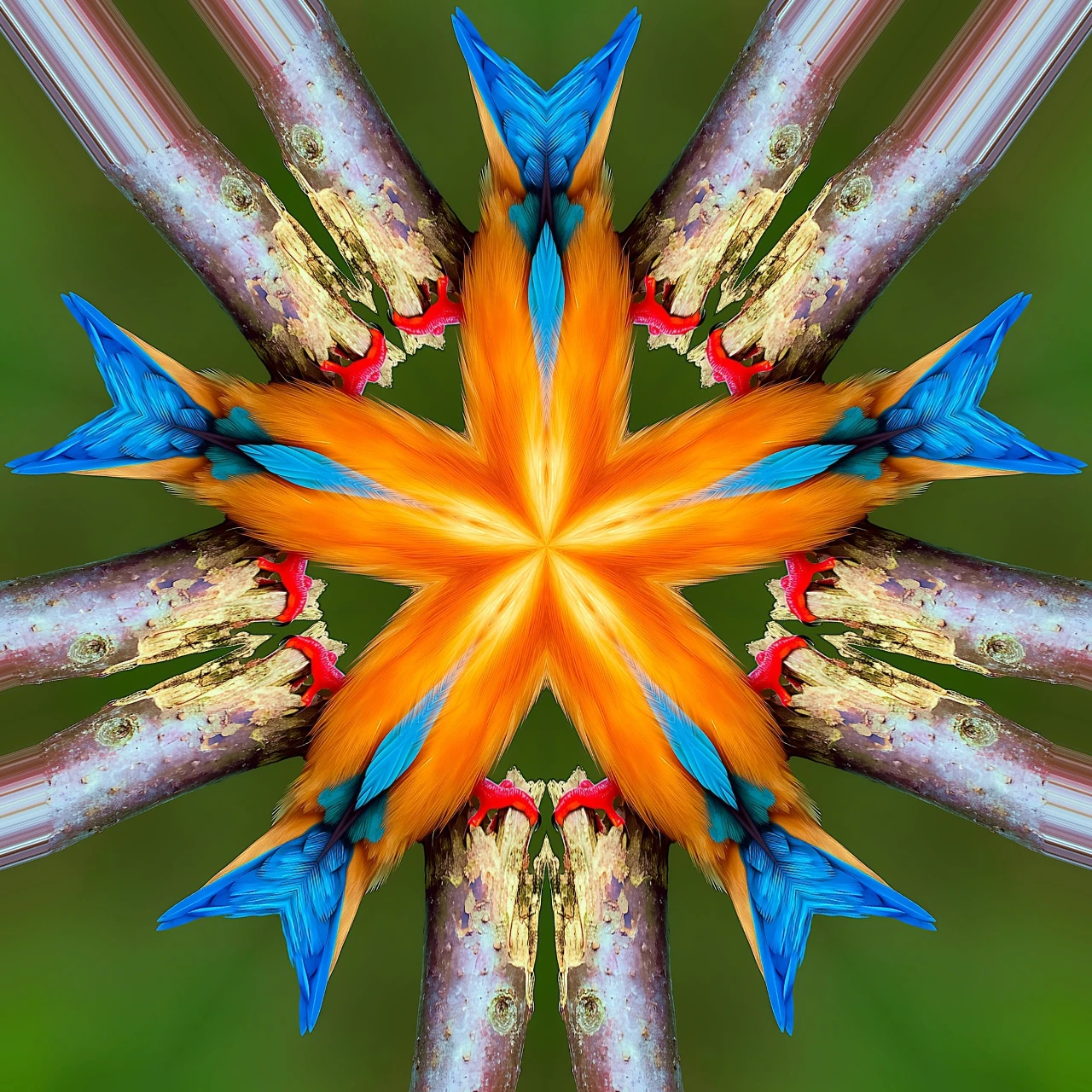
Fold a photo into a kaleidoscope
Turn a photo into a radial kaleidoscope pattern in your browser. Set sides, angle, and rotation.
Ready to try it?
Open PictorX in your browser — no install, no credit card required to start.
Go to Editor