

Paint on the photo below, or open your own picture.
Effect Brush tool
Paint a filter under a resizable brush with adjustable hardness from Tools → Draw → Effect Brush. Choose Mosaic, Grayscale, Sepia, and dozens more looks. Drag on the photo to use the tool. Reset restores the original.
How it works
- Open PictorX in your browser and load an image or start a new design.
- Choose Effect Brush from the draw tools, pick a look, and paint it onto the photo.
- Continue editing with layers, effects, and text, then export when you are ready.
How to use the Effect Brush tool
Paint a filter under a resizable brush with adjustable hardness. PictorX keeps the tool in the same browser workspace as your layers, photos, text, and design elements, so you can reveal Mosaic, Grayscale, Sepia, or another look only where you brush.
Keep creating in PictorX
Use Effect Brush as one step in a complete editing workflow. Adjust the composition, add text or graphics, and keep every change editable while you turn an image into a finished design.
Frequently asked questions
What does the Effect Brush do?
It paints a chosen filter under the tip as you drag, so Mosaic, Grayscale, Sepia, and other looks land only where you brush.
How is it different from applying a filter to the whole photo?
A normal filter changes every pixel. Effect Brush keeps the rest of the image and reveals the look only under the brush.
What do size and hardness control?
Size is the tip diameter. Hardness is how sharp or feathered the edge is.
Can I change the filter after I start painting?
Yes. Pick another effect in the dropdown, then continue brushing. Each stroke uses the look you selected.
Related tools
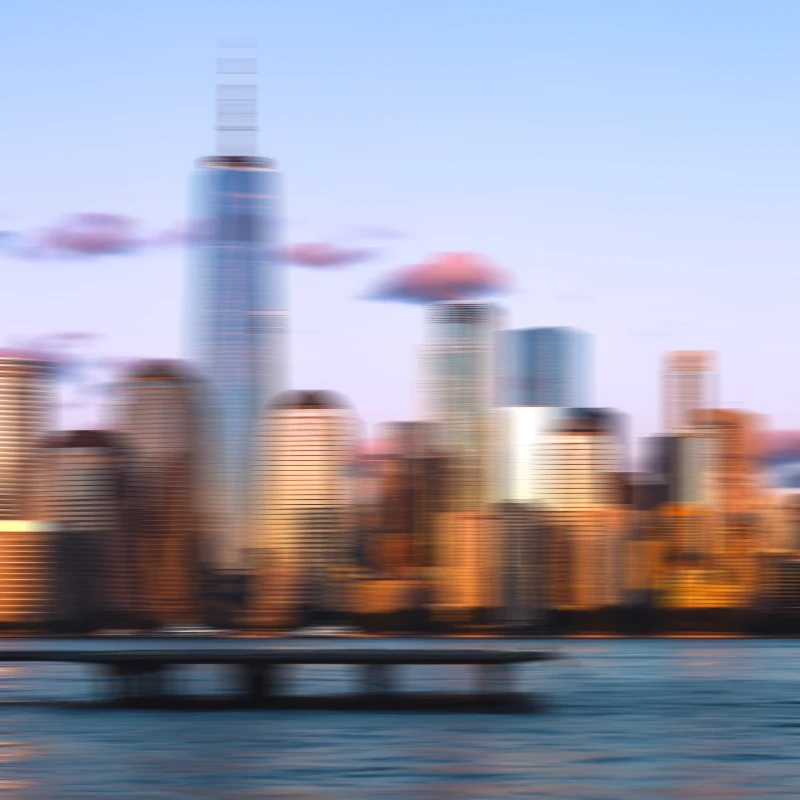
Blur Brush tool
Blur pixels under a resizable brush with adjustable radius and hardness. Use the free PictorX online editor in your browser.
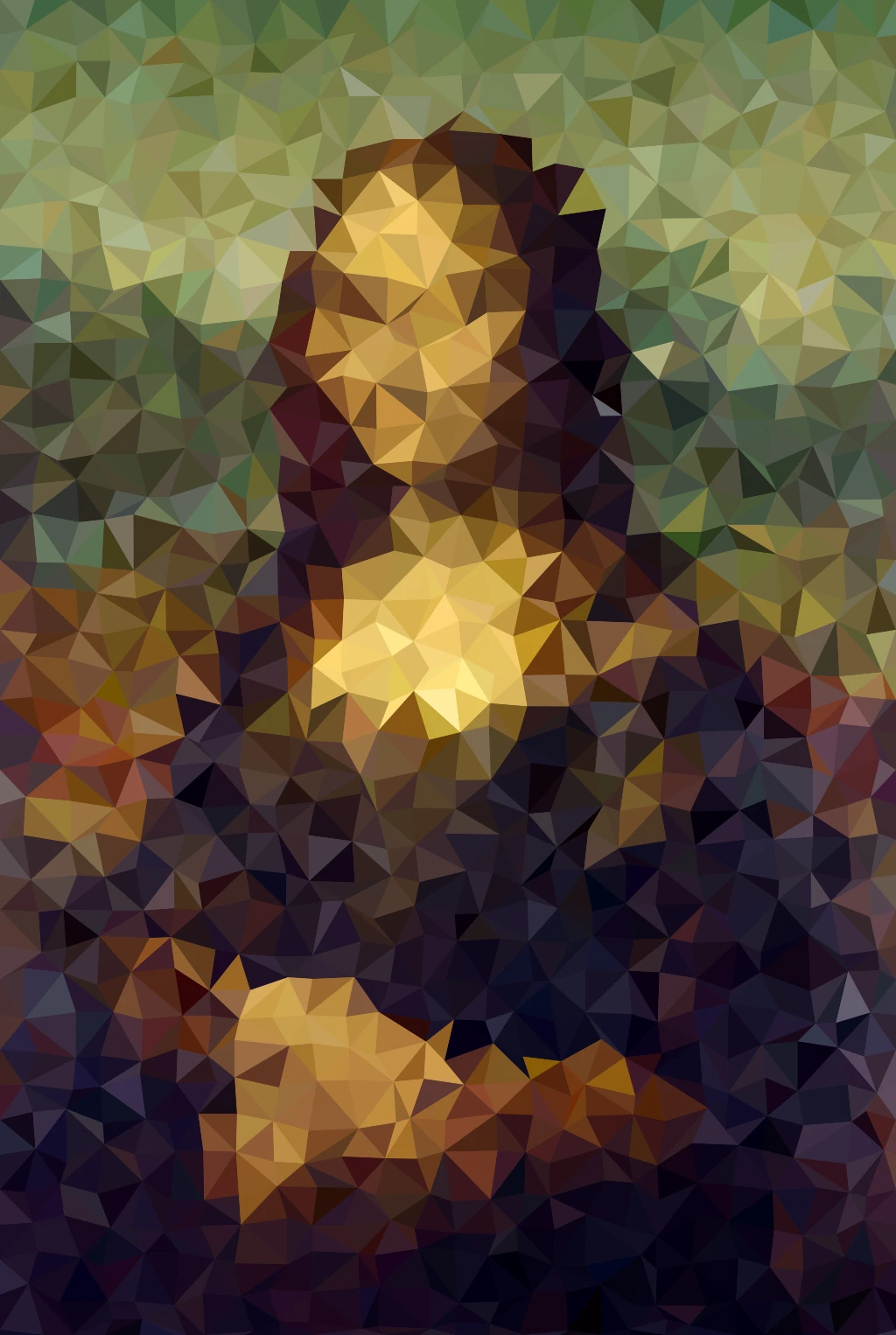
Pixelate effects
Turn photos into mosaic tiles, hexagons, crystals, low-poly art, halftone dots, and retro arcade palettes.
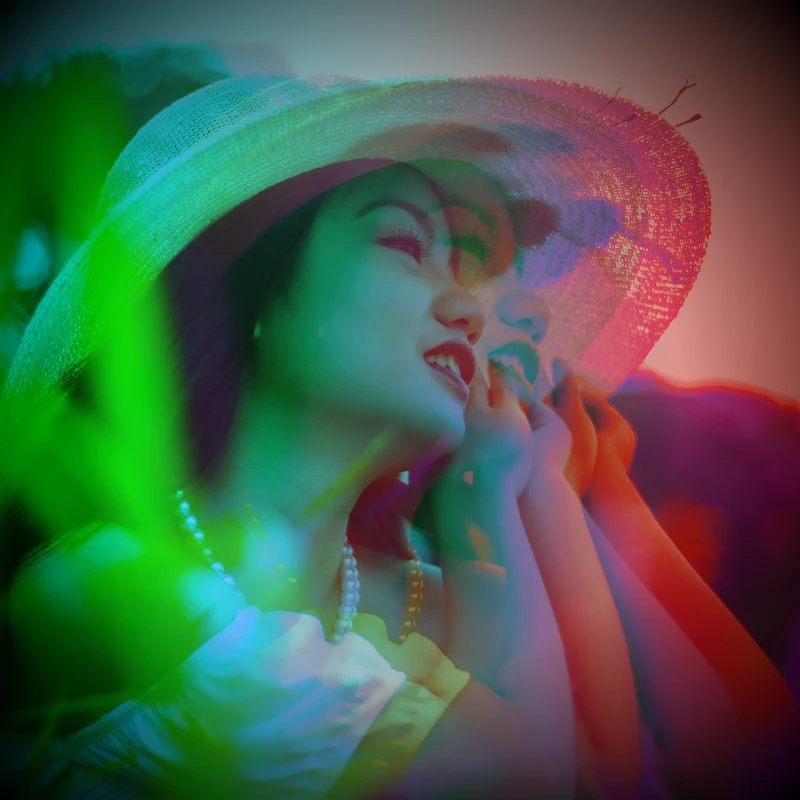
Color effects
Recolor a photo from Effects → Color with neon edges, heat maps, and two- or three-color palettes.
Ready to try it?
Open PictorX in your browser — no install, no credit card required to start.
Go to Editor