

Try a kaleidoscope look below, tune sides, angle, and rotation, or open your own picture.
Fold a photo into a kaleidoscope
Repeat a wedge of your image around the center into a mandala-like pattern. PictorX kaleidoscope runs in the browser, then lets you keep editing with layers, text, and other effects. Try a kaleidoscope look below, tune sides, angle, and rotation, or open your own picture.
How it works
- Open PictorX in your browser and load a photo.
- Choose Kaleidoscope, then try sides, angle, and rotation until the pattern locks in.
- Export the mandala look, or keep editing with layers and other effects in the same workspace.
Why kaleidoscope looks work
Portraits, flowers, birds, architecture, and colorful objects fold into striking symmetry. Fewer sides keep more of the original scene; more sides pack the frame into a dense mandala. Angle and rotation choose which wedge of the photo repeats.
Sides, angle, and rotation
Sides sets how many wedges meet at the center, from 2 up to 30. Angle picks the slice of the photo that repeats. Rotation turns the finished pattern. Start with six sides, then try eight or twelve when you want a tighter crystal look.
Frequently asked questions
What does the kaleidoscope filter do?
It repeats a wedge of the photo around the center so the image becomes a radial, mandala-like pattern. You control how many sides meet, which slice repeats, and how the result is rotated.
How is kaleidoscope different from mirror?
Mirror flips one side of the photo. Kaleidoscope folds that idea around the center: the same wedge is repeated into a circular pattern.
What photos work best?
Colorful, high-contrast subjects close to the middle of the frame—flowers, birds, portraits, and architecture. Busy edges still work; they become part of the repeating ring.
Can I keep editing after applying kaleidoscope?
Yes. Continue with layers, text, other reflection looks, or export from the same PictorX workspace.
Related tools
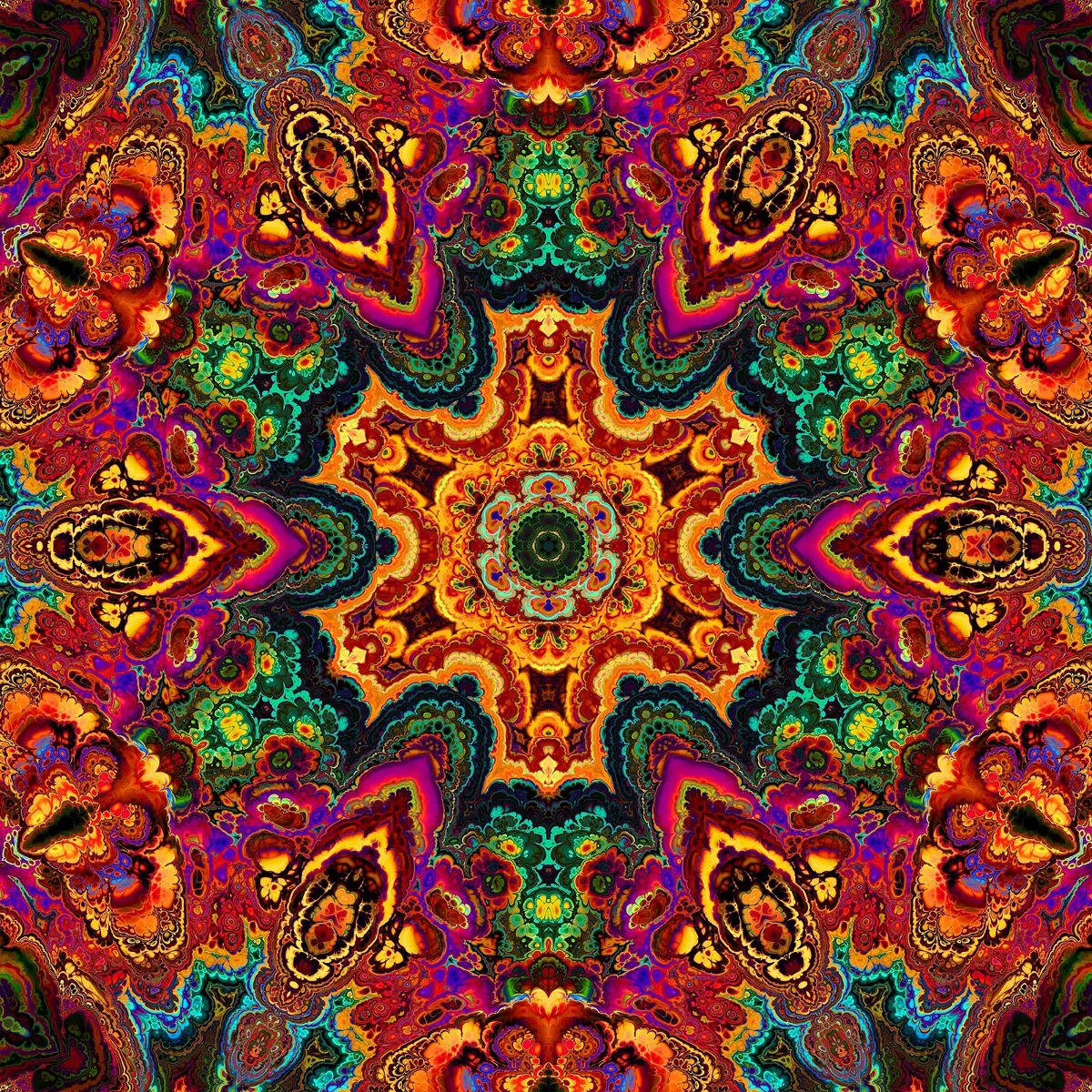
Kaleidoscopes
How kaleidoscopes work: Brewster’s invention, angled mirrors, radial symmetry, and digital kaleidoscope filters you can try on a photo in PictorX.

Reflection effects
Mirror, tile, water, wet-floor, and kaleidoscope looks that flip a photo into a reflected composition.
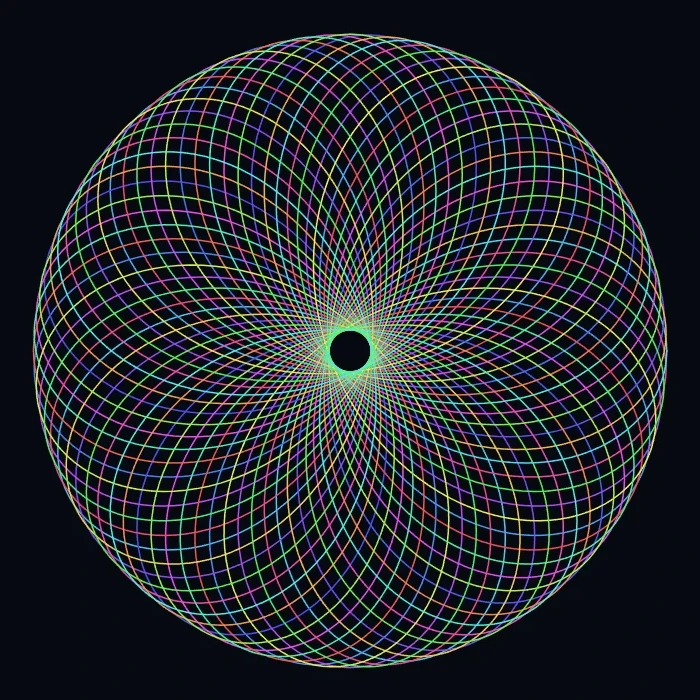
Spirograph
Draw hypotrochoids and epitrochoids in your browser. Tune R, r, and pen offset, animate the curve, randomize styles, and save a PNG.
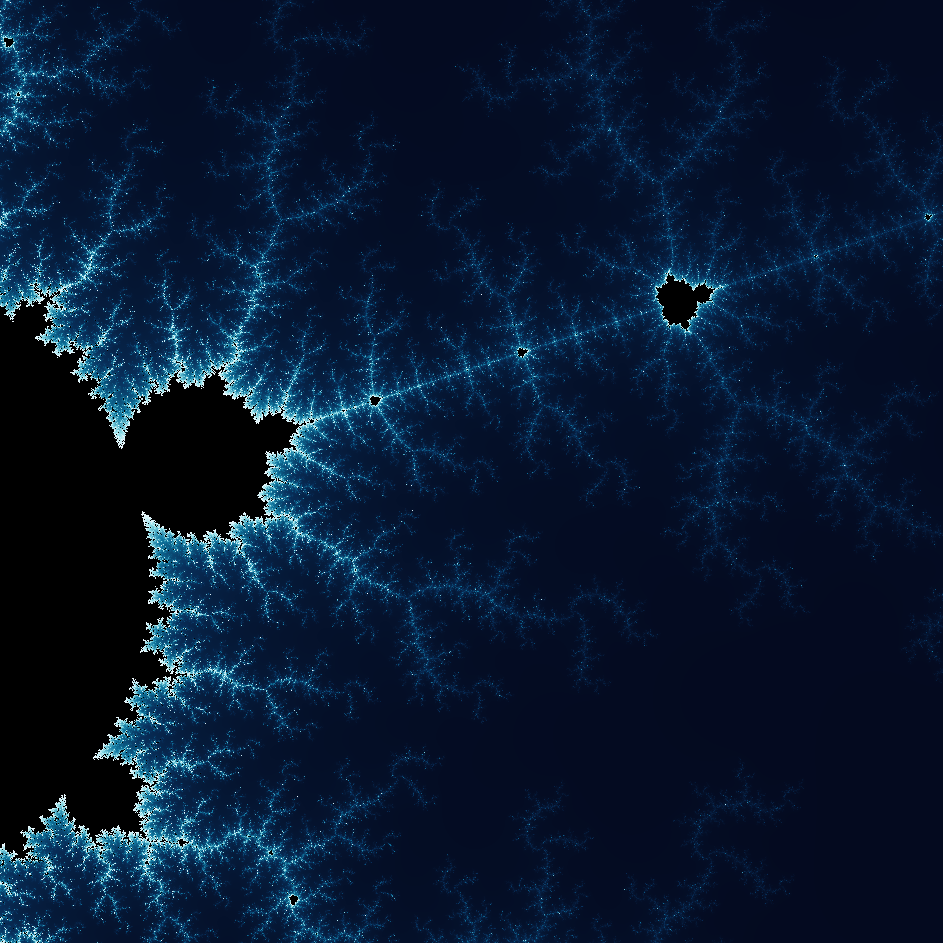
Explore the wonderful world of Fractals
Explore the wonderful world of Fractals. Fractals are complex, detailed geometric patterns found throughout the natural world.
Ready to try it?
Open PictorX in your browser — no install, no credit card required to start.
Go to Editor