

Make the subject pop out of a cut-out shape
Cut out keeps part of your photo—a half, a circle, a heart, a star, a hexagon or an arch—and puts the whole subject back on top, so heads, wings and hands break out of the shape. On-device AI finds the subject, so the photo is not uploaded. Add a border along the cut, a drop shadow and a background of a color, a gradient or the faded photo, or keep it transparent for a PNG. Open a picture or use the sample, then click Start.
How it works
- Open a photo with a clear subject—a person, a pet, a bird or a product—or use the sample.
- Click Start. On-device AI finds the subject, then pick a shape: Diagonal, a half, Circle, Heart, Star, Hexagon, Arch and more.
- Set Offset, Rotation and Center on subject, add a Border, Shadow and Background, then save a PNG or open the layers in the editor.
How the pop-out works
The photo is cut to a shape, and everything outside it is removed. On-device AI (the same RMBG model as Remove background) then finds the subject, and the whole subject is put back on top of the shape. Inside the shape you see the photo as it was; outside it, only the parts of the subject that reach past the edge—a head above a circle, a wing over a star—so the subject seems to step out of the picture.
Shapes, border, shadow and background
Halves (Left to Right, Top to Bottom, Diagonal) cut the photo along a line: Offset moves it and Angle turns the diagonal. Shapes (Circle, Oval, Square, Rectangle, Heart, Star, Hexagon, Triangle, Arch) take their size from Offset and turn with Rotation; Center on subject puts them in the middle of the subject. Border draws a line along the cut in any color, Shadow adds a soft drop shadow, and Background fills what was cut away: a solid color, a linear or radial gradient, the original image faded to grey, or nothing for a transparent PNG. The pencil and Apply in the editor give the background, shadow, photo, border and subject as separate layers.
Frequently asked questions
What does the Cut out effect do?
It keeps part of a photo—a half, or a shape such as a circle, heart, star, hexagon or arch—and removes the rest. On-device AI finds the subject and puts it back on top whole, so the parts that reach past the shape pop out of it.
Do my photos leave my device?
No. Cut out uses the same on-device background removal as Remove background in supported browsers, so the photo is not uploaded to PictorX servers for that step.
What photos work best?
Photos with one clear subject and a distinct outline: portraits, pets, birds, products and full-body shots. Make the shape a little smaller than the subject, or turn on Center on subject, so the head, ears or wings reach out of it.
Can I add a border, a shadow or a background?
Yes. Border width and Border color draw a line along the cut, Shadow adds a soft drop shadow under the photo and the subject, and Background fills what was cut away with a solid color, a linear or radial gradient, the original image faded to grey, or transparency for a PNG.
Can I edit the result in layers?
Yes. The pencil on this page, or AI → Effects → Cut out → Apply in the editor, opens the result as separate layers: the background, the shadow, the photo in its shape, the border and the subject. Move the subject, recolor the background or hide the shadow on its own.
Related tools
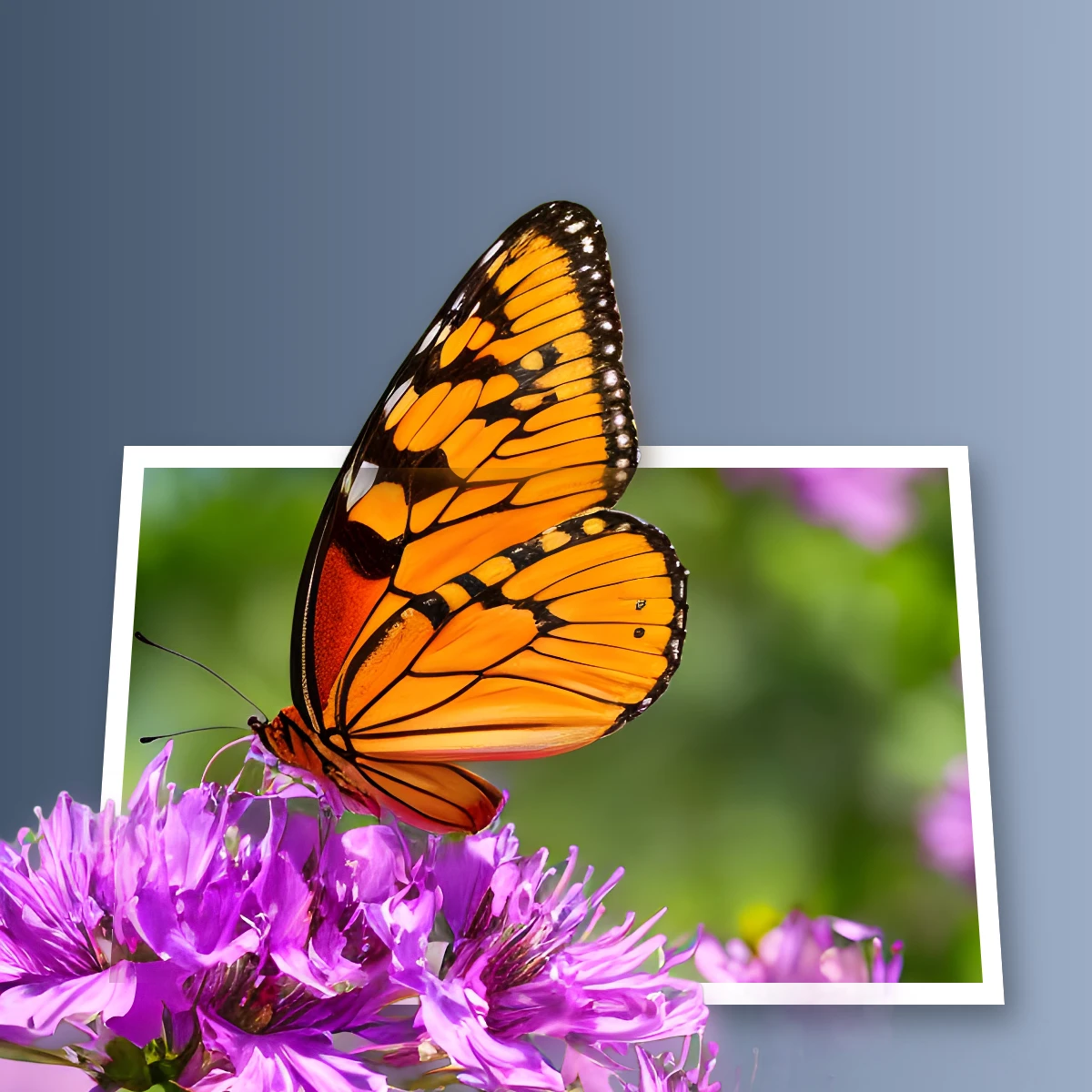
Pop a subject out of the frame
Create an out-of-bounds 3D photo effect in your browser. On-device AI isolates the subject so it pops out of a trapezoid frame.

Make a die-cut sticker from any photo
Turn a photo into a die-cut sticker in your browser. On-device AI cuts out the person or object, then adds a white outline, shadow, holographic foil, or a colored rim. Export a transparent PNG.
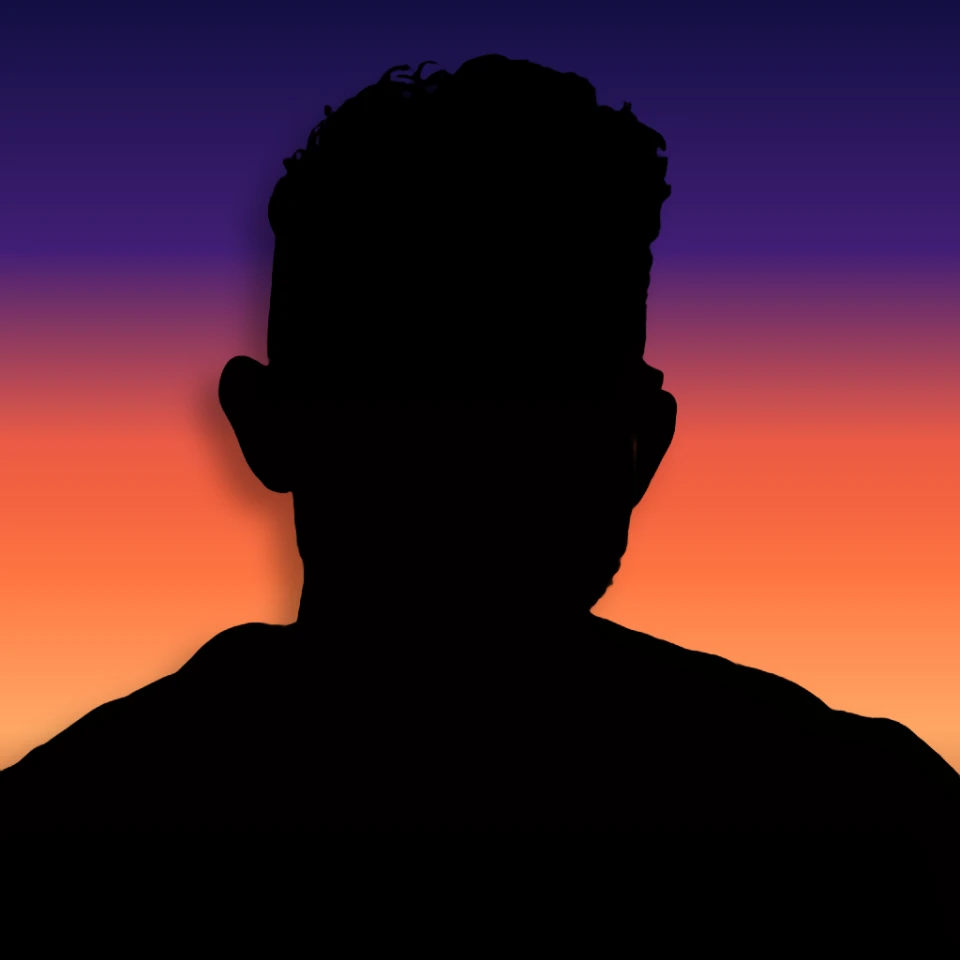
Turn a photo into a perfect silhouette
Turn a photo into a perfect silhouette in your browser. On-device AI cuts out the subject, fills it as a clean shape, and places it on a solid color, gradient, sunset, or transparent backdrop.

Add text creatively behind your image's subject
Add text creatively behind your image's subject in your browser. On-device AI cuts out the person or object, so your words sit between the subject and the background. Customize the font, size, position, outline, and color.
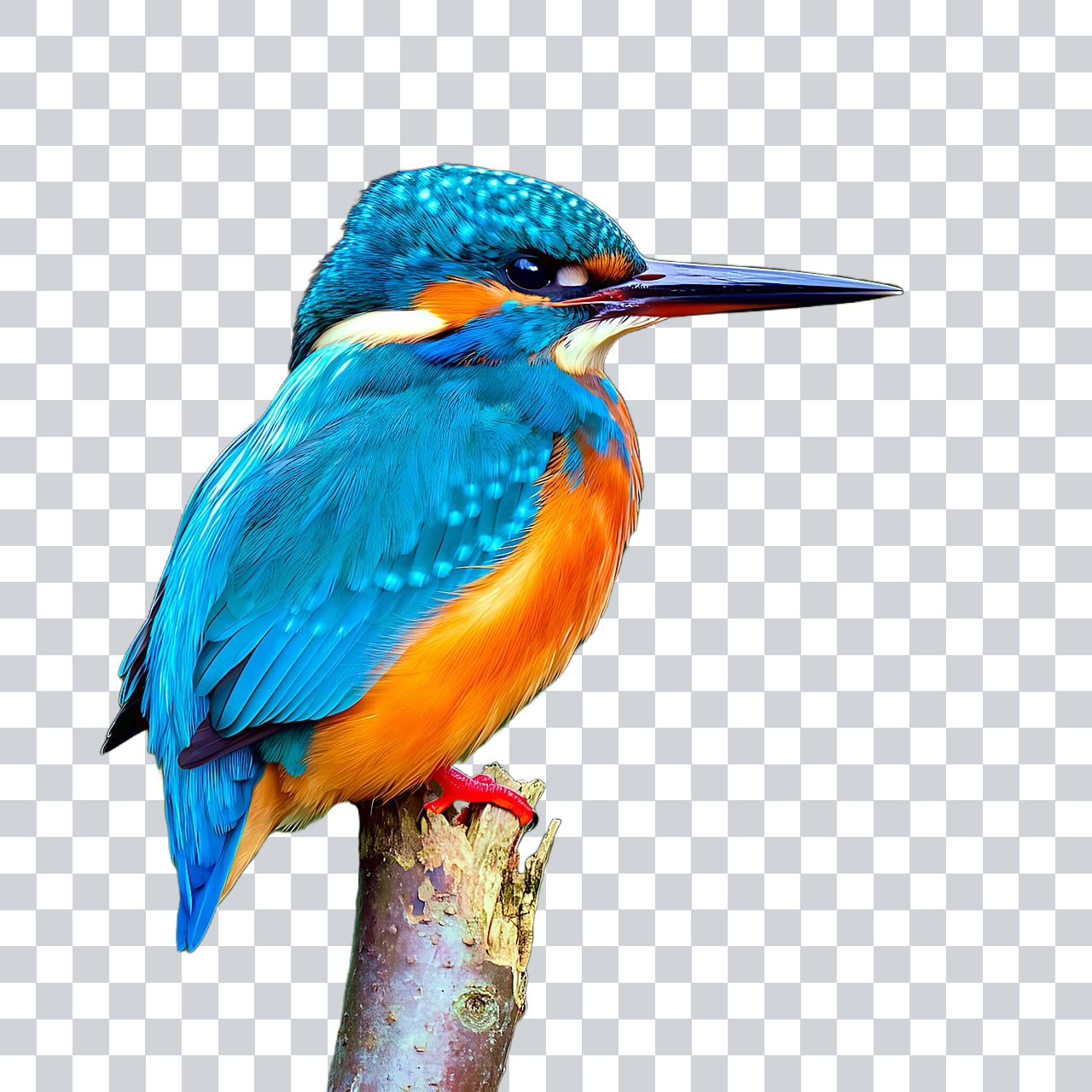
Remove backgrounds on your device
Cut out subjects with on-device AI in PictorX. Photos stay in your browser—no upload to our servers.

AI models
What is an AI model? How models are trained and run, why size matters, on-device AI versus cloud APIs, and how AI removes backgrounds, inpaints and uncrops.
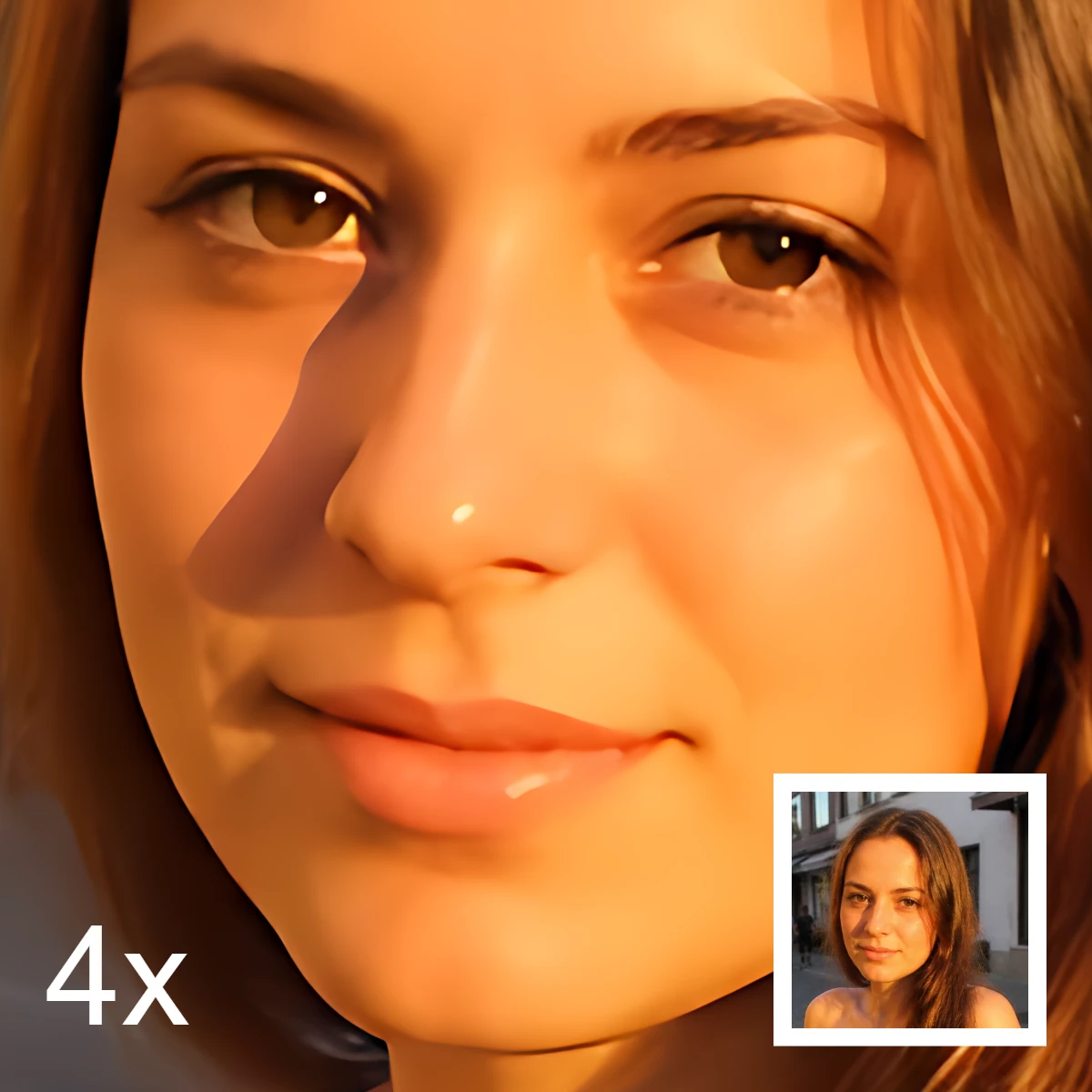
AI image editing
What is AI image editing? How it differs from retouching, the main jobs (cutouts, object removal, enhance, repair, uncrop), on-device privacy and limits.
Ready to try it?
Open PictorX in your browser — no install, no credit card required to start.
Go to Editor