
AI models
Read more about artificial intelligence, AI models, and how they reshape photo editing—from cutouts and object removal to enhance, repair, and uncrop in PictorX.

What is artificial intelligence?
Artificial intelligence (AI) is a broad label for software that performs tasks people once reserved for human judgment: recognizing a face in a photo, finishing a missing patch of sky, or ranking which words should come next in a sentence. It is not a single program or a conscious mind. It is a family of techniques—statistics, search, and especially machine learning—that turn examples into useful predictions. In creative tools, AI usually means a model that has seen millions of images and can map your pixels to a cleaner cutout, a sharper detail, or a filled-in background.
What is an AI model?
An AI model is a large set of learned numbers (parameters) plus the architecture that uses them. During training, the system adjusts those numbers so its outputs match desired answers on a dataset—for example, "this pixel belongs to the person, that pixel is background." After training, inference runs the fixed model on new inputs: your photo goes in; a mask, a restored patch, or a sharper upscale comes out. Popular families for images include convolutional networks, transformers, and diffusion or inpainting networks. You do not edit the model like a filter slider; you run it, then optionally refine the result with classic tools.

Training, inference, and why size matters
Training is expensive and usually happens once in a lab or cloud cluster: GPUs grind through labeled images for hours or weeks. Inference is the everyday step you feel—milliseconds to a few seconds on a phone, laptop, or server. Larger models can capture subtler patterns (fine hair, textured fabric) but need more memory and compute. Smaller distilled or specialized models trade a bit of generality for speed and privacy when they fit in the browser. For photo editing, a model tuned for segmentation or inpainting often beats a giant general chatbot that was never optimized for pixel masks.

On-device AI versus cloud APIs
Cloud AI sends your image to a remote server, runs a big model, and returns a result. That can unlock huge models, but it also means latency, usage limits, and a privacy trade-off. On-device (or in-browser) AI downloads a compact model once, then processes pixels locally—so photos need not leave your computer for that step. PictorX emphasizes on-device paths for tools like background removal in supported browsers: you get speed after the first load and keep private shots private. The trade-off is model size: local models must fit memory budgets, so they are specialized rather than all-purpose.
AI in photo editing
Modern editors use several AI job types. Segmentation and matting separate subject from background for transparent PNGs and background replacement. Inpainting (object removal, repair, magic-style erasers) fills holes so seams look like the surrounding scene. Super-resolution and enhancement sharpen soft phone shots and recover usable detail. Outpainting / uncrop extends the canvas when you need more sky or room for a headline. Copy-object and blur-background combine masks with generative fill or classic blur. None of these replace taste: AI proposes pixels; you decide crop, color, and whether the result looks honest.
PictorX AI tools at a glance
In PictorX you can remove or replace backgrounds, blur a backdrop, erase or copy objects, repair damaged areas, enhance and upscale, and uncrop to widen a frame—then keep designing with layers, text, and templates in the same workspace. Many of these flows are built for browser-side inference where supported, so you can try ideas without rationing cloud credits. Pair AI with ordinary brushes, clone, and color tools when a seam needs a human touch. Related landings link to each tool so you can jump from this overview into a live demo.
Tips for better AI edits
Start with a reasonably sharp source and clear subject–background contrast when you cut out or blur. For removal and repair, paint modest masks and run several light passes instead of one aggressive wipe. When enhancing, compare before/after at 100% zoom so you do not over-smooth skin or invent texture. Uncrop a little first, then expand again if the new edges look natural. Always keep an original layer: AI is a fast first draft, not the final authority on what your photo should say.
Frequently asked questions
What is an AI model in plain terms?
It is software that learned patterns from many examples, then applies those patterns to new photos—predicting masks, fills, or sharper pixels instead of following only hand-written rules.
Do PictorX AI tools upload my photos?
Many PictorX AI features are designed to run on-device in supported browsers, so those steps do not send your image to PictorX servers. Always check the tool notes for the workflow you use.
Enhance vs repair vs object removal—what is the difference?
Enhance / upscale aims to sharpen and recover detail across the whole image. Repair and object removal use inpainting to rewrite only the masked region so it blends with neighbors. Uncrop extends outside the original frame instead of fixing inside it.
When should I trust an AI edit?
Zoom in on edges, hands, lettering, and repeating textures. If something looks invented or smeared, undo, shrink the mask, or finish with clone and brushes. Use AI for speed; keep humans for honesty and brand standards.
Related tools
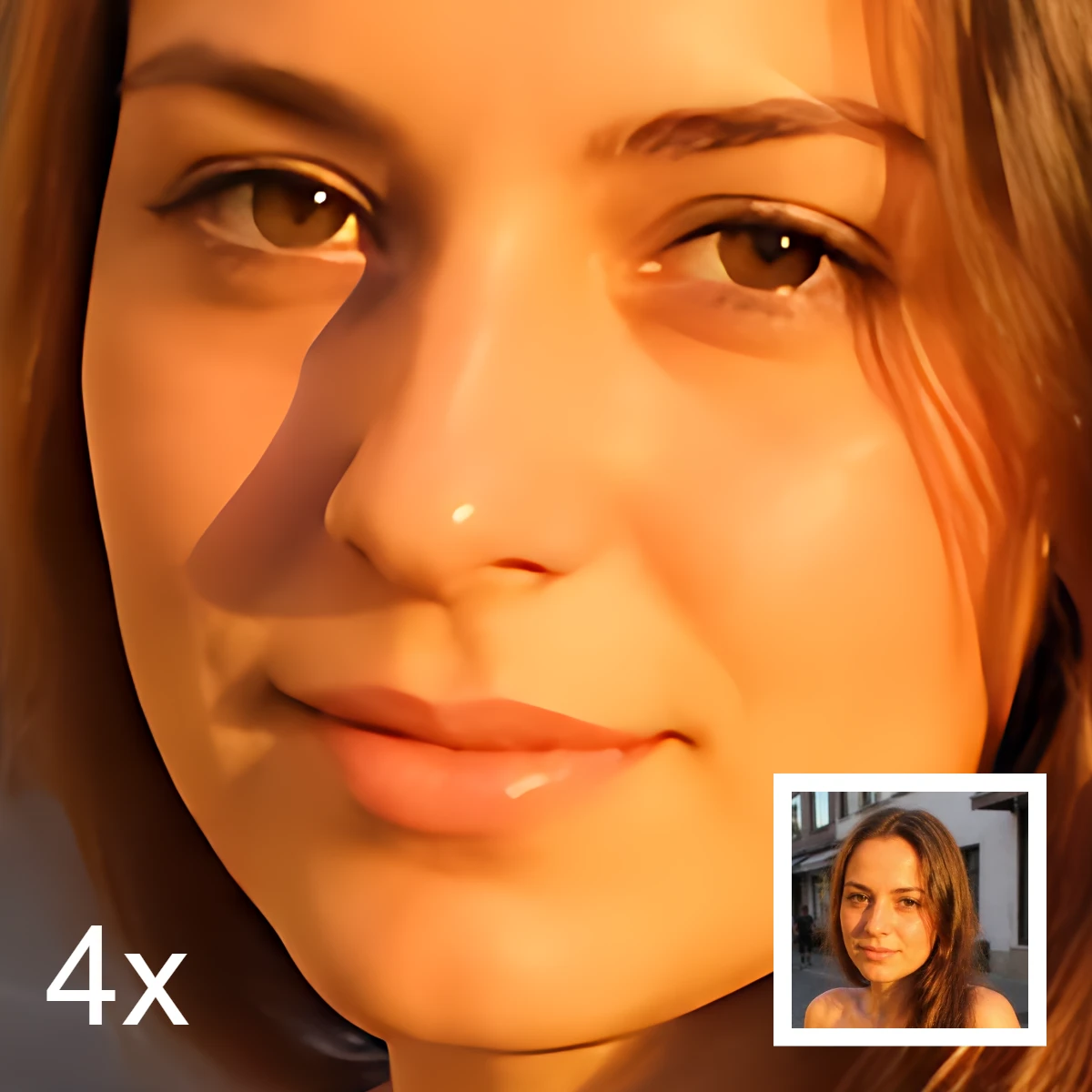
AI image editing
What AI image editing is—cutouts, object removal, enhance, repair, and uncrop—how it differs from classic retouching, and how PictorX runs many tools on-device.
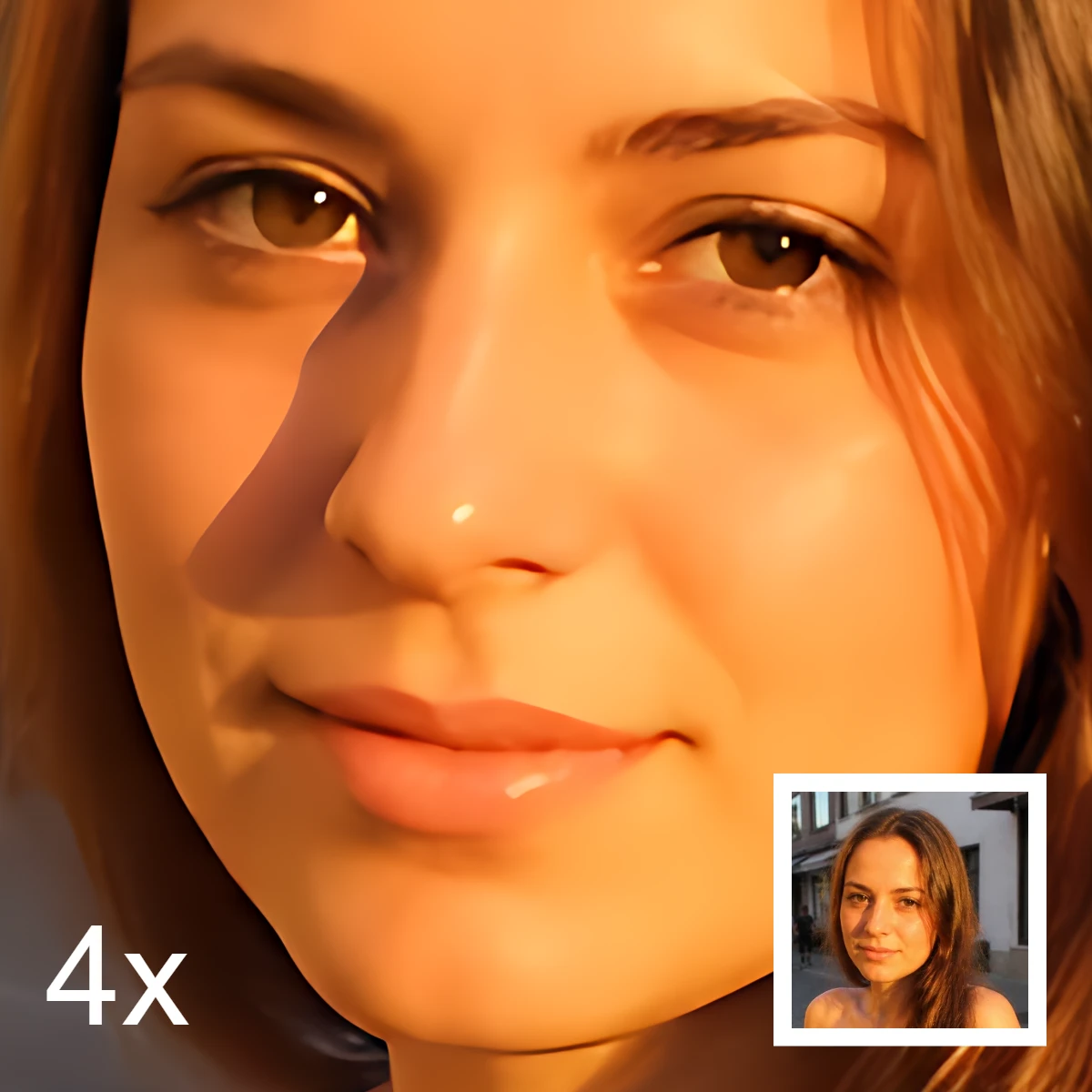
Enhance and upscale photos on your device
Sharpen and upscale photos in your browser with on-device Real-ESRGAN. Choose 1×, 2×, or 4×.
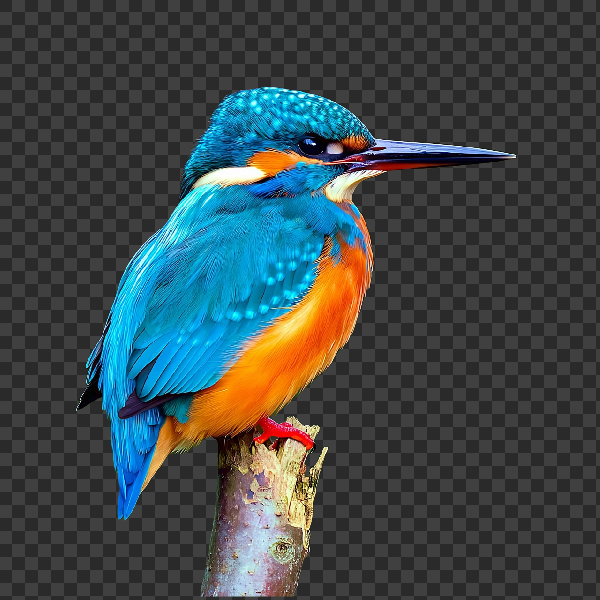
Remove backgrounds on your device
Cut out subjects with on-device AI in PictorX. Photos stay in your browser—no upload to our servers.
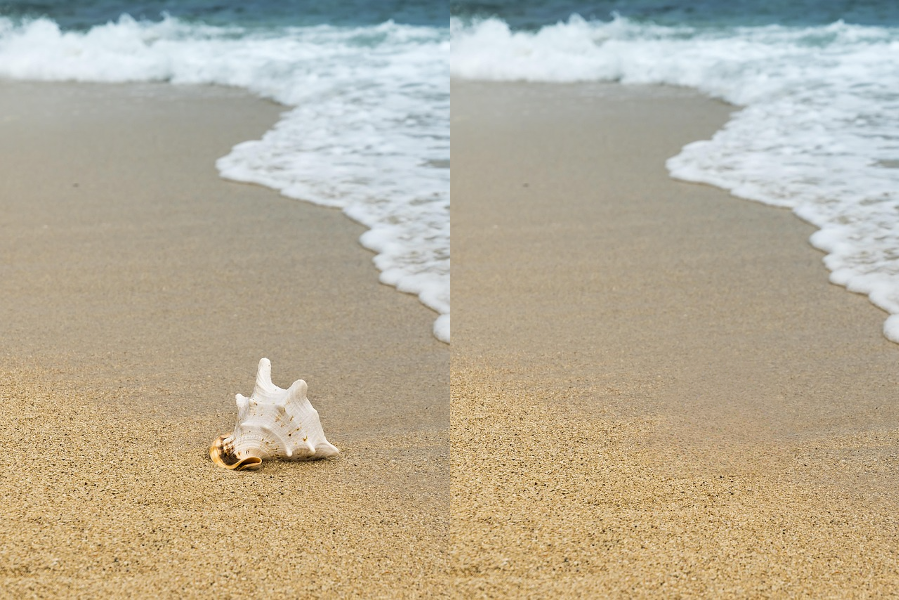
AI object removal
Erase distractions without leaving holes.
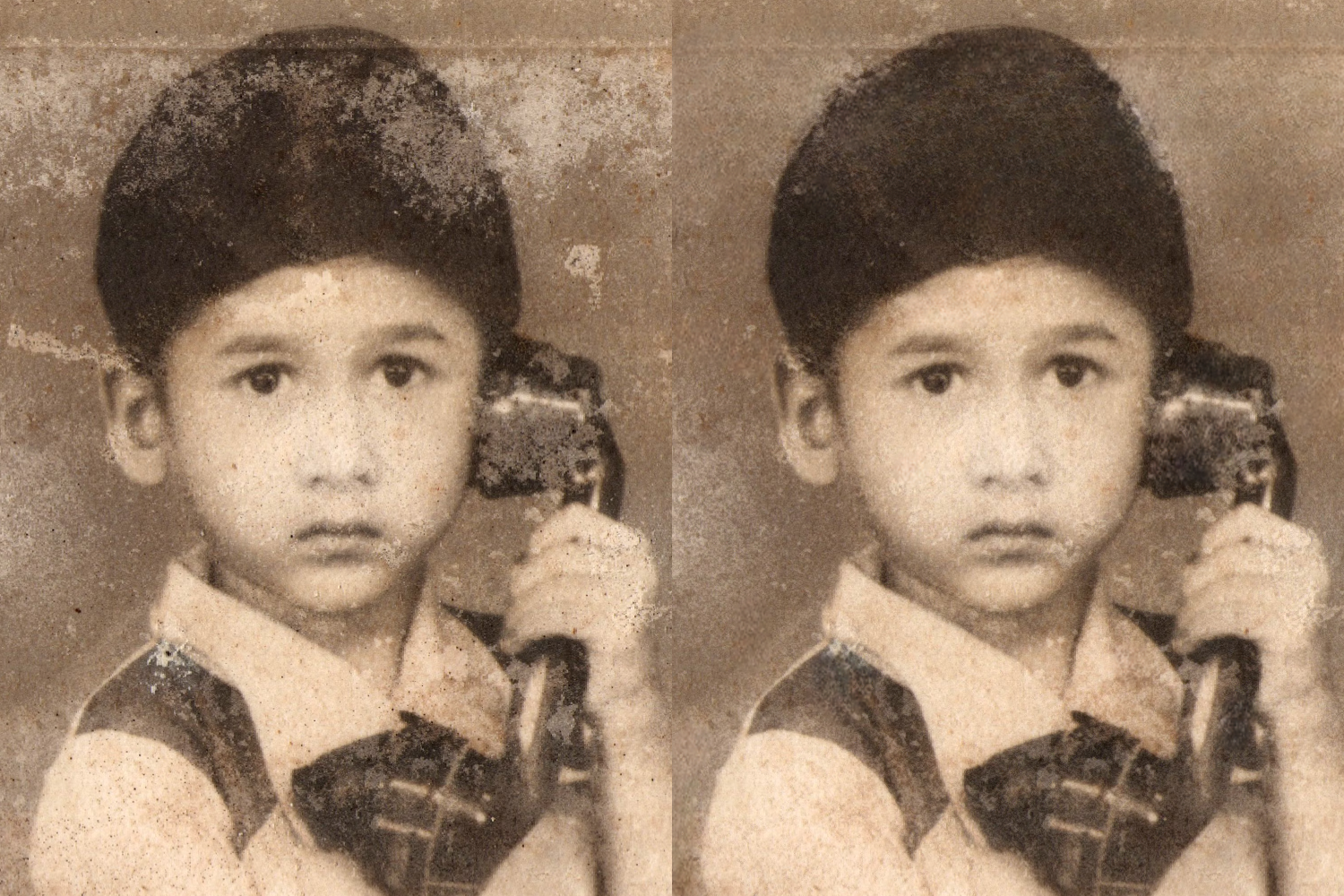
AI image repair online
Repair old or damaged photos with PictorX AI image repair. Restore details in your browser—no install required.

AI uncrop & outpaint images
Expand photos beyond the frame with PictorX AI uncrop. Outpaint backgrounds free in your browser for banners and thumbnails.

Replace background
Replace the setting around a subject without uploading.
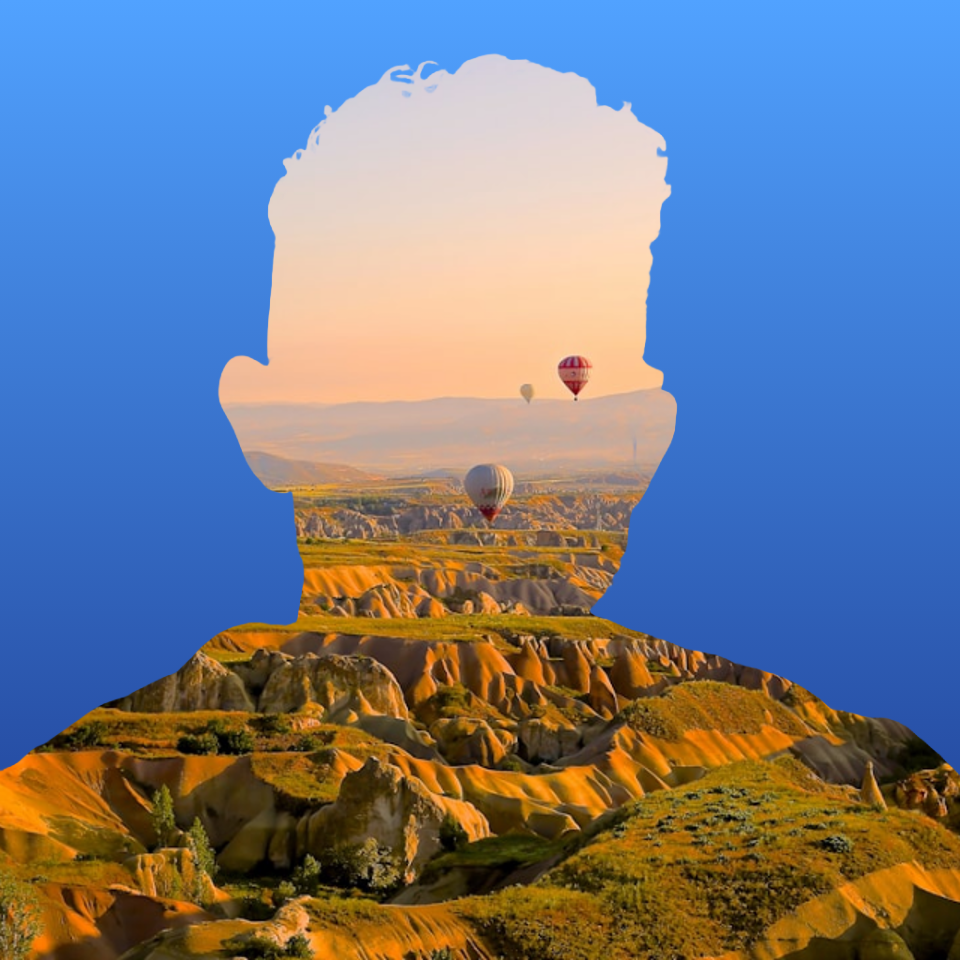
Fill a silhouette with a photo
Fill a subject silhouette with a stock photo in your browser. On-device AI cuts out the person or object, paints a library photo inside the shape, and sits it on a solid color, gradient, transparent backdrop, or the original image.
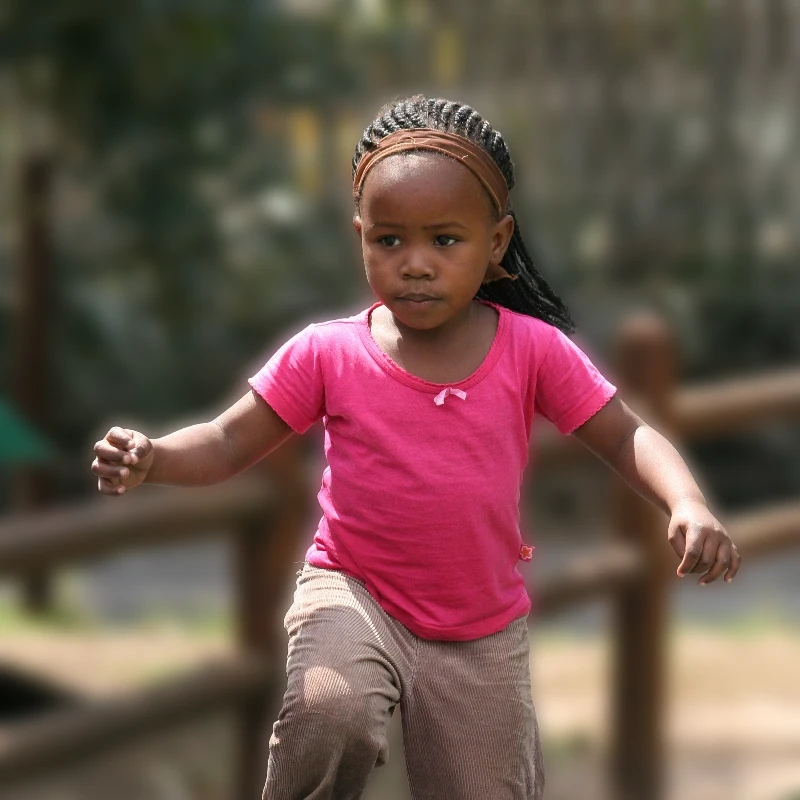
Blur background
Keep the subject crisp while the backdrop softens—all on your device.
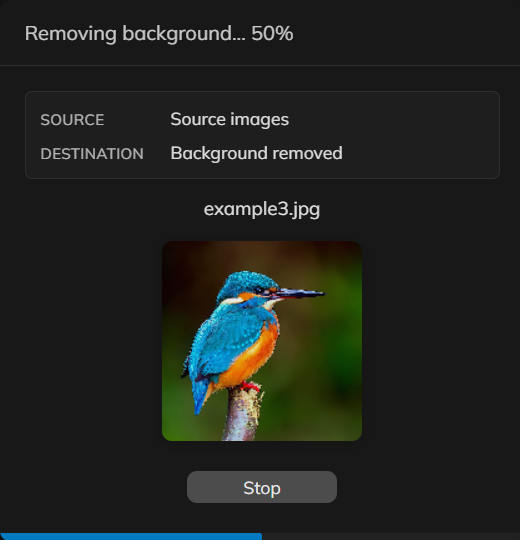
Remove backgrounds from many photos at once
Remove backgrounds from a set of product or portrait photos in PictorX. Same on-device cutout, applied across many files.
Ready to try it?
Open PictorX in your browser — no install, no credit card required to start.
Try AI image enhancer