
AI image editing
Read more about AI image editing—what it is, how it differs from classic tools, the main job types, and how PictorX keeps many edits on your device.
What AI image editing is
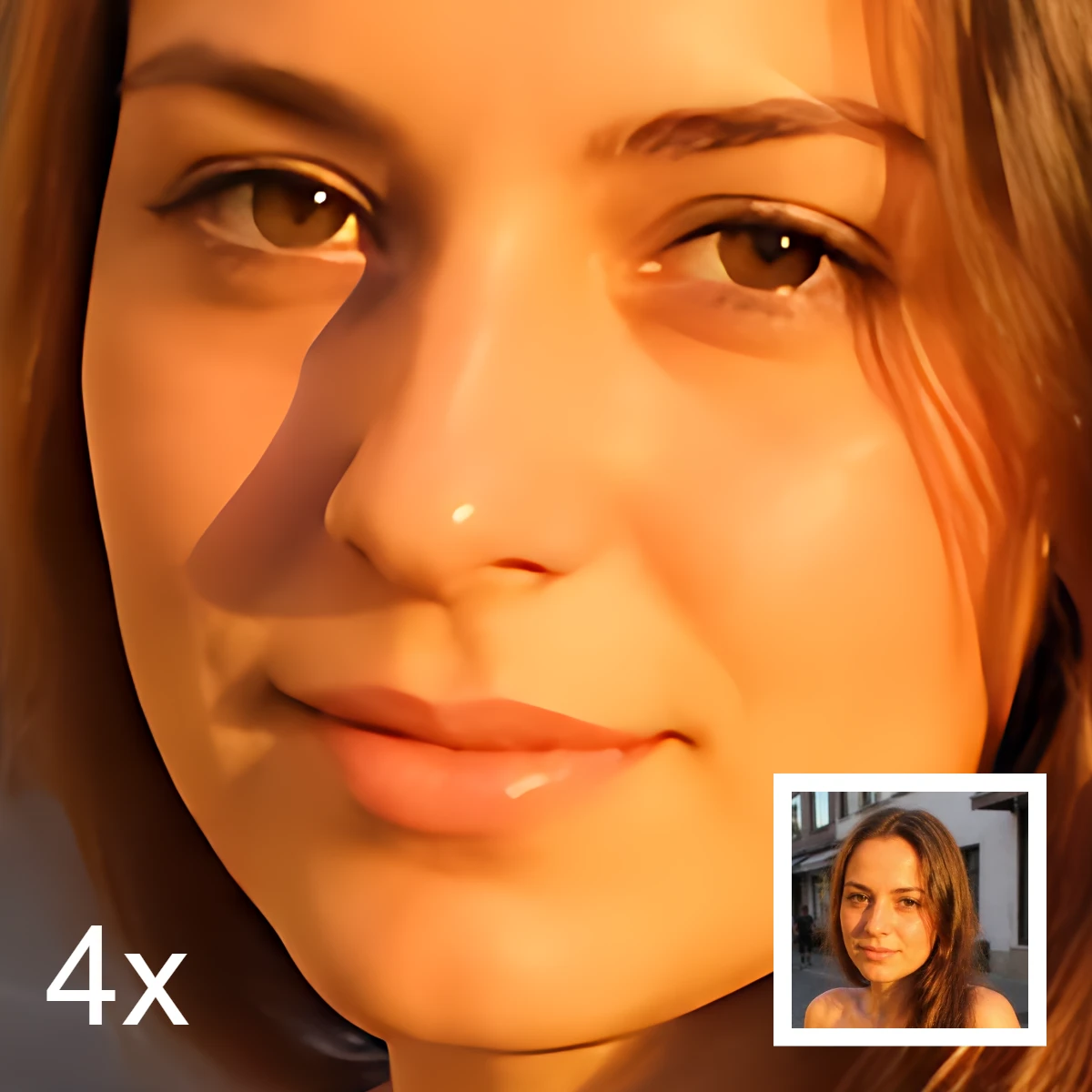
AI image editing means using a trained model to change pixels for a job you name: cut a person from a backdrop, erase a stranger from a street, sharpen a soft phone shot, or grow more sky for a banner. It is not a conscious artist and not a substitute for taste. The model has seen many examples and predicts a plausible next picture. You still choose the crop, the color grade, and whether the result looks honest. In PictorX, AI is a fast first pass you can keep editing with layers, brushes, and classic tools.
Classic retouching versus AI
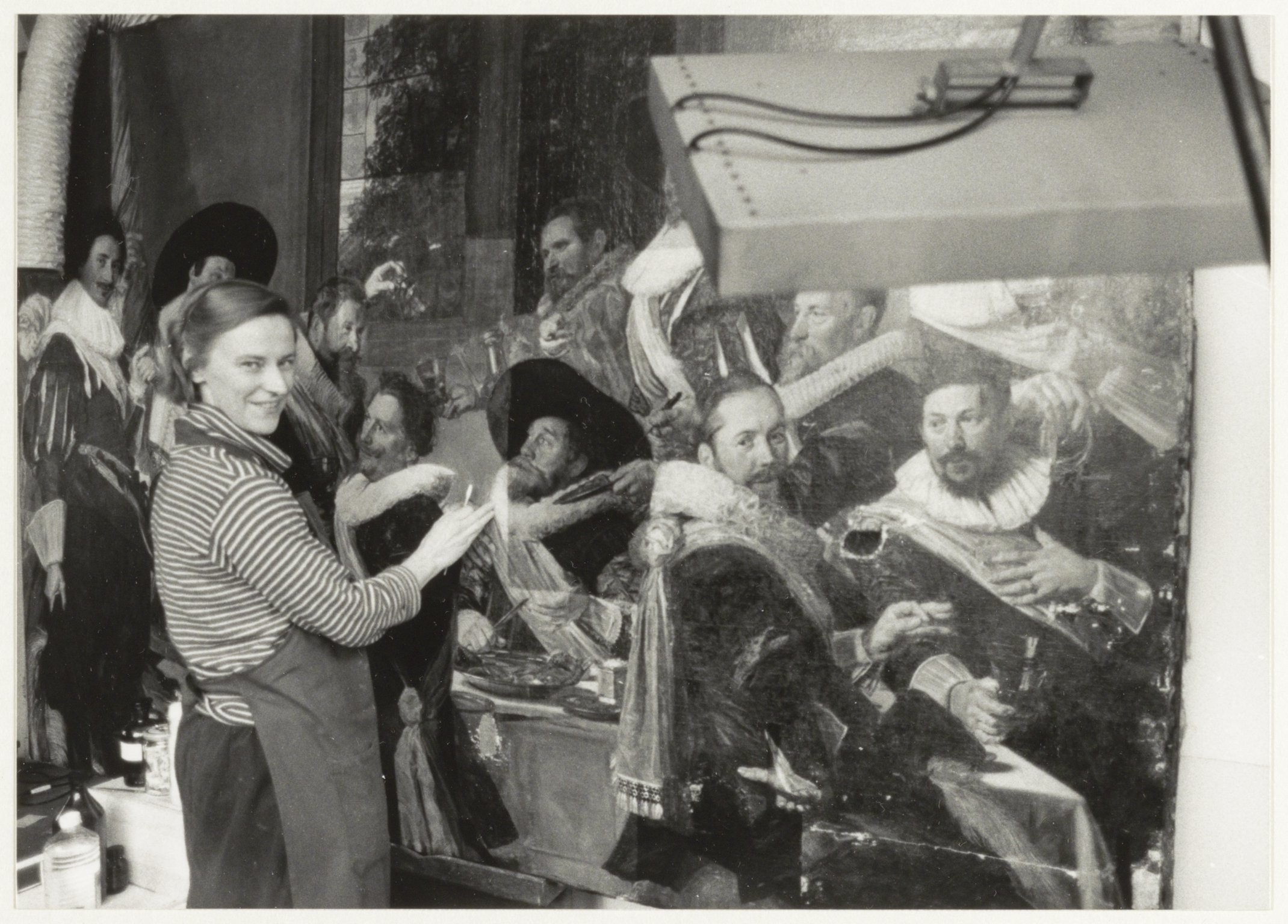
Classic editing is explicit: you move a slider, paint a mask, clone a patch, or draw a curve. Every change is a decision you can undo step by step. AI editing is a proposal: you mark a region or pick a tool, and the model fills, sharpens, or separates pixels it thinks belong together. Classic tools win when you need exact color, legal-safe originals, or tiny local fixes. AI wins on repetitive, well-defined jobs—hair-aware cutouts, cleaning a tourist from a plaza, or a modest upscale. The strongest workflow uses both: let AI draft the hard mask or fill, then finish with clone, adjust, and type.
The main AI jobs
Most photo AI falls into a few job types. Segmentation and matting separate subject from background for transparent PNGs, stickers, and background replacement. Inpainting rewrites a masked hole so object removal and repair blend with neighbors. Super-resolution and enhancement sharpen and enlarge a whole frame. Outpainting / uncrop invents pixels outside the original crop when you need more canvas. Copy-object and blur-background combine a mask with fill or blur. These are edits of a photo you already have—not a request to invent a picture from a sentence.
How a typical AI edit works
Load a reasonably sharp source. Pick the job (cutout, erase, enhance, uncrop). For removal and repair, paint a modest mask—several light passes beat one aggressive wipe. Run the model, then zoom to 100% on edges, hands, lettering, and repeating textures. If something looks smeared or invented, undo, shrink the mask, or finish with clone and brushes. Keep the original on a layer underneath. Export only after you would stand behind the picture.
On-device AI and privacy
Cloud editors upload your file to a remote GPU. That can unlock huge models, but it costs latency, credits, and a privacy trade-off. PictorX emphasizes on-device (in-browser) inference for many AI tools: after a compact model downloads once, pixels stay on your computer. Private shots, client work, and unpublished drafts need not leave the machine for that step. Local models are specialized rather than all-purpose—the trade-off is size and speed, not a chatbot that does everything.
Limits—and when not to trust the result
AI is a statistic, not a witness. It can invent texture, melt jewelry, warp type, or grow a third finger. Do not use generative fills as evidence, ID photos, or news documentation. Be careful with faces you do not have permission to alter. Compare before and after at full resolution. If the story of the photo matters—journalism, insurance, medical, legal—prefer classic, documented edits or leave the file alone.
Honest use
Disclose AI when the audience would assume the pixels are a camera record. Do not pass a generated scene as a documentary photograph. Do not copy a living artist’s style as if it were yours. PictorX’s filters and AI tools are for your photos and your designs—not a licence to fabricate people, brands, or cultural work. Keep consent for portraits. Keep a master you can show if someone asks what changed.
Try AI editing in PictorX
In the browser you can remove or replace backgrounds, blur a backdrop, erase or copy objects, repair damaged areas, enhance and upscale, and uncrop for more sky or headline room—then keep designing with layers and text. Open the AI image enhancer to start, or jump to background removal and object removal from the related links. For how models are trained and why size matters, see the companion page on AI models.
Frequently asked questions
What is AI image editing?
Using a trained model to change a photo for a named job—cutout, erase, enhance, repair, or uncrop—instead of painting every pixel by hand. You still judge whether the result looks honest.
Does PictorX upload my photos for AI edits?
Many PictorX AI features run on-device in supported browsers, so those steps do not send the image to PictorX servers. Check the notes on the tool you use.
Enhance vs remove vs uncrop—what is the difference?
Enhance / upscale sharpens and enlarges the whole image. Object removal and repair inpaint only the masked region. Uncrop adds pixels outside the original frame.
When should I skip AI and edit by hand?
When you need exact color, legal-safe originals, readable type, or a photo that must remain a faithful record. Also skip AI when a first pass invents detail you cannot stand behind—finish with clone, brushes, and adjust instead.
Related tools

AI models
What AI and AI models are, how they power photo editing—background removal, inpainting, enhance, uncrop—and how PictorX runs many tools on-device.
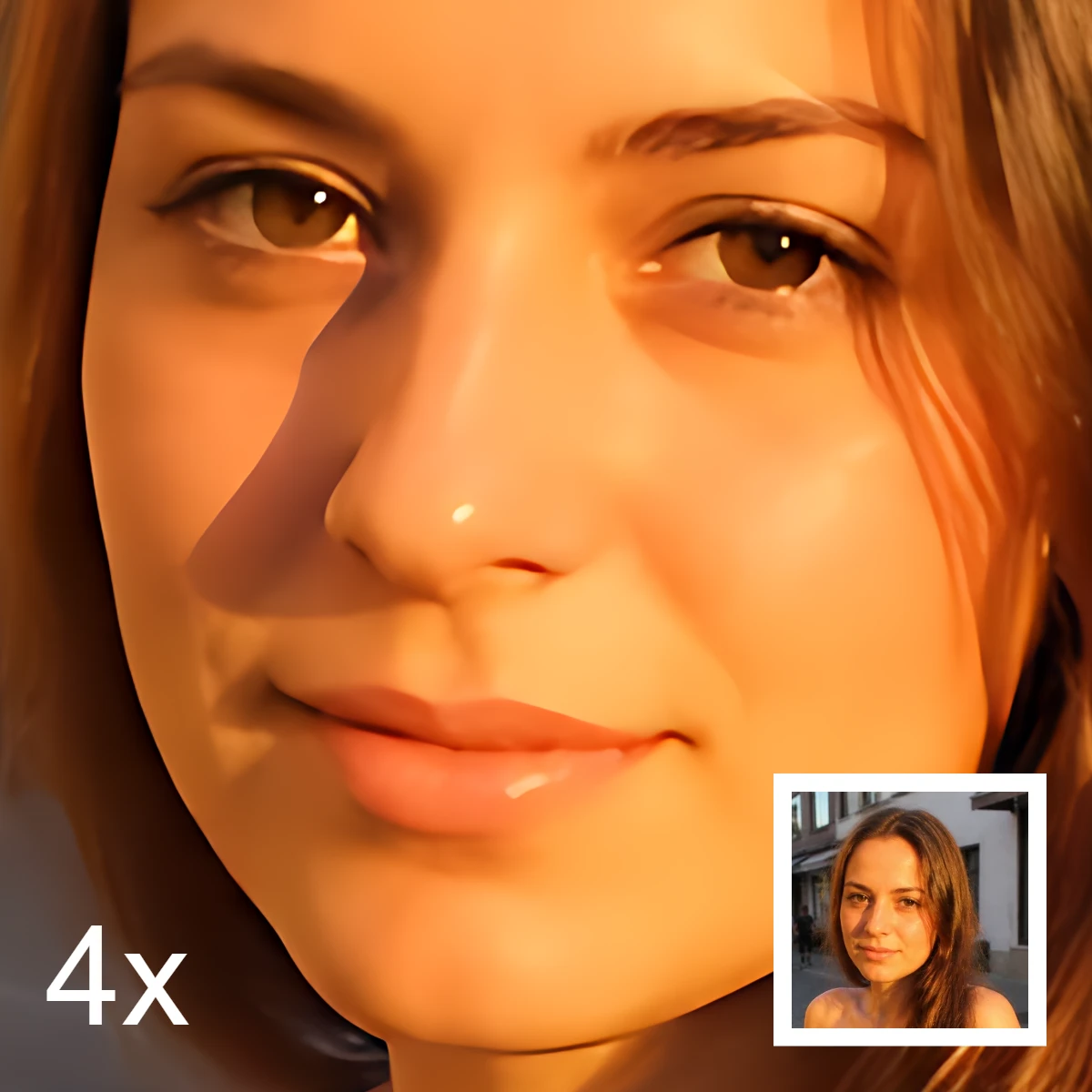
Enhance and upscale photos on your device
Sharpen and upscale photos in your browser with on-device Real-ESRGAN. Choose 1×, 2×, or 4×.
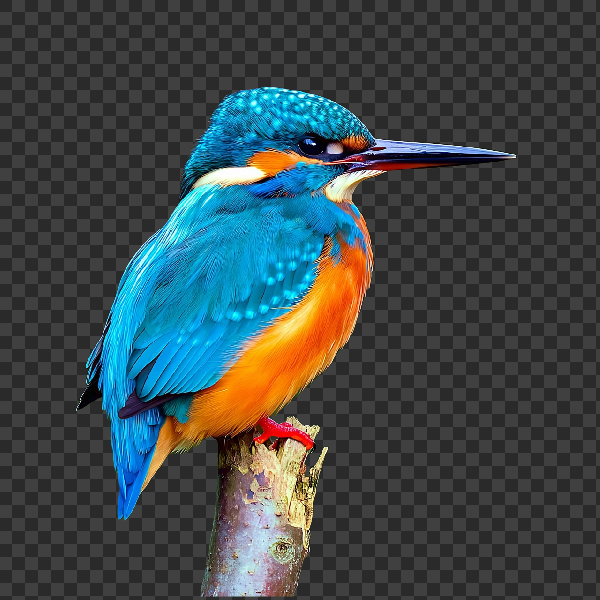
Remove backgrounds on your device
Cut out subjects with on-device AI in PictorX. Photos stay in your browser—no upload to our servers.
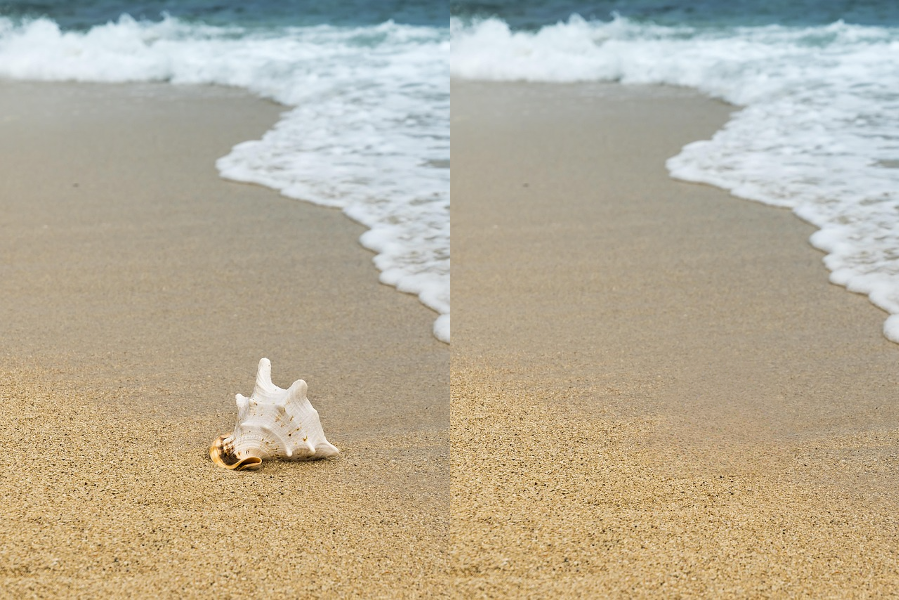
AI object removal
Erase distractions without leaving holes.
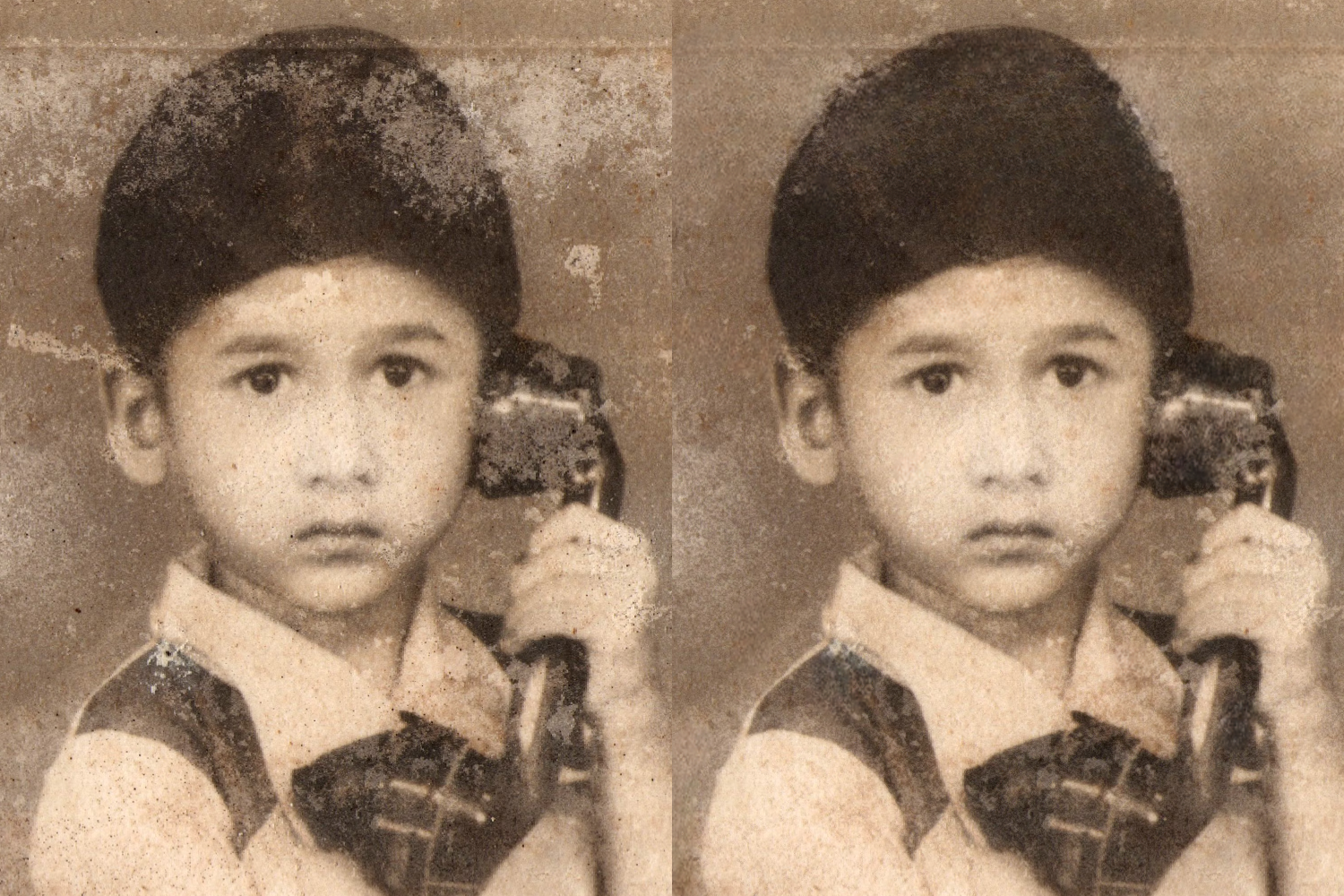
AI image repair online
Repair old or damaged photos with PictorX AI image repair. Restore details in your browser—no install required.

AI uncrop & outpaint images
Expand photos beyond the frame with PictorX AI uncrop. Outpaint backgrounds free in your browser for banners and thumbnails.

Replace background
Replace the setting around a subject without uploading.
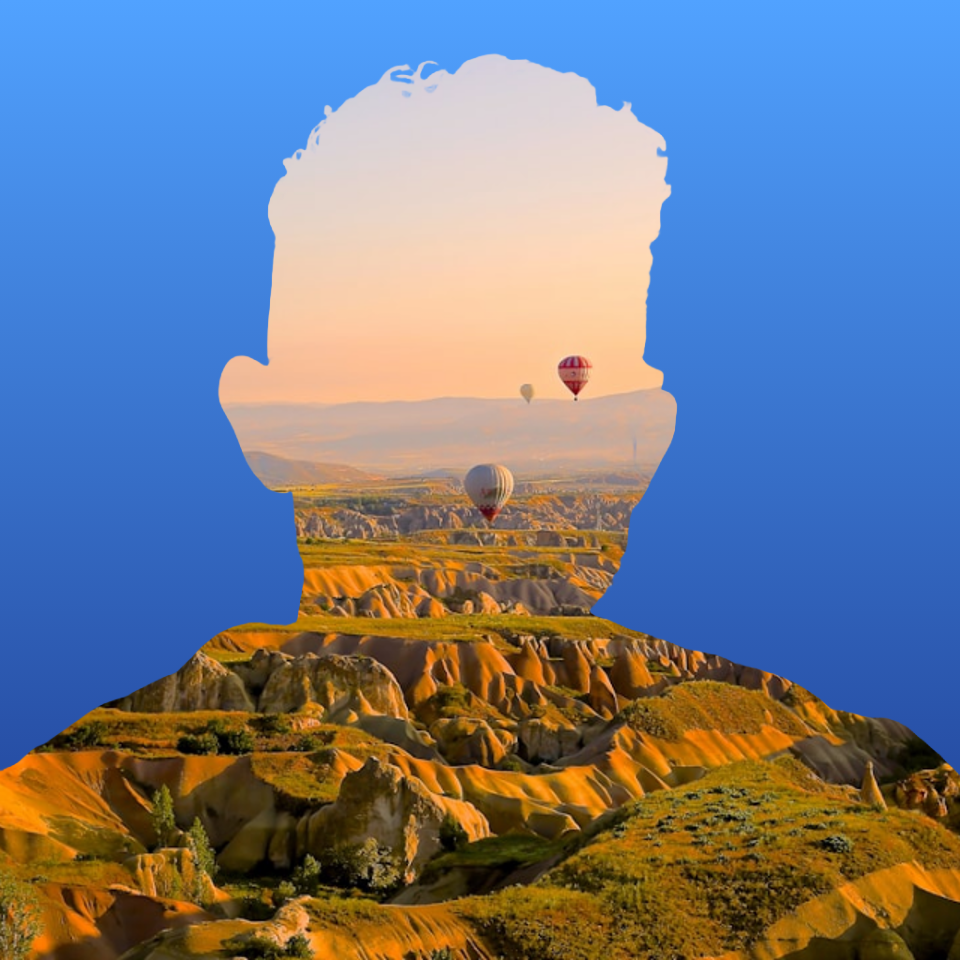
Fill a silhouette with a photo
Fill a subject silhouette with a stock photo in your browser. On-device AI cuts out the person or object, paints a library photo inside the shape, and sits it on a solid color, gradient, transparent backdrop, or the original image.
Ready to try it?
Open PictorX in your browser — no install, no credit card required to start.
Try AI image enhancer