
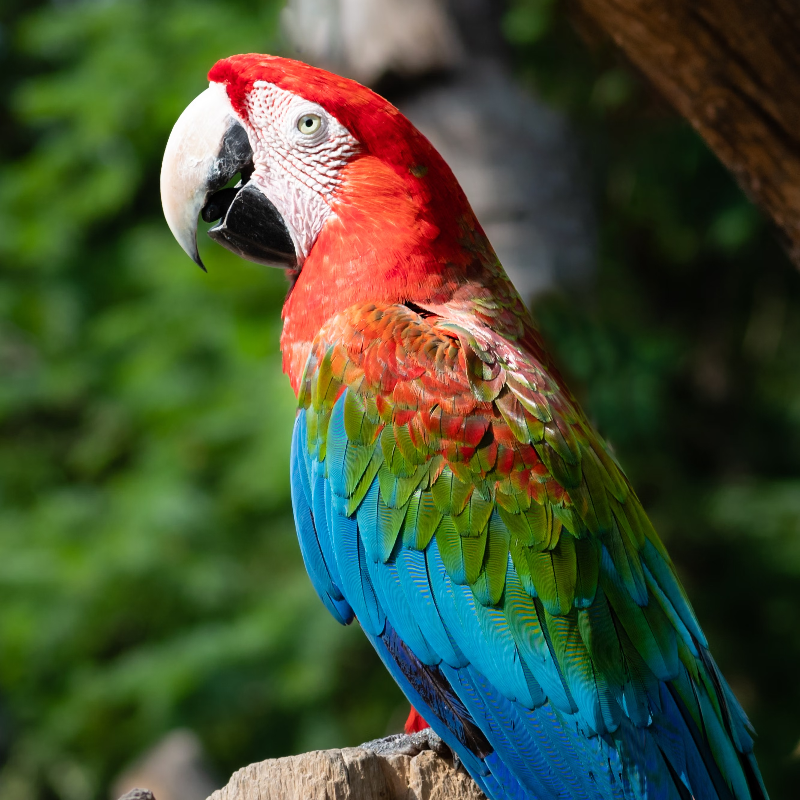
Open a logo, drawing or photo, or use the sample, then click Start. Pick a style and the number of colours, then Save SVG.
Convert an image to vector (SVG)
Image to vector traces your picture into filled shapes with smooth Bézier curves, right in your browser, so the file is not uploaded. Pick Logo, Illustration, Photo or Black and white, set the number of colours, the detail and the smoothness, and save the result as an SVG that stays sharp at any size. Open a logo, drawing or photo, or use the sample, then click Start. Pick a style and the number of colours, then Save SVG.
How it works
- Open a logo, drawing, icon or photo, or use the sample.
- Click Start, then pick Logo, Illustration, Photo or Black and white and set Colors, Detail, Smoothness and Remove specks.
- Press Save SVG to download the vector file, or open it in the editor with one layer per colour.
How the picture becomes paths
The colours are first reduced to a palette with k-means clustering (Black and white uses Otsu's threshold). Small specks are merged into their neighbours, then every colour's regions are traced along the pixel edges, holes included. The outlines are straightened, unneeded points are removed with the Ramer–Douglas–Peucker algorithm, and the rest are joined with smooth Bézier curves; sharp turns stay corners. The colours are stacked from the largest area to the smallest, so neighbouring shapes meet without gaps.
Choose the right settings
Logo uses few colours, smooth curves and removes more specks: ideal for logos, icons and flat art. Illustration keeps more colours for drawings and cartoons. Photo uses many colours and more detail for a posterized, painted look. Black and white gives clean one-colour line art and silhouettes. Detail sets how closely the paths follow the picture; Smoothness turns corners into curves; Remove background leaves out the colour around the edge. Fewer colours and less detail make a smaller, cleaner SVG.
Frequently asked questions
How do I convert an image to SVG?
Open the picture and click Start: it is traced into vector paths in your browser. Pick a style (Logo, Illustration, Photo or Black and white), set Colors, Detail and Smoothness until it looks right, then press Save SVG. The same tool is in the editor under AI → Image → Image to vector.
Which pictures vectorize best?
Logos, icons, cartoons, drawings, signatures and flat artwork with clear edges and few colours give the cleanest SVG. Photos work too, but become a posterized, painted look with many shapes: use the Photo style, more colours and higher detail.
How many colours should I use?
As few as the picture needs: 2 to 6 for most logos, 8 to 16 for illustrations, 16 to 32 for photos. Every colour is one path in the SVG, so fewer colours give a smaller file that is easier to edit.
Can I get a transparent background?
Yes. Turn on Remove background: the colour around the edge of the picture is left out of the SVG. A PNG with a transparent background keeps its transparency in the trace as well.
Can I edit the vector afterwards?
Yes. The SVG opens in Illustrator, Inkscape, Figma and other vector editors, with one path per colour. The pencil on this page, or Apply in the editor, opens the trace in the PictorX editor with one layer per colour, so you can recolour, hide or move each colour.
Related tools

Raster vs vector images
What is the difference between raster and vector images? Pixels and DPI/PPI vs paths, JPEG, PNG and WebP vs SVG, PDF and EPS, scaling, file size and converting.
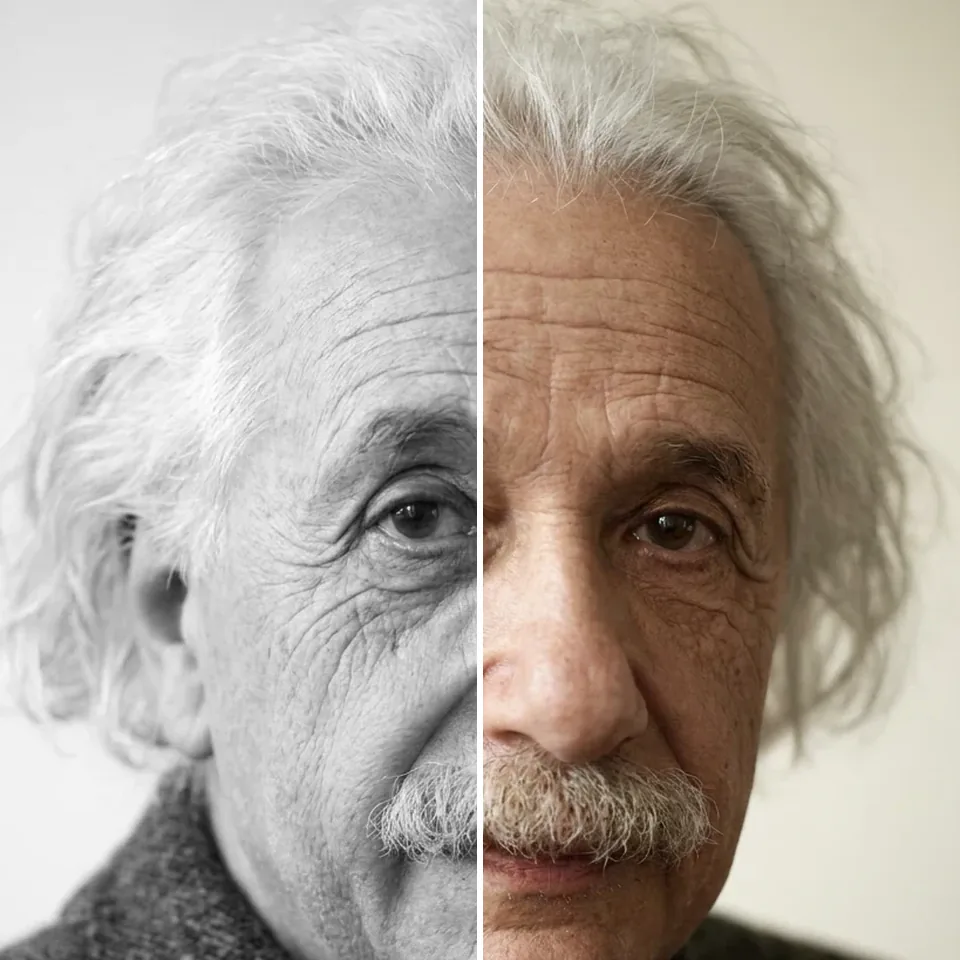
Colorize a black-and-white photo
Colorize black-and-white and old photos in your browser. On-device AI adds natural colour to skin, sky, clothes and foliage while every detail of the original is kept. Tune saturation and warmth, then save.
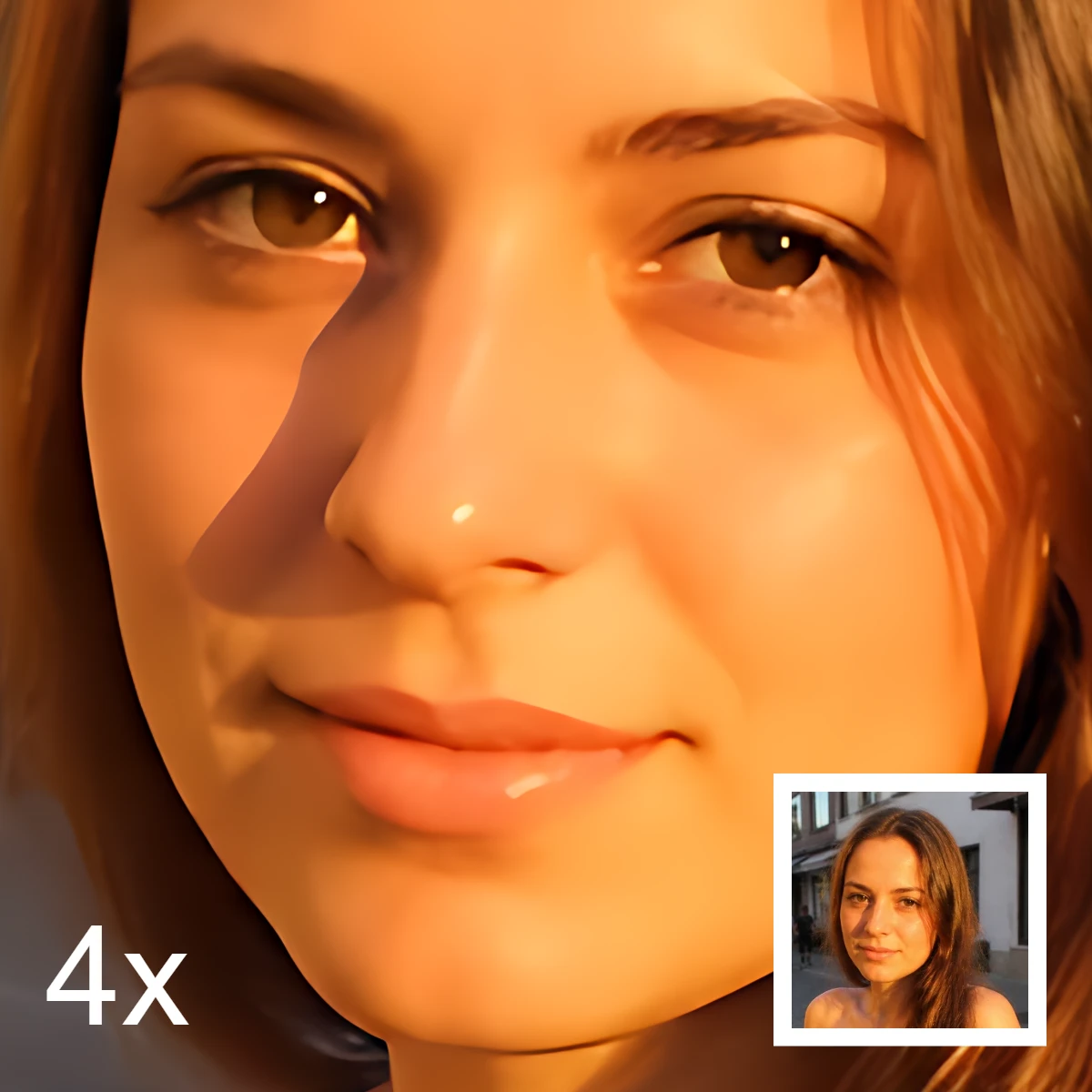
Enhance and upscale photos on your device
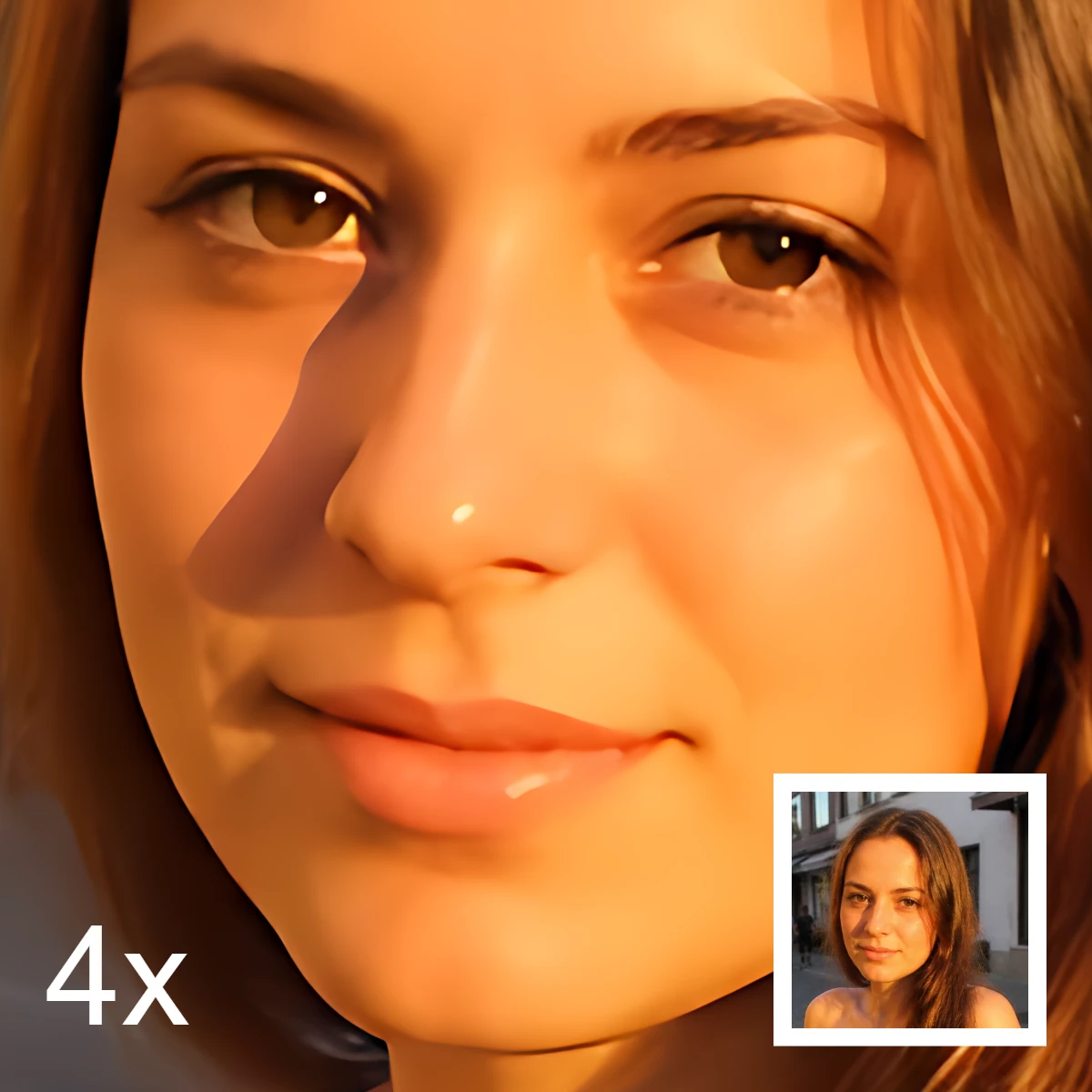
Sharpen and upscale photos in your browser with on-device Real-ESRGAN. Choose 1×, 2×, or 4×.
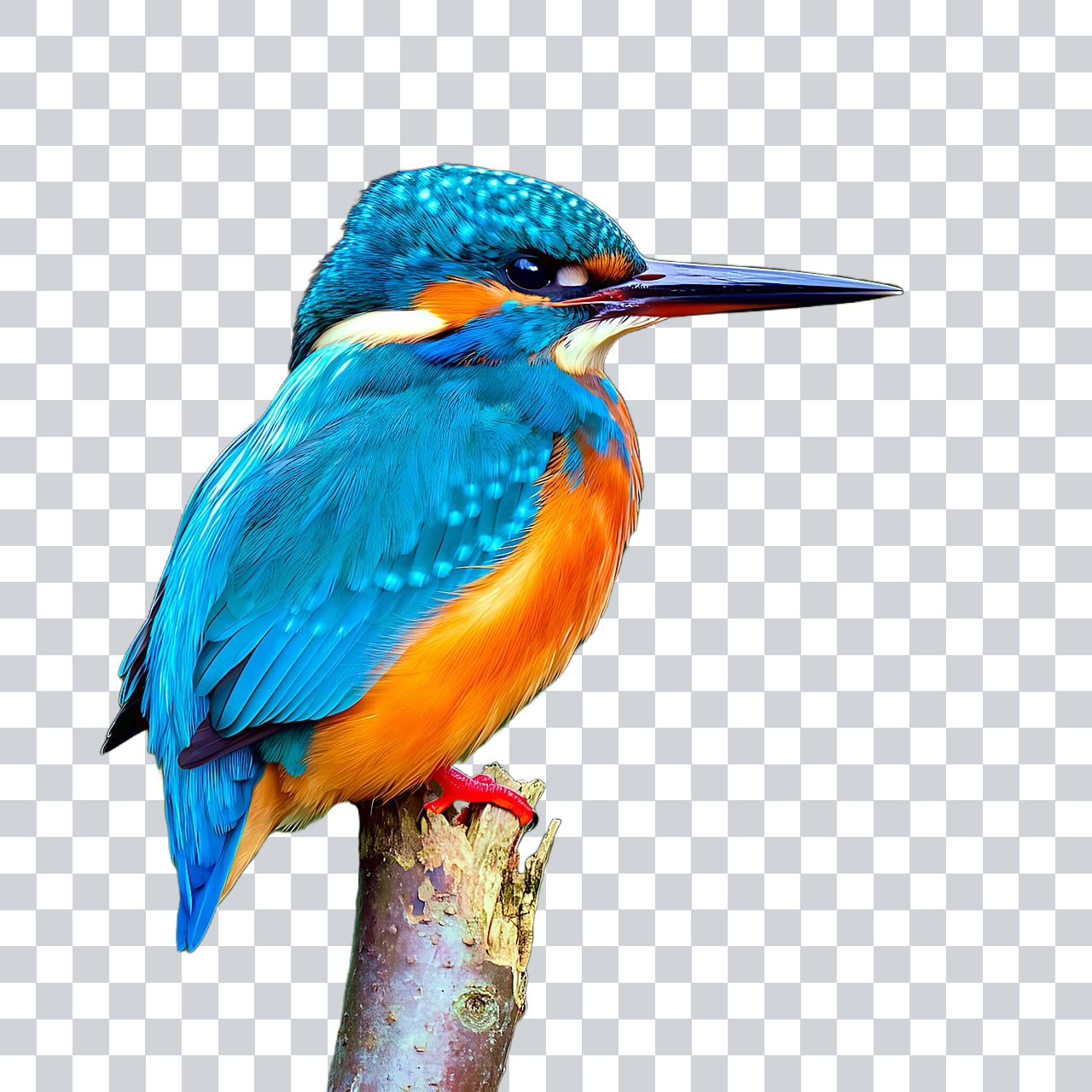
Remove backgrounds on your device
Cut out subjects with on-device AI in PictorX. Photos stay in your browser—no upload to our servers.
AI image editing
What is AI image editing? How it differs from retouching, the main jobs (cutouts, object removal, enhance, repair, uncrop), on-device privacy and limits.
Ready to try it?
Open PictorX in your browser — no install, no credit card required to start.
Go to Editor