
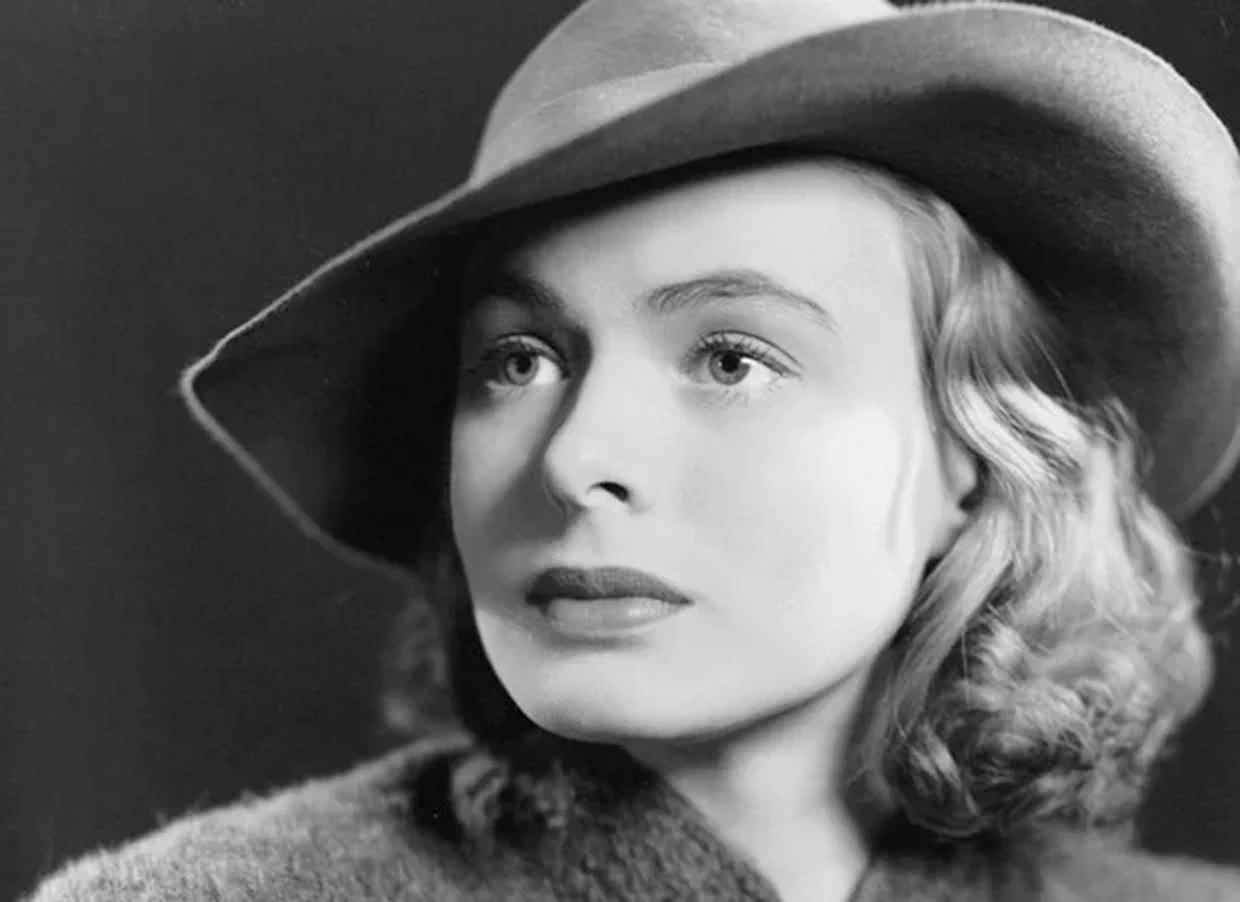
Open a black-and-white photo, or use the sample, then click Start. Saturation, Warmth and Strength change the colours at once.
Colorize a black-and-white photo
Colorize photo runs DDColor, an open-source colorization model, on your device, so the photo is not uploaded. The model predicts the colours; the lightness of every pixel stays exactly as in your photo, so no detail is lost. Saturation, Warmth and Strength then tune the result without running the model again. Open a black-and-white photo, or use the sample, then click Start. Saturation, Warmth and Strength change the colours at once.
How it works
- Open a black-and-white or faded old photo, or use the sample.
- Click Start. On-device AI predicts natural colours for the whole picture.
- Try Natural, Vivid, Warm, Cool or Faded, tune Saturation, Warmth and Strength, then save or keep editing.
Colour from the model, detail from your photo
DDColor (Apache-2.0) is a dual-decoder colorization network that runs in your browser with WebGPU or WebAssembly. It looks at a 512 × 512 version of the photo and predicts the two colour channels of the CIELAB colour space. Those colours are scaled up and joined with the lightness of your original at full size, so faces, text and fine texture stay as sharp as they were. Colour photos work too: the model only looks at the grey values and colours them again.
Tune the colours
Saturation makes the colours stronger or softer (100 % is the model's own colour, 0 % gives the grey photo back). Warmth shifts the whole picture towards yellow and red or towards blue, which helps match the look of a period or a season. Strength blends the colours with the original, for a hand-tinted look. The model runs once per photo, so every change is instant.
Frequently asked questions
How do I colorize a black-and-white photo?
Open the photo and click Start. On-device AI predicts colours for the whole picture in a few seconds. Try the Natural, Vivid, Warm, Cool and Faded presets or set Saturation, Warmth and Strength yourself, then save the picture. The same tool is in the editor under AI → Image → Colorize photo.
Which AI model colorizes the photo?
DDColor, an open-source colorization model (Apache-2.0) from the paper "DDColor: Towards Photo-Realistic Image Colorization via Dual Decoders". It is downloaded once, kept in your browser and runs with WebGPU or WebAssembly.
Will the colorized photo lose detail?
No. The model only predicts colour. The lightness of every pixel comes from your original at its full size, so faces, hair, text and film grain look exactly as sharp as before.
Are the colours historically correct?
The model chooses plausible colours from what it learned from millions of photos: skin, sky, grass and wood usually look natural, but the real colour of a dress, a car or a painted wall cannot be known from a grey photo. Use Warmth and Saturation to adjust the mood, or recolour single areas in the editor.
Can I colorize faded or sepia photos?
Yes. The photo is turned into grey values first, so sepia, yellowed and faded prints are coloured afresh. For scratches and spots, run AI photo repair first; for small or blurry scans, Enhance and upscale image.
Related tools
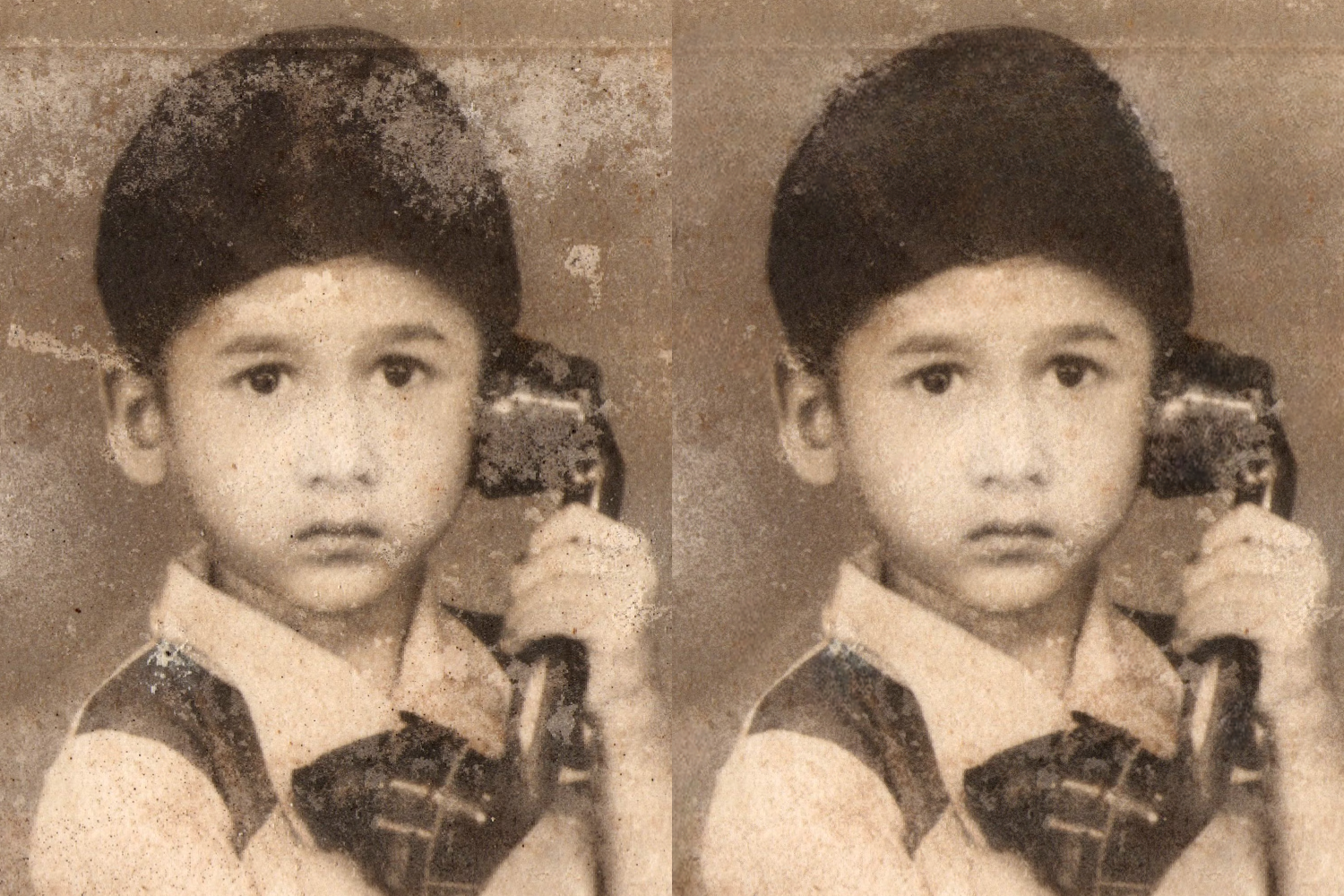
AI image repair online
Repair old or damaged photos with PictorX AI image repair. Restore details in your browser—no install required.
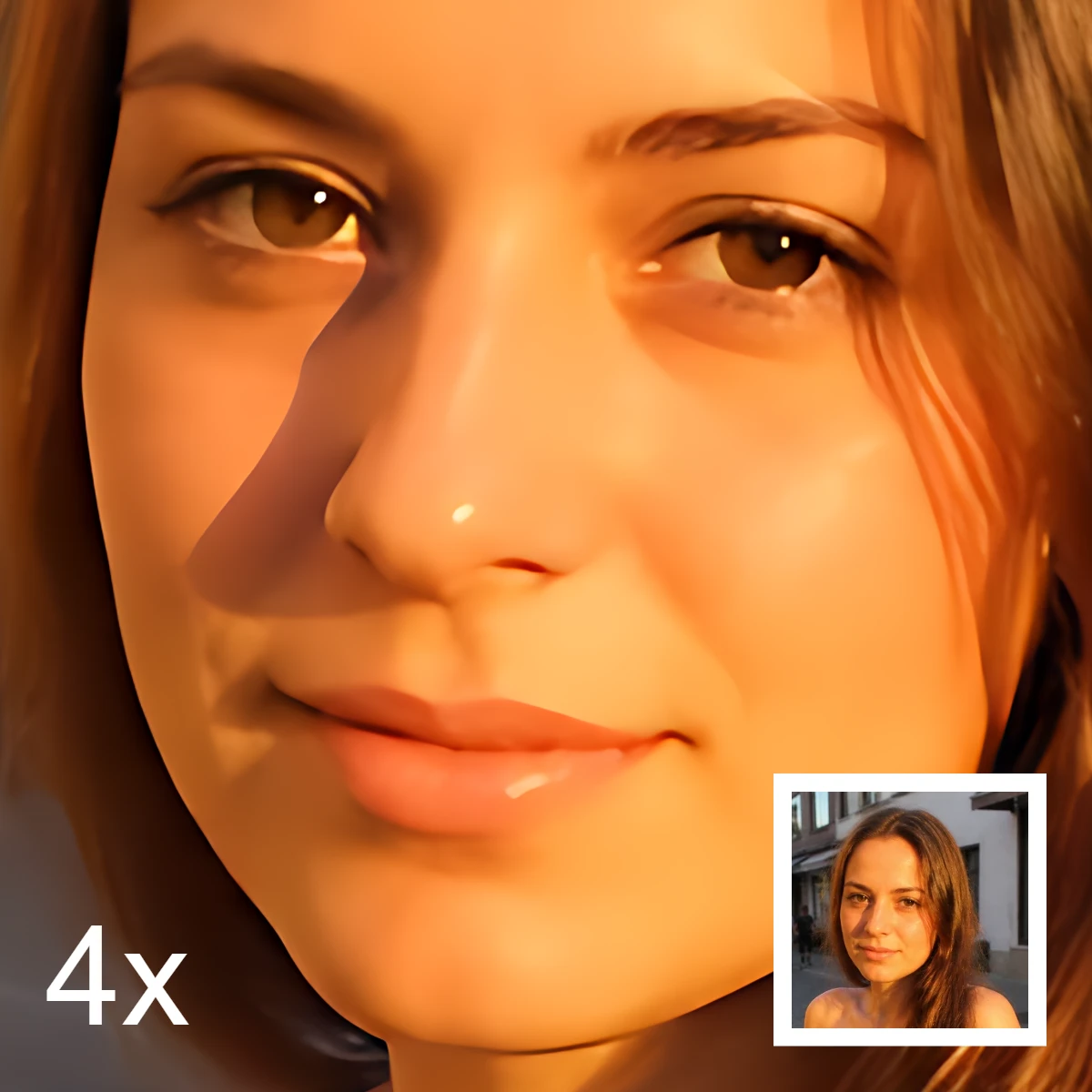
Enhance and upscale photos on your device
Sharpen and upscale photos in your browser with on-device Real-ESRGAN. Choose 1×, 2×, or 4×.
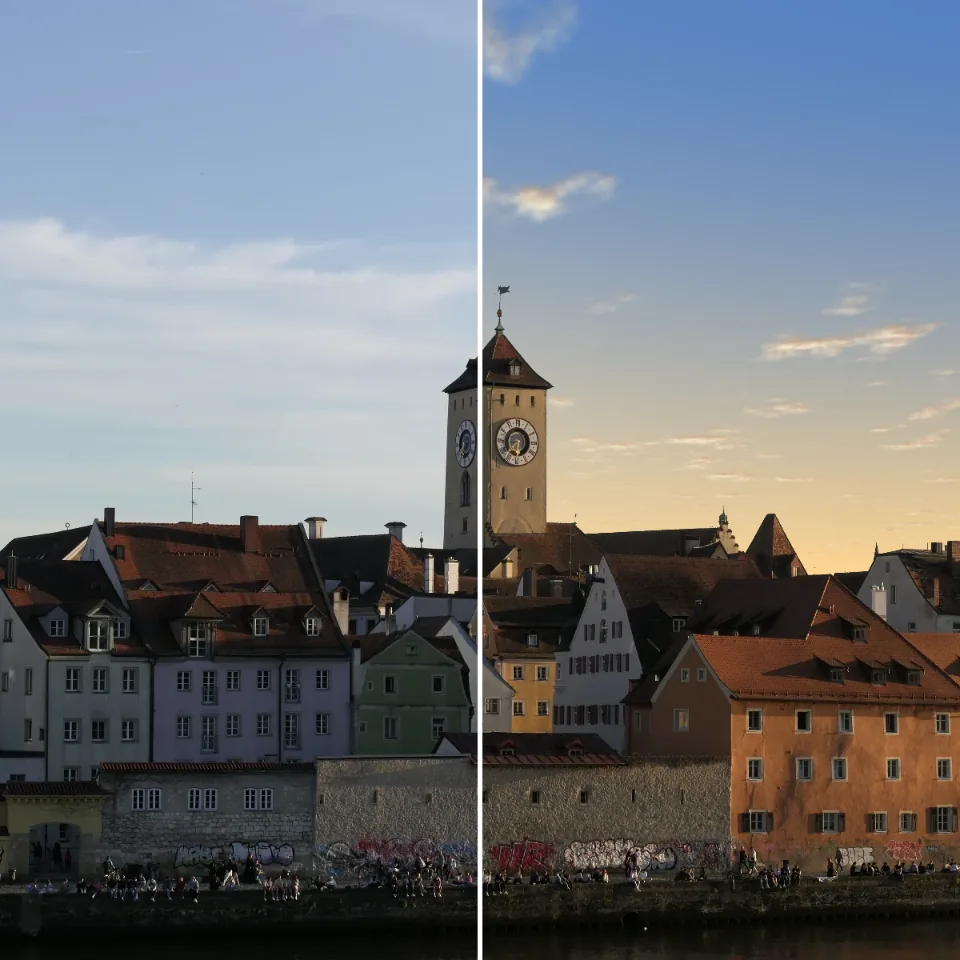
Replace the sky in your photo
Replace the sky in a photo in your browser. On-device AI finds the sky, keeps trees, wires and rooftops sharp, paints a new blue sky, sunset or night sky and relights the landscape to match.
Selective color spotlight
Turn everyday photos into cinematic moments.

AI models
What is an AI model? How models are trained and run, why size matters, on-device AI versus cloud APIs, and how AI removes backgrounds, inpaints and uncrops.
AI image editing
What is AI image editing? How it differs from retouching, the main jobs (cutouts, object removal, enhance, repair, uncrop), on-device privacy and limits.
Ready to try it?
Open PictorX in your browser — no install, no credit card required to start.
Go to Editor