
Raster vs vector images
Read more about raster (bitmap) and vector images—pixels and resolution versus paths and shapes, common formats, scaling trade-offs, and how PictorX handles photos, SVG, and resize.

What is a raster (bitmap) image?
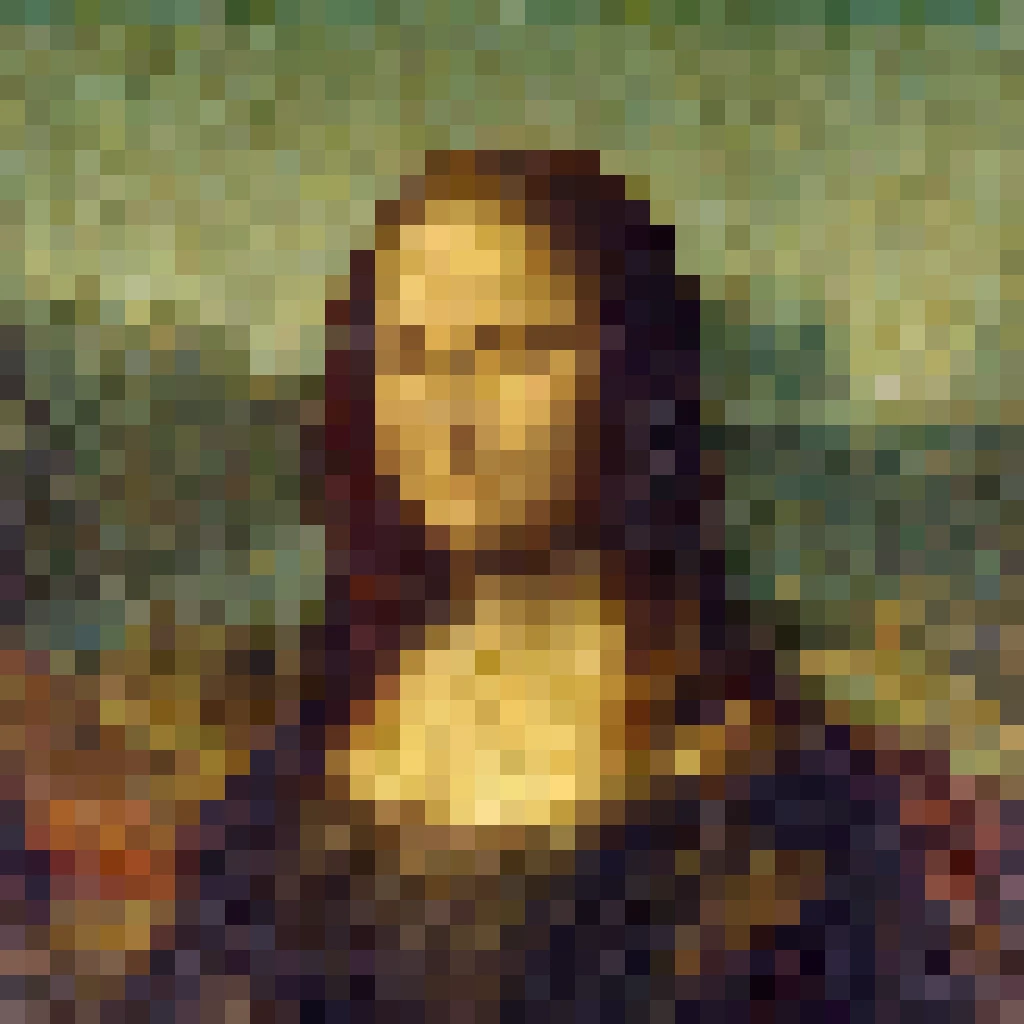
A raster image is a grid of colored dots called pixels. Your phone photo, a scanned print, and most web JPEGs are rasters: each pixel stores a color sample at one place in the grid. Width × height (for example 4000×3000) is the pixel resolution. Zoom in far enough and you see the staircase of squares—there is no hidden geometry, only samples. Editors like PictorX’s photo tools work primarily on raster layers: brushes, filters, AI cutouts, and most effects rewrite or blend those pixels.
Resolution, DPI, and PPI
Pixel dimensions describe how many samples the file holds. DPI (dots per inch) and PPI (pixels per inch) describe how those samples map to physical print or screen density. A 3000-pixel-wide image at 300 DPI prints about 10 inches wide; the same file at 72 PPI is a large on-screen asset, not a different picture. Upscaling a small raster invents pixels (often soft or AI-guessed). Downscaling discards detail. Always start from enough pixels for the largest output you need—especially for print and large displays.
Common raster formats
JPEG (JPG) is great for photographs: small files via lossy compression, but repeated saves can add artifacts, and it has no transparency. PNG is lossless and supports alpha—ideal for UI, screenshots, and cutouts with clean edges. WebP can be lossy or lossless with strong compression and transparency; browser support is widespread. GIF is limited in color and best known for simple animation. TIFF is a flexible print/archive container, often lossless and multi-layer in pro workflows. Pick the format for the job: photos → JPEG/WebP; sharp graphics with transparency → PNG/WebP; archival masters → TIFF.
What is a vector image?
A vector image stores paths, shapes, curves, and text as math—not a pixel grid. A circle is a center and radius; a logo outline is a sequence of points and Bézier curves. Because the renderer draws the shapes at output time, vectors stay sharp when you scale from favicon to billboard. File size often tracks complexity (number of points and effects), not print dimensions. Vectors shine for logos, icons, diagrams, and illustrations. They are a poor native fit for photographs, which need dense color samples.
Common vector formats
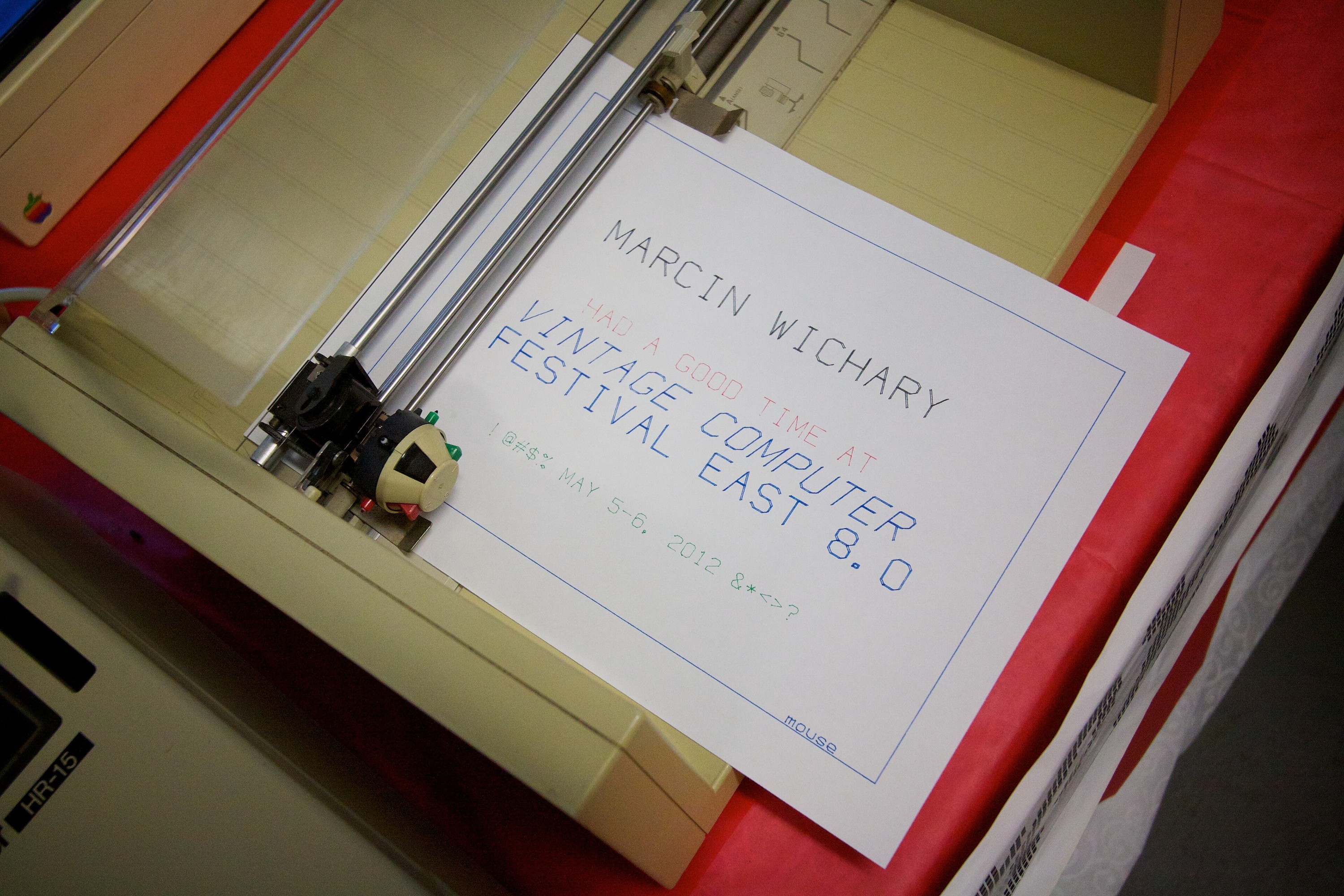
SVG (Scalable Vector Graphics) is the web-native XML format: editable, styleable with CSS, and sharp on any screen. PDF can embed vectors, text, and rasters for print and exchange. AI (Adobe Illustrator) and EPS are classic design/exchange formats still common in print pipelines. Many “vector” PDFs still contain placed photos as raster images inside the page. In PictorX, SVG is the practical everyday vector: open an SVG into editable layers, adjust shapes, and save a clean scalable SVG again.
Raster vs vector: a practical comparison
Scaling: vectors stay crisp; rasters get blocky or soft when enlarged. File size: a simple logo as SVG can be tiny; a high-res photo PNG can be huge. A noisy vector with thousands of auto-traced points can also bloat. Editing: rasters use brushes, healing, filters, and AI inpainting; vectors edit nodes, strokes, fills, and type. Subject matter: photos, paintings, and sensor captures → raster. Logos, icons, typography, charts, and flat illustration → vector. Many real designs mix both: a vector logo on a photographic poster.
When to use which—and converting
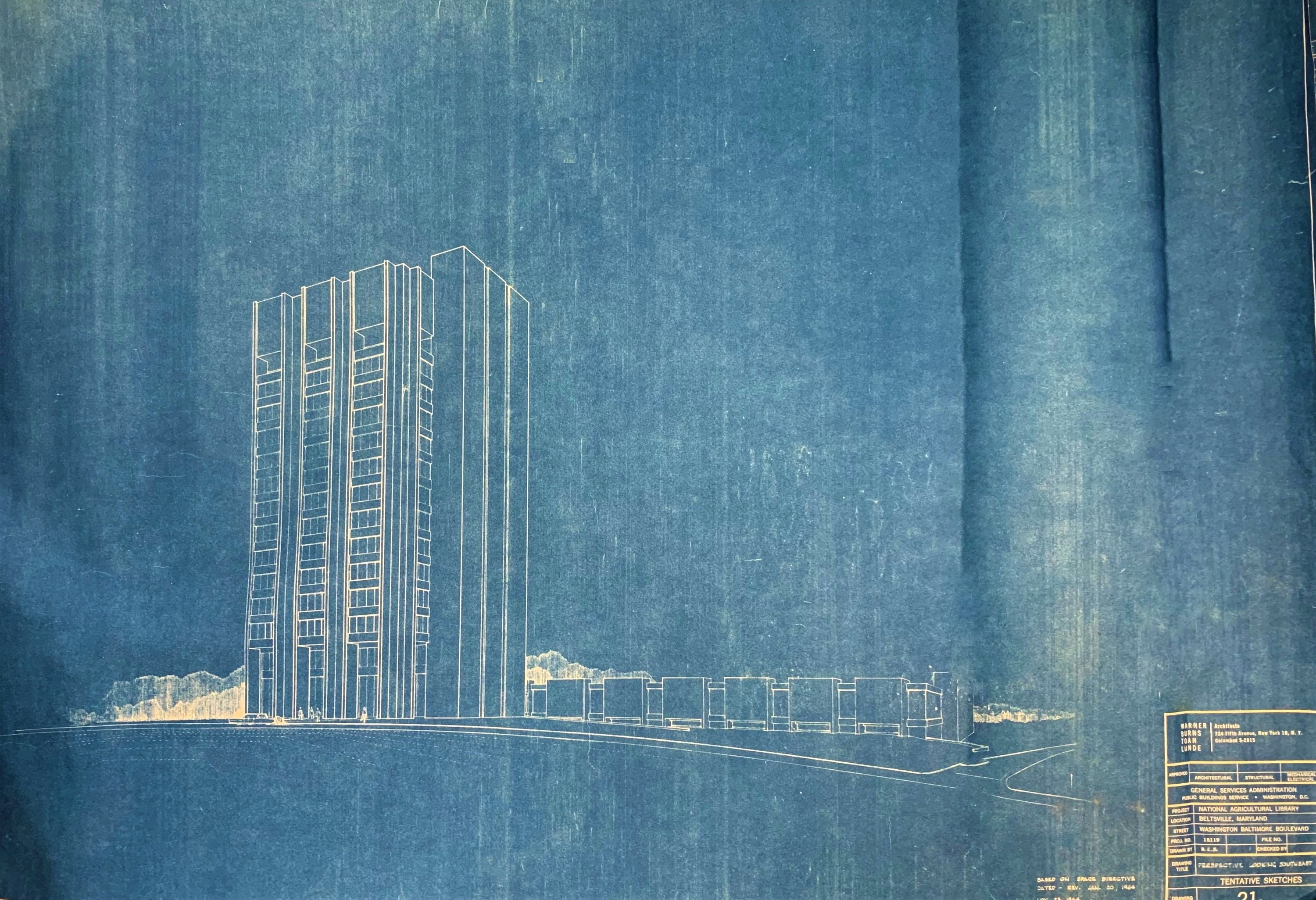
Use raster when you need photographic detail, painterly texture, or pixel-level retouching. Use vector when the artwork must resize infinitely and stay precise—brand marks, UI icons, stickers as shapes, line art. Rasterize means turning vectors into pixels (for filters, export to JPEG, or matching a screen). Vectorize (auto-trace) tries to rebuild paths from a bitmap: it works best on high-contrast logos and fails on photos—expect muddy shapes, huge node counts, or lost gradients. There is no perfect “photo to true vector” button; often you redraw key shapes or keep the photo as raster and overlay vector type.
Raster and vector in PictorX
PictorX is a browser photo editor and design workspace that speaks both languages. Photo tools—adjust, effects, AI background removal, enhance, repair—operate on raster layers. Move & Resize scales and positions those layers on the canvas. Shapes & Vectors plus Paths, points & curves build clean geometry. Open, edit and save SVG turns an SVG into editable layers and exports scalable SVG again—ideal for logos. Logo maker and transparent PNG flows cover brand marks that may start as vectors and ship as PNG where needed. Keep masters editable: SVG or layered project for marks, high-resolution raster for photos.
Frequently asked questions
What is the difference between raster and vector images?
Raster images are grids of pixels (photos, most web images). Vector images are paths and shapes drawn from math (logos, icons). Rasters depend on resolution; vectors scale without jaggies.
Can I convert a photo into a clean SVG?
Auto-tracing a photo rarely yields a tidy, editable logo-quality SVG. It may create thousands of noisy paths. For brand marks, redraw with shapes or start from a true vector file. Keep photographs as JPEG, PNG, or WebP.
Is SVG always better than PNG?
No. SVG is better for scalable flat graphics. PNG (or JPEG/WebP) is better for photographs and complex continuous-tone images. Many workflows export both: SVG for the mark, PNG for places that need pixels.
Which PictorX tools relate to raster vs vector?
Photo editing and Move & Resize work on raster layers. Shapes & Vectors, Paths, and Save as SVG handle vector workflows. Logo maker and transparent PNG help ship marks for the web.
Related tools

Open, edit and save SVG files
Open an SVG in Pictorx and it is converted into editable layers.

Shapes & Vectors tool
Add geometric shapes and styled lines to your canvas. Use the free PictorX online editor in your browser.
Paths, points & curves
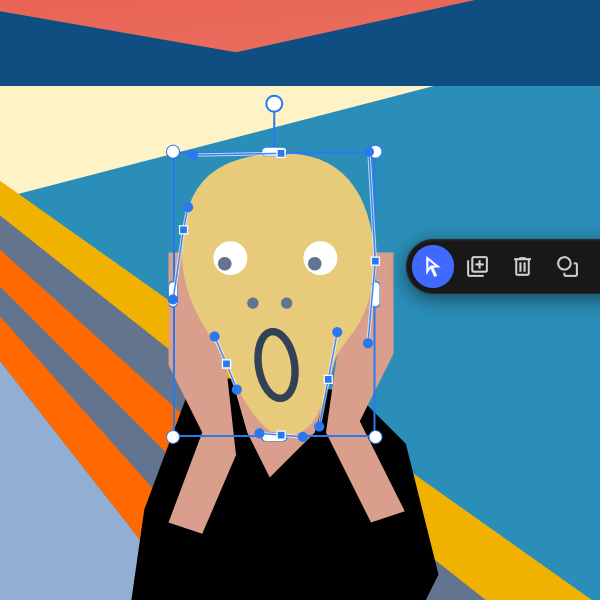
Reshape shape and line paths at the anchor level.
Move & Resize tool
Position, scale, align, and snap layers precisely on the PictorX canvas. Use the free PictorX online editor in your browser.
Free online logo maker
Design a simple logo free online with PictorX. Combine shapes, text, and icons—then export PNG for your brand.
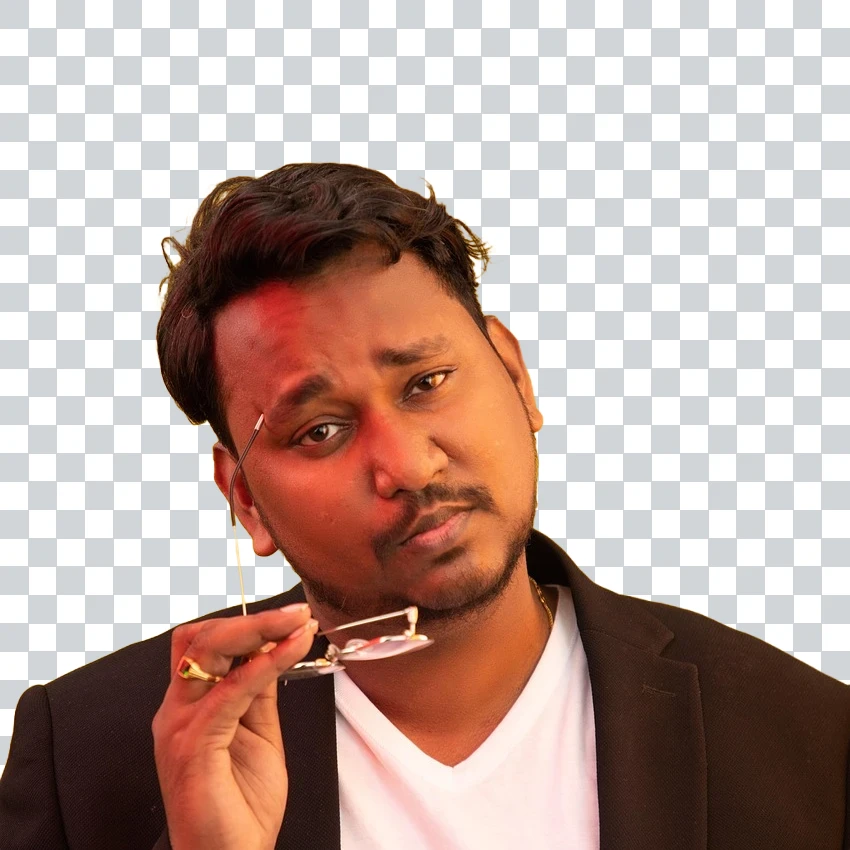
Free transparent PNG maker
Make a transparent PNG free online. Remove backgrounds and export clear PNGs with PictorX for logos, products, and stickers.
Ready to try it?
Open PictorX in your browser — no install, no credit card required to start.
Open, edit and save SVG