
Divider
Labels
Photos
Video
Before/after slider
Show what changed: a retouch, a filter, a renovation or a makeover. Put the before and after photos in one frame and drag the divider across, at any angle, or show them side by side or stacked. Add Before and After labels, pick the divider and handle, and save the comparison as a picture or play the divider back and forth and save that sweep as a video. In the editor every part is a layer of its own. Open the before and after photos, drop them on the picture or pick an example pair. Drag the divider, or use the arrow keys, to compare. Play sweeps it back and forth and Record saves that as a video. Your photos stay on your device.
How it works
- Open the before and after photos, drop them on the picture, or start with one of the example pairs.
- Drag the picture, or use the arrow keys, to move the divider; set its angle, color, width and handle, or choose side by side or stacked.
- Write the labels and choose where they go and how they look.
- Save a PNG or JPG, press Play and Record for a video of the divider sweeping across, or open the comparison in the editor with every part on a layer of its own.
Two photos, lined up
The after photo is aligned to the before photo's shape: Fill covers the frame and centres the photo, Fit shows the whole photo on a background color, so photos of different sizes still compare well. Slider puts both in one frame with a divider at any angle, from a vertical line to a horizontal one; Side by side and Stacked show each photo whole with a gap between.
A picture or a video
Save the comparison as it is on the stage, at the size you choose. Play sweeps the divider back and forth, smooth, even or pausing at the ends, and Record saves one full sweep as a video, ready for a post or a story. Everything happens in your browser; your photos are not uploaded.
Frequently asked questions
How do I make a before and after photo?
Open the before and after photos on this page, or drop them on the picture, then drag the divider to where the difference shows best. Add labels, pick the divider's look and save the picture. The same app is in the editor under Apps → Photo → Before & after, where it starts with the document's photo layers.
My photos are different sizes. Does that matter?
No. The after photo is aligned to the before photo's shape: with Fill it covers the frame, centred, and with Fit the whole photo shows on the background color. For the closest match, use two photos of the same scene taken from the same spot.
Can the divider be horizontal or diagonal?
Yes. Angle turns the divider from vertical through any slant to horizontal, and Position moves it across. Dragging the picture moves the divider to the pointer at whatever angle it has, and the arrow keys move it step by step.
How do I make a video of the comparison?
Press Play to sweep the divider back and forth, set the seconds per sweep and the easing under Video, then press Record in the playback bar. With the length set to one loop, the video holds one full sweep and stops by itself.
Can I keep editing the comparison?
Yes. The pencil opens it in the PictorX photo editor with the before photo, the after photo cut by the divider, the divider, the handle and the labels on layers of their own; the labels are text you can edit, and you can move or hide any part.
Before/after slider: how do I record a video?
Press the red Record button in the playback bar: it films what the stage shows. Press it again to stop, and the video is saved to your device. Recording is free; you only need to sign in. Without a subscription the video carries a small PictorX logo in a corner. The button beside Record opens the video options: the shape (as shown, square, story 9:16 or wide 16:9), the length (until you stop, one seamless loop, or 5, 10, 15 or 30 seconds for social media) and the file: MP4, WebM or an animated GIF. You can add one of three music tracks: calm, bright or beat. With a fixed length or One loop the video is made frame by frame, so it runs smoothly even on a slow device, and One loop joins its end to its start without a seam.
Related tools
Morph one face into another
Morph one face into another in your browser. Two photos, matching points on the eyes, nose, mouth and chin, and a smooth morph you can play, stop halfway, record as a video or open as layers in the editor.
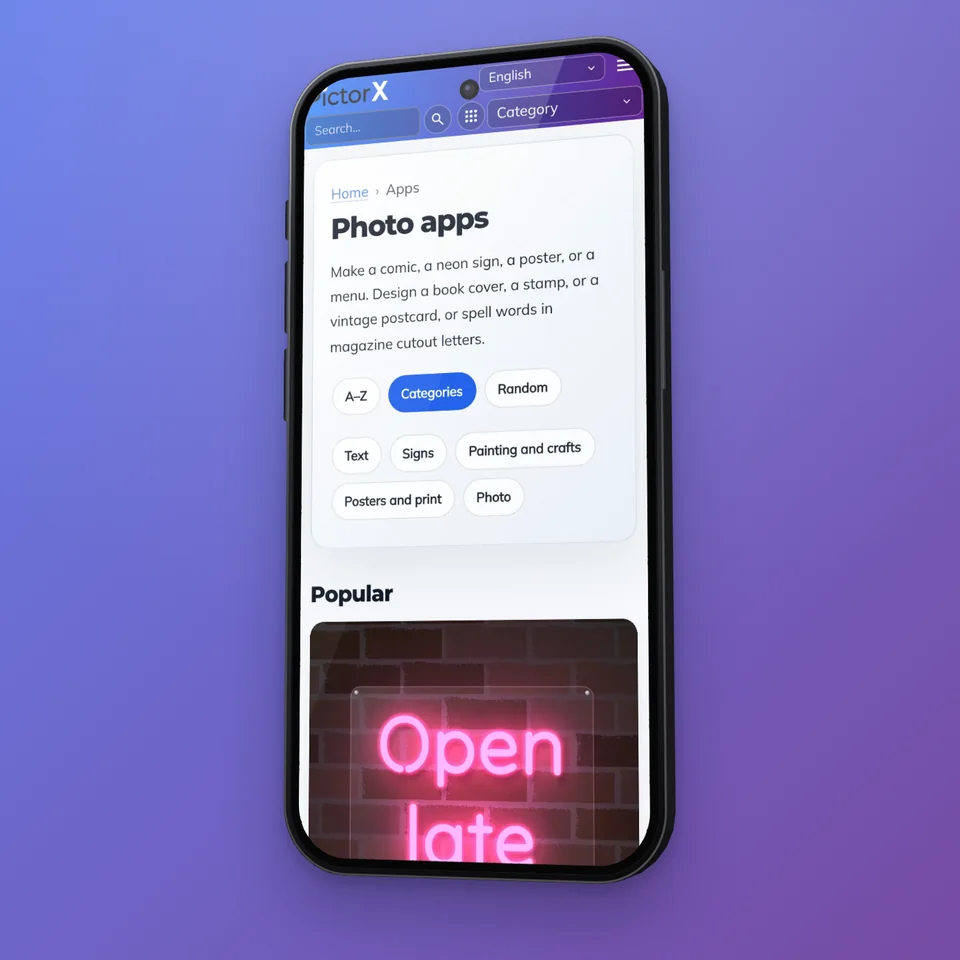
Device mockup generator
Make a device mockup online for free: put your screenshot in a phone, tablet, laptop, monitor, browser window or watch with a 3-D tilt, shadow, background and title. Your screenshot stays on your device.
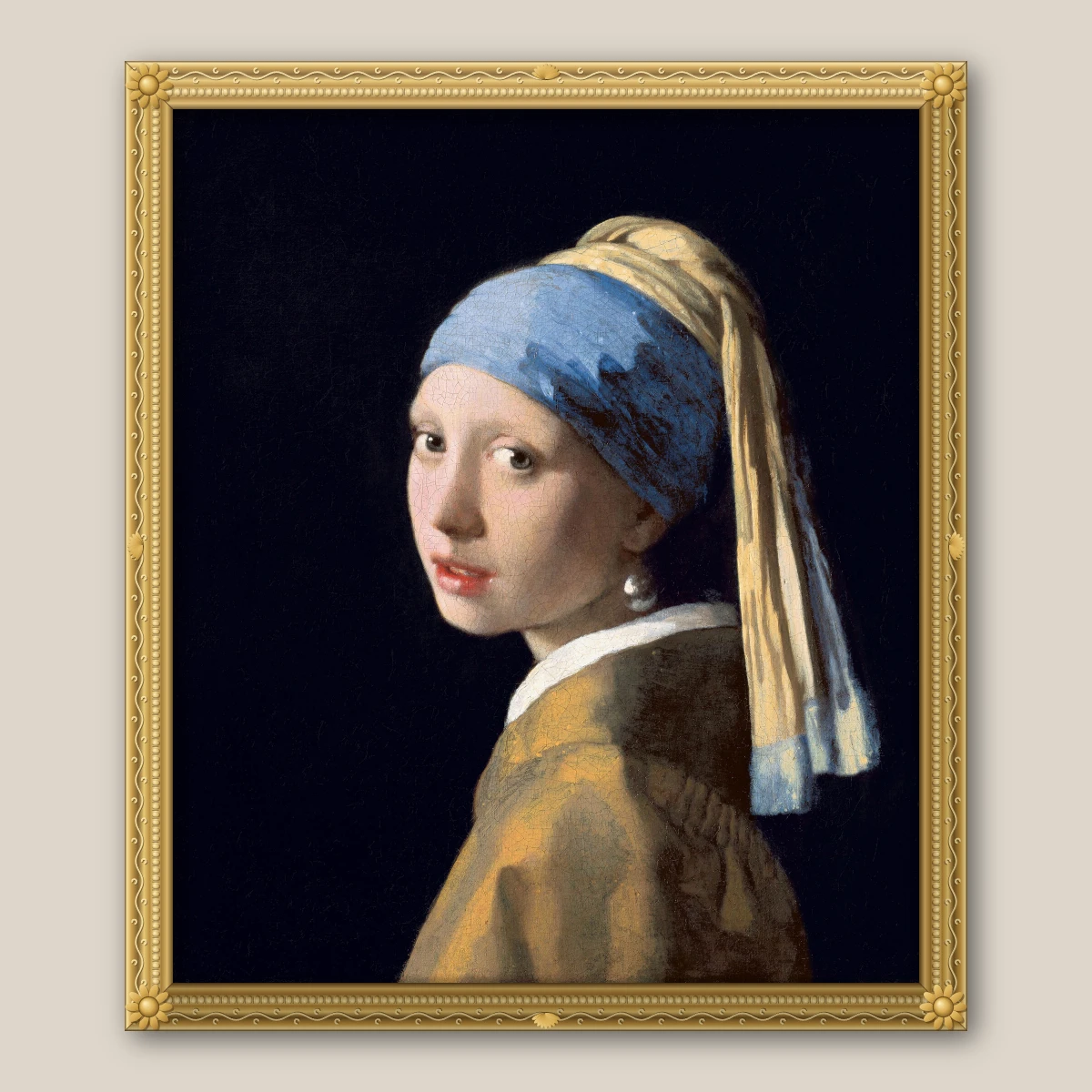
Frame Maker
Put a photo in a gilded, baroque, wood, gallery, floating, metal, polaroid, film strip or stamp frame, add a mat, and save a PNG.
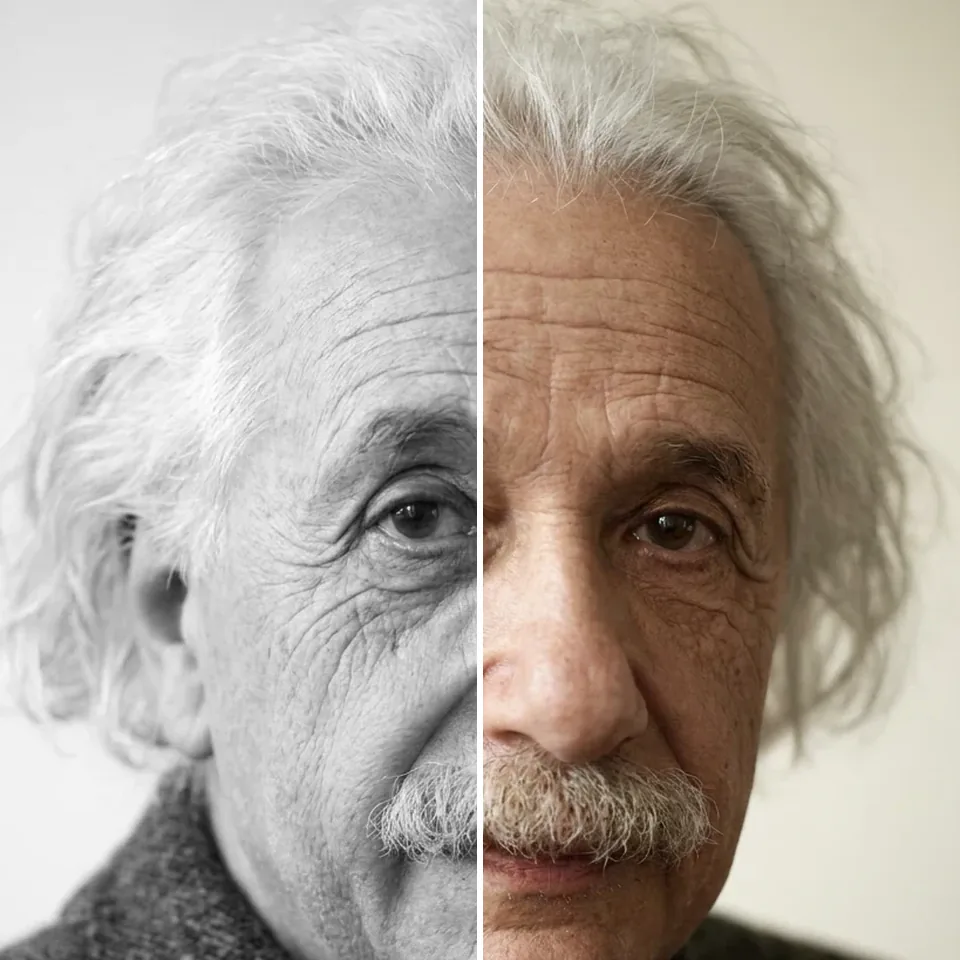
Colorize a black-and-white photo
Colorize black-and-white and old photos in your browser. On-device AI adds natural colour to skin, sky, clothes and foliage while every detail of the original is kept. Tune saturation and warmth, then save.
Ready to try it?
Open PictorX in your browser — no install, no credit card required to start.
Go to Editor