
Divider
Labels
Photos
Video
Before/after slider
Show what changed: a retouch, a filter, a renovation or a makeover. Put the before and after photos in one frame and drag the divider across, at any angle, or show them side by side or stacked. Add Before and After labels, pick the divider and handle, and save the comparison as a picture or play the divider back and forth and save that sweep as a video. In the editor every part is a layer of its own. Open the before and after photos, drop them on the picture or pick an example pair. Drag the divider, or use the arrow keys, to compare. Play sweeps it back and forth and Record saves that as a video. Your photos stay on your device.
Як це працює
- Open the before and after photos, drop them on the picture, or start with one of the example pairs.
- Drag the picture, or use the arrow keys, to move the divider; set its angle, color, width and handle, or choose side by side or stacked.
- Write the labels and choose where they go and how they look.
- Save a PNG or JPG, press Play and Record for a video of the divider sweeping across, or open the comparison in the editor with every part on a layer of its own.
Two photos, lined up
The after photo is aligned to the before photo's shape: Fill covers the frame and centres the photo, Fit shows the whole photo on a background color, so photos of different sizes still compare well. Slider puts both in one frame with a divider at any angle, from a vertical line to a horizontal one; Side by side and Stacked show each photo whole with a gap between.
A picture or a video
Save the comparison as it is on the stage, at the size you choose. Play sweeps the divider back and forth, smooth, even or pausing at the ends, and Record saves one full sweep as a video, ready for a post or a story. Everything happens in your browser; your photos are not uploaded.
Поширені запитання
How do I make a before and after photo?
Open the before and after photos on this page, or drop them on the picture, then drag the divider to where the difference shows best. Add labels, pick the divider's look and save the picture. The same app is in the editor under Apps → Photo → Before & after, where it starts with the document's photo layers.
My photos are different sizes. Does that matter?
No. The after photo is aligned to the before photo's shape: with Fill it covers the frame, centred, and with Fit the whole photo shows on the background color. For the closest match, use two photos of the same scene taken from the same spot.
Can the divider be horizontal or diagonal?
Yes. Angle turns the divider from vertical through any slant to horizontal, and Position moves it across. Dragging the picture moves the divider to the pointer at whatever angle it has, and the arrow keys move it step by step.
How do I make a video of the comparison?
Press Play to sweep the divider back and forth, set the seconds per sweep and the easing under Video, then press Record in the playback bar. With the length set to one loop, the video holds one full sweep and stops by itself.
Can I keep editing the comparison?
Yes. The pencil opens it in the PictorX photo editor with the before photo, the after photo cut by the divider, the divider, the handle and the labels on layers of their own; the labels are text you can edit, and you can move or hide any part.
Before/after slider: як записати відео?
Натисніть червону кнопку «Запис» на панелі відтворення: вона знімає те, що показує сцена. Натисніть її ще раз, щоб зупинити, і відео збережеться на вашому пристрої. Запис безкоштовний, потрібно лише увійти. Без підписки на відео в куті буде невеликий логотип PictorX. Кнопка поруч із «Запис» відкриває параметри відео: формат (як показано, квадрат, сторіз 9:16 або широкий 16:9), тривалість (доки ви не зупините, одна безшовна петля або 5, 10, 15 чи 30 секунд для соцмереж) і файл: MP4, WebM або анімований GIF. Можна додати одну з трьох музичних доріжок: спокійну, яскраву чи ритмічну. З фіксованою тривалістю або в режимі «Один цикл» відео створюється кадр за кадром, тож воно відтворюється плавно навіть на повільному пристрої, а «Один цикл» з'єднує кінець із початком без шва.
Схожі інструменти
Перетворіть одне обличчя на інше
Перетворюйте одне обличчя на інше просто в браузері. Два фото, відповідні точки на очах, носі, роті й підборідді та плавний морфінг, який можна відтворити, зупинити на півдорозі, записати як відео або відкрити шарами в редакторі.
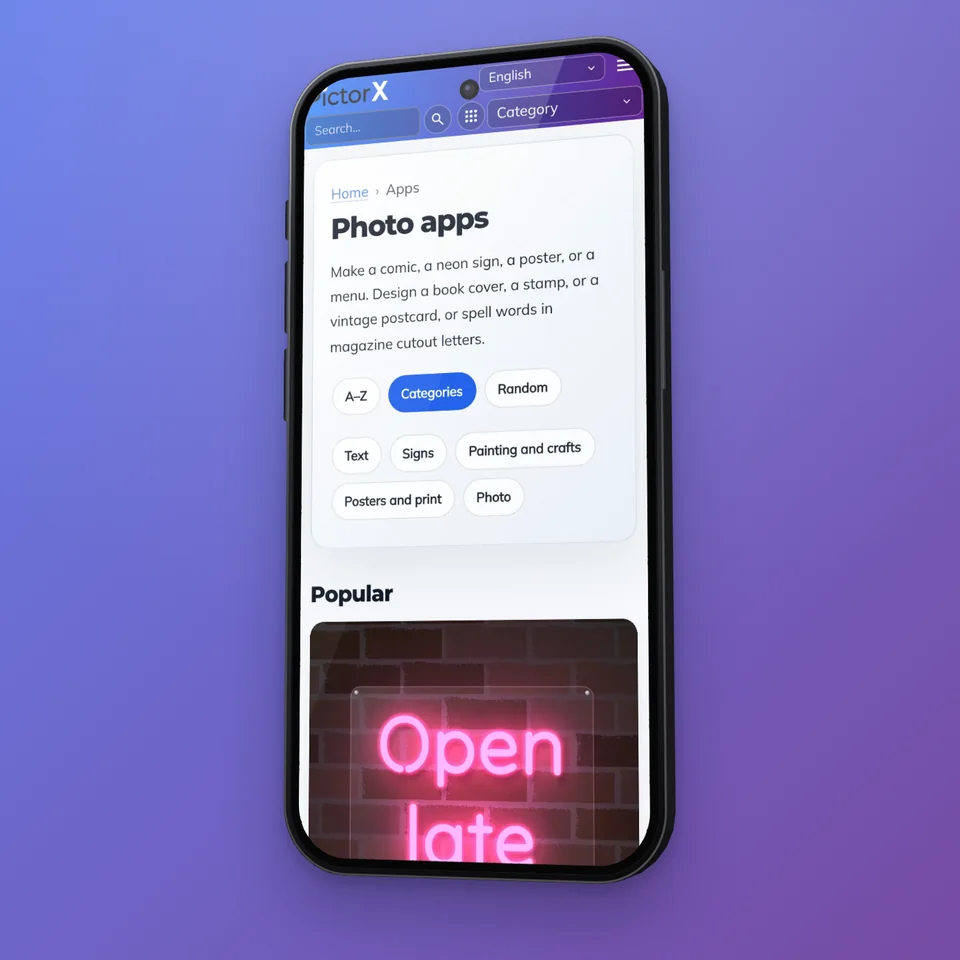
Device mockup generator
Make a device mockup online for free: put your screenshot in a phone, tablet, laptop, monitor, browser window or watch with a 3-D tilt, shadow, background and title. Your screenshot stays on your device.
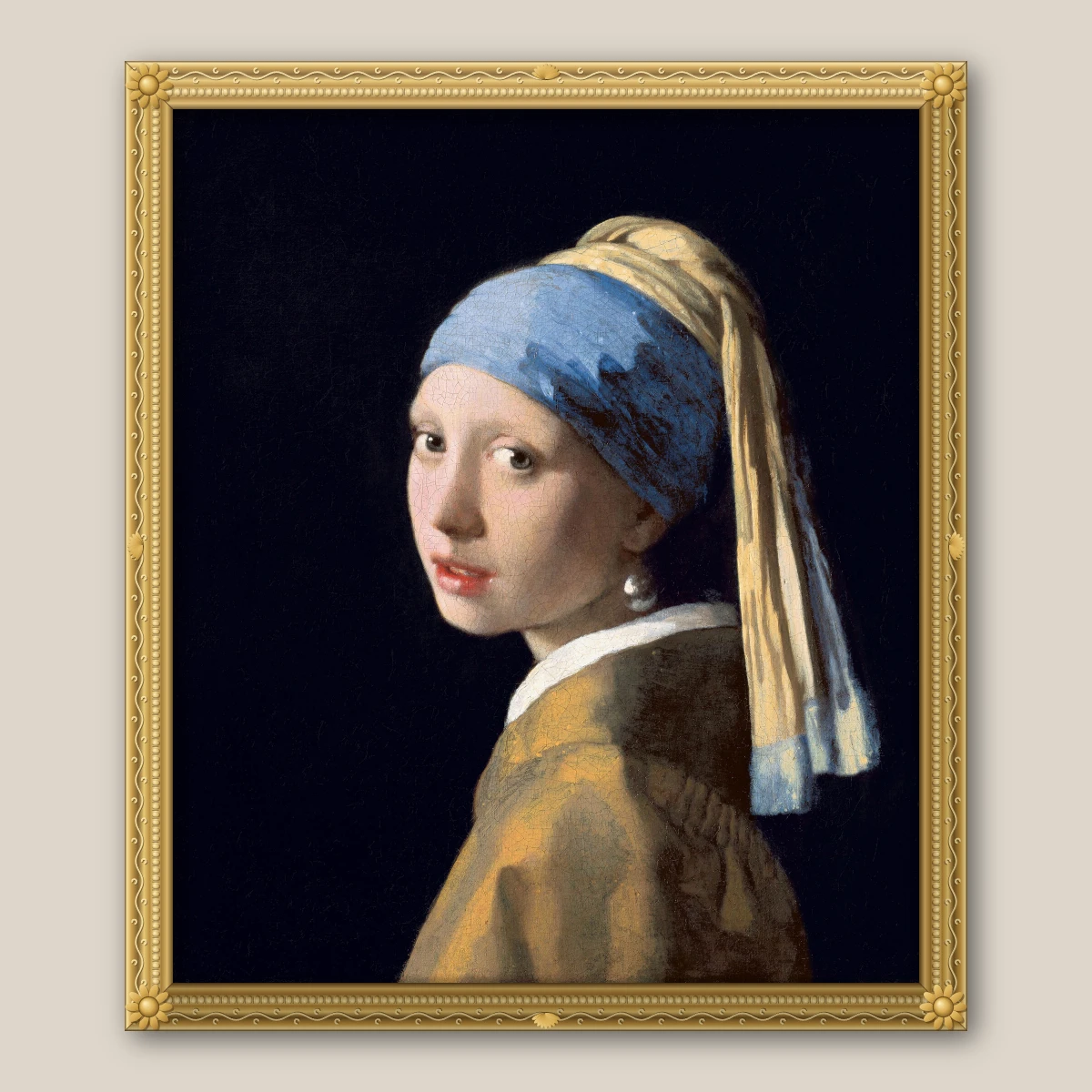
Конструктор рамок
Вставте фото в позолочену, барокову, дерев'яну, галерейну, ширяючу, металеву рамку, рамку поляроїда, фотоплівки чи поштової марки, додайте паспарту й збережіть PNG.
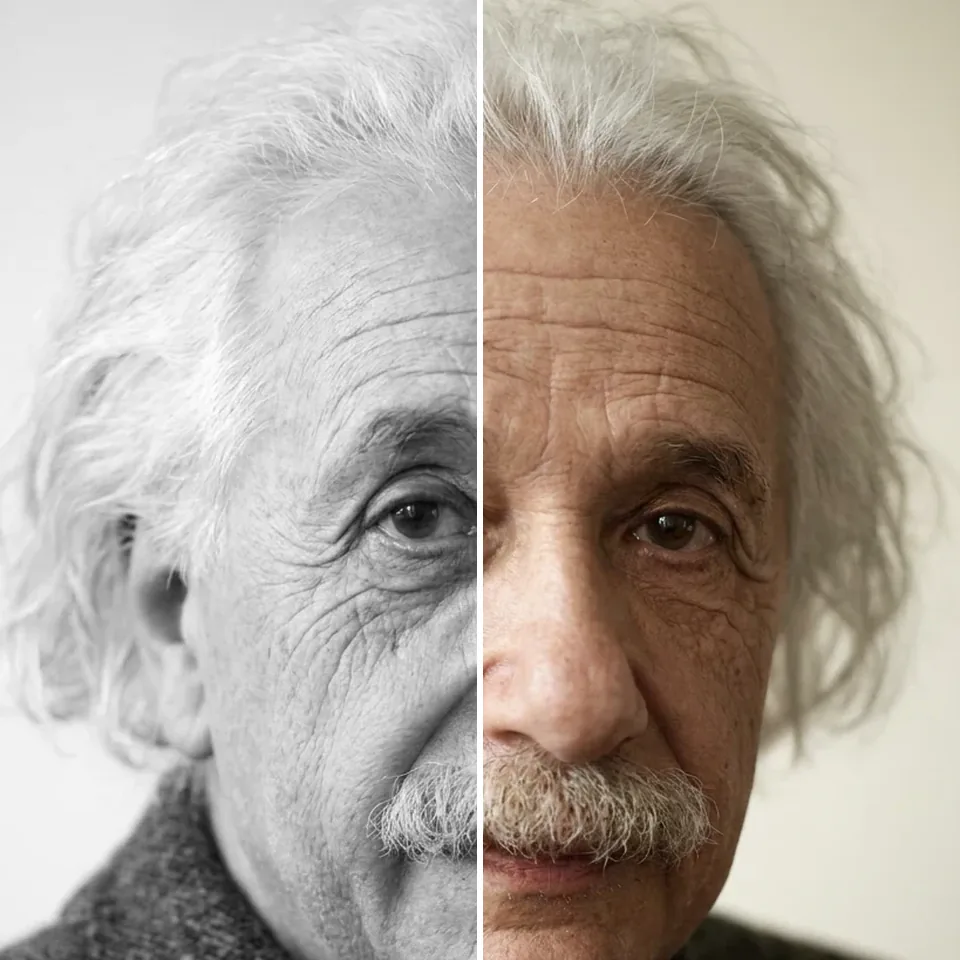
Розфарбуйте чорно-біле фото
Розфарбуйте чорно-білі та старі фото просто в браузері. ШІ на вашому пристрої додає природні кольори шкірі, небу, одягу й листю, зберігаючи кожну деталь оригіналу. Налаштуйте насиченість і теплоту, потім збережіть.
Готові спробувати?
Відкрийте PictorX у браузері — без встановлення і без кредитної картки.
Перейти до редактора