
Build a deck with the presentation wizard
The wizard walks you through a deck, then leaves every slide editable. Use it when you want a guided start; use the presentation maker when you would rather open a slide template and design freely.

它是如何运作的
- Start the presentation wizard in PictorX.
- Follow the steps to structure titles, visuals, and pages.
- Refine each slide in the editor, then export or keep editing.
Wizard first, editor second
The wizard is a guided path into a multi-page project. When it finishes, you still have layers, charts, and templates in the same file—so a pitch deck does not get stuck as a one-shot export.
How this differs from the presentation maker
The presentation maker is the search page for slide templates and visual decks. This page is the product feature: a step-by-step wizard. Cross-link them, but pick the maker URL when you are choosing a template and the wizard URL when you want to be walked through a deck.
常见问题
演示向导有什么作用?
它会引导您构建幻灯片,然后在编辑器中完善每张幻灯片。
向导完成后我可以编辑幻灯片吗?
是的。每个页面在项目中都保持可编辑状态。
我可以将图表拖放到向导幻灯片上吗?
是的。将向导与实时图表和演示模板配对。
如何从 PictorX 中取出卡片组?
导出幻灯片图像或继续逐页编辑直至演示。
相关工具

免费演示文稿制作者
使用 PictorX 免费在线创建演示幻灯片。您可以在浏览器中编辑宣传材料、仪表板和可视幻灯片。

动态图表与数据 工具
用数字讲故事——无需电子表格。从CHARTS MENU插入柱形、条形、折线、饼图、雷达、热力图、树图、仪表盘、韦恩图等图表。在内置数据网格中编辑数值,从 Excel 或 Google 表格粘贴 CSV,图表会实时重建。自定义颜色、标签和图例以匹配品牌,然后将图表直接嵌入演示文稿和信息图。 在浏览器中使用免费的 PictorX 在线编辑器。
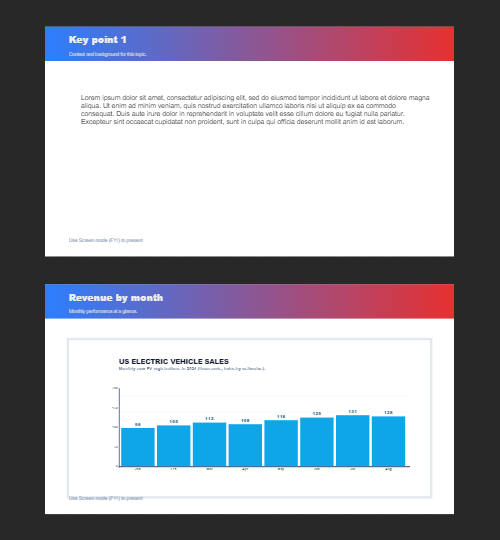
多页文档
在文档模式下构建多页文档——适合演示文稿、宣传册和多屏版面。通过画布上方的页面条切换页面。在文档页面菜单中添加页面、复制当前页面,并用“上移页面”或“下移页面”调整顺序。在一页上用编辑 → 复制(Ctrl+C)复制图层,切换到另一页后用编辑 → 粘贴为新图层(Ctrl+V)粘贴。形状、文字、样式和效果都会完整保留。 在浏览器中免费使用 PictorX,无需安装软件。
准备好尝试了吗?
在浏览器中打开 PictorX — 无需安装,无需信用卡即可启动。
Try Step-by-step presentation wizard