
Build a deck with the presentation wizard
The wizard walks you through a deck, then leaves every slide editable. Use it when you want a guided start; use the presentation maker when you would rather open a slide template and design freely.

Comment ça marche
- Start the presentation wizard in PictorX.
- Follow the steps to structure titles, visuals, and pages.
- Refine each slide in the editor, then export or keep editing.
Wizard first, editor second
The wizard is a guided path into a multi-page project. When it finishes, you still have layers, charts, and templates in the same file—so a pitch deck does not get stuck as a one-shot export.
How this differs from the presentation maker
The presentation maker is the search page for slide templates and visual decks. This page is the product feature: a step-by-step wizard. Cross-link them, but pick the maker URL when you are choosing a template and the wizard URL when you want to be walked through a deck.
Questions fréquemment posées
Que fait l'assistant de présentation ?
Il vous guide tout au long de la création d'un deck, puis vous affinez chaque diapositive dans l'éditeur.
Puis-je modifier une diapositive une fois l’assistant terminé ?
Oui. Chaque page reste modifiable dans le projet.
Puis-je déposer un graphique sur une diapositive de l'assistant ?
Oui. Associez l'assistant à des graphiques dynamiques et des modèles de présentation.
Comment puis-je retirer le deck de PictorX ?
Exportez les images des diapositives ou continuez à les modifier page par page jusqu'à ce que vous les présentiez.
Outils associés
Créateur de présentation gratuit
Créez des diapositives de présentation gratuitement en ligne avec PictorX. Présentations de pitch, tableaux de bord et diapositives visuelles que vous pouvez modifier dans le navigateur.

Outil Graphiques vivants et données
Racontez des histoires avec des chiffres — pas des tableurs. Utilisez l’éditeur PictorX gratuit dans votre navigateur.
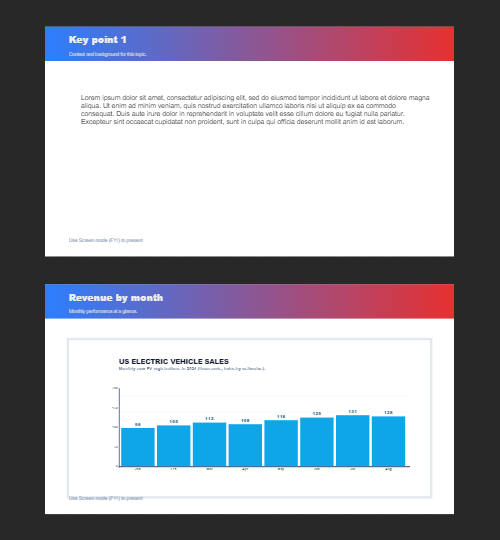
Pages multiples
Créez des documents multipages en mode Document — idéal pour les présentations, brochures et mises en page multi-écrans. Utilisez PictorX gratuitement dans votre navigateur, sans installer de logiciel.
Prêt à l'essayer ?
Ouvrez PictorX dans votre navigateur – aucune installation, aucune carte de crédit requise pour démarrer.
Try Step-by-step presentation wizard