
Build a deck with the presentation wizard
The wizard walks you through a deck, then leaves every slide editable. Use it when you want a guided start; use the presentation maker when you would rather open a slide template and design freely.

como funciona
- Start the presentation wizard in PictorX.
- Follow the steps to structure titles, visuals, and pages.
- Refine each slide in the editor, then export or keep editing.
Wizard first, editor second
The wizard is a guided path into a multi-page project. When it finishes, you still have layers, charts, and templates in the same file—so a pitch deck does not get stuck as a one-shot export.
How this differs from the presentation maker
The presentation maker is the search page for slide templates and visual decks. This page is the product feature: a step-by-step wizard. Cross-link them, but pick the maker URL when you are choosing a template and the wizard URL when you want to be walked through a deck.
Preguntas frecuentes
¿Qué hace el asistente de presentación?
Le guiará en la creación de una plataforma y luego perfeccionará cada diapositiva en el editor.
¿Puedo editar una diapositiva una vez finalizado el asistente?
Sí. Cada página permanece editable en el proyecto.
¿Puedo colocar un gráfico en una diapositiva del asistente?
Sí. Empareje el asistente con gráficos dinámicos y plantillas de presentación.
¿Cómo saco la plataforma de PictorX?
Exporte imágenes de diapositivas o siga editando página por página hasta presentarlas.
Herramientas relacionadas

Creador de presentaciones gratuito
Crea diapositivas de presentación gratis en línea con PictorX. Presentaciones, paneles y diapositivas visuales que puedes editar en el navegador.

Herramienta Gráficos vivos y datos
Cuenta historias con números — no con hojas de cálculo. Usa el editor PictorX gratis en el navegador.
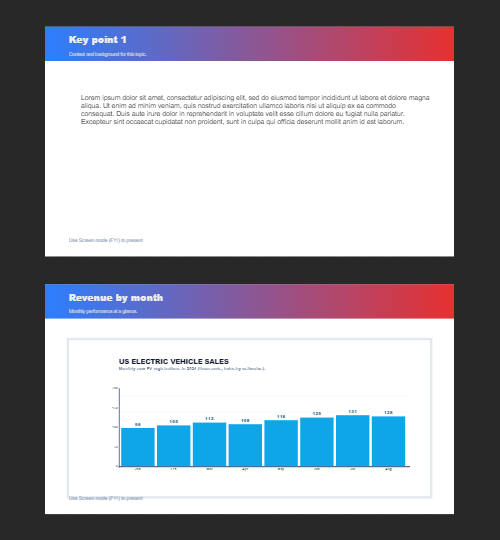
Varias páginas
Crea documentos multipágina en modo Documento — ideal para presentaciones, folletos y diseños de varias pantallas. Usa PictorX gratis en el navegador, sin instalar software.
¿Listo para probarlo?
Abra PictorX en su navegador: no requiere instalación ni tarjeta de crédito para comenzar.
Try Step-by-step presentation wizard