
Photos
Pages
Style
Photo calendar maker
Make a wall calendar with your own photos: a cover and twelve months, each with a photo above its dates. Pick the year and whether weeks start on Monday or Sunday, the style, the accent colour for the weekends and where the photo goes, then save each page as a picture or all thirteen as a PDF to print. A wall calendar of one year with your photos: a cover and January to December. Pick a page under the toolbar and put a photo on it: open it, drop it or click an example. Open twelve photos at once and they fill the pages in turn. Pick the year, whether the week starts on Monday or Sunday, the page size, where the photo goes (at the top, beside the dates or over the whole page) and the style; the weekends take the accent colour. Save the page as a picture or all pages as a PDF to print.
How it works
- Pick the year, the first day of the week, the page size and the style.
- Go through the pages and put a photo on each month: open it, drop it, or click an example.
- Drag a photo to choose the part that shows and use Zoom to crop it.
- Save a page as a picture, save all pages as a PDF, or open a page in the editor in layers.
Twelve months, twelve photos
Every month has its own page with a photo and the month's dates in a grid, the weekdays above them and the weekends in the accent colour. Week numbers can go in front of every week. Open twelve photos at once and they fill the months in turn, January first, or put a photo on one month at a time from the strip of examples.
The photo at the top, the side or the whole page
Photo at the top is the classic wall calendar; Whole page lets the photo fill the page with the dates on a pane over it; Side puts the photo beside the dates, which suits a landscape page. A4 portrait, A4 landscape and square pages print well at home or at a print shop.
Any year, from Monday or Sunday
The calendar is worked out for the year you pick, leap years included, with the week starting on Monday or on Sunday as you are used to. The month and weekday names follow the page's language, and the cover carries the year and a title of your own.
Frequently asked questions
How do I make a photo calendar?
Pick the year and the style, then go through the pages and put a photo on each month: open several photos at once to fill the months in turn. Save all pages as a PDF to print the calendar.
Can the week start on Sunday?
Yes. Choose Monday or Sunday under Week starts on; the grid of every month follows.
How is this different from the Birthday Calendar Maker?
The Birthday Calendar is a perpetual calendar for birthdays that you use every year. The Photo Calendar is a dated calendar for one year, with the weekdays, the weekends and a large photo on every month.
Can I print the calendar?
Yes. Save as PDF writes the cover and the twelve months as pages ready to print; Save writes the page you see as a picture at the size you choose.
Can I add week numbers?
Yes. Turn on Week numbers and every week of the grid gets its ISO week number in front, as many diaries and office calendars show it.
Can I keep editing a page?
Yes. The pencil opens the page in the PictorX editor with the paper, the photo, the grid, the weekdays, the dates, the month and the year on layers of their own. In the editor, Apps ▸ Collages ▸ Photo Calendar adds a calendar page with your photos.
Related tools
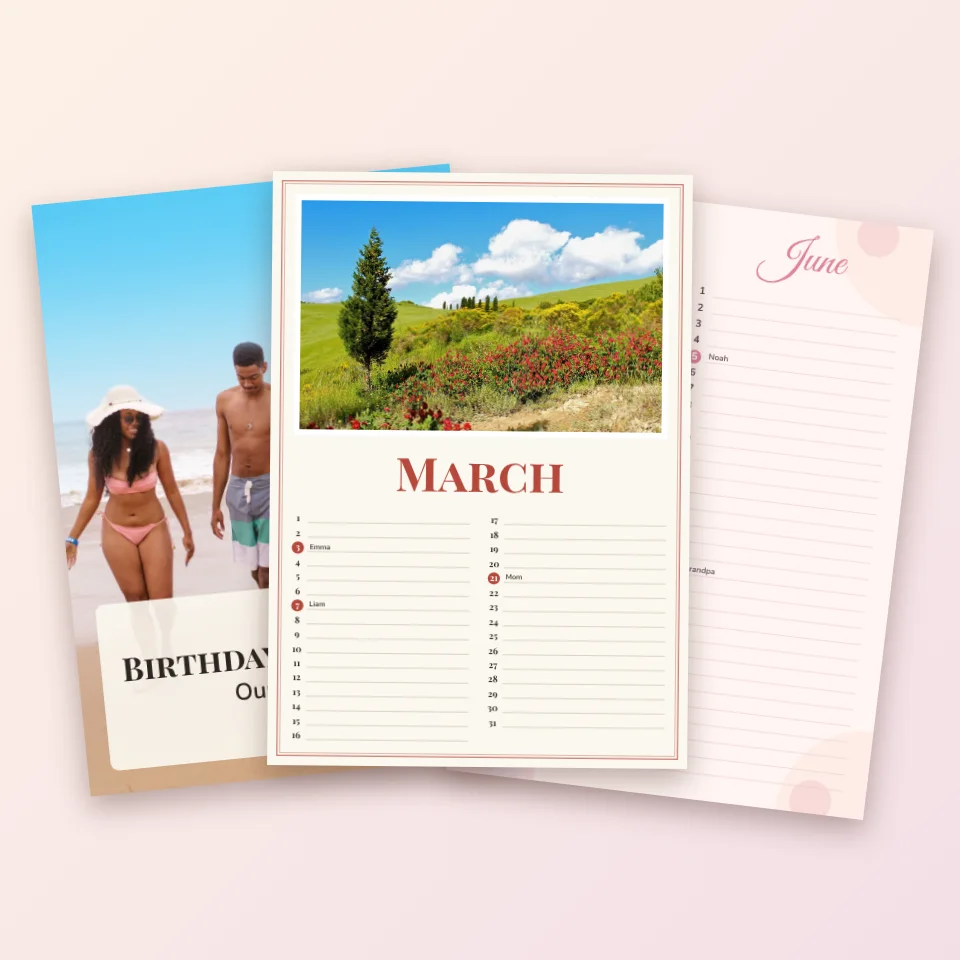
Birthday Calendar Maker
Make a birthday calendar with your own photos: a cover and January to December, a photo at the top, the side or the bottom of every page, every birthday on its day. Save a PDF to print.

Year in review collage maker
Make a year in review collage: your best photo of every month in a grid under the year, with month names, captions and a large photo of the year. Free, for Instagram or print.
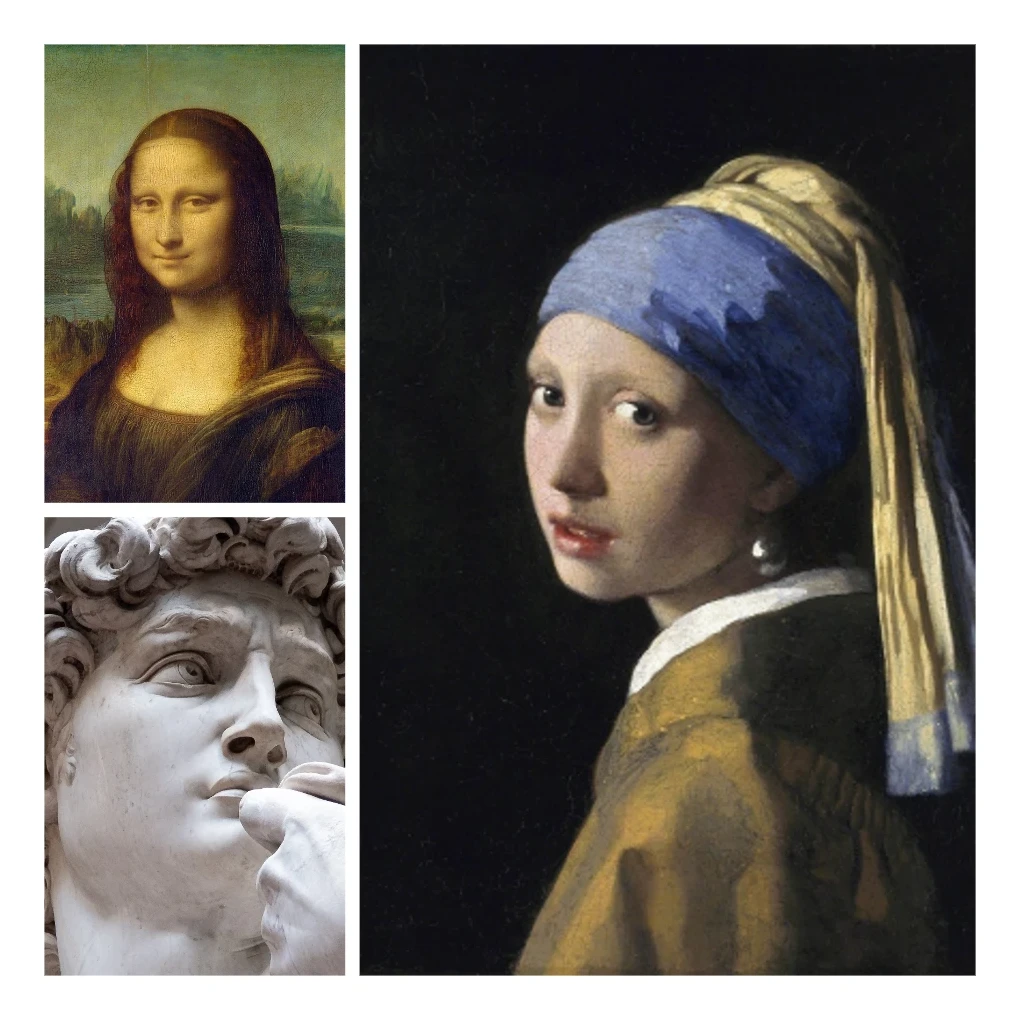
Photo collage
Make photo collages free online with PictorX. Combine 2 to 20 photos, pick a layout, and export.

Scrapbook page maker
Make a digital scrapbook page: your photos on patterned paper with washi tape, photo corners, doodles and a handwritten title. Free, in your browser, every piece on its own layer.
Ready to try it?
Open PictorX in your browser — no install, no credit card required to start.
Go to Editor