
Photos
Text
Style
Year in review collage maker
Look back on the year in twelve photos: the best photo of every month in a grid, January to December, under the year and a title of your own. Add the month names, a short caption under each photo and one large photo of the year, pick a light, dark or kraft style and a square, portrait or story size for Instagram, or print it. Your year in twelve photos, one per month, January to December. Open your best photo of every month: twelve photos at once fill the months in turn. Pick the layout (four by three, three by four, two rows of six, or a large photo of the year among the months) and the size: square or portrait for a post, story for a phone. Write the title and the year, and Captions takes one line per month, January first. Light, dark, kraft and pastel styles, an accent colour for the year, month names on the photos or under them.
How it works
- Pick the layout and the size: square, portrait, story or landscape.
- Open your best photo of every month; twelve photos at once fill January to December in turn.
- Write the title and the year, and captions for the months if you like.
- Pick the style and save the collage, or open it in the editor with every photo and label on a layer of its own.
One photo for every month
Twelve frames, January to December, each with its month name on the photo or under it. Open twelve photos at once and they go into the months in order; click a frame and drag to choose the part of the photo that shows, or drop it on another month to swap the two.
Layouts for a post or a print
4 x 3 and 3 x 4 grids, two rows of six, and a layout with one large photo of the year among the twelve months. Square and portrait sizes fit an Instagram post, Story fits a story or a phone, and landscape a screen or a print.
Your words with your photos
The year and a title stand above the photos. Captions takes one line per month, January first, and writes it under that month's photo: where you were, who you met or what happened. Light, dark, kraft and pastel styles set the background, the text and the frames, with an accent colour of your choice.
Frequently asked questions
How do I make a year in review collage?
Pick a layout and a size, then open your best photo of every month: twelve photos at once fill January to December in turn. Write the title and the year, and save the collage.
Can I add captions to the months?
Yes. Write one line per month in Captions, January first; each line goes under that month's photo. Leave a line empty for a month without a caption.
Which size is best for Instagram?
Portrait (4:5) fills the most of the feed, Square fits any grid, and Story (9:16) fits a story or a reel cover.
Can I use fewer than twelve photos?
Yes. The example photos fill the months until you open your own, and with fewer photos the photos repeat. Drop a photo on another month to swap them.
Can I add a large photo of the year?
Yes. The Photo of the year layout puts one large photo in the middle with the twelve months around it. It is the thirteenth photo: open thirteen photos, or drop one on the large frame.
Can I keep editing the collage?
Yes. The pencil opens it in the PictorX editor with the background, the title, the year, every month's photo, label and caption on layers of their own. In the editor, Apps ▸ Collages ▸ Year in Review makes one from the photos in your document.
Related tools
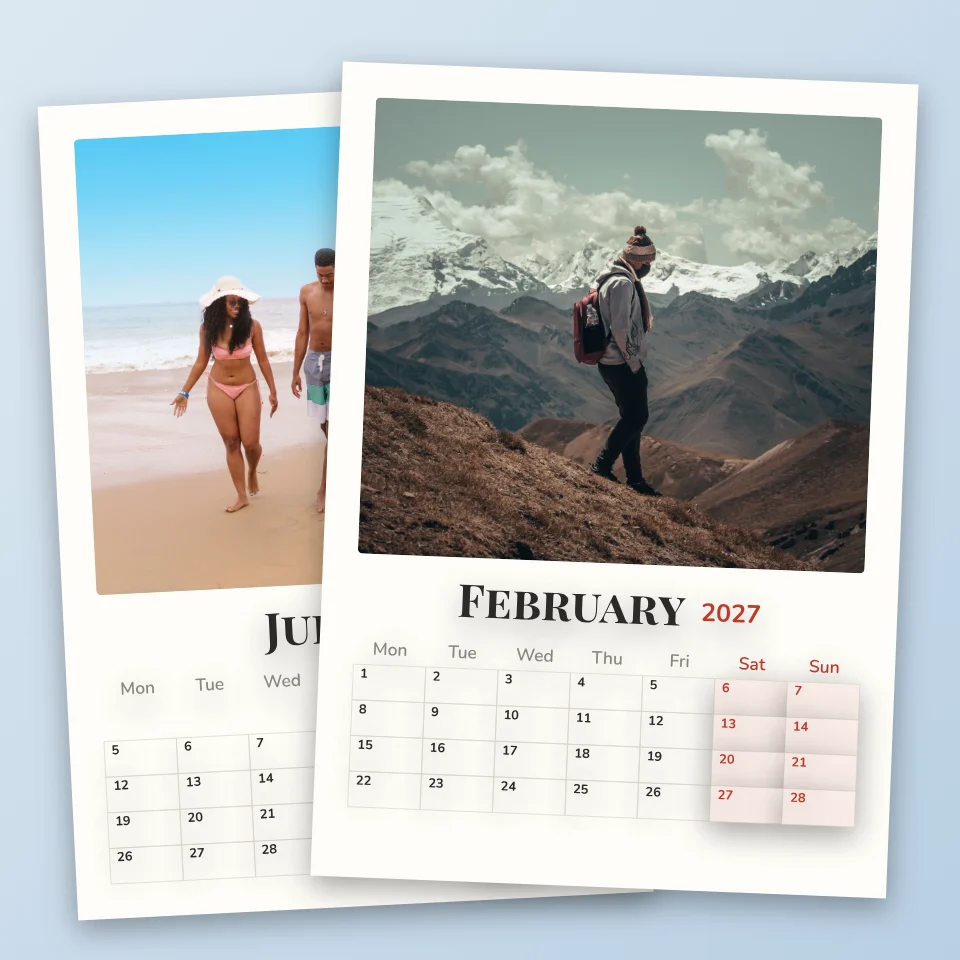
Photo calendar maker
Make a 12-month photo calendar of any year: a cover and a photo above every month's dates, weeks from Monday or Sunday, A4 or square. Save the pages or a PDF to print. Free.
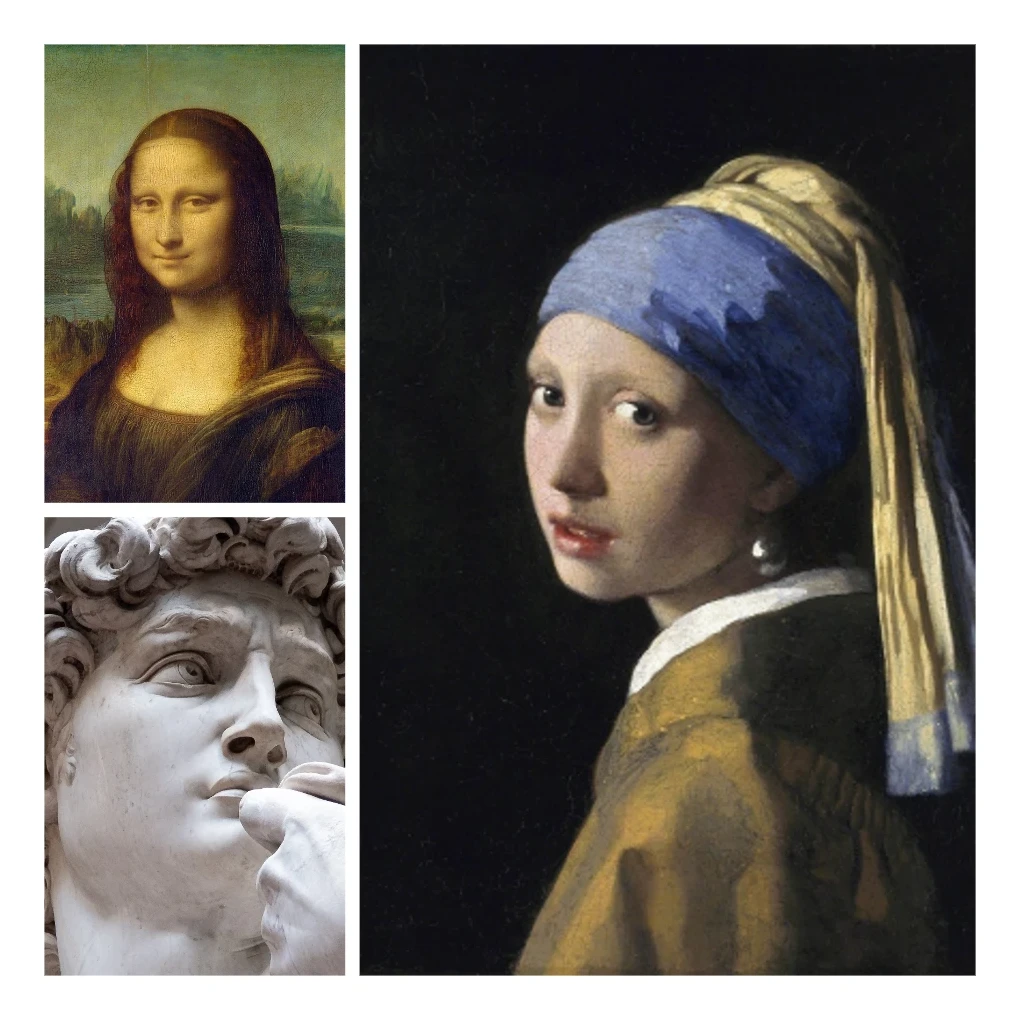
Photo collage
Make photo collages free online with PictorX. Combine 2 to 20 photos, pick a layout, and export.
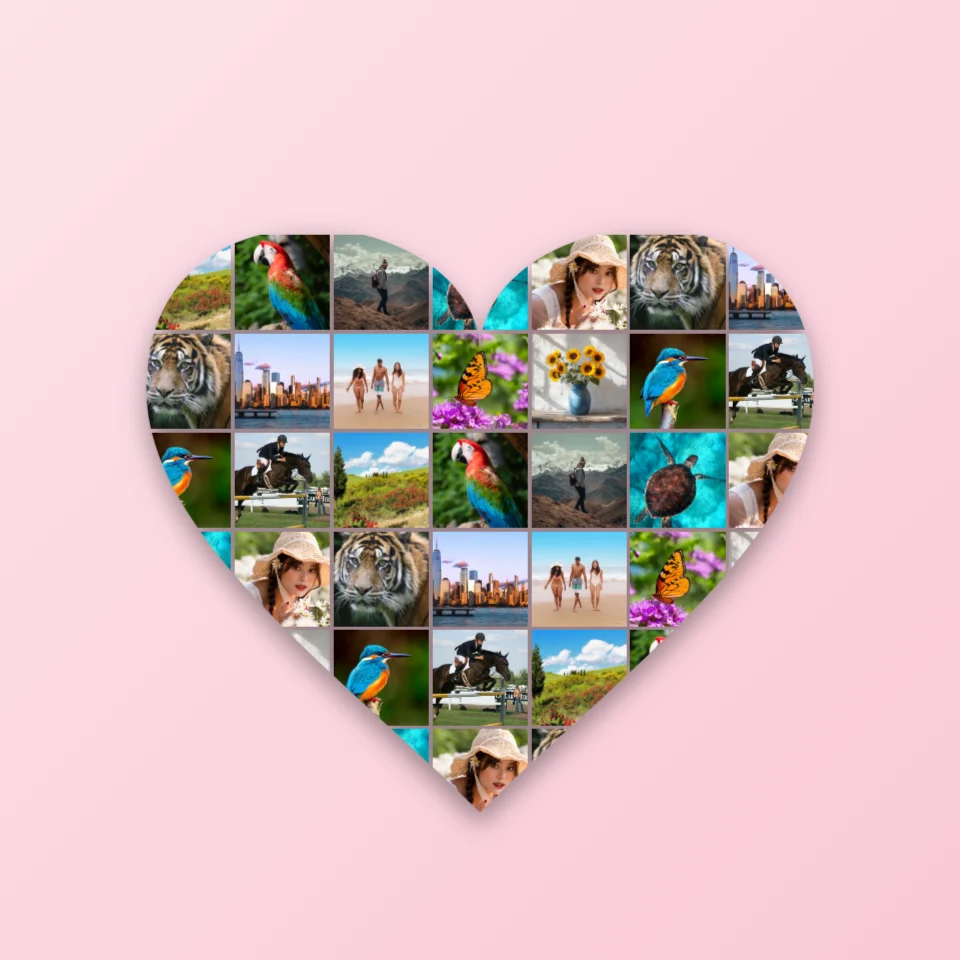
Letter photo collage maker
Fill the letters of a name, a word or a number, or a heart, with your own photos: one photo per letter or a photo mosaic. Free, in your browser, saved as PNG or layers.
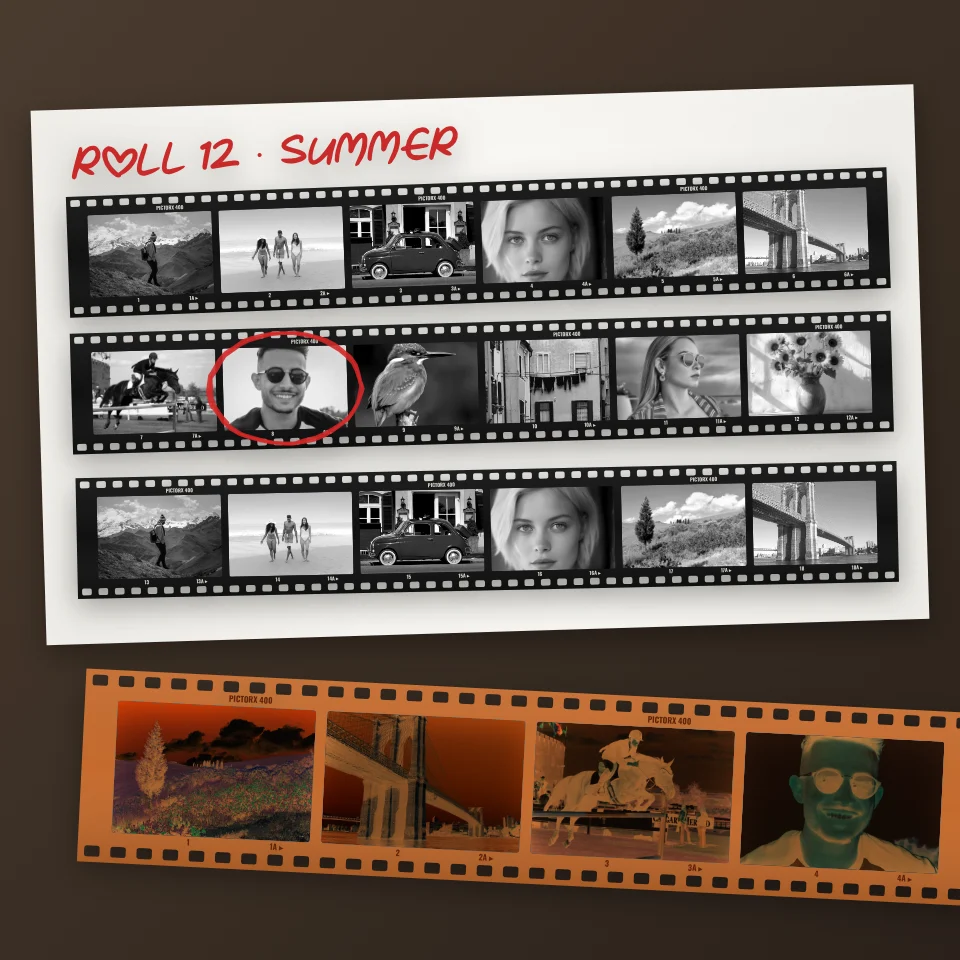
Film strip and contact sheet maker
Put your photos on a 35 mm film strip with sprocket holes and frame numbers, or on a contact sheet with grease pencil marks: colour, negative or black and white. Free, in your browser.
Ready to try it?
Open PictorX in your browser — no install, no credit card required to start.
Go to Editor