
Photos
Paper
Doodles
Text
Scrapbook page maker
Make a scrapbook page without glue: your photos with white borders on kraft, dotted, grid or striped paper, held by washi tape, clear tape or photo corners, with hearts, stars and flowers doodled around them and a handwritten title. Scatter the photos at an angle or line them up, and print the page or keep it as a picture. A scrapbook page without glue. Pick the page size, the paper (kraft, dots, grid, stripes or plain) and its colour, how many photos and how they lie: scattered at an angle, in a grid, or one large with small ones beside it. Each photo gets a white border, a Polaroid frame or none, and is held by washi tape, clear tape or photo corners. Doodles draws hearts, stars, flowers, arrows and swirls around the photos in the pen colour; write a title and a note. Shuffle layout throws the photos again.
How it works
- Pick the page: square, A4 portrait or landscape, the paper and its colour.
- Choose how many photos and how they lie: scattered, in a grid, or one large with small ones around it.
- Open your photos or drop them on the page; click a photo and drag to move it inside its border.
- Pick the tape, the doodles and the title, then save the page or open it in the editor with every piece on a layer.
Paper, photos and tape
Every page starts with a sheet of paper: kraft, dots, a grid, stripes or plain, in the colour you choose. The photos lie on it with a white border, as Polaroids or without a border, each with a soft shadow, and are held by washi tape in patterns, a strip of clear tape or four photo corners.
Scattered or neat
Scattered turns every photo a little and lets them overlap like prints dropped on a page; Shuffle layout throws them again. Grid lines them up in rows, and Big and small puts one large photo with smaller ones beside it. One to six photos fit on a page.
Doodles and a handwritten title
Hearts, stars, flowers, arrows and swirls are doodled around the photos in a pen colour of your choice, and a title and a short note are written in a handwritten font. In the PictorX editor every photo, piece of tape and doodle is a layer of its own, so you can move, turn or recolour each one.
Frequently asked questions
How do I make a digital scrapbook page?
Pick the paper and the page size, open your photos or drop them on the page, choose the tape and the doodles and write a title. Save the page as a picture or open it in the PictorX editor to keep arranging the pieces.
What size is a scrapbook page?
The classic scrapbook page is 12 by 12 inches (30.5 cm square). This maker also makes A4 pages in portrait and landscape, and saves them at the size you need for printing.
Can I move the photos and the tape?
On the page, drag a photo to move it inside its border and Shuffle layout to throw the photos again. In the PictorX editor every photo, piece of tape and doodle is a layer of its own that you can move, turn and resize.
How many photos fit on a page?
One to six. With fewer photos than frames the photos repeat, and the example photos fill the frames until you open your own.
What is washi tape?
A thin Japanese paper tape in colours and patterns that you tear by hand and can peel off again. Scrapbookers use it to fix photos on a page and to decorate; here each photo gets one or two pieces in a colour and pattern of its own.
Can I keep editing the page?
Yes. The pencil opens it in the PictorX editor with the paper, each photo, each piece of tape, each doodle, the title and the note on layers of their own. In the editor, Apps ▸ Collages ▸ Scrapbook Page makes one from the photos in your document.
Related tools
Polaroid collage
Make Polaroid collages free online with PictorX. Fill Big Picture, stack, scattered, and Droste layouts with different photos.

Photo booth strip maker
Make a photo booth strip online: two to four photos on a strip with a caption and a date, in colour, black and white or sepia. Free, in your browser, ready to print or post.

Sticker collage
Make a sticker collage free online with PictorX. Open 1 to 8 photos, cut out each subject, wrap it as a sticker, then drag and resize on a transparent, solid, or gradient backdrop.
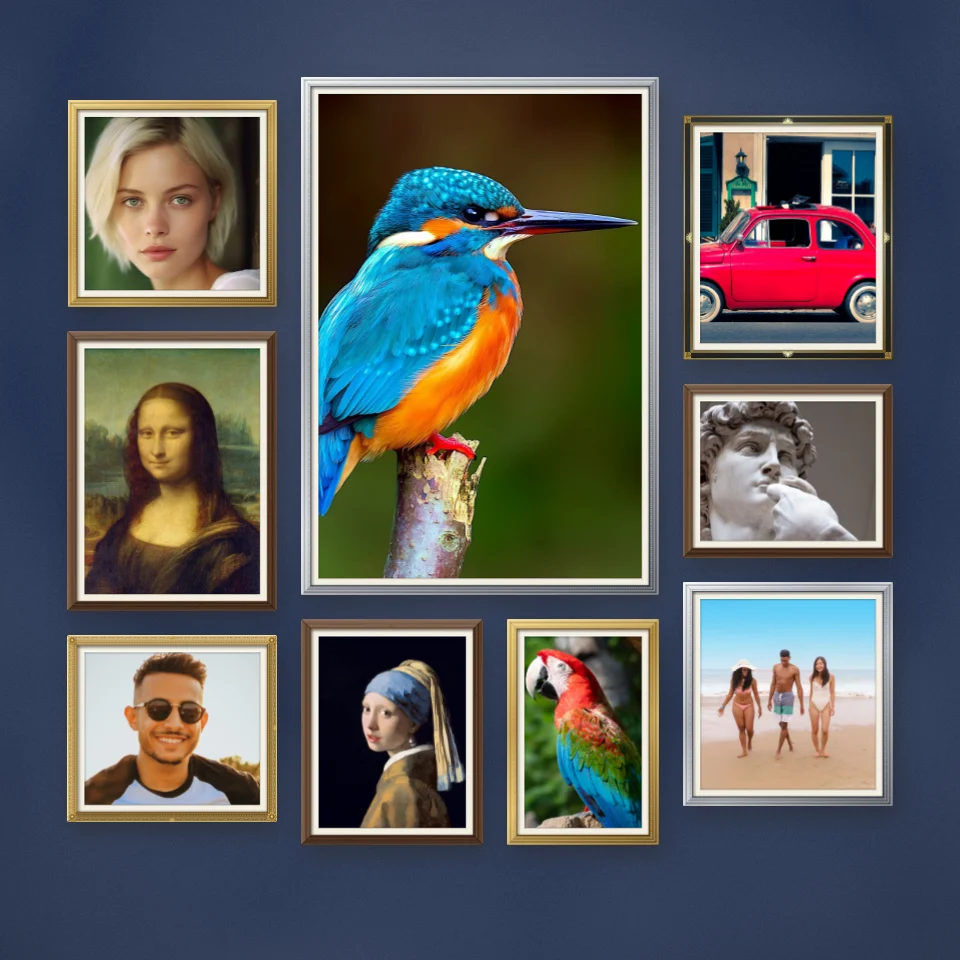
Photo wall collage
Make a photo wall collage free online with PictorX. Hang photos in Frame Maker frames on a gallery wall and export.
Ready to try it?
Open PictorX in your browser — no install, no credit card required to start.
Go to Editor