
Equation Maker
Build equations easily and insert them into your designs. Click the symbol buttons or type LaTeX, watch the equation typeset as you go, and save it as a picture for slides, worksheets, posters and social posts. Type an equation in LaTeX or build it with the buttons: fractions, roots, powers, sums, integrals, matrices and Greek letters. Pick a font, a color and a background, then save a PNG or insert it into a design in the editor.
How it works
- Type an equation in LaTeX, like \frac{a}{b} or x^2, or build it with the Basic, Advanced and Greek buttons.
- Pick a font, a color, a size and a background: grid paper, a notebook, a chalkboard, a whiteboard or transparent.
- Save a PNG, or open it in the PictorX editor and place it in your design.
Typeset like a textbook
Fractions get proper bars, roots stretch over what is under them, brackets grow with their contents, and sums and integrals carry their limits above and below. Spacing around plus, minus and equals signs follows the rules mathematicians use, so the equation reads the way it would in print.
From one formula to a worked solution
Write several lines with \\ and line them up at the equals sign with &, for step-by-step solutions. Matrices, cases, vectors, accents, set symbols and the whole Greek alphabet are one click away, and twenty famous equations are ready to start from.
Frequently asked questions
Do I need to know LaTeX?
No. Click the buttons to add fractions, roots, powers, symbols and Greek letters; they go in at the cursor, with an empty box to fill in. If you know LaTeX you can type it directly: \frac{a}{b}, x^2, \sqrt{x}, \sum and \int all work.
How do I put the equation in a slide or a design?
Set the background to Transparent and save a PNG, then drop it on a slide, a worksheet or a poster. Or open it in the PictorX editor, where Apps ▸ Text ▸ Equation Maker adds it as a layer on your design.
Can I write an equation over several lines?
Yes. Start a new line with \\. Put & before the equals sign on each line to line the lines up, as in a step-by-step solution.
Which fonts and colors can I use?
Serif fonts that look like a math textbook, clean sans-serif fonts, and handwritten fonts that suit a chalkboard. Any color works, and on a chalkboard or a blueprint the ink turns light by itself.
How do I write a piecewise function?
Use the cases button on the Advanced tab, or type \begin{cases} x & x \geq 0 \\ -x & x < 0 \end{cases}. Each row is one piece: & separates the value from its condition, and \\ starts the next row. Add words with \text{if }. The Absolute value example shows one.
Related tools

Chalk & Paint Wall
Draw and write on brick, concrete, wood, or tiles with chalk or a paint brush. Chalk skips the joints, paint drips. Save a PNG.

Poster Maker
Design posters and flyers in the PictorX editor: pick a layout, add your photo or a stock photo, a pattern background, shapes and editable text.
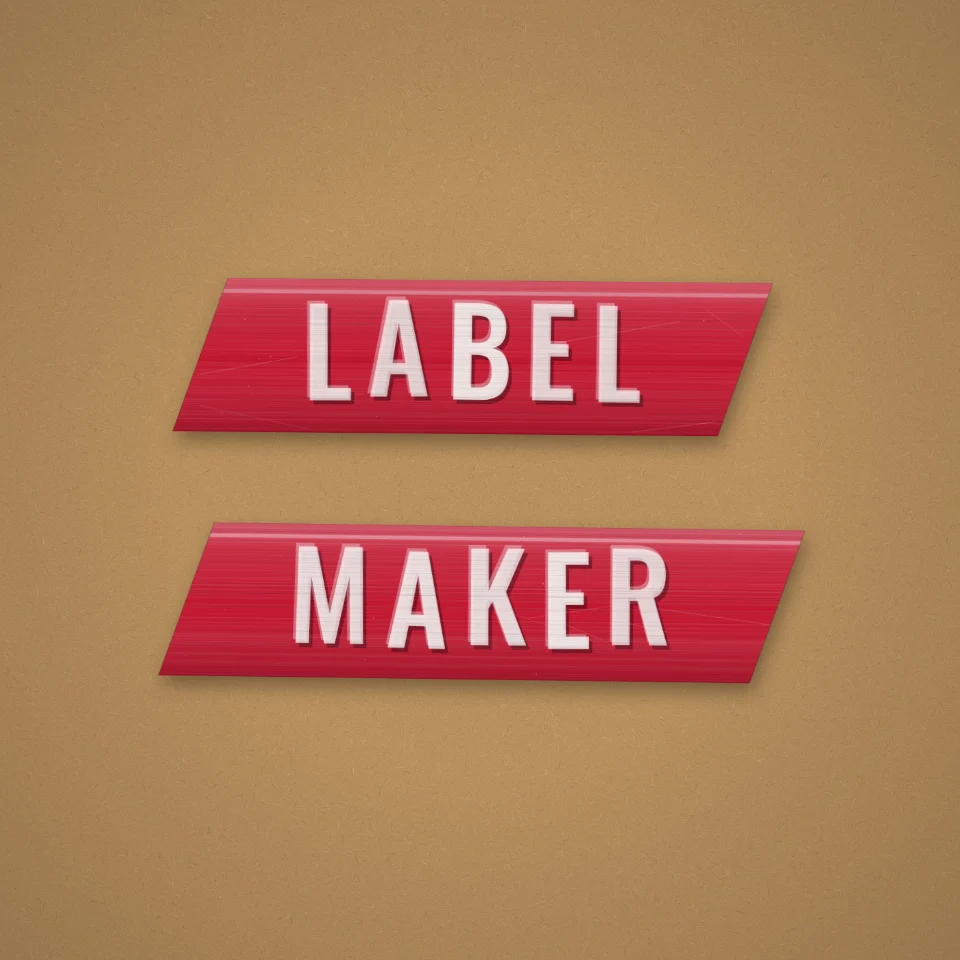
Label Maker
Make retro embossed label-maker tape online: raised white letters on red, black, blue, clear, or rainbow tape, stuck on kraft, wood, or metal. Save a PNG.
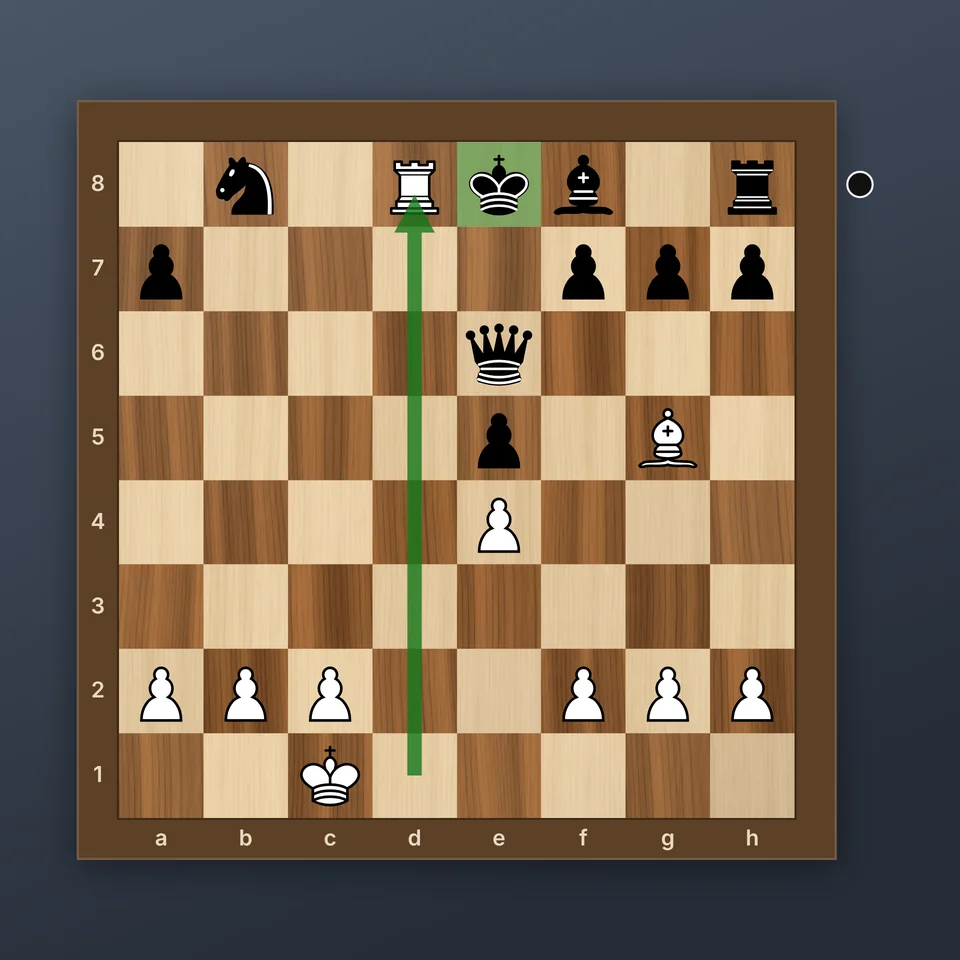
Chess diagram maker
Make a chess diagram online: paste a FEN or set up the pieces by hand, add arrows and marked squares, and save the board as a PNG or edit every piece as a layer. Free.
Ready to try it?
Open PictorX in your browser — no install, no credit card required to start.
Go to Editor